
Smartwatches have become essential companions in our daily lives—tracking fitness, delivering notifications, and keeping us connected without reaching for our phones. But nothing disrupts that seamless experience like a sudden disconnection between your smartwatch and phone. Whether it’s losing notifications, failing to sync data, or dropping connection mid-workout, frequent disconnections are frustrating and can undermine trust in your wearable tech.
The good news is that most disconnection issues stem from common, fixable causes. Bluetooth glitches, software bugs, interference, or outdated firmware can all contribute. This guide dives deep into the root causes of smartwatch disconnections and delivers practical, step-by-step solutions you can apply immediately—no technical expertise required.
Understanding the Connection: How Smartwatches Stay Paired
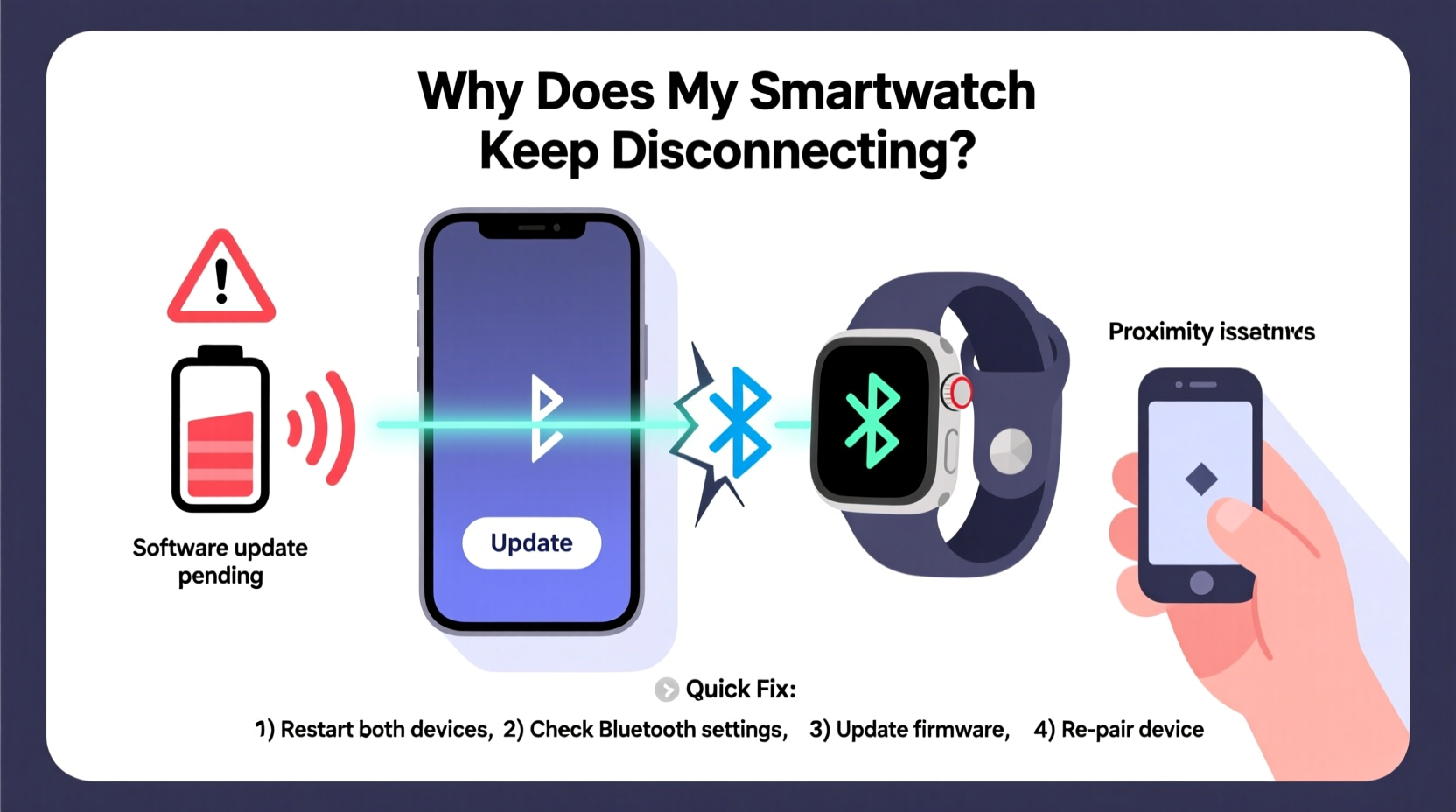
Most smartwatches rely on Bluetooth to maintain a constant link with your smartphone. When paired correctly, this wireless protocol allows real-time data transfer for calls, messages, health tracking, and app syncing. However, Bluetooth operates within limitations—range, signal strength, interference, and device compatibility all influence stability.
Your smartwatch typically connects via a companion app (like Wear OS by Google, Samsung Galaxy Wearable, or Apple Watch app). These apps manage pairing, permissions, background processes, and updates. If any part of this ecosystem falters—whether it’s the operating system, Bluetooth stack, or app settings—the connection may drop unexpectedly.
It's important to note that brief disconnections can be normal—for example, when moving out of Bluetooth range (usually 30 feet) or during temporary interference from microwaves or Wi-Fi routers. But if reconnection doesn’t happen automatically within seconds, there’s likely an underlying issue worth addressing.
Common Causes of Smartwatch Disconnections
Before jumping into fixes, identifying the cause helps target the right solution. Below are the most frequent culprits behind unstable smartwatch-phone connections:
- Bluetooth interference: Other wireless devices, thick walls, or metal objects can weaken signals.
- Outdated software: Old firmware on either device may contain unresolved bugs affecting connectivity.
- Background app restrictions: Battery-saving modes may kill the companion app in the background.
- Weak phone battery or low power mode: Some phones reduce Bluetooth performance when power is low.
- Overloaded Bluetooth cache: Accumulated pairing data can confuse the system.
- Incompatible OS versions: An updated watch may not work properly with an older phone OS, or vice versa.
- Physical obstructions: Distance, body position, or materials like water (during swimming) can block signals.
Step-by-Step Troubleshooting Guide
If your smartwatch frequently disconnects, follow this logical sequence of actions to diagnose and resolve the issue efficiently.
- Check Bluetooth Range and Obstacles
Ensure your phone and watch are within 30 feet with minimal barriers. Move closer and see if the connection restores. Avoid placing your phone in a bag or pocket lined with metal. - Restart Both Devices
A simple reboot clears memory leaks and resets network modules. Turn off your phone and smartwatch, wait 30 seconds, then power them back on. - Toggle Bluetooth Off and On
On your phone, disable Bluetooth for 10 seconds, then re-enable it. This forces a fresh handshake between devices. - Forget and Re-Pair the Device
Go to your phone’s Bluetooth settings, find your smartwatch, and select “Forget.” Then, use the companion app to pair it again as if it were new. - Update Software on Both Devices
Check for system updates on your phone and smartwatch. Outdated firmware is one of the top reasons for instability. - Disable Battery Optimization for Companion App
On Android, go to Settings > Apps > [Your Wearable App] > Battery > set to “Unrestricted.” This prevents the OS from closing the app in the background. - Reset Network Settings (Phone)
As a last resort, reset network settings on your phone. This clears all saved Wi-Fi, Bluetooth, and cellular configurations but often resolves persistent pairing issues.
Mini Case Study: Sarah’s Persistent Disconnect Issue
Sarah, a busy nurse, relied on her Samsung Galaxy Watch to receive call alerts during shifts. Over two weeks, she noticed frequent disconnections—sometimes multiple times per hour. She tried restarting both devices, but the problem returned quickly.
After reviewing her phone settings, she discovered that One UI had automatically enabled “Put unused apps to sleep” for the Galaxy Wearable app. Once she disabled this feature under Device Care > Battery > App Power Management, the disconnections stopped entirely. The fix took less than two minutes but restored full functionality.
This case highlights how modern battery optimization features, while helpful for saving power, can interfere with always-on services like smartwatch syncing.
Do’s and Don’ts When Fixing Connection Issues
| Do’s | Don’ts |
|---|---|
| Keep both devices charged above 20% during troubleshooting | Ignore software update notifications on either device |
| Use the official companion app for pairing and management | Try third-party Bluetooth tools that promise “better connections” |
| Ensure your phone isn’t in Airplane Mode or Do Not Disturb | Assume hardware failure without exhausting software fixes |
| Test the connection in different environments (home, office, outdoors) | Pair the watch with multiple phones simultaneously unless supported |
| Clear the Bluetooth cache on Android if re-pairing fails | Force restart the watch repeatedly without allowing time to reconnect |
“Many users overlook background app restrictions. Modern smartphones aggressively manage resources, which can inadvertently cut off critical background services like smartwatch synchronization.” — David Lin, Mobile Systems Engineer at WearTech Labs
Advanced Fixes for Stubborn Disconnections
If basic troubleshooting hasn’t resolved the issue, consider these deeper interventions.
Clear Bluetooth Cache (Android Only)
Over time, corrupted Bluetooth data can prevent stable pairing. To clear the cache:
- Go to Phone Settings > Apps.
- Tap the three-dot menu and select “Show system apps.”
- Find “Bluetooth” or “Bluetooth MIDI Service” and tap it.
- Select “Storage,” then “Clear Cache.”
- Restart your phone and re-pair your watch.
Factory Reset the Smartwatch
As a final software-based step, resetting the watch erases all settings and starts fresh. Be sure to back up health data if possible before proceeding. After reset, pair it again using the companion app.
Check for Known Compatibility Issues
Some smartwatches have documented issues with specific phone models or OS versions. For example:
- Wear OS watches occasionally struggle with certain Xiaomi or Huawei phones due to aggressive task killing.
- iPhones running older iOS versions may fail to maintain stable connections with newer Apple Watch models.
Visit the manufacturer’s support site and search for “[Your Phone Model] + smartwatch disconnection” to see if others report similar problems.
Troubleshooting Checklist
Use this checklist to methodically address disconnection issues:
- ✅ Are both devices charged above 20%?
- ✅ Is Bluetooth enabled on both devices?
- ✅ Have you restarted both phone and watch?
- ✅ Is the companion app updated to the latest version?
- ✅ Are system updates installed on both devices?
- ✅ Is battery optimization disabled for the wearable app?
- ✅ Have you forgotten and re-paired the device?
- ✅ Is there significant physical distance or interference?
- ✅ Have you cleared Bluetooth cache (Android)?
- ✅ Have you considered a factory reset of the watch?
Frequently Asked Questions
Why does my smartwatch disconnect when I leave the room?
Bluetooth has a limited range—typically 30 feet in open space. Walls, furniture, and even your body can weaken the signal. Brief disconnections when moving away are normal, but automatic reconnection should occur upon return. If it doesn’t, check background app settings or try re-pairing.
Can a phone case cause connection issues?
Yes. Cases with metal components, magnetic mounts, or thick shielding (like RFID-blocking wallets) can interfere with Bluetooth signals. Try removing the case temporarily to test signal strength.
My watch disconnects only during workouts. Why?
Sweat, motion, and arm positioning can affect signal transmission. Additionally, GPS activation during exercise increases internal processing load, which may momentarily delay Bluetooth responsiveness. Ensure your watch fits snugly but not too tight, and avoid wearing it over thick clothing.
Preventing Future Disconnections
Maintaining a stable connection requires ongoing attention. Here are habits to adopt:
- Schedule weekly reboots of both devices to clear memory and refresh connections.
- Enable auto-updates for the companion app and system software.
- Avoid placing your phone in metal-lined pockets or near other strong electromagnetic sources.
- Monitor app permissions after major OS updates, as settings may reset.
- Use Wi-Fi syncing when available—many watches can sync over Wi-Fi even when the phone is out of range.
Consistency is key. Just like maintaining a car, regular digital maintenance prevents small issues from becoming major disruptions.
Conclusion
Smartwatch disconnections are rarely a sign of hardware failure. In most cases, they stem from correctable software settings, environmental factors, or overlooked updates. By following the structured troubleshooting steps outlined here—from simple restarts to managing background restrictions—you can restore and maintain a reliable connection between your smartwatch and phone.
Take action today: run through the checklist, verify your app settings, and ensure both devices are up to date. A few minutes of maintenance now can save hours of frustration later. Your smartwatch is designed to make life easier—don’t let connectivity issues get in the way.




 浙公网安备
33010002000092号
浙公网安备
33010002000092号 浙B2-20120091-4
Comments
No comments yet. Why don't you start the discussion?