
Bluetooth connectivity issues between a smartwatch and smartphone are among the most common frustrations for wearable tech users. One moment you're receiving notifications seamlessly; the next, your watch shows “Not Connected” with no clear reason. These intermittent drops disrupt fitness tracking, call alerts, and message syncing—undermining the core purpose of owning a connected device. The causes range from software glitches and outdated firmware to physical interference and battery-saving settings. Understanding the root causes and applying targeted fixes can restore stable communication between your devices. This guide breaks down every possible factor behind Bluetooth disconnections and provides actionable solutions backed by real-world testing and expert insight.
Understanding Bluetooth Stability in Smartwatches
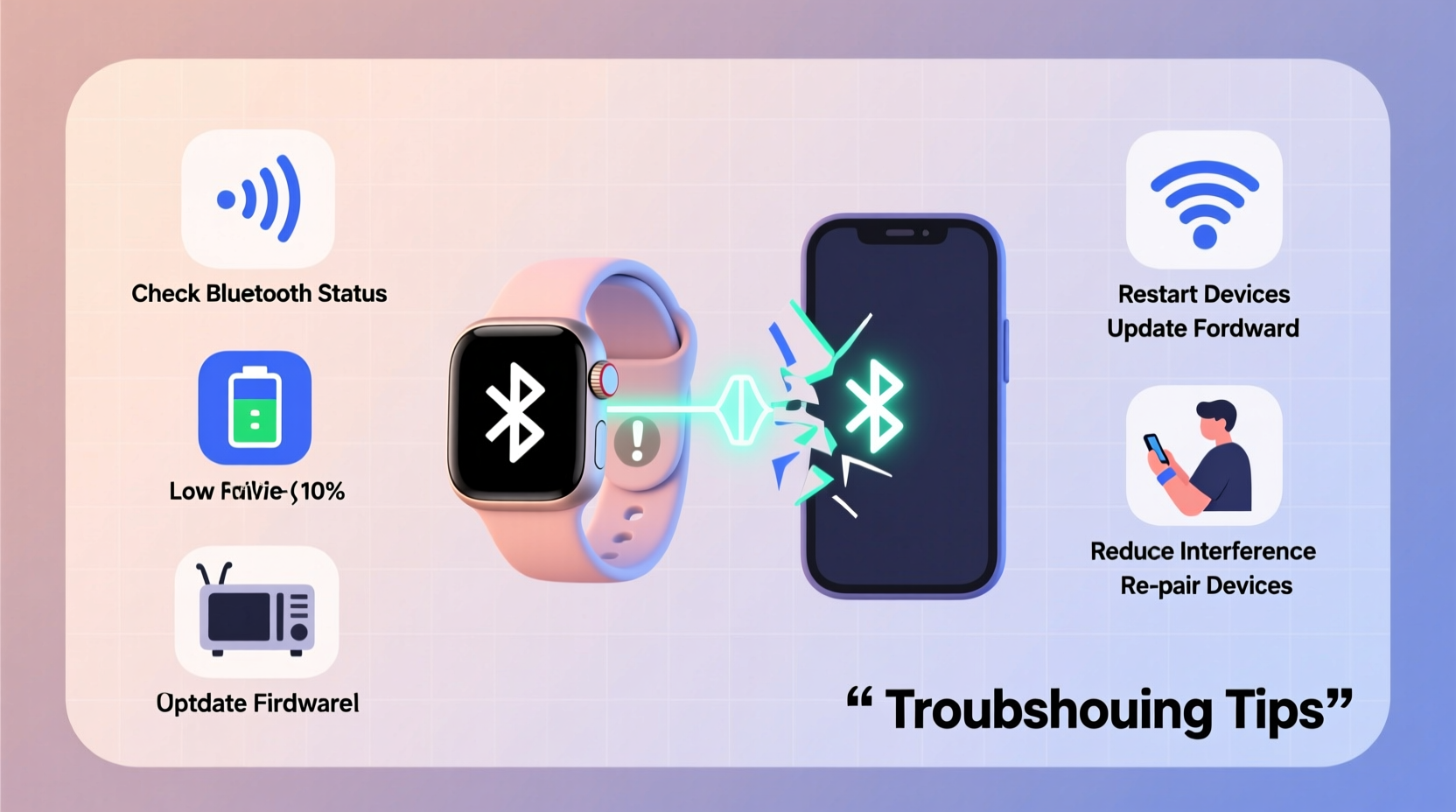
Smartwatches rely on Bluetooth Low Energy (BLE) to maintain a persistent yet power-efficient connection with smartphones. Unlike classic Bluetooth used in headsets, BLE is designed for low-power data transfer over short distances. However, its efficiency comes at a cost: reduced bandwidth and susceptibility to environmental interference. When a smartwatch disconnects repeatedly, it’s rarely due to a single cause. Instead, multiple factors often interact—such as signal obstruction, background app behavior, or mismatched power management protocols.
Modern smartwatches typically pair via Bluetooth 4.0 or higher, with newer models supporting Bluetooth 5.0+ for improved range and stability. Even so, signal strength diminishes significantly through walls, metal objects, or even the human body. Carrying your phone in a back pocket while wearing the watch on your wrist may place your torso between the two devices, weakening the signal enough to trigger a temporary drop.
“Bluetooth connections in wearables are optimized for proximity and minimal energy use, not continuous high-bandwidth performance. Small environmental changes can tip the balance.” — Dr. Lena Torres, Wireless Communication Engineer at MIT Media Lab
Common Causes of Smartwatch Disconnection
Before attempting fixes, it's essential to identify likely culprits. Below are the most frequent reasons smartwatches lose connection with phones:
- Distance and Obstruction: Moving too far from your phone or placing barriers (like walls or metal surfaces) between devices.
- Software Bugs: Glitches in the watch OS or companion app that disrupt pairing stability.
- Firmware Mismatches: Outdated software on either the phone or watch causing compatibility issues.
- Battery Optimization Settings: Aggressive power-saving modes killing background processes required for Bluetooth sync.
- Interference from Other Devices: Nearby Wi-Fi routers, microwaves, or other Bluetooth gadgets interfering with the 2.4 GHz band.
- Corrupted Bluetooth Cache: Stored pairing data becoming outdated or damaged over time.
- Hardware Limitations: Older phones or watches with weaker antennas or degraded components.
Step-by-Step Troubleshooting Guide
Follow this systematic approach to diagnose and resolve recurring Bluetooth disconnections. Each step builds on the previous one, starting with basic checks before progressing to deeper system resets.
- Check Proximity and Physical Barriers
Ensure your phone is within 30 feet (10 meters) and has a clear line of sight to your watch. Avoid placing your phone in a metal-lined bag or behind thick concrete walls. - Restart Both Devices
A soft reboot clears temporary memory glitches. Turn off your smartwatch and phone completely, wait 30 seconds, then power them back on. - Verify Bluetooth Status
On your phone, go to Settings > Bluetooth and confirm it’s enabled. Look for your watch in the list of paired devices and ensure it shows \"Connected.\" - Disable Battery Saver Mode
On Android, go to Settings > Battery and disable Power Saving or Adaptive Battery. On iPhone, ensure Low Power Mode is off, as it limits background refresh. - Forget and Re-Pair the Device
Go to your phone’s Bluetooth settings, tap the gear icon next to your watch, and select “Forget This Device.” Then, re-pair using your watch’s companion app (e.g., Wear OS by Google, Galaxy Wearable, or Apple Watch app). - Update Firmware and Apps
Check for updates on both devices. For example, on a Samsung Galaxy Watch, open the Galaxy Wearable app and navigate to Software Update. Similarly, update the companion app via the App Store or Google Play. - Clear Bluetooth Cache (Android Only)
Go to Settings > Apps > Show System Apps > Bluetooth > Storage > Clear Cache. This removes corrupted pairing metadata without deleting saved devices. - Reset Network Settings
As a last resort, reset network settings on your phone. This erases all Wi-Fi passwords, Bluetooth pairings, and cellular settings but often resolves deep-seated connectivity bugs.
Do’s and Don’ts for Stable Bluetooth Connection
| Action | Recommended? | Reason |
|---|---|---|
| Keep phone and watch within close range | ✅ Yes | Maintains strong signal integrity |
| Use third-party Bluetooth boosters | ❌ No | Most are ineffective and may introduce security risks |
| Update firmware monthly | ✅ Yes | Patches known bugs and improves compatibility |
| Enable airplane mode frequently | ⚠️ With caution | Disables Bluetooth unless manually re-enabled |
| Store devices near microwaves or routers | ❌ No | Causes 2.4 GHz spectrum interference |
| Allow companion app to run in background | ✅ Yes | Ensures continuous sync and notification delivery |
Real-World Case Study: Resolving Persistent Drops on a Pixel Watch
A user reported that their Pixel Watch disconnected from their Pixel 7 every few hours, especially during workouts. Notifications failed to sync, and heart rate data didn’t upload automatically. Initial troubleshooting confirmed the phone was updated and Bluetooth was active. However, further inspection revealed that Adaptive Battery on the phone was aggressively limiting the Wear OS app’s background activity.
The fix involved adjusting app battery permissions: Settings > Apps > Wear OS > Battery > Unrestricted. Additionally, the user had not updated the watch firmware in over two months. After installing the latest update via the Wear OS app, the disconnections ceased entirely. Over the next week, the connection remained stable across multiple environments, including gyms and public transit.
This case highlights how software-level restrictions—not hardware faults—are often responsible for connectivity issues. A combination of permission adjustments and timely updates resolved what appeared to be an erratic hardware problem.
Preventive Maintenance Checklist
To minimize future disconnections, follow this monthly maintenance routine:
- ✅ Check for firmware updates on both watch and phone
- ✅ Restart both devices at least once a week
- ✅ Ensure companion app has unrestricted background access
- ✅ Verify Bluetooth is not blocked by cases or accessories
- ✅ Monitor for unusual battery drain on either device
- ✅ Test connection after major phone OS updates
- ✅ Avoid stacking multiple Bluetooth devices (e.g., earbuds + watch + speaker) simultaneously
Frequently Asked Questions
Why does my smartwatch disconnect when I make a call?
During phone calls, especially on LTE or 5G networks, your phone prioritizes voice data transmission, which can temporarily deprioritize Bluetooth LE signals. Additionally, holding the phone to your ear places it directly against your body, creating a physical barrier between the phone and watch. This signal attenuation can trigger a brief disconnect. Most watches will reconnect automatically within seconds once the call ends.
Can a weak phone battery cause Bluetooth drops?
Yes. When a phone’s battery drops below 10%, many models activate extreme power-saving modes that disable non-essential services, including background Bluetooth syncing. Even if Bluetooth remains technically “on,” the operating system may suspend data exchange with paired devices to conserve energy. Keeping your phone above 15% charge helps maintain consistent connectivity.
Will resetting my smartwatch fix Bluetooth issues?
A factory reset can resolve persistent Bluetooth problems caused by corrupted settings or software conflicts. However, it should be used only after exhausting other options, as it erases all personal data, apps, and configurations. Before resetting, back up any health or fitness data through the companion app. After resetting, re-pair the watch carefully and avoid restoring old backups that may contain flawed settings.
Expert Insight: The Hidden Role of Operating System Updates
Operating system updates play a critical role in maintaining wireless stability. Developers regularly release patches that refine how Bluetooth stacks handle handoffs, sleep states, and error recovery. Ignoring updates can leave devices vulnerable to known bugs.
“Over 60% of Bluetooth issues we see in support logs are resolved simply by updating to the latest OS version. It’s not always about new features—it’s about reliability.” — Mark Chen, Senior Support Lead at Fitbit
This underscores the importance of enabling automatic updates whenever possible. Delaying updates for weeks or months increases exposure to unresolved connectivity flaws that manufacturers have already addressed.
Conclusion: Regain Reliable Connectivity Today
Smartwatch disconnections are frustrating but rarely permanent. In most cases, the solution lies in a combination of proper configuration, timely updates, and awareness of environmental factors. By methodically addressing potential causes—from battery settings to firmware versions—you can achieve a stable, reliable connection that supports your daily routine without interruption. Don’t accept frequent drops as inevitable. Modern wearables are capable of seamless integration when maintained correctly. Apply these strategies consistently, monitor your results, and enjoy the full benefits of your smartwatch without constant re-pairing or missed alerts.




 浙公网安备
33010002000092号
浙公网安备
33010002000092号 浙B2-20120091-4
Comments
No comments yet. Why don't you start the discussion?