
Smartwatches have become essential tools for fitness enthusiasts, offering real-time step tracking that helps users stay accountable to their daily activity goals. But nothing is more frustrating than checking your device at the end of the day only to find that hundreds—sometimes thousands—of steps are missing. You walked, you moved, you counted in your head, yet the numbers don’t match. This discrepancy isn't just a minor annoyance; it can affect motivation, goal tracking, and long-term progress.
The issue often lies in how the watch interprets motion data. While modern wearables use advanced accelerometers and gyroscopes, they're not infallible. Environmental factors, wearing habits, software glitches, and even algorithmic assumptions can all contribute to inaccurate step counts. The good news? Most of these problems are fixable with proper calibration and usage adjustments.
Why Step Tracking Goes Wrong
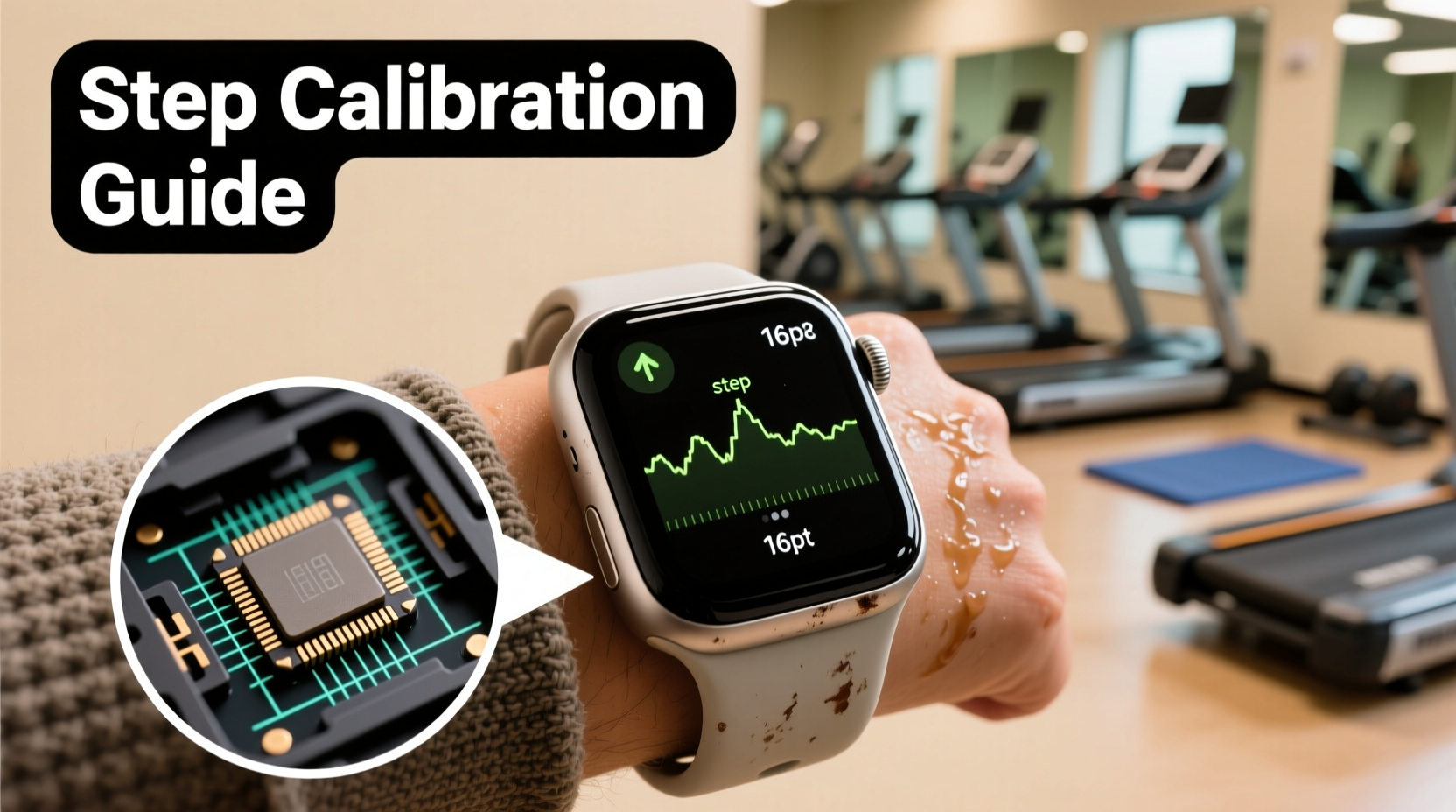
Step counting in smartwatches relies on motion sensors to detect arm swings and body movement patterns associated with walking or running. However, several factors can interfere with this process:
- Inconsistent Wearing Position: If you wear your watch too loosely, frequently take it off during walks, or switch wrists, the sensor may miss consistent motion cues.
- Arm Movement Variability: Pushing a stroller, carrying groceries, or typing while walking reduces natural arm swing—key input for many step algorithms.
- Poor Sensor Calibration: Factory defaults may not account for your unique gait, stride length, or movement style.
- Software Bugs or Sync Errors: Firmware bugs, delayed syncing, or app crashes can result in lost data between sessions.
- Overfiltering by Algorithms: To prevent false positives (like counting typing as steps), some watches filter out subtle movements—sometimes eliminating real steps.
“Many users assume their smartwatch tracks steps like a pedometer from 20 years ago. But today’s devices rely on complex machine learning models trained on average gaits. When your movement diverges from the norm, accuracy drops.” — Dr. Lena Torres, Biomechanics Researcher at Stanford Wearable Lab
How to Calibrate Your Smartwatch for Accurate Steps
Calibration improves how well your smartwatch understands your personal movement patterns. While methods vary slightly across brands, the core principles remain consistent. Below is a universal guide applicable to most major platforms including Apple Watch, Samsung Galaxy Watch, Fitbit, Garmin, and Wear OS devices.
Step-by-Step Guide to Calibration
- Enable Location Services and Motion Access: Ensure GPS and motion calibration permissions are granted in your phone’s settings. Without access, the watch cannot refine its data using contextual clues.
- Measure Your Stride Length Accurately: Walk 10 normal steps on flat ground, measure the total distance in feet or meters, then divide by 10. For example, if you cover 30 feet in 10 steps, your stride is 3 feet (91 cm).
- Enter Manual Data Into Companion App: Open your wearable’s app (e.g., Apple Health, Google Fit, Samsung Health) and navigate to profile settings. Input your height, weight, and manually measured stride length.
- Perform an Outdoor Calibration Walk: Put on your watch securely, start a walk workout mode, and walk briskly for at least 15–20 minutes outdoors. Avoid holding anything—let your arms swing naturally. Use GPS-tracked routes so the system correlates satellite movement with sensor data.
- Repeat Under Different Conditions: Repeat the calibration walk at different speeds (slow, moderate, fast) over multiple days. This trains the algorithm to recognize your gait variations.
- Update Firmware Regularly: Manufacturers release updates that improve sensor logic and fix known tracking issues. Keep both your watch and paired phone updated.
Device-Specific Calibration Tips
Different brands handle calibration differently. Understanding platform-specific quirks can make a big difference.
| Brand | Calibration Method | Key Notes |
|---|---|---|
| Apple Watch | Uses “Walking + Running” calibration via Workout app; requires outdoor GPS walk | Does not allow manual stride input. Relies entirely on GPS-correlated motion learning. |
| Samsung Galaxy Watch | Allows manual stride entry in Samsung Health & uses auto-learning from outdoor workouts | Best results when combined with Bixby Routines for consistent wear detection. |
| Fitbit | Auto-calibrates using heart rate + motion fusion; allows manual height/weight input | Less effective without continuous heart rate monitoring enabled. |
| Garmin | Supports full manual calibration, VO2 max estimation, and dynamic stride adjustment with GPS | Most accurate among consumer wearables due to multi-sensor fusion and sports science integration. |
| Wear OS (Google) | Limited built-in calibration; depends heavily on Google Fit and third-party apps | Use apps like Pacer or StepsApp for enhanced calibration features. |
Common Mistakes That Cause Step Loss
Even with perfect hardware, user behavior often undermines accurate tracking. Here are the most common pitfalls—and how to avoid them.
- Wearing the Watch Too Loose: A loose fit causes micro-sliding on the wrist, dampening motion signals. Wear it snug but comfortable—one finger should fit underneath the band.
- Using Treadmills Without Calibration: Indoor treadmills lack GPS, forcing reliance on motion sensors alone. Many watches undercount unless previously calibrated outdoors.
- Turning Off Wrist Detection: Some watches pause tracking if they think they’ve been removed. Keep wrist detection active unless medically necessary to disable.
- Ignoring Sync Delays: Data may appear delayed due to Bluetooth disconnection. Manually sync your watch after prolonged walks if steps aren’t updating.
- Relying Solely on Wrist-Based Tracking During Cycling or Wheelchair Use: These activities produce minimal arm movement. Consider enabling \"Other Workouts\" or using foot pods for non-walking activities.
Real-World Example: Sarah’s Missing Morning Commute Steps
Sarah, a 34-year-old project manager, noticed her Apple Watch consistently undercounted steps during her 30-minute walk to work. She averaged 4,000 steps according to her own count, but her watch logged only 2,800. Confused and demotivated, she almost gave up on tracking altogether.
After researching, she realized she was carrying her laptop bag in one hand and her coffee in the other—limiting arm swing. She also wore her watch lower on her wrist to avoid chafing. Both behaviors reduced sensor input.
She adjusted: wearing the watch higher on her dominant wrist, leaving her bag at home one morning to test natural arm movement, and starting a “Walk” workout before leaving. The next day, her step count jumped to 3,900—much closer to reality. She now alternates between backpack use and calibration walks every few weeks to maintain accuracy.
Checklist: Optimize Your Smartwatch Step Accuracy
Follow this checklist monthly or whenever you notice inconsistencies:
- ✅ Measure and update your stride length in the companion app
- ✅ Perform a 20-minute outdoor calibration walk at a steady pace
- ✅ Ensure the watch fits snugly on your wrist (not too tight)
- ✅ Confirm GPS, motion, and health permissions are enabled
- ✅ Update watch and phone firmware to latest versions
- ✅ Test accuracy during varied activities (carrying bags, pushing strollers)
- ✅ Sync your device immediately after long walks if steps seem low
- ✅ Re-calibrate after significant weight changes or new footwear
Frequently Asked Questions
Can I manually add steps to my smartwatch?
Yes, most platforms allow manual entry. In Apple Health, tap “Health Data,” go to “Activity” > “Steps,” and use “Add Data.” On Google Fit and Samsung Health, look for “Add Entry” options. However, manual entries don’t improve future tracking—they’re just corrections.
Why does my smartwatch count steps when I’m not walking?
This usually happens due to repetitive motions like driving over bumps, typing vigorously, or shaking your hands. Modern watches reduce this with AI filters, but no system is perfect. If false positives persist, recalibrate and ensure motion sensitivity isn’t set too high.
Do I need GPS turned on all the time for accurate steps?
No. GPS enhances outdoor calibration and route mapping but isn’t required for basic step counting. Accelerometers handle most indoor tracking. However, periodic GPS-assisted walks significantly improve long-term accuracy by teaching the device your true pace and stride.
Final Thoughts: Take Control of Your Data
Your smartwatch is only as accurate as the data you give it—and the way you use it. Step loss isn’t inevitable. It’s a signal that the device needs better context about your body, your habits, and your environment. By taking a proactive approach to calibration, wearing consistency, and understanding the limitations of sensor technology, you can dramatically improve tracking reliability.
Don’t accept inaccuracies as normal. Recalibrate regularly, especially after lifestyle changes like new shoes, weight shifts, or altered routines. Treat your wearable like a fitness partner—not just a passive counter. With small adjustments, you’ll gain confidence in your numbers and, more importantly, in your progress.




 浙公网安备
33010002000092号
浙公网安备
33010002000092号 浙B2-20120091-4
Comments
No comments yet. Why don't you start the discussion?