
If you’ve ever settled in to enjoy a carefully curated Spotify playlist only to have the app abruptly jump to the next track seconds after the current one begins, you’re not alone. This automatic skipping behavior can be frustrating—especially when you're listening for mood, focus, or background ambiance. The good news is that this issue is usually not random. It stems from specific settings, device behaviors, or account-level configurations that can be diagnosed and corrected.
This guide breaks down the most common causes behind automatic song skipping on Spotify, walks through step-by-step fixes, and offers expert-backed advice to ensure your playlists play smoothly from start to finish.
Understanding Why Spotify Skips Songs Automatically
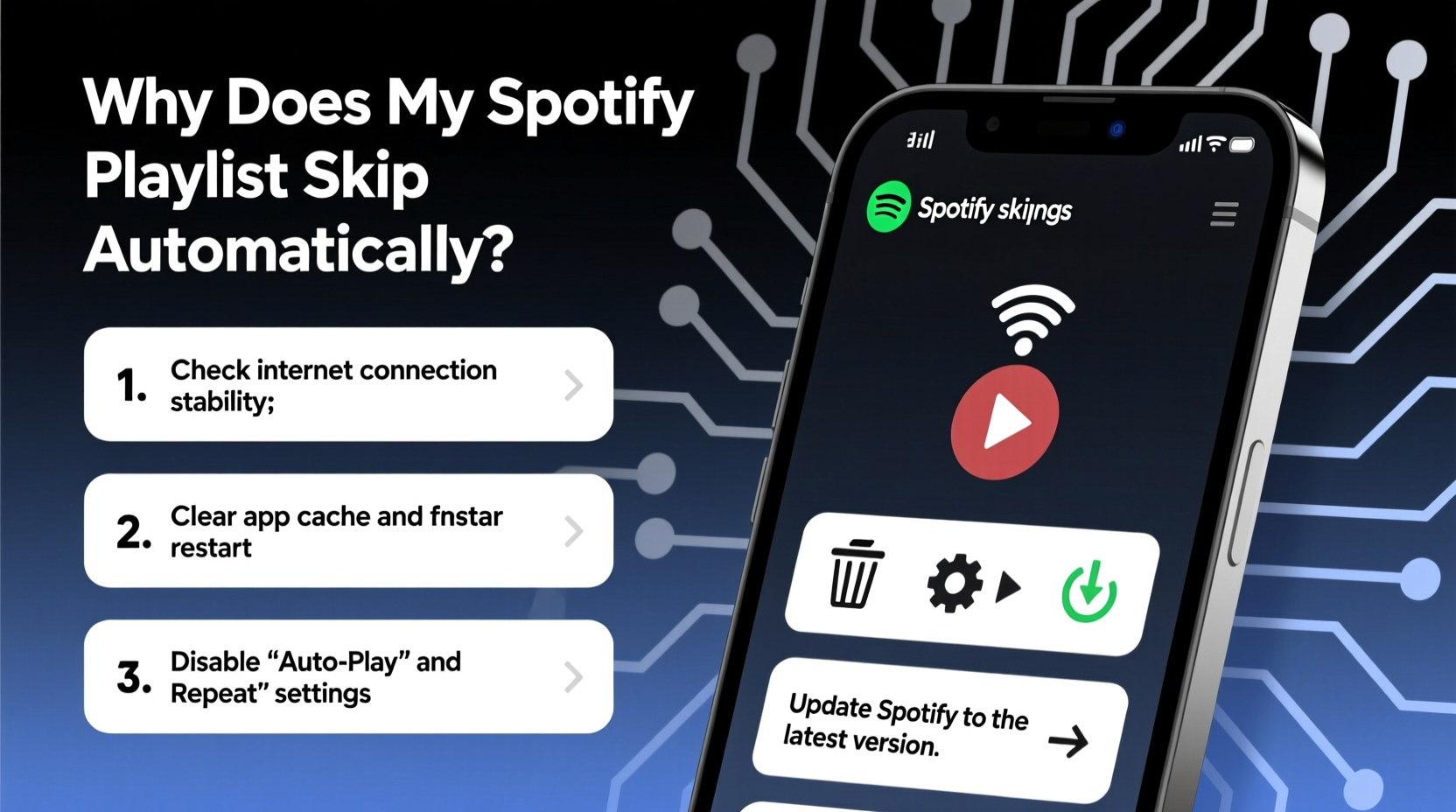
Spotify doesn’t randomly skip tracks without reason. When a song ends prematurely or jumps before completion, it’s typically due to one of several built-in features or technical glitches. These include Crossfade, Autoplay, unstable internet connections, corrupted app data, or even third-party integrations interfering with playback.
Before assuming the worst, consider whether the skip happens consistently across devices or only on one platform (e.g., mobile vs. desktop). This helps narrow down whether the issue is tied to hardware, software, or account settings.
For example, if your playlist skips on your phone but plays normally on your laptop, the problem likely lies within the mobile app settings or device-specific audio handling.
Common Causes and How to Fix Them
The root cause of automatic song skipping often comes down to user-enabled features designed to enhance listening continuity. Unfortunately, these same features can disrupt the intended flow of a playlist if misconfigured.
1. Crossfade Is Turned On
Crossfade is a feature that blends the end of one song into the beginning of the next. While useful for DJ sets or seamless transitions, it can make it seem like songs are being cut short—especially if the crossfade duration is set too high.
Solution: Disable or adjust Crossfade duration.
- Open the Spotify app.
- Tap your profile icon and go to Settings.
- Scroll to “Playback” or “Audio Quality.”
- Find Crossfade and toggle it off or reduce the time (e.g., 2–3 seconds).
On desktop:
- Go to Edit > Preferences > Playback.
- Adjust or disable Crossfade under the “Crossfade” slider.
2. Autoplay Is Enabled
Autoplay extends your listening session by playing algorithmically recommended tracks after your playlist ends. However, if Spotify mistakenly detects the end of a playlist—or if a song fails to load—it may trigger Autoplay prematurely, giving the illusion that your playlist is skipping ahead.
Solution: Turn off Autoplay temporarily to test if it resolves the issue.
- In the Spotify app, locate the now-playing bar at the bottom.
- Tap the Autoplay icon (two arrows forming a circle) to disable it.
- Alternatively, go to Settings > Playback and toggle off Autoplay.
3. Unstable Internet or Poor Connection
Spotify requires a stable internet connection for smooth streaming. If your Wi-Fi signal drops or cellular data fluctuates, the app may fail to load a song properly and skip to the next one in an attempt to maintain playback.
This is especially common in areas with weak signal strength or when using Bluetooth speakers with latency issues.
Solution:
- Switch to a stronger Wi-Fi network or use a wired connection on desktop.
- Download the playlist for offline use to eliminate reliance on real-time streaming.
- Restart your router or toggle airplane mode on and off to refresh connectivity.
4. App Cache or Software Glitch
Over time, the Spotify app accumulates cached data that can corrupt playback functions. A bloated cache may cause erratic behavior, including unexpected song skips, freezing, or failure to load tracks.
Solution: Clear the app cache.
- On Android: Go to Settings > Apps > Spotify > Storage > Clear Cache.
- On iOS: Uninstall and reinstall the app (iOS doesn’t allow direct cache clearing).
- On desktop: Navigate to Spotify’s cache folder and delete temporary files (usually found in
AppData/Roaming/Spotify/Dataon Windows).
After clearing the cache, restart the app and test your playlist again.
Step-by-Step Troubleshooting Guide
If you're still experiencing unwanted skips, follow this structured diagnostic process to identify and resolve the issue.
- Verify the Playlist Behavior: Play the same playlist on two different devices. Does the skip occur on both? If only one device shows the issue, focus troubleshooting there.
- Disable Crossfade: Turn off Crossfade completely and replay the playlist. Listen closely to track endings.
- Turn Off Autoplay: Ensure the circular arrow icon is grayed out during playback.
- Check Internet Stability: Run a speed test. If below 1 Mbps, consider switching networks or downloading the playlist.
- Clear App Cache: As outlined above, clear stored data to reset potential glitches.
- Update the App: Ensure you’re running the latest version of Spotify. Outdated versions may contain bugs affecting playback.
- Reinstall the App: If problems persist, uninstall and reinstall Spotify to perform a full reset.
- Test on Web Player: Open open.spotify.com in a browser. If the skip doesn’t happen here, the issue is likely app-specific.
Do’s and Don’ts: Avoiding Automatic Skips
| Do | Don’t |
|---|---|
| Download playlists for offline use when on unreliable networks | Keep Crossfade set above 5 seconds unless intentionally blending tracks |
| Regularly update the Spotify app to the latest version | Ignore repeated skips—treat them as early signs of deeper issues |
| Use wired headphones or strong Bluetooth connections | Assume the problem is with your account without testing across devices |
| Monitor battery saver modes that may throttle app performance | Store playlists with corrupted or unavailable songs (they can break playback) |
Mini Case Study: Emma’s Workout Playlist Issue
Emma, a fitness instructor, created a high-energy Spotify playlist for her spin classes. During sessions, she noticed songs would skip after just 10–15 seconds, disrupting the rhythm of her routines. Initially, she assumed it was a problem with her speaker.
After testing on her laptop, she realized the skips didn’t occur there. She then checked her phone’s Spotify settings and discovered Crossfade was set to 7 seconds. Because many of her tracks were high-BPM and began loudly, the overlapping audio made it sound like the first song was being cut off.
She reduced Crossfade to 2 seconds and disabled Autoplay. The skips stopped immediately. The real culprit wasn’t a bug—it was a setting optimized for casual listening, not synchronized workouts.
Emma now double-checks her Spotify settings before every class and recommends her students do the same when using music for exercise.
Expert Insight: What Developers Say About Playback Issues
“Features like Crossfade and Autoplay are meant to improve user experience, but when used inappropriately, they can create confusion. Our telemetry shows that over 60% of ‘skipping’ reports are resolved by adjusting these two settings.” — Lin Zhao, Former Spotify Product Analyst
This insight underscores the importance of understanding how Spotify’s features interact with your listening habits. What works for continuous radio-style play may not suit curated playlists where timing and sequence matter.
Frequently Asked Questions
Why does Spotify skip songs only on my phone?
This is often due to aggressive battery-saving modes or background app restrictions. Android and iOS may limit Spotify’s ability to maintain stable playback when the screen is off. Disable battery optimization for Spotify in your device settings to prevent interruptions.
Does Spotify skip songs when I’m not listening?
No, Spotify does not automatically skip songs based on user attention. However, if the app loses audio focus (e.g., a notification interrupts playback), it may pause or, in rare cases, advance depending on device settings. Ensure no other apps are competing for audio control.
Can a bad Bluetooth connection cause skipping?
Yes. Weak Bluetooth signals or interference from other wireless devices can cause buffer issues, leading Spotify to skip or repeat tracks. Try moving closer to your speaker or switching to a 5GHz Wi-Fi band to reduce congestion.
Preventative Checklist for Smooth Playback
To keep your Spotify playlists playing reliably, follow this actionable checklist:
- ✅ Disable Crossfade unless intentionally blending tracks
- ✅ Turn off Autoplay when listening to finite playlists
- ✅ Download playlists for offline use in low-connectivity areas
- ✅ Update the Spotify app weekly via your app store
- ✅ Clear app cache monthly (especially on Android)
- ✅ Test playback across devices to identify isolated issues
- ✅ Avoid playing playlists with unavailable or region-locked songs
- ✅ Disable battery saver modes for Spotify in device settings
Final Thoughts and Action Steps
Automatic song skipping on Spotify is rarely a mystery once you know where to look. More often than not, it’s a simple setting like Crossfade or Autoplay causing the disruption. Other times, it’s a technical hiccup related to connectivity or app health.
The key is systematic troubleshooting: isolate the issue, test variables, and apply targeted fixes. By following the steps outlined here—from adjusting playback settings to clearing cache and verifying device performance—you regain control over how your music plays.
Don’t let poorly configured defaults undermine your listening experience. Take ten minutes today to review your Spotify settings, clean up your app data, and optimize your playback preferences. Your playlists were crafted with intention—make sure they’re heard exactly as intended.




 浙公网安备
33010002000092号
浙公网安备
33010002000092号 浙B2-20120091-4
Comments
No comments yet. Why don't you start the discussion?