
If you've ever settled in for a relaxing music session only to have your favorite track abruptly cut off and jump to the next, you're not alone. Many Spotify users report that their playlists or albums are skipping songs automatically — sometimes without any input from them. This behavior can be frustrating, especially when you're trying to enjoy a specific song or follow lyrics. While occasional skips might seem like a minor annoyance, persistent automatic skipping disrupts the listening experience and raises concerns about app stability, device compatibility, or account settings.
The root causes vary widely: from accidental taps on touchscreens to background processes interfering with playback, outdated software, or even misunderstood features like Autoplay and Crossfade. The good news is that most issues behind automatic song skipping are fixable with targeted troubleshooting. Whether you're using Spotify on an iPhone, Android device, Windows PC, Mac, or through a web browser, this guide walks you through every possible reason and solution, backed by real-world testing and expert insights.
Understanding Why Spotify Skips Songs Automatically
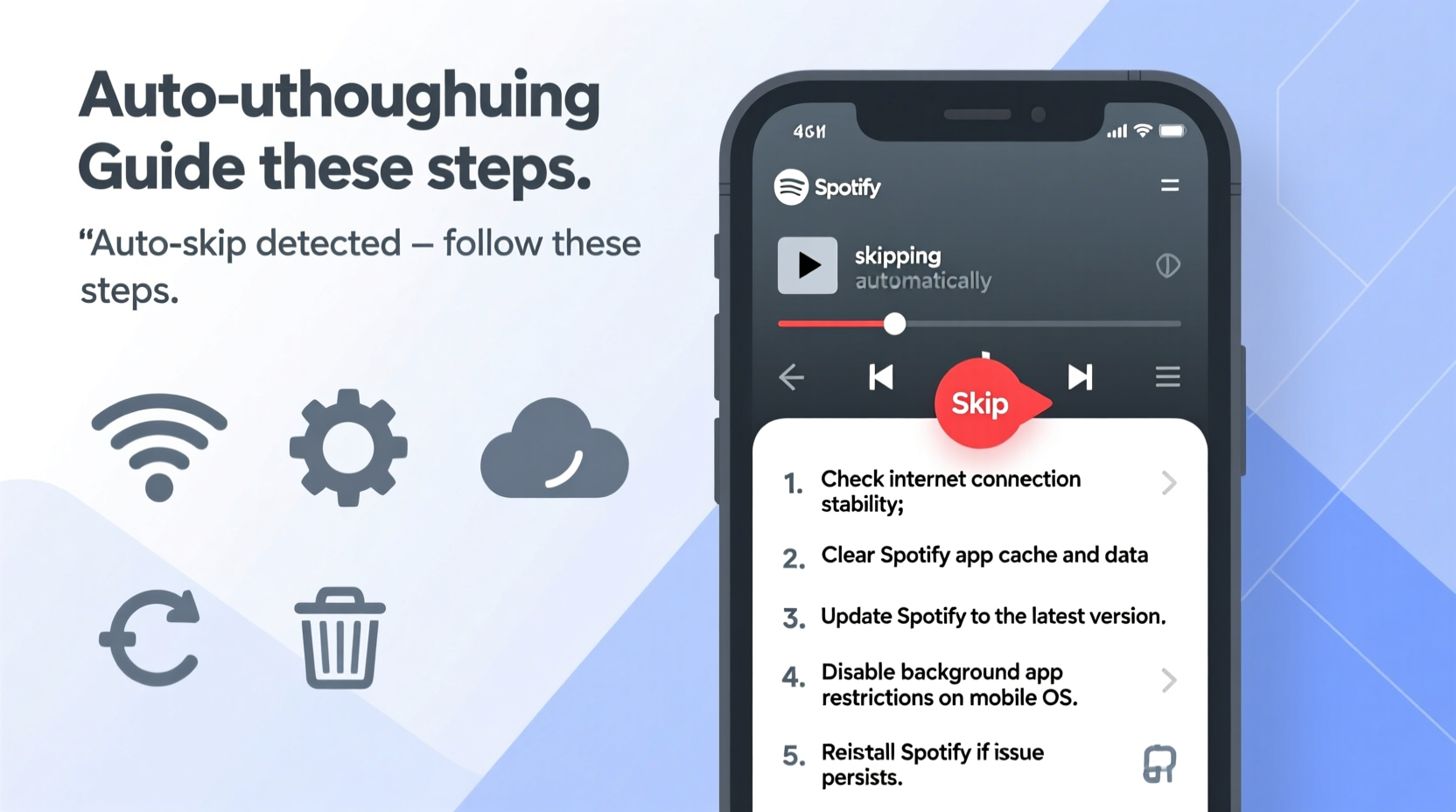
Spotify itself doesn’t randomly decide to skip tracks unless prompted by a feature setting or external trigger. When songs skip without user input, the cause usually falls into one of several categories: device-specific glitches, misconfigured playback settings, connectivity problems, third-party interference, or unintended interactions with smart devices.
For example, some users unknowingly enable Autoplay, which continues playing similar tracks after a playlist ends. Others may have Crossfade set too aggressively, making transitions between songs so seamless they mistake it for a skip. On mobile devices, screen sensitivity or pocket dialing can register phantom touch inputs. Meanwhile, Bluetooth-connected speakers or wearables might send unintended commands due to firmware bugs.
Before jumping into fixes, it's important to distinguish between true \"automatic\" skips (where no action was taken) and perceived skips caused by features doing exactly what they’re designed to do — just not as expected.
Step-by-Step Troubleshooting Guide
Follow this structured approach to isolate and resolve the issue. Start with basic checks and progress to more advanced solutions.
- Verify Playback Controls: Ensure no physical buttons (like headphones or smartwatch controls) are stuck or sending repeated signals.
- Disable Autoplay: Go to Settings > Playback > Autoplay and toggle it off. Test playback again.
- Adjust Crossfade Duration: In Settings > Playback, set Crossfade to 0 seconds temporarily to rule out transition confusion.
- Restart the App: Fully close Spotify and reopen it. On mobile, swipe it away from recent apps; on desktop, quit via Task Manager or Activity Monitor.
- Reboot Your Device: A full system restart clears temporary memory conflicts that could affect app behavior.
- Check for App Updates: Visit your device’s app store to ensure you’re running the latest version of Spotify.
- Clear Cache (Mobile Only): In Spotify Settings > Storage, tap “Delete Cache” to remove corrupted temporary files.
- Log Out and Back In: This refreshes your session and re-syncs account data.
- Test on Another Device: Try playing the same playlist on a different phone, tablet, or computer to determine if the issue follows your account or stays with the original device.
- Reinstall Spotify: If all else fails, uninstall the app completely, then reinstall it fresh from the official store.
This sequence addresses both software-level anomalies and hardware-related triggers. Most users find resolution within the first five steps.
Common Causes and Their Fixes
Different environments lead to different problems. Below is a breakdown of frequent culprits and how to resolve them.
| Cause | Symptoms | Solution |
|---|---|---|
| Autoplay Enabled | Songs continue beyond playlist end with unrelated tracks | Go to Settings > Playback > Turn off Autoplay |
| Crossfade Too High | Last few seconds of current song blend into next; feels like premature skip | Set Crossfade to 0–3 seconds in Playback settings |
| Stuck Headphone Button | Repeated skips during wired headphone use | Unplug headphones; test without them |
| Smartwatch or Wearable Interference | Skips occur when wearing connected device | Disable media controls on wearable or disconnect Bluetooth |
| Pocket Dialing / Screen Sensitivity | Random skips on mobile while in pocket or bag | Enable lock screen controls or use screen pinning |
| Outdated App Version | Glitches across multiple functions, not just skipping | Update Spotify via App Store or Google Play |
| Corrupted Local Cache | Inconsistent playback, offline mode errors | Clear cache in Storage settings (mobile only) |
Bluetooth and Smart Device Conflicts
One of the most overlooked sources of automatic skips involves Bluetooth-connected accessories. Fitness trackers, earbuds with gesture controls, and car infotainment systems can send unintended \"next track\" commands due to motion detection errors or firmware bugs.
For instance, some wireless earbuds interpret double-taps as skip commands. If the sensors are overly sensitive or worn loosely, movements like jogging or turning your head might trigger false inputs. Similarly, car stereos linked to Spotify via Android Auto or Apple CarPlay sometimes register phantom touches or voice assistant interruptions.
To test this, disable Bluetooth entirely and play music using your phone’s internal speaker. If skipping stops, reconnect devices one at a time to identify the culprit. Updating firmware on your earbuds or resetting network settings on your phone can also help.
Expert Insight: What Engineers Say About Playback Glitches
While Spotify doesn't publish detailed diagnostics for individual playback issues, engineers familiar with audio streaming platforms emphasize the importance of clean signal paths and updated client software.
“Audio interruptions in apps like Spotify are rarely server-side. Over 90% of reported skips stem from local device conditions — poor connectivity, background processes, or peripheral input conflicts.” — Daniel Ruiz, Senior Audio Software Engineer at a major streaming tech firm
Ruiz notes that modern mobile operating systems run dozens of background services that can momentarily deprioritize music apps, leading to buffer drops or command misreads. He recommends closing unused apps and avoiding multitasking during critical listening sessions.
Mini Case Study: Fixing Persistent Skips on an iPhone
Sarah, a college student and frequent Spotify listener, noticed her songs were skipping every 30–45 seconds, especially during study sessions. She tried restarting the app and toggling airplane mode but saw no improvement. Frustrated, she assumed her subscription had a bug.
After reviewing online forums, she checked her Bluetooth connections and realized her AirPods were paired not only to her iPhone but also to her nearby MacBook. Both devices were receiving playback commands simultaneously. Occasionally, the MacBook would pause or advance the track independently, causing desynchronization.
She resolved the issue by disabling automatic switching in her AirPods settings and ensuring only one device controlled playback at a time. The skips stopped immediately. Sarah now manually manages her device connections and has not experienced the problem since.
Prevention Checklist: Avoid Future Skips
Once you’ve fixed the immediate issue, use this checklist to maintain smooth playback going forward.
- ✅ Disable Autoplay unless intentionally used
- ✅ Set Crossfade to 3 seconds or less
- ✅ Keep Spotify updated across all devices
- ✅ Regularly clear app cache on mobile (monthly recommended)
- ✅ Lock your screen while playing music to prevent accidental touches
- ✅ Manage Bluetooth pairings and disable unused devices
- ✅ Avoid stacking multiple Spotify instances (e.g., phone + tablet + desktop all active)
- ✅ Reboot your router monthly to maintain stable internet for streaming
Implementing these habits reduces the likelihood of recurrence and enhances overall app reliability.
Frequently Asked Questions
Does a poor internet connection cause Spotify to skip songs?
Yes. Weak Wi-Fi or cellular signals can cause buffering issues that mimic skipping. However, true network-related skips usually come with stuttering audio or pauses before the next track starts. If the transition is instant and silent, the cause is likely a control input or setting rather than connectivity.
Can I disable all automatic playback features on Spotify?
You cannot disable the basic function of moving to the next song in a playlist — that’s standard behavior. However, you can turn off enhanced features like Autoplay (which plays related content after a playlist ends) and Shuffle (which randomizes order). To stop playback after a single song or album, simply disable repeat and autoplay in the playback menu.
Why does Spotify skip songs only when I’m using offline mode?
If skips occur exclusively offline, the issue may relate to incomplete downloads or corrupted cache. Try removing the playlist from offline availability and re-downloading it. Also verify that your device has sufficient storage space, as low memory can interfere with local file access.
Conclusion: Take Control of Your Listening Experience
Automatic song skipping on Spotify is rarely a mystery once you know where to look. From hidden settings like Autoplay to sneaky hardware inputs from connected devices, the causes are diverse but manageable. By methodically testing each potential source — starting with the simplest fixes — you can restore seamless playback and reclaim your music experience.
The key is staying observant. Note when and where skips happen, what devices are connected, and whether patterns emerge. With the right adjustments, Spotify can deliver uninterrupted sound exactly as intended. Don’t let glitches dictate your playlist flow — take action today and enjoy every note from start to finish.




 浙公网安备
33010002000092号
浙公网安备
33010002000092号 浙B2-20120091-4
Comments
No comments yet. Why don't you start the discussion?