
Streaming services have transformed how we consume entertainment, offering instant access to movies, shows, and live events. But nothing disrupts the experience faster than constant buffering—especially when you're certain your internet speed should be more than enough. You've paid for a high-speed plan, run a speed test that confirms strong download rates, yet your screen still freezes every few minutes. This frustrating disconnect between expectation and reality is more common than you think. The truth is, internet speed is just one piece of the puzzle. A range of hidden factors—from Wi-Fi interference to device limitations—can sabotage your stream, even on a gigabit connection.
Understanding the Difference Between Speed and Stability
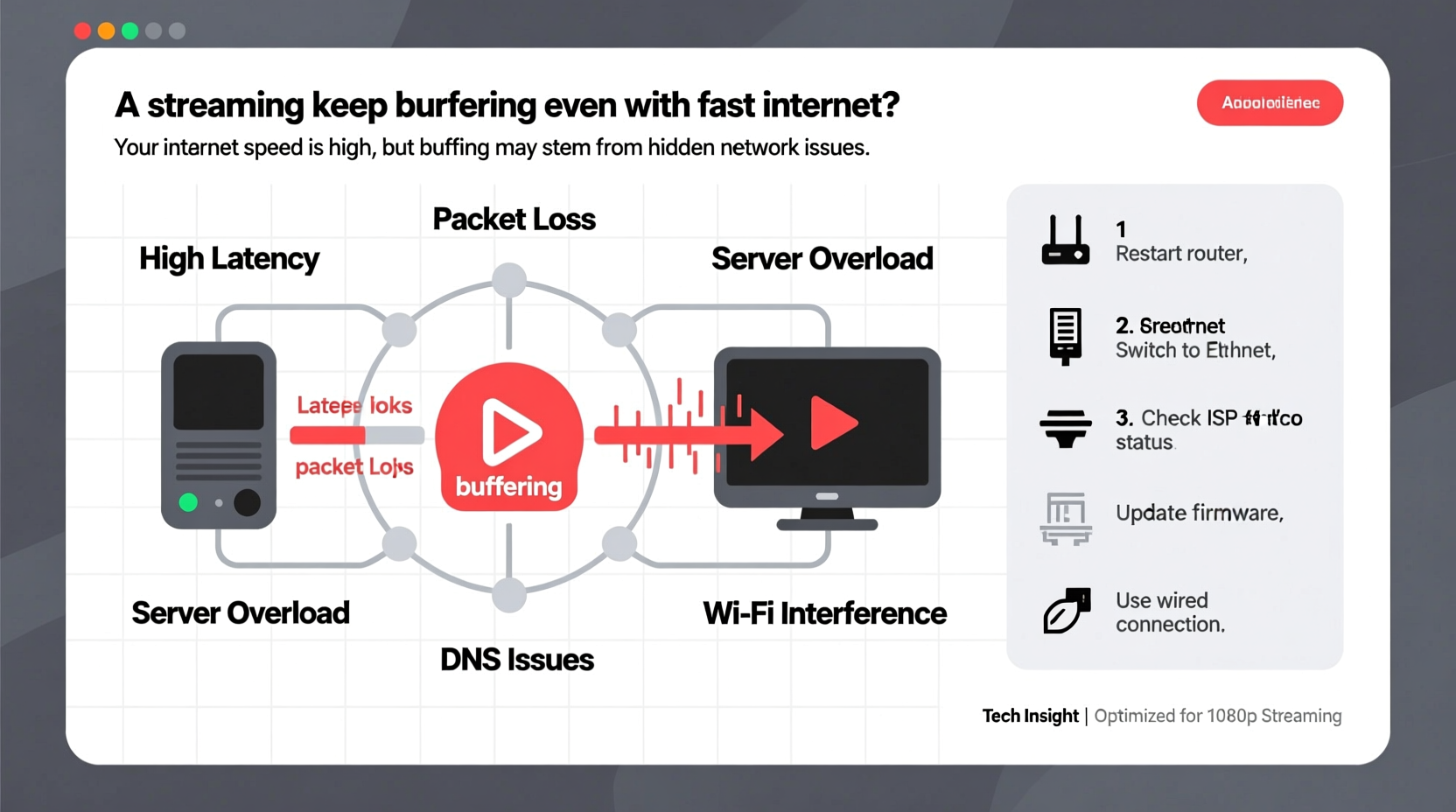
Many users assume that high download speeds guarantee seamless streaming. While bandwidth is important, it’s not the only factor determining performance. Streaming quality depends on both speed and network stability. Bandwidth measures how much data can be transferred per second, typically in megabits per second (Mbps). However, consistent delivery matters just as much. A connection with 200 Mbps but frequent latency spikes or packet loss will perform worse than a stable 50 Mbps connection.
Latency refers to the delay between sending a request and receiving a response. High latency causes lags in real-time interactions and affects how quickly video segments load. Packet loss occurs when data fails to reach its destination, forcing the stream to rebuffer to compensate. These issues often go unnoticed during web browsing but become glaringly obvious during video playback.
“Speed tests tell part of the story, but they don’t reflect real-world conditions like congestion, jitter, or signal interference.” — Dr. Lena Patel, Network Performance Analyst at Broadband Insights Group
ping -t google.com) while streaming to detect latency spikes or dropped responses.
Common Causes of Buffering Despite Fast Internet
Wi-Fi Signal Interference and Range Issues
Even with fiber-optic internet, the final leg of connectivity—your Wi-Fi—can be the weakest link. Walls, appliances, and neighboring networks operate on the same 2.4 GHz frequency band, creating congestion. Devices located far from the router or behind thick walls may receive a weak signal, leading to inconsistent throughput.
The 5 GHz band offers faster speeds and less interference but has shorter range and struggles to penetrate solid objects. If your smart TV or streaming box connects via 5 GHz but sits in another room, signal degradation can cause intermittent drops in performance.
Network Congestion During Peak Hours
Your internet provider may advertise \"up to\" certain speeds, but these are not guaranteed. During peak usage times—typically evenings—many households in your neighborhood stream simultaneously, straining shared infrastructure. This phenomenon, known as contention ratio, means available bandwidth per user drops significantly, even if your individual plan is robust.
Outdated or Overloaded Router Hardware
Routers degrade over time. Older models may lack support for modern Wi-Fi standards like Wi-Fi 5 (802.11ac) or Wi-Fi 6 (802.11ax), limiting their ability to handle multiple high-definition streams. Additionally, routers have limited processing power and memory. Running too many connected devices—smartphones, tablets, security cameras, IoT gadgets—can overwhelm the router, causing delays in data routing and increased buffering.
Device Limitations
Your streaming device itself might be the bottleneck. Budget streaming sticks, older smart TVs, or underpowered mobile devices may struggle to decode high-bitrate video formats like 4K HDR or Dolby Vision. Even with ample bandwidth, the device's processor or RAM may lag, causing the app to stall or rebuffer. Similarly, outdated firmware or bloated software can impair performance.
Service-Side Throttling and Server Load
Some internet service providers (ISPs) engage in traffic shaping, intentionally slowing down video streams after a certain data threshold. Though net neutrality rules discourage this in many regions, enforcement varies. Additionally, streaming platforms themselves may reduce bitrates during periods of high server demand, especially during live events or new show releases.
Troubleshooting Checklist: Fix Buffering Step by Step
Before upgrading your plan or buying new hardware, follow this systematic approach to identify and resolve the root cause.
- Restart your router and modem. Unplug both for 30 seconds, then power them back on. This clears temporary glitches and refreshes IP assignments.
- Move closer to the router or use a wired connection. Ethernet eliminates Wi-Fi variables. If wiring isn’t feasible, place the streaming device within line of sight of the router.
- Switch Wi-Fi bands. Try connecting to the 5 GHz network for faster speeds or 2.4 GHz for better range, depending on your setup.
- Reduce connected devices. Temporarily disconnect non-essential devices to free up bandwidth and processing resources.
- Check for firmware updates. Update your router, modem, and streaming device firmware through their respective settings menus.
- Test on another device. Stream the same content on a different phone, tablet, or computer to isolate whether the issue is device-specific.
- Monitor background activity. Ensure no large downloads, cloud backups, or automatic updates are running in the background.
- Contact your ISP. Report persistent issues and ask if there are known outages, throttling policies, or opportunities to upgrade your gateway equipment.
Optimizing Your Home Network for Streaming
Prevention is better than constant troubleshooting. Implement these long-term strategies to create a streaming-optimized environment.
Use Quality of Service (QoS) Settings
Most modern routers include QoS features that prioritize specific devices or applications. Assign higher priority to your primary streaming device so it receives bandwidth first during congestion. This ensures smoother playback even when others are gaming or downloading.
Upgrade to a Mesh Wi-Fi System
If your home has dead zones or large open spaces, consider replacing your single router with a mesh network. Systems like Google Nest Wifi, Eero, or TP-Link Deco use multiple nodes to blanket your space with strong, seamless coverage. They automatically switch devices to the strongest signal and balance traffic efficiently.
Limit Auto-Play and Background Streaming
Platforms like Netflix and YouTube autoplay trailers or related videos, consuming bandwidth without user intent. Disable auto-play in account settings to prevent unnecessary data use. Similarly, close unused tabs or apps that may be silently streaming audio or video.
| Issue | Symptom | Solution |
|---|---|---|
| Wi-Fi interference | Buffering worsens at night or near microwaves | Switch to 5 GHz or use wired connection |
| Router overload | Lag across all devices | Reboot router or upgrade to dual-core model |
| ISP throttling | Speed drops after 2 hours of streaming | Contact ISP or use a VPN to bypass restrictions |
| Device bottleneck | Only one device buffers; others work fine | Update firmware or replace outdated hardware |
Real-World Example: Solving Persistent Buffering in a Family Home
The Thompson family subscribed to a 300 Mbps internet plan and used a 4-year-old router. Despite this, their living room TV constantly buffered during evening viewing. Speed tests on laptops showed full speeds, adding to the confusion. After following diagnostic steps, they discovered several contributing factors:
- Their smart TV was 7 meters away from the router, separated by two concrete walls.
- Three smartphones, two tablets, and a gaming console were always connected.
- Their router operated only on 2.4 GHz and had outdated firmware.
- Netflix auto-play was enabled, triggering background streams.
They implemented changes: updated the router firmware, disabled auto-play, and purchased a mesh system with a node placed near the TV. Within days, buffering ceased entirely. The key insight? Speed wasn’t the problem—consistency and signal strength were.
Frequently Asked Questions
Why does YouTube buffer but Netflix doesn’t?
Different platforms use adaptive bitrate streaming algorithms with varying thresholds. YouTube adjusts quality more frequently based on real-time conditions, which can lead to more noticeable buffering. Netflix uses larger buffer sizes and more aggressive preloading, making interruptions less frequent even under similar network stress.
Can a VPN stop buffering?
Not directly. In fact, a VPN may slightly slow your connection due to encryption overhead. However, if your ISP is throttling streaming traffic, a VPN can mask the type of data being transferred, potentially bypassing artificial slowdowns. Choose a low-latency, high-speed VPN provider for best results.
Does closing other browser tabs help reduce buffering?
Yes. Tabs running video ads, social media feeds, or communication tools (like Slack or Zoom) can consume significant bandwidth and CPU resources. Closing inactive tabs frees up both network capacity and device performance, improving streaming stability.
Final Steps to Ensure Smooth Streaming
Buffering despite fast internet is rarely about raw speed alone. It’s a symptom of deeper network inefficiencies—signal weakness, device limits, ISP policies, or poor configuration. By methodically testing each component of your setup, you can pinpoint the true culprit. Start with simple fixes like restarting equipment and switching to Ethernet, then progress to strategic upgrades like mesh networks or QoS settings.
Remember, optimal streaming isn’t about having the fastest number on a speed test. It’s about delivering consistent, uninterrupted data flow from source to screen. With the right adjustments, even modest connections can deliver flawless HD playback. Don’t accept constant buffering as inevitable. Take control of your network, apply these solutions, and reclaim your viewing experience.




 浙公网安备
33010002000092号
浙公网安备
33010002000092号 浙B2-20120091-4
Comments
No comments yet. Why don't you start the discussion?