
Video calls have become a cornerstone of modern communication—whether for remote work, staying in touch with family, or attending virtual classes. Yet few things are more frustrating than a tablet that freezes mid-conversation. The screen locks up, audio cuts out, and you’re left disconnected at the worst possible moment. This isn’t just a minor annoyance; it can damage professional credibility or disrupt personal connections.
The root causes of freezing during video calls are often a mix of hardware limitations, software inefficiencies, and network instability. Unlike simple web browsing, video conferencing demands real-time processing of audio, video, and data—all while maintaining a stable internet connection. When any part of this chain falters, the entire experience can collapse. Understanding why this happens is the first step toward fixing it.
Understanding Why Tablets Freeze During Video Calls
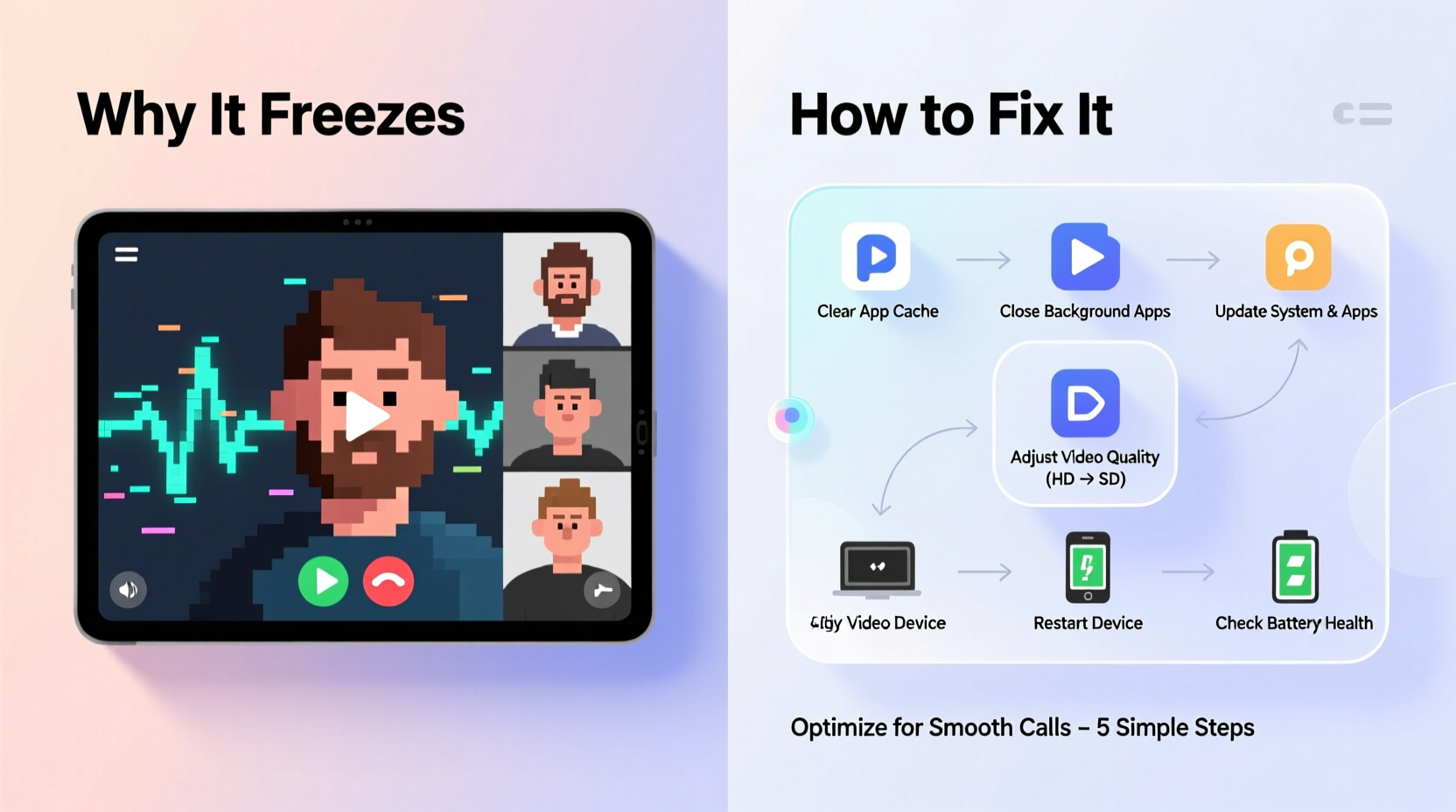
Tablets, especially older or budget models, weren’t always designed with intensive multitasking in mind. While they excel at media consumption and light productivity, video calls place unique demands on system resources. Freezing typically occurs when the device struggles to keep up with these combined loads.
CPU and RAM overload is one of the most common culprits. Video calling apps like Zoom, Google Meet, or Microsoft Teams require continuous encoding and decoding of high-resolution video streams. If multiple apps are running in the background—such as music players, email sync services, or social media notifications—the processor may not have enough bandwidth to handle everything smoothly.
Thermal throttling is another hidden issue. As the tablet works harder, its internal temperature rises. To prevent damage, the system automatically reduces CPU speed—a process known as throttling. This slowdown can manifest as lag, stuttering video, or complete freezing, particularly during long calls.
Poor network conditions also play a major role. Even if your tablet is powerful, an unstable Wi-Fi signal or congested bandwidth can cause the app to buffer, drop frames, or crash. Many users mistake network lag for device failure, but the symptoms can be nearly identical: frozen screens, delayed audio, and disconnections.
“Freezing during video calls is rarely due to a single factor—it’s usually a cascade of small bottlenecks in processing power, memory management, and connectivity.” — Dr. Lena Patel, Mobile Systems Engineer at TechInsight Labs
Common Causes of Performance Issues
To resolve freezing effectively, it helps to identify which part of the system is failing. Below are the most frequent contributors:
- Outdated operating system: Older versions of Android or iOS may lack optimizations for current video calling apps, leading to compatibility issues.
- Insufficient storage space: When a tablet’s internal storage is over 90% full, the system slows down significantly due to reduced space for temporary files and cache operations.
- Buggy or outdated apps: Developers frequently release updates that fix memory leaks and improve stability. Using an old version of a video app increases the risk of crashes.
- Background processes: Apps syncing photos, downloading updates, or playing music in the background consume CPU and RAM that could otherwise support the video call.
- Low battery mode: Power-saving settings often limit processor performance, which can degrade real-time applications like video conferencing.
Step-by-Step Guide to Improve Tablet Performance
Fixing freezing issues doesn’t require technical expertise—just a methodical approach. Follow these steps to optimize your tablet for smoother video calls:
- Restart your tablet regularly: A simple reboot clears temporary memory, stops rogue processes, and resets network settings. Do this at least once a week, or before important meetings.
- Update your operating system and apps: Go to Settings > System > Software Update (Android) or Settings > General > Software Update (iOS) to check for OS updates. Then open your app store and update all installed apps, especially your video conferencing platform.
- Free up storage space: Delete unused apps, offload old photos to cloud storage, and clear browser caches. Aim to keep at least 15–20% of your storage free for optimal performance.
- Disable animations and visual effects: On Android, enable Developer Options by tapping “Build Number” seven times in Settings > About Phone. Then reduce or disable window animation scale, transition animation scale, and animator duration scale. On iOS, go to Settings > Accessibility > Motion and turn on “Reduce Motion.”
- Use airplane mode temporarily (with Wi-Fi re-enabled): This disables cellular radios, Bluetooth, and GPS, reducing background interference. Turn on Wi-Fi manually afterward to maintain your internet connection without unnecessary drain.
- Optimize video call settings: Lower the video resolution within the app settings (e.g., switch from HD to 720p), turn off virtual backgrounds, and disable camera effects. These features consume significant GPU and CPU power.
- Ensure proper ventilation: Avoid using your tablet on soft surfaces like beds or couches that block air vents. Place it on a hard, flat surface to allow heat to dissipate.
Do’s and Don’ts: Best Practices for Stable Video Calls
| Do’s | Don’ts |
|---|---|
| Use a stable Wi-Fi network with strong signal strength | Join calls over public or crowded Wi-Fi networks |
| Close all non-essential apps before starting a call | Run multiple video or streaming apps simultaneously |
| Charge your tablet fully before long meetings | Use the device while charging under heavy load |
| Position your tablet near the router for better signal | Place the tablet behind walls or metal objects |
| Test your setup with a short practice call | Assume everything will work perfectly without testing |
Real-World Example: How Sarah Fixed Her Freezing Tablet
Sarah, a freelance graphic designer from Portland, relied on her three-year-old iPad for daily client consultations. Over time, she noticed increasing lag and freezing during Zoom calls, especially when sharing her screen. At first, she blamed Zoom, but after switching to Google Meet with no improvement, she realized the issue was deeper.
She followed a troubleshooting checklist: restarted the device, updated iOS, and cleared over 3GB of cached photo backups. She also discovered that her design portfolio app was syncing in the background during calls. After closing it and disabling automatic cloud uploads, her video performance improved dramatically. She now restarts her tablet every Sunday and limits background activity during work hours. Since then, she hasn’t experienced a single freeze.
Sarah’s case illustrates how seemingly minor background tasks can compound into major performance issues. By taking control of her device environment, she restored reliability without needing to upgrade hardware.
Troubleshooting Network and Connectivity Issues
Even a powerful tablet will struggle with poor internet. Video calls typically require at least 3 Mbps upload speed for HD quality. Lower speeds result in buffering, pixelation, and freezing.
To test your connection, use a speed test tool like Speedtest.net directly from your tablet. If your upload speed is below 1.5 Mbps, consider these improvements:
- Move closer to your Wi-Fi router or eliminate physical obstructions.
- Switch from the 2.4 GHz band to 5 GHz for faster speeds (if your router supports it).
- Limit other devices using bandwidth during calls—pause downloads, streaming, or cloud backups.
- Use an Ethernet-to-USB adapter with a docking station for a wired connection (available for select tablets).
If Wi-Fi remains unreliable, try connecting via mobile hotspot. Modern LTE or 5G hotspots often provide more consistent latency than congested home networks, especially during peak hours.
When Hardware Limitations Are the Problem
Sometimes, the solution isn’t optimization—it’s recognition. Tablets older than four years, especially those with less than 3GB of RAM or entry-level processors, may simply lack the horsepower for modern video apps. Features like end-to-end encryption, AI noise suppression, and real-time captions add layers of computational demand that older chips weren’t built to handle.
If you’ve tried all software fixes and still experience freezing, it may be time to consider an upgrade. Look for tablets with at least:
- 4GB RAM or higher
- A recent-generation processor (e.g., Apple A14 Bionic or better, Qualcomm Snapdragon 8-series)
- At least 64GB of storage
- Wi-Fi 6 support for faster, more stable connections
However, upgrading shouldn’t be the first step. Most users can extend their device’s life significantly through disciplined maintenance and smart usage habits.
Frequently Asked Questions
Can antivirus apps help prevent freezing during video calls?
Most tablets don’t benefit from third-party antivirus software. Android and iOS have built-in security systems that manage threats efficiently. In fact, some antivirus apps run constant background scans that can worsen performance. Stick to official app stores and avoid sideloading unknown apps.
Why does my tablet only freeze during group calls?
Group calls require more processing power because the app must decode multiple video streams simultaneously. Each additional participant increases CPU and memory usage. Try lowering the number of visible participants on screen or switching to audio-only for some attendees.
Does clearing cache really make a difference?
Yes. Over time, apps accumulate corrupted or bloated cache files that slow down performance. Clearing the cache forces the app to rebuild clean temporary files. On Android, go to Settings > Apps > [App Name] > Storage > Clear Cache. On iOS, offload the app (Settings > General > iPhone/iPad Storage > [App] > Offload App), then reinstall it.
Action Checklist: Prevent Freezing in 7 Steps
- ✅ Restart your tablet before important calls
- ✅ Update your OS and video calling apps
- ✅ Close all background apps
- ✅ Test your internet speed and optimize Wi-Fi
- ✅ Free up at least 20% storage space
- ✅ Disable animations and visual effects
- ✅ Lower video resolution and disable virtual backgrounds
Conclusion: Take Control of Your Video Call Experience
A tablet that freezes during video calls doesn’t have to be a recurring problem. With a clear understanding of the underlying causes—processor strain, memory overload, network instability, and outdated software—you can take targeted steps to restore smooth performance. Most fixes are simple, free, and take less than 10 minutes to implement.
Start by applying the checklist above before your next meeting. Monitor the results, and refine your routine based on what works best for your device and network. Small changes in habits can lead to big improvements in reliability.




 浙公网安备
33010002000092号
浙公网安备
33010002000092号 浙B2-20120091-4
Comments
No comments yet. Why don't you start the discussion?