
Video calls have become a cornerstone of modern communication—whether for remote work, staying in touch with family, or attending virtual classes. Yet nothing disrupts the flow like a frozen screen on your tablet mid-conversation. While tablets are designed for portability and efficiency, they aren’t immune to performance issues, especially under the demands of real-time video streaming. Understanding why freezing occurs and how to prevent it is essential for maintaining seamless connectivity.
The root causes vary—from outdated software and insufficient memory to overheating and background processes consuming resources. The good news is that most freezing issues can be resolved with strategic adjustments to your device’s settings and usage habits. This guide breaks down the technical and environmental factors behind tablet freezes and provides actionable steps to optimize your setup for reliable video calling.
Why Tablets Freeze During Video Calls: Common Causes
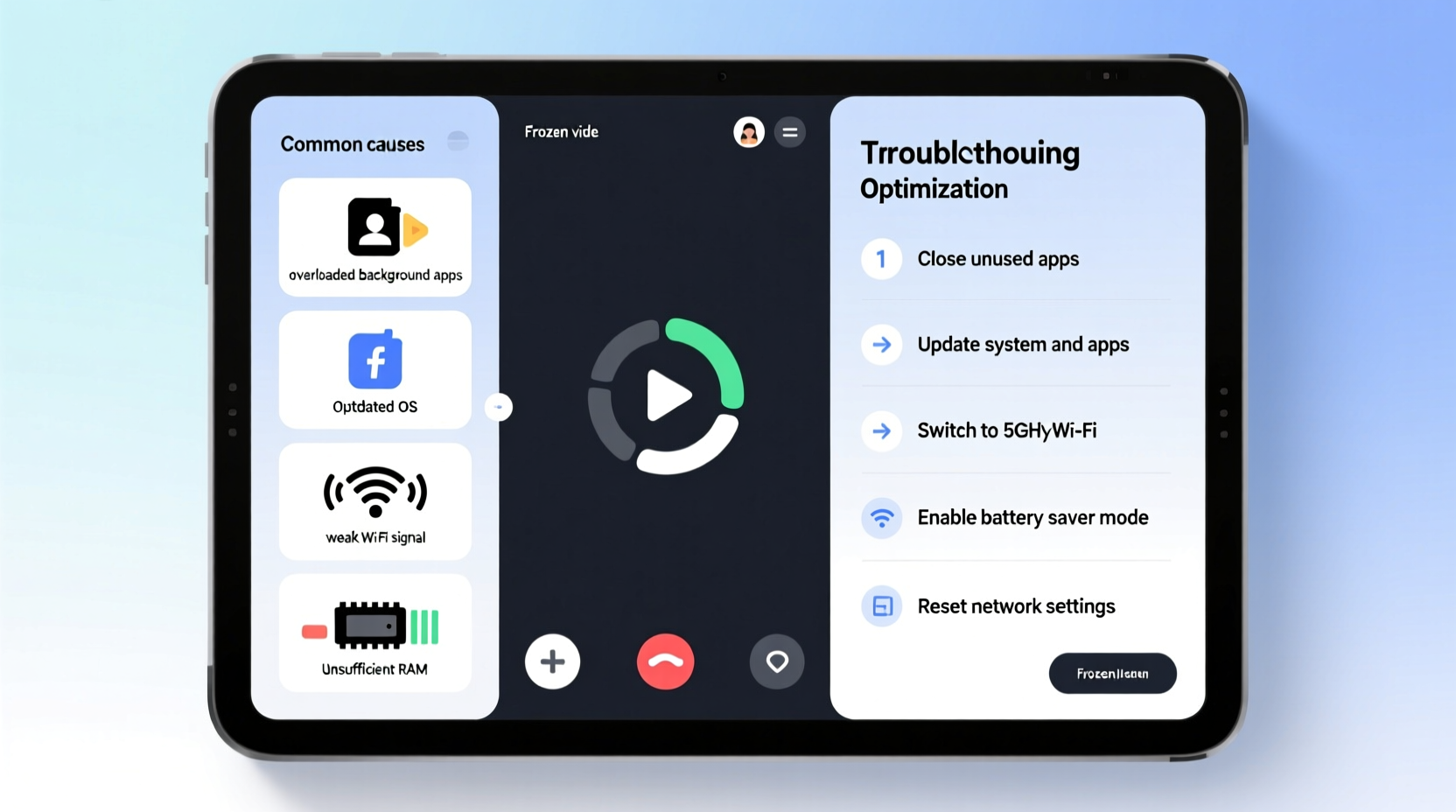
Tablets, despite their sleek design and user-friendly interfaces, operate under hardware and software limitations. When you initiate a video call, multiple systems engage simultaneously: the camera, microphone, Wi-Fi, processor, and display—all requiring significant power and bandwidth. If any component struggles, the entire system can slow down or freeze.
Hardware limitations are often the primary culprit. Older tablets may lack the processing power (CPU) or RAM needed to handle high-definition video streams, especially on apps like Zoom, Google Meet, or Microsoft Teams. As newer app versions roll out with enhanced features, they demand more from devices, leaving older models behind.
Insufficient storage space also plays a critical role. When internal storage drops below 10%, the operating system slows down due to limited room for temporary files and cache management. This lag directly affects multitasking performance during video calls.
Overheating is another common issue. Holding the tablet for extended periods, using it under direct sunlight, or charging while on a call can cause thermal throttling—a safety mechanism that reduces CPU speed to prevent damage, resulting in choppy video or sudden freezes.
Background apps silently drain resources. Social media, email sync, cloud backups, and music streaming services run in the background, competing for memory and processor cycles. Even if you don’t see them, they contribute to system strain.
Optimizing Your Tablet Settings for Smoother Video Calls
Before upgrading your device, consider optimizing what you already have. Many freezing issues stem from suboptimal configurations rather than hardware failure. A few targeted changes can dramatically improve stability.
Adjust Video Quality in Calling Apps
Most video conferencing platforms default to high-resolution video, which looks great but consumes substantial bandwidth and processing power. Lowering the resolution reduces the load on both your tablet and network.
In Zoom, for example, go to Settings > Video > Meeting and disable HD video. On Google Meet, use the “Low bandwidth” mode found under meeting options. These adjustments maintain clarity while minimizing strain.
Limit Background App Refresh
iOS and Android allow apps to refresh content in the background, even when not in use. This feature improves responsiveness but drains battery and memory.
- iOS: Go to Settings > General > Background App Refresh. Disable it entirely or restrict it to Wi-Fi only.
- Android: Navigate to Settings > Apps > Special Access > Background Restrictions. Select resource-heavy apps and limit their activity.
Enable Battery Saver Mode Temporarily
Battery Saver modes reduce CPU performance and limit background processes, which paradoxically stabilizes performance during calls by preventing resource spikes. Activate it during long meetings, especially if your battery is below 30%.
Clear Cache Regularly
Over time, apps accumulate cached data that can corrupt or bloat system resources. Clearing cache periodically helps maintain efficiency.
- Go to Settings > Storage.
- Select \"Cached Data\" or individual apps like Zoom or Chrome.
- Tap \"Clear Cache.\"
This process doesn’t delete personal data but frees up space and removes potential glitches.
Network Optimization: The Hidden Factor in Call Stability
Even the most powerful tablet will struggle with a weak or unstable internet connection. Video calls require consistent upload and download speeds—typically at least 3 Mbps for HD quality. Fluctuations cause buffering, pixelation, and freezing.
Wi-Fi congestion is a frequent issue, especially in homes with multiple connected devices. Smart TVs, gaming consoles, and phones all compete for bandwidth. Prioritizing your tablet’s connection can make a noticeable difference.
| Issue | Symptom | Solution |
|---|---|---|
| Weak signal strength | Call freezes every few minutes | Move closer to router or use Wi-Fi extender |
| High network latency | Audio/video out of sync | Switch to Ethernet via USB-C adapter if supported |
| Bandwidth saturation | Freezing during peak usage hours | Limit other device usage during calls |
| DNS issues | Connection drops frequently | Change DNS to Google (8.8.8.8) or Cloudflare (1.1.1.1) |
For best results, conduct a speed test using tools like Speedtest.net before and after making adjustments. Aim for at least 5 Mbps download and 2 Mbps upload for reliable performance.
“Stable video calling isn’t just about device power—it’s about managing the entire ecosystem: network, software, and environment.” — Dr. Lena Patel, Network Performance Analyst at Mobile Insights Lab
Real-World Example: Fixing Freezes in a Remote Learning Setup
Sarah, a middle school teacher in Portland, relied on her three-year-old iPad for daily online classes. Students frequently reported her screen freezing for several seconds, disrupting lessons. Initially, she assumed the device was too old to upgrade.
After reviewing her setup, she discovered several issues: her iCloud backup was running during class hours, Instagram was syncing photos in the background, and her home Wi-Fi router was located in the basement, far from her teaching area.
She took the following steps:
- Moved her Wi-Fi router closer to her workspace.
- Disabled automatic backups during school hours.
- Turned off camera HD settings in Google Meet.
- Enabled Low Data Mode on her iPad.
Within two days, the freezing stopped entirely. Her students noticed immediate improvements in audio clarity and visual continuity. Sarah avoided an unnecessary device purchase by addressing configuration issues first.
Step-by-Step Optimization Checklist
Follow this sequence before each important video call to minimize the risk of freezing:
- Restart your tablet – Clears temporary files and resets memory allocation.
- Close all unused apps – Swipe away background apps from the recent apps menu.
- Check Wi-Fi signal strength – Ensure you’re within optimal range of the router.
- Disable HD video – In your video app settings, reduce resolution to standard definition.
- Turn off Bluetooth and GPS – These services consume power and can interfere with Wi-Fi.
- Enable Airplane Mode temporarily, then re-enable Wi-Fi – Resets network connections and clears IP conflicts.
- Plug in your tablet – Prevents power-saving throttling during long calls.
- Use headphones with a mic – Reduces echo and offloads audio processing from the main system.
Frequently Asked Questions
Can updating my tablet fix freezing issues?
Yes. Software updates often include performance patches, bug fixes, and compatibility improvements for video calling apps. Always install OS and app updates promptly. However, avoid updating right before an important call—new updates can occasionally introduce temporary instability.
Is it better to use mobile data or Wi-Fi for video calls?
Wi-Fi is generally more stable and cost-effective for video calls. However, if your home network is congested, switching to a 5G mobile hotspot can provide a cleaner, dedicated connection. Just ensure you’re not near the data cap.
Will factory resetting my tablet help with freezing?
A factory reset can resolve deep-seated software conflicts and restore performance—but it should be a last resort. Back up your data first, as this process erases everything. After resetting, reinstall only essential apps and configure settings carefully to avoid repeating the same issues.
Conclusion: Take Control of Your Video Call Experience
A frozen tablet during a video call isn’t just frustrating—it can harm professional credibility, disrupt learning, or strain personal relationships. But in most cases, the solution lies not in replacing your device, but in understanding and adjusting how you use it. By identifying the interplay between hardware limits, software settings, and network conditions, you can transform an unreliable tablet into a dependable communication tool.
Start with small, consistent changes: manage background apps, optimize video settings, and strengthen your network. Over time, these habits compound into a smoother, more resilient digital experience. Technology should serve you—not hinder you. With the right approach, your tablet can keep pace with your busiest days.




 浙公网安备
33010002000092号
浙公网安备
33010002000092号 浙B2-20120091-4
Comments
No comments yet. Why don't you start the discussion?