
Video calls have become a daily necessity—whether for remote work, school, or staying in touch with family. But nothing disrupts the flow like a frozen screen on your tablet mid-conversation. You're not alone. Many users experience this frustrating issue, often assuming their device is outdated or faulty. In reality, most freezing problems stem from manageable causes like background apps, poor connectivity, or software glitches. The good news? With a few targeted adjustments, you can restore smooth performance and avoid future interruptions.
Understanding Why Tablets Freeze During Video Calls
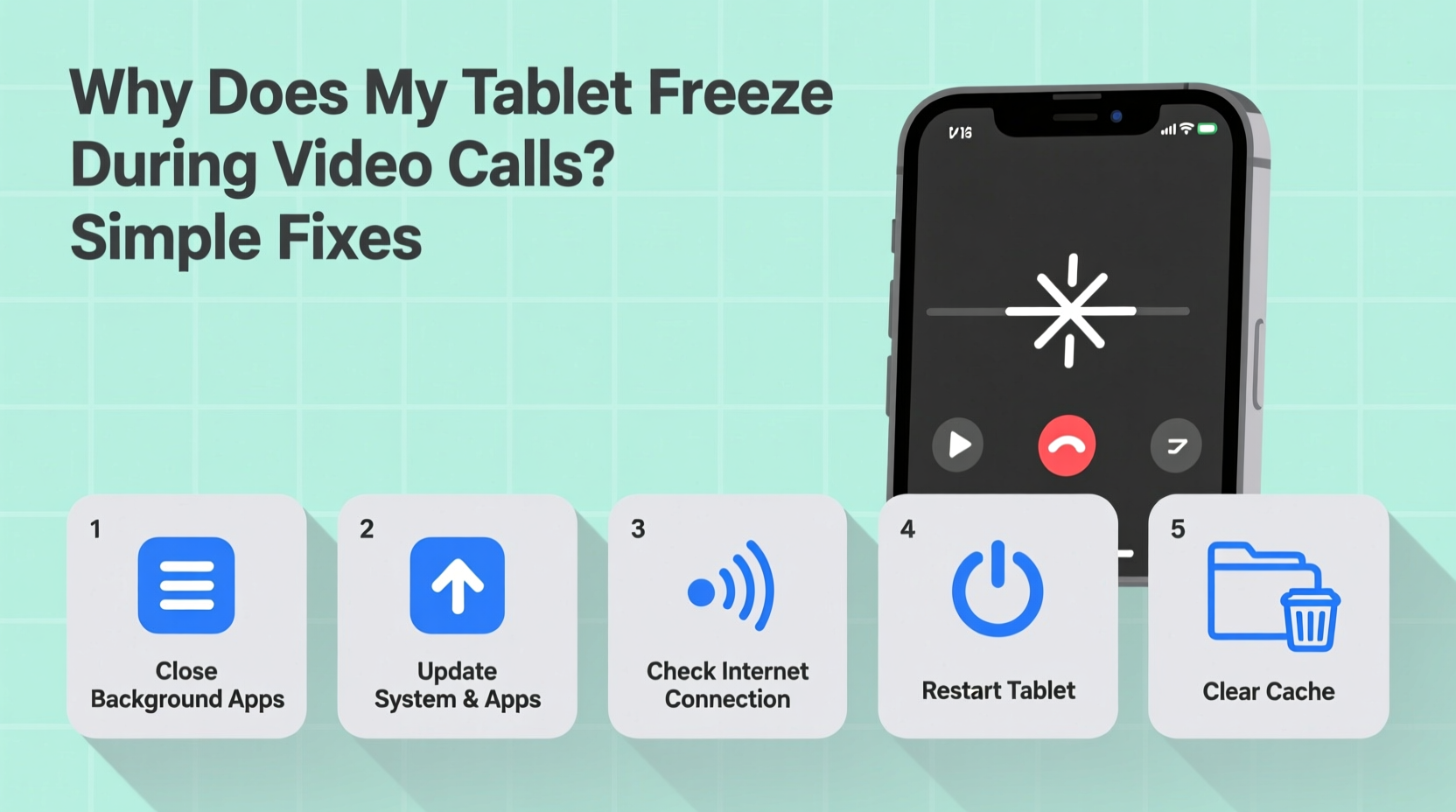
When your tablet freezes during a video call, it’s usually because the device is struggling to keep up with real-time data processing. Video calling apps like Zoom, Google Meet, and Microsoft Teams demand consistent CPU power, stable internet, and sufficient memory. If any of these components are compromised, the system may slow down or lock up entirely.
Common culprits include:
- Insufficient RAM: Too many apps running in the background consume memory needed for video processing.
- Overheating: Extended use, especially under direct sunlight or while charging, can cause thermal throttling.
- Weak Wi-Fi signal: Poor connectivity leads to buffering, stuttering, and eventual app crashes.
- Outdated software: Older operating systems or unpatched apps may lack optimizations for current video standards.
- Storage overload: When internal storage is nearly full, the system struggles to manage temporary files and cache.
Identifying which factor applies to your situation is the first step toward a permanent fix.
Step-by-Step Guide to Prevent Freezing
Follow this structured approach to troubleshoot and resolve freezing issues efficiently.
- Restart Your Tablet
Start with the simplest solution. A reboot clears cached data, resets network settings, and stops rogue processes. Hold the power button, select “Restart,” and wait 30 seconds before turning it back on. - Check Internet Connection
Use a speed test app or website to verify your connection. For HD video calls, aim for at least 5 Mbps download and 2 Mbps upload. If speeds are low:- Move closer to your router.
- Switch from Wi-Fi to mobile data (or vice versa).
- Reboot your router if others on the network are experiencing slowdowns.
- Update Software
Go to Settings > System > Software Update (or equivalent) to ensure your OS and apps are current. Developers regularly release patches that improve stability and compatibility. - Clear App Cache
Navigate to Settings > Apps > [Your Video App] > Storage > Clear Cache. This removes temporary files without deleting account data. - Reduce Call Quality Temporarily
If freezing persists, lower the video resolution in your app settings. Most platforms allow you to switch to “data-saving” or “low bandwidth” mode. - Disable Background Syncing
Turn off automatic email, cloud backup, and social media updates during calls. These run silently but consume resources. - Monitor Temperature
If the tablet feels hot, pause usage and let it cool. Avoid using it while charging, as this increases heat output.
Do’s and Don’ts: Tablet Performance Best Practices
| Do’s | Don’ts |
|---|---|
| Close unused apps before video calls | Run multiple video apps simultaneously |
| Keep at least 15% of storage free | Fill storage to over 90% capacity |
| Use a protective case to prevent overheating | Leave the tablet in direct sunlight |
| Install updates promptly | Ignore system update notifications |
| Connect to 5GHz Wi-Fi for faster speeds | Stay on overcrowded 2.4GHz networks |
The 5GHz Wi-Fi band offers faster data transfer and less interference than 2.4GHz, making it ideal for video conferencing. If your router supports dual bands, connect your tablet to the 5GHz network—though note it has shorter range, so proximity matters.
Real Example: How Sarah Fixed Her Freezing Issue
Sarah, a freelance graphic designer, relied on her tablet for daily client meetings. Over two weeks, she noticed increasing lag and freezing during Zoom calls. Initially, she assumed her three-year-old tablet was failing. After testing different networks and restarting repeatedly with no success, she decided to dig deeper.
She checked her storage and found only 3% free space—mostly filled with old screenshots, duplicate files, and unused apps. She deleted unnecessary content, cleared the cache for Zoom and Chrome, and disabled automatic photo backups during work hours. She also switched her Wi-Fi to the 5GHz band.
The next call ran smoothly. No freezing, no audio dropouts. Sarah realized the problem wasn’t her hardware but resource mismanagement. By implementing regular maintenance, she now enjoys uninterrupted sessions even during long meetings.
Expert Insight on Device Optimization
“Most tablet performance issues aren’t hardware failures—they’re symptoms of digital clutter. Just like a computer, tablets need routine cleanup to function optimally. Users should treat them with the same care as laptops.” — Dr. Alan Reyes, Mobile Systems Engineer at TechFlow Labs
This insight underscores a common misconception: people expect tablets to be “set and forget” devices. But continuous app usage, background syncing, and fragmented storage degrade performance over time. Proactive maintenance is essential.
Essential Checklist for Smooth Video Calls
Before every important meeting, run through this quick checklist to ensure peak performance:
- ✅ Restart the tablet or force-close the video app
- ✅ Confirm strong Wi-Fi or cellular signal (test speed)
- ✅ Close all other apps (especially streaming or gaming)
- ✅ Disable auto-updates and cloud sync temporarily
- ✅ Ensure battery is above 30% (low power mode can throttle performance)
- ✅ Lower video quality if on a weak network
- ✅ Position the tablet in a cool, shaded area
- ✅ Verify microphone and camera permissions are enabled
Running through this list takes less than two minutes but can prevent embarrassing technical disruptions. Treat it like prepping your appearance—both matter in professional calls.
Frequently Asked Questions
Can too many apps really make my tablet freeze?
Yes. Even when minimized, apps continue using RAM and CPU cycles. Video calls require significant resources; if those are already taxed by background processes, the system may freeze. Always close unused apps before starting a call.
Is it better to use mobile data or Wi-Fi for video calls?
It depends. A strong 5GHz Wi-Fi connection is usually best due to higher bandwidth and stability. However, if your home network is congested or outdated, a 4G/5G mobile hotspot can provide a cleaner, more reliable signal—especially if you're the only user on that connection.
Will factory resetting my tablet stop the freezing?
A factory reset can resolve deep-seated software conflicts and clear accumulated junk files. However, it should be a last resort after trying simpler fixes. Back up your data first, as this process erases everything. In many cases, clearing cache and updating software achieve similar results without the hassle.
Conclusion: Take Control of Your Tablet’s Performance
A frozen tablet during a video call isn’t just inconvenient—it can damage professionalism and disrupt personal connections. But the root causes are almost always fixable with practical, everyday habits. From managing background apps to optimizing your network and maintaining adequate storage, small changes yield dramatic improvements.
You don’t need to upgrade your device prematurely. Instead, adopt a maintenance mindset: restart weekly, monitor storage monthly, and update software promptly. These habits extend your tablet’s lifespan and ensure reliability when it matters most.




 浙公网安备
33010002000092号
浙公网安备
33010002000092号 浙B2-20120091-4
Comments
No comments yet. Why don't you start the discussion?