
Tablets have become essential tools for work, entertainment, and communication. Whether you're streaming a movie, attending a video call, or browsing the web, a sudden freeze can disrupt your experience and raise concerns about device health. Random freezing isn't always a sign of hardware failure—it's often caused by software conflicts, memory overload, or background processes running amok. The good news is that most issues can be resolved quickly with targeted troubleshooting steps. This guide explores the common causes behind tablet freezes and provides actionable solutions for both Android and iOS devices.
Common Causes of Tablet Freezing
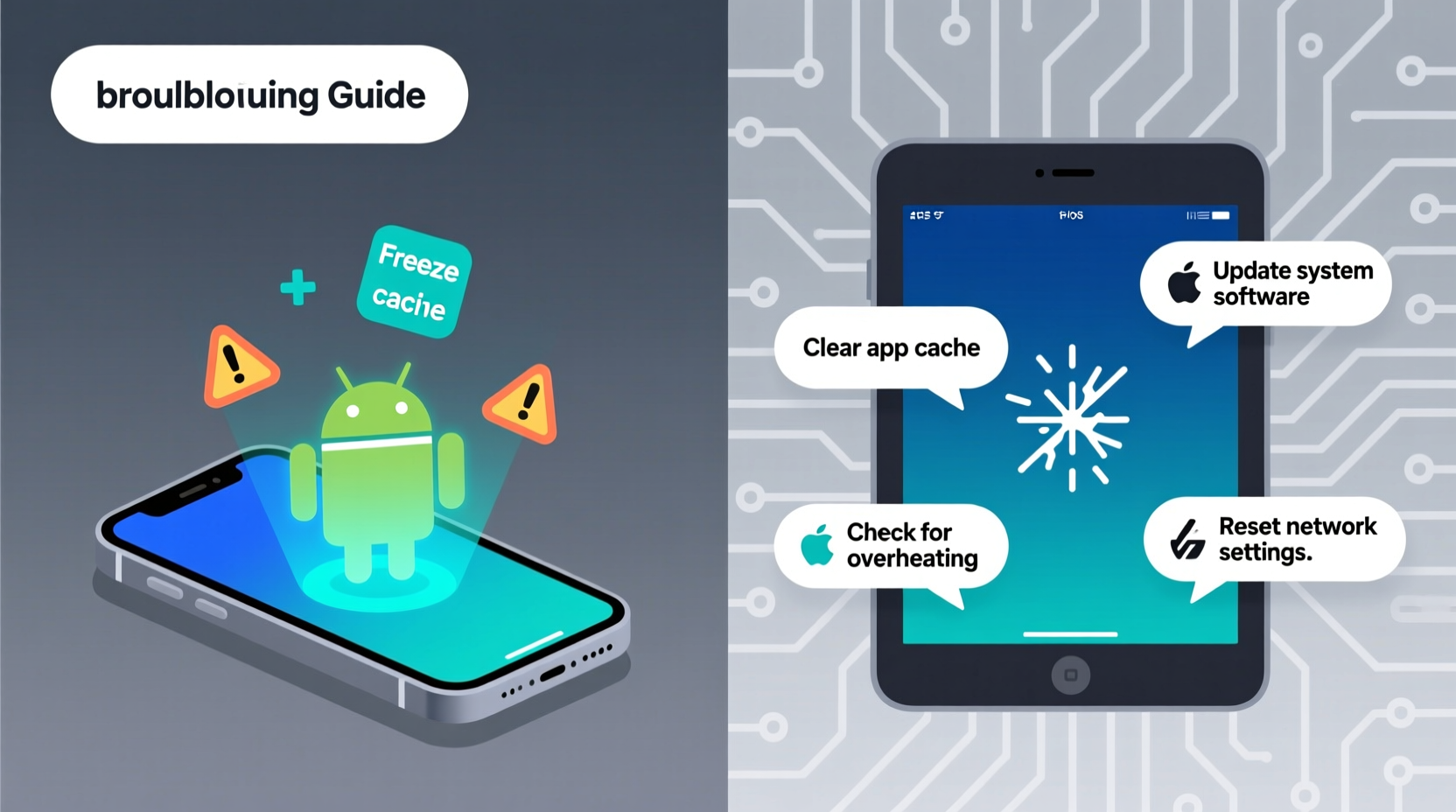
Understanding why your tablet freezes is the first step toward fixing it. While symptoms may seem similar across devices, the underlying causes can vary between operating systems and usage patterns.
- Insufficient RAM: Running too many apps simultaneously can exhaust available memory, causing the system to lag or freeze.
- Outdated Operating System: Older software versions may contain bugs or compatibility issues with newer apps.
- App Crashes or Conflicts: Poorly coded or outdated apps can interfere with system stability.
- Storage Overload: When internal storage is nearly full, the device struggles to manage temporary files and cache.
- Overheating: Prolonged use, direct sunlight, or poor ventilation can cause thermal throttling or system shutdowns.
- Faulty Updates: Occasionally, OS or app updates introduce new bugs that destabilize performance.
- Corrupted System Files: Rare but possible, especially after interrupted updates or improper shutdowns.
Quick Fixes for Android Tablets
Android devices offer greater customization but are also more prone to performance inconsistencies due to varied hardware and software configurations. Here’s how to address random freezes on Android tablets efficiently.
1. Force Restart the Device
A force restart clears temporary glitches without erasing data. The method varies slightly depending on the manufacturer:
- Samsung: Press and hold Power + Volume Down for 10 seconds.
- Lenovo, Acer: Hold the Power button for 15 seconds.
- Google Pixel Tablet: Press and hold Power + Volume Up for 10 seconds.
2. Clear Cache Partition
The cache partition stores temporary system data. Corrupted cache can cause instability.
- Power off the tablet.
- Press and hold Power + Volume Up to enter Recovery Mode.
- Use volume keys to select “Wipe Cache Partition” and confirm with the power button.
- Reboot once complete.
3. Update Apps and OS
Go to Settings > Software Update to check for system updates. For apps, open the Google Play Store, tap your profile icon, and select “Manage apps & device.” Install any pending updates.
4. Boot in Safe Mode
This disables third-party apps temporarily to identify problematic ones.
- Press and hold the Power button until the power menu appears.
- Long-press “Power off” until “Safe mode” appears.
- Tap OK and wait for reboot.
- If the tablet runs smoothly in safe mode, uninstall recently installed apps one by one.
5. Manage Storage and Background Processes
Navigate to Settings > Battery & Performance > Memory to see active apps. Close unnecessary ones. Also, go to Storage and clear cached data under “Free up space.”
Troubleshooting iOS Tablets (iPad)
iPads run a tightly controlled ecosystem, but they’re not immune to freezing. Apple’s optimization usually prevents major issues, but occasional hiccups occur—especially on older models.
1. Perform a Hard Reset
This is the fastest way to recover from a frozen screen.
- iPad with Home Button: Press and hold Power + Home button until the Apple logo appears.
- iPad without Home Button (Face ID): Quickly press Volume Up, then Volume Down, then hold the Power button until the screen restarts.
2. Check for iOS Updates
Apple regularly releases patches for known bugs. Go to Settings > General > Software Update. If an update is available, download and install it over Wi-Fi.
3. Offload Unused Apps
iOS allows offloading apps—removing the app but keeping its data. This frees space while preserving progress.
Go to Settings > General > iPad Storage. Tap on large apps you rarely use and choose “Offload App.”
4. Disable Background App Refresh
Apps refreshing in the background consume resources. To reduce strain:
- Open Settings > General > Background App Refresh.
- Select “Wi-Fi & Cellular Data” or disable entirely.
- Alternatively, disable refresh for individual apps.
5. Reset All Settings
If freezes persist, reset settings (not data) to default. This clears network, display, and privacy configurations that might conflict.
Go to Settings > General > Transfer or Reset iPad > Reset > Reset All Settings.
“Many so-called ‘hardware’ issues on tablets are actually software-related. A clean restart or update resolves over 70% of random freezes.” — David Lin, Senior Mobile Support Engineer at TechCare Solutions
Step-by-Step Prevention Plan
Preventing future freezes is more effective than reacting to them. Follow this weekly maintenance routine to keep your tablet responsive.
Weekly Maintenance Routine
- Update Apps: Check app stores for updates every Sunday.
- Clear Cache: On Android, clear app caches monthly; on iOS, delete and reinstall bloated apps.
- Restart Device: Fully power down and restart your tablet at least once a week to clear RAM.
- Monitor Storage: Keep at least 10–15% of storage free for optimal performance.
- Check Battery Health: On iPad, go to Settings > Battery > Battery Health. Replace if maximum capacity is below 80%.
Do’s and Don’ts: Tablet Performance Best Practices
| Do’s | Don’ts |
|---|---|
| Keep your OS and apps updated regularly | Ignore software update notifications |
| Close unused apps from the multitasking view | Run 10+ apps simultaneously on low-RAM devices |
| Use trusted antivirus apps on Android (e.g., Bitdefender, Malwarebytes) | Download APK files from unverified websites |
| Store your tablet in a cool, dry place away from direct sunlight | Leave it in a hot car or near heating vents |
| Back up data weekly via iCloud or Google Drive | Wait until storage is full before backing up |
Mini Case Study: Recovering a Frozen School Tablet
Sophia, a high school teacher, relied on her Samsung Galaxy Tab A for classroom presentations. One morning, the screen froze during roll call—unresponsive to taps or swipes. She tried pressing the power button, but nothing happened. Remembering a tip from a tech workshop, she held Power + Volume Down for 12 seconds. The tablet restarted successfully. Later, she discovered that a recent update to her quiz app had triggered a conflict with the system UI. She uninstalled the app, reinstalled the stable version from the Play Store, and disabled auto-updates for non-critical apps. Since then, her tablet has remained stable throughout the semester.
This case highlights how a simple force restart combined with post-recovery analysis can resolve and prevent recurring issues.
When to Consider Factory Reset
If all quick fixes fail and freezing continues, a factory reset may be necessary. This wipes all data and reinstalls the operating system, eliminating deep-seated software corruption.
Steps to Factory Reset
Android:
- Back up photos, contacts, and documents to Google Drive or external storage.
- Go to Settings > System > Reset > Erase All Data (Factory Reset).
- Confirm and wait for completion. Set up as new or restore from backup.
iPad:
- Back up to iCloud or iTunes/Finder.
- Go to Settings > General > Transfer or Reset iPad > Erase All Content and Settings.
- Enter passcode and confirm. The device will reboot into setup mode.
FAQ
Can a virus make my tablet freeze?
True viruses are rare on mobile devices, but malicious apps can cause crashes and slowdowns. On Android, only install apps from the Google Play Store and scan with reputable security tools. iOS apps are sandboxed, making infections extremely unlikely unless the device is jailbroken.
Why does my tablet freeze when charging?
This often happens due to overheating. Charging generates heat, and if the device is in use simultaneously (especially with demanding apps), temperatures rise. Stop using it while charging, remove thick cases, and ensure proper ventilation. If the problem persists, the battery or charger may be faulty.
Will adding more RAM fix freezing issues?
No—you can’t upgrade RAM on most tablets. Instead, optimize usage by closing background apps, updating software, and managing storage. Devices with less than 3GB RAM may struggle with modern apps; consider upgrading hardware if performance remains poor after troubleshooting.
Conclusion
Random tablet freezes are frustrating but rarely permanent. In most cases, a combination of timely restarts, software updates, and smart usage habits can restore smooth operation. Whether you use an Android tablet or an iPad, proactive maintenance goes a long way in preventing disruptions. By understanding the root causes—from overloaded memory to overheating—and applying the right fixes, you can extend your device’s lifespan and maintain peak performance.
Don’t wait for a freeze to happen again. Take action today: restart your tablet, clear clutter, and ensure everything is up to date. Your device will respond faster, last longer, and serve you more reliably.




 浙公网安备
33010002000092号
浙公网安备
33010002000092号 浙B2-20120091-4
Comments
No comments yet. Why don't you start the discussion?