
Tablets have become essential tools for work, entertainment, and staying connected. But nothing disrupts the experience like a device that freezes mid-download—especially when you're installing a new app. This frustrating issue can stem from multiple underlying causes, ranging from hardware limitations to software inefficiencies. Understanding the root problems is the first step toward fixing them. More importantly, knowing how to optimize your tablet ensures smoother performance not just during downloads, but across all tasks.
Common Causes of Tablet Freezing During App Downloads
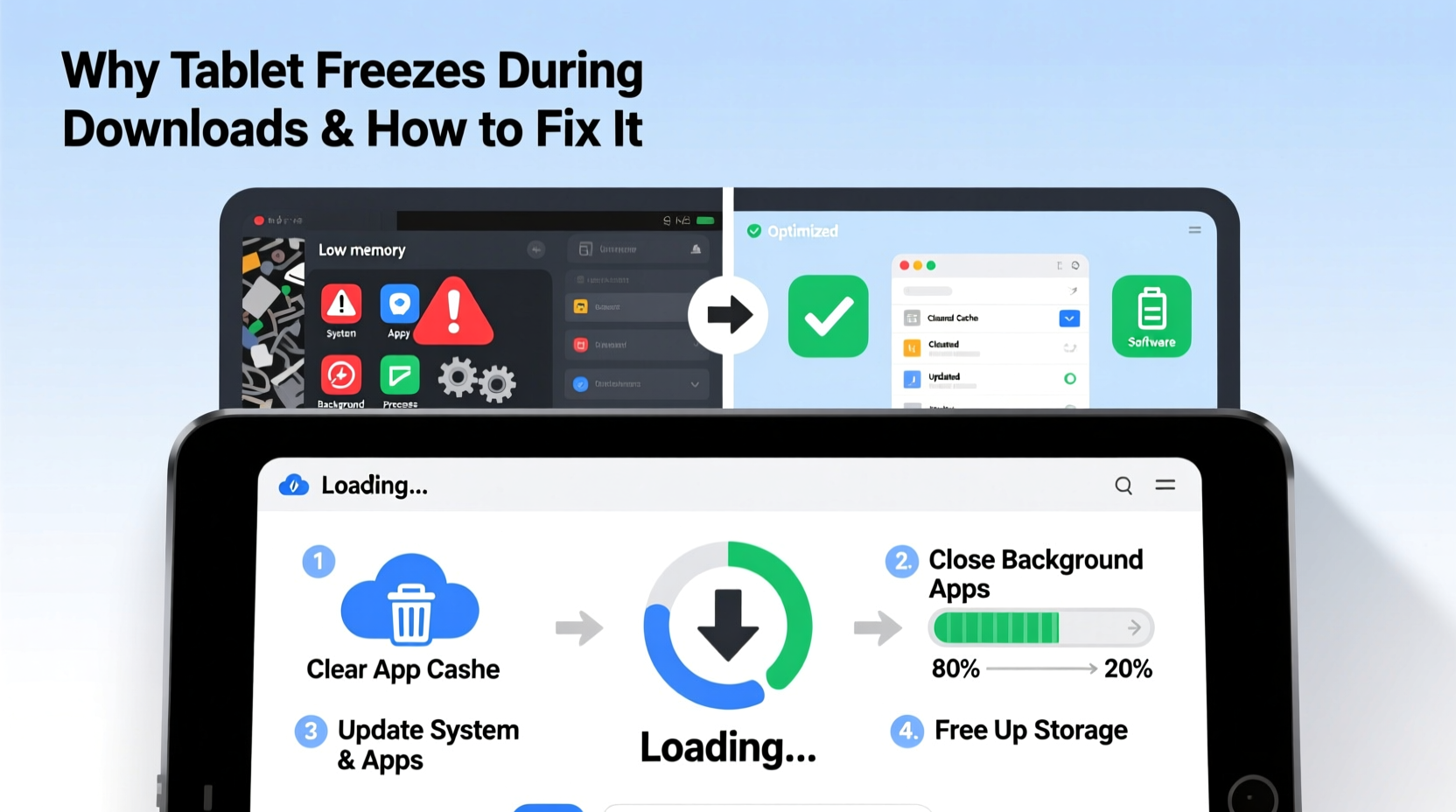
When your tablet locks up while downloading an app, it’s rarely due to a single factor. Instead, several system-level components may be under strain simultaneously. Identifying these culprits helps you take targeted action.
- Insufficient RAM: If your tablet has limited memory, running background processes while downloading a large app can overwhelm the system, leading to freezing.
- Slow or unstable internet connection: Intermittent connectivity forces the download to pause and restart repeatedly, increasing processing load and potentially causing crashes.
- Outdated operating system: Older OS versions may lack optimizations for newer apps, resulting in compatibility issues and instability.
- Storage overload: When internal storage is nearly full, the system struggles to write temporary files during installation, slowing down or halting the process.
- Background apps consuming resources: Apps running in the background—especially those syncing data or playing media—can hog CPU and memory.
- Overheating: Prolonged usage or poor ventilation can cause thermal throttling, where the processor slows down or shuts off functions to cool itself.
How to Speed Up Your Tablet and Prevent Freezing
Fixing a freezing tablet isn’t just about restarting it—it’s about creating a sustainable environment for smooth operation. The following strategies address both immediate symptoms and long-term performance health.
1. Clear Cache and Temporary Files
Over time, cached data from apps and the browser accumulates and can interfere with system operations. While useful for speeding up repeated tasks, excessive cache can slow things down.
- Go to Settings > Storage.
- Select Cache or Other Apps.
- Tap each app and choose Clear Cache (avoid “Clear Data” unless necessary).
This doesn’t delete personal information but frees up space and reduces clutter that might be contributing to sluggishness.
2. Manage Background Processes
Many apps continue running after you leave them, syncing emails, updating widgets, or tracking location. These activities consume memory and CPU cycles.
To limit this:
- Disable auto-sync in Settings > Accounts > Sync.
- Restrict background data usage per app in Settings > Apps > [App Name] > Mobile Data.
- Use built-in battery optimization features to limit background activity.
3. Update Software Regularly
Manufacturers release OS updates to patch bugs, improve stability, and enhance performance. An outdated system may struggle with modern app requirements.
Check for updates:
- Android: Settings > System > System Update
- iPadOS: Settings > General > Software Update
Enable automatic updates if available, so your tablet stays current without manual intervention.
4. Optimize Wi-Fi Performance
A weak or inconsistent network signal forces downloads to buffer or restart, increasing processing overhead. To ensure a stable connection:
- Move closer to your router.
- Reboot your router periodically.
- Avoid using public Wi-Fi for large downloads.
- Forget and rejoin the network if connection seems unstable.
“Network instability is one of the most overlooked triggers of app installation failures. A solid 5GHz Wi-Fi connection significantly reduces download-related freezes.” — Raj Mehta, Senior Mobile Systems Engineer at NetVision Labs
Step-by-Step Guide to Prevent Future Freezes
Follow this routine monthly—or whenever you notice slowdowns—to keep your tablet running smoothly.
- Restart your tablet: A simple reboot clears RAM and stops rogue processes.
- Check available storage: Ensure at least 10–15% of internal space is free.
- Uninstall unused apps: Remove apps you haven’t used in over a month.
- Clear app caches: Focus on heavy users like browsers, social media, and streaming apps.
- Update all apps: Outdated apps may conflict with system updates.
- Run a malware scan (Android only): Use trusted security apps like Google Play Protect.
- Monitor temperature: Avoid prolonged use in direct sunlight or hot environments.
Performing these steps proactively reduces the likelihood of freezing during critical operations like app downloads.
Do’s and Don’ts: Tablet Performance Best Practices
| Do’s | Don’ts |
|---|---|
| Keep at least 1 GB of free RAM when downloading large apps | Download multiple large apps simultaneously |
| Use a high-speed, stable Wi-Fi network | Attempt downloads over spotty or congested networks |
| Install updates as soon as they’re available | Ignore OS or app update notifications |
| Store your tablet in a cool, ventilated area | Leave it in a car or near heat sources |
| Regularly clear browsing history and cache | Allow temporary files to accumulate unchecked |
Real Example: How Sarah Fixed Her Lagging Tablet
Sarah, a freelance graphic designer, relied on her Android tablet for client communication and light design work. She began noticing frequent freezes when downloading design tools from the Play Store. At first, she assumed her device was too old—purchased three years prior—but decided to troubleshoot before upgrading.
She started by checking storage: only 2% was free. After deleting old projects and clearing cache from Chrome and Slack, she freed up over 6 GB. Next, she disabled background sync for non-essential apps and updated her OS to the latest version. Finally, she switched from her crowded 2.4GHz Wi-Fi band to a less congested 5GHz network.
The difference was immediate. Downloads completed without interruption, and overall responsiveness improved. Sarah avoided spending $300 on a new device by addressing simple maintenance oversights.
Frequently Asked Questions
Why does my tablet freeze only when downloading big apps?
Larger apps require more memory and processing power during installation. If your tablet is already low on RAM or storage, the added demand can push it past its limits, causing a freeze. Smaller apps place less strain, which is why they install without issue.
Will factory resetting my tablet solve the freezing problem?
A factory reset can help if software corruption or deep-seated clutter is the cause. However, it should be a last resort. Back up your data first, and try less drastic measures—like clearing cache and uninstalling unused apps—before wiping the device.
Can a virus make my tablet freeze during downloads?
While rare, malware can hijack system resources or interfere with legitimate processes. On Android devices, especially those with sideloaded apps, malicious software may trigger instability. Stick to official app stores and run periodic scans using trusted antivirus tools.
Expert Tips for Long-Term Tablet Health
Maintaining peak tablet performance goes beyond fixing freezes—it’s about building habits that support longevity and efficiency.
- Limit widget usage: Widgets refresh in the background and consume memory. Use only essential ones.
- Avoid live wallpapers: Animated backgrounds increase GPU load and drain battery faster.
- Use cloud storage: Offload photos, videos, and documents to services like Google Drive or iCloud to preserve local space.
- Turn off vibrations and haptics: These features use motors that generate heat and add processing load.
- Enable dark mode: On OLED screens, dark mode reduces power consumption and lowers screen temperature.
“Most tablet performance issues are preventable. Users often overlook basic digital hygiene—clearing cache, managing updates, and monitoring storage. Just 10 minutes a month can extend a device’s useful life by years.” — Dr. Lena Torres, UX Researcher at Mobile Insights Group
Conclusion: Take Control of Your Tablet’s Performance
Your tablet shouldn’t freeze every time you install a new app. With a combination of smart usage habits, regular maintenance, and informed troubleshooting, you can eliminate lag and enjoy seamless downloads. The key is consistency—don’t wait for problems to escalate. Apply the steps outlined here today to boost speed, prevent crashes, and get the most out of your device.




 浙公网安备
33010002000092号
浙公网安备
33010002000092号 浙B2-20120091-4
Comments
No comments yet. Why don't you start the discussion?