
Tablets have become essential tools for work, education, and entertainment. But nothing disrupts the experience like a sudden freeze during an app download. You tap \"Install,\" watch the progress bar crawl, and then—nothing. The screen locks up, unresponsive to taps or swipes. This issue is more common than you might think, especially on older devices or those running outdated operating systems. Understanding the root causes behind these freezes—and knowing how to resolve them—can save time, frustration, and even prevent long-term damage to your device.
The freezing of a tablet during app downloads isn't usually due to a single factor. Instead, it's often the result of overlapping software inefficiencies, hardware limitations, or misconfigured system settings. While some assume their device is simply “old” or “broken,” most cases can be resolved with targeted troubleshooting. From background processes hogging resources to corrupted cache files, this guide breaks down the most frequent software traps and delivers proven fixes that restore smooth performance.
Common Causes of Tablet Freezing During App Downloads
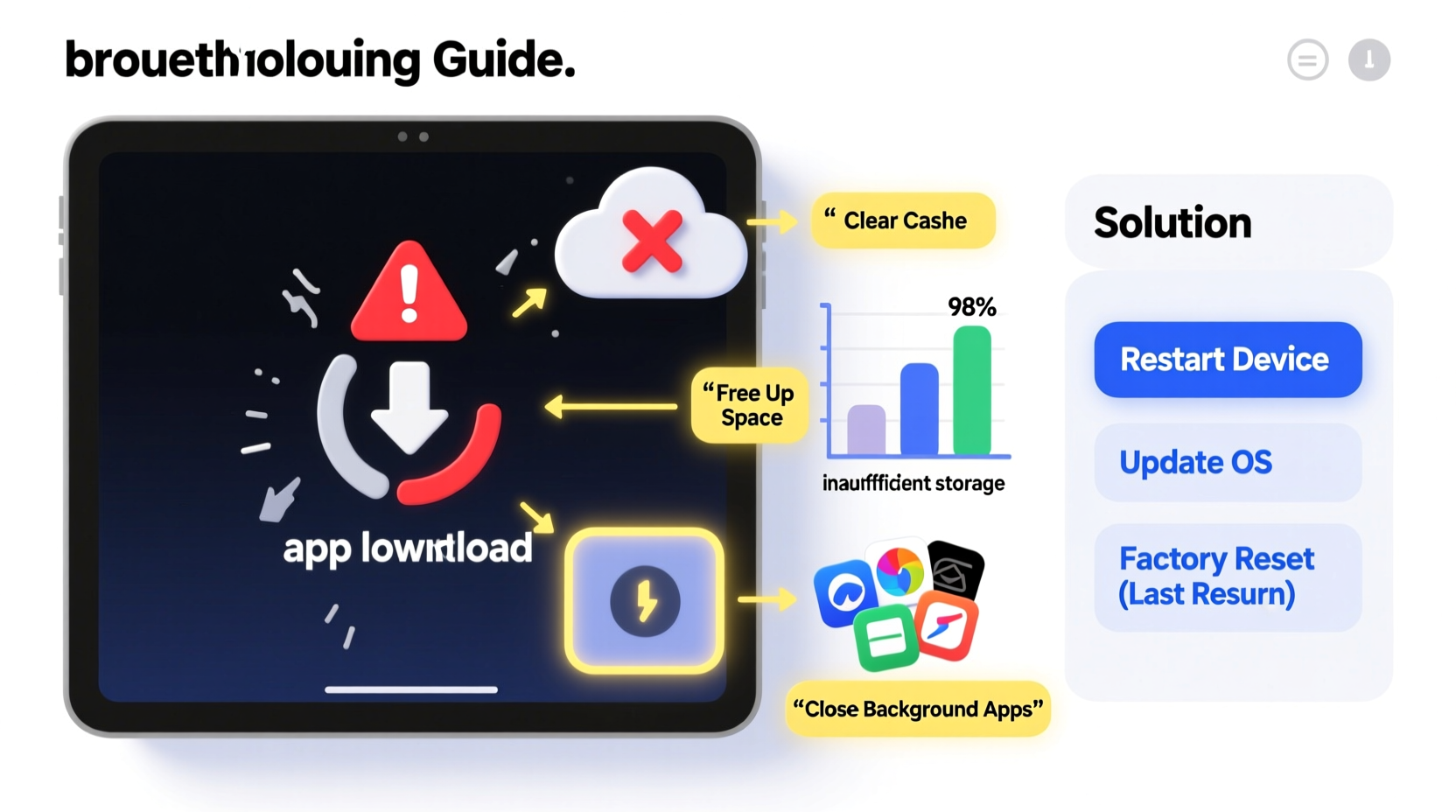
When a tablet freezes mid-download, it’s reacting to stress in its operating environment. Unlike desktop computers, tablets operate with limited RAM, storage, and cooling capacity. When multiple demands are placed on the system simultaneously, such as downloading a large app while other services run in the background, the system may fail to keep up.
- Insufficient RAM: If too many apps are open or running in the background, available memory drops sharply, causing slowdowns or crashes during resource-heavy tasks like app installation.
- Low Storage Space: Android and iOS both require free space not just for the app itself but also for temporary extraction files during installation. Running below 10% free storage increases the risk of failed installations and system instability.
- Outdated Operating System: Older OS versions may lack optimizations needed to handle modern app sizes and encryption standards, leading to timeouts and freezes.
- Corrupted Download Cache: The Google Play Store (or App Store) maintains a local cache to speed up operations. Over time, this data can become corrupt, interfering with downloads.
- Network Instability: Interrupted Wi-Fi or weak signal strength can cause partial downloads that confuse the system, prompting it to hang instead of failing cleanly.
- Buggy or Incompatible Apps: Some apps are poorly optimized or contain code conflicts that trigger system-level errors when being installed.
Step-by-Step Guide to Fix a Freezing Tablet During Downloads
Resolving freezing issues requires a methodical approach. Jumping straight to a factory reset should be a last resort. Follow these steps in order to identify and eliminate the underlying cause.
- Force Restart the Device
Begin by rebooting your tablet. On most Android devices, press and hold the Power button for 10–15 seconds until the screen turns off and restarts. For iPads, press and quickly release Volume Up, then Volume Down, then hold the Side button until the Apple logo appears. A restart clears temporary memory and stops rogue processes. - Clear App Store Cache (Android)
Go to Settings > Apps > Google Play Store > Storage > Clear Cache. Do the same for “Google Play Services.” This removes corrupted temporary files without deleting account data. - Check Wi-Fi Connection Stability
Move closer to your router or switch to a different network. Test internet speed using another device. Consider restarting your router if connections are inconsistent. - Free Up Internal Storage
Delete unused apps, clear browser history, and offload photos to cloud storage. Use built-in tools like “Storage Sense” (Samsung) or “iPhone Storage Management” to automate cleanup. - Update the Operating System
Navigate to Settings > System > Software Update (Android) or Settings > General > Software Update (iOS). Install any pending updates, which often include stability patches and security fixes. - Disable Battery Optimization for App Store
On Android, go to Settings > Apps > Special Access > Battery Optimization, find Google Play Store, and set it to “Don’t Optimize.” Preventing aggressive power-saving helps maintain active download sessions. - Remove and Re-add Google/Apple Account
Sometimes authentication glitches interfere with downloads. Remove your account from Settings, restart, then re-enter credentials. - Boot into Safe Mode (Android Only)
Press and hold the Power button, then long-press “Power Off” until “Reboot to Safe Mode” appears. Tap OK. In Safe Mode, only system apps run. Try downloading an app—if it works, a third-party app is likely causing conflict.
Software Traps That Trigger Freezes: What to Watch For
Beyond basic resource shortages, certain software behaviors silently degrade tablet performance over time. These “traps” accumulate unnoticed until they manifest during high-load scenarios like app downloads.
| Software Trap | How It Causes Freezing | Solution |
|---|---|---|
| Background Sync Overload | Multiple apps syncing data (email, calendar, cloud) consume CPU and memory. | Limit auto-sync in settings; use manual sync for non-critical apps. |
| Fragmented Cache Files | Repeated installs/uninstalls leave orphaned cache entries that slow file access. | Regularly clear app caches; use device maintenance tools monthly. |
| Malware or Adware | Hidden apps run scripts that max out processor usage. | Install reputable antivirus apps; avoid third-party app stores. |
| Aggressive Battery Saver | Throttles CPU and kills background processes mid-download. | Temporarily disable battery saver during large downloads. |
| Conflicting Security Apps | Multiple antivirus or firewall apps interfere with system calls. | Keep only one trusted security solution active. |
“Modern tablets are powerful, but their efficiency depends heavily on clean software hygiene. Regular cache clearing and avoiding unnecessary background apps can prevent 80% of freezing issues.” — Dr. Lena Torres, Mobile Systems Engineer at TechReliability Labs
Real-World Example: Resolving Chronic Freezing on a Samsung Galaxy Tab A
A user reported persistent freezing every time they attempted to download WhatsApp on their three-year-old Samsung Galaxy Tab A. The download would start, reach about 40%, then lock the entire interface. Attempts to restart and retry failed repeatedly.
Initial checks showed 8% storage free and an outdated version of Android 10. The user had installed several “cleaner” apps from third-party sources claiming to boost performance. After following the step-by-step guide above, here’s what was done:
- Uninstalled all third-party cleaner apps (which were actually adware).
- Cleared cache for Google Play Store and Services.
- Freed over 2 GB by moving photos to Google Photos.
- Updated the OS to the latest available patch (Android 11).
- Disabled battery optimization for the Play Store.
After these changes, the WhatsApp download completed successfully on the first try. The tablet has since performed smoothly, with no further freezes during app installations. This case highlights how layered software issues—not hardware failure—were responsible for the malfunction.
Essential Maintenance Checklist to Prevent Future Freezes
Prevention is far more effective than constant troubleshooting. Incorporate these habits into your routine to maintain optimal tablet performance.
- ✅ Check available storage weekly; maintain at least 15% free space.
- ✅ Clear app store cache monthly (especially on Android).
- ✅ Keep the operating system and apps updated.
- ✅ Avoid installing apps from unknown sources.
- ✅ Disable auto-sync for non-essential accounts.
- ✅ Restart your tablet at least once a week.
- ✅ Use only one security app, preferably from a reputable provider.
- ✅ Monitor battery usage settings; disable aggressive power-saving during downloads.
Frequently Asked Questions
Can a virus make my tablet freeze when downloading apps?
Yes. Malware often runs hidden processes that consume CPU and memory, leaving insufficient resources for legitimate tasks like app installation. Symptoms include unexpected battery drain, pop-up ads, and sluggish performance. Use trusted antivirus tools like Bitdefender or Malwarebytes for Android to scan and remove threats.
Will resetting my tablet fix the freezing problem?
A factory reset can resolve deep-seated software corruption, but it should be used cautiously. All personal data will be erased, so back up photos, documents, and app data first. Reset only after exhausting other troubleshooting options. Even after a reset, reinstalling problematic apps or restoring infected backups can bring the issue back.
Why do large apps freeze more often than small ones?
Larger apps require more memory during decompression and installation. They also take longer to download, increasing the chance of network interruption or system timeout. Devices with less than 2GB of RAM are particularly vulnerable. If possible, download large apps (like games) on a Wi-Fi network with strong signal and ensure the tablet is plugged in to prevent sleep-mode interruptions.
Final Thoughts: Take Control of Your Tablet’s Performance
Freezing during app downloads is not an inevitable part of owning a tablet. It’s a symptom of manageable software and configuration issues. By understanding the interplay between storage, memory, network stability, and system health, users can diagnose problems accurately and apply effective solutions. Most fixes don’t require technical expertise—just consistent attention to device hygiene.
Technology should serve you, not frustrate you. With regular maintenance and informed usage habits, your tablet can remain responsive and reliable for years. Don’t wait for the next freeze to act. Implement the checklist today, share these insights with others who struggle with similar issues, and reclaim control over your digital experience.




 浙公网安备
33010002000092号
浙公网安备
33010002000092号 浙B2-20120091-4
Comments
No comments yet. Why don't you start the discussion?