
Tablets have become essential tools for work, study, and entertainment. But nothing disrupts productivity like a frozen screen—especially when you're juggling multiple browser tabs. If your device locks up every time you open more than a few pages, the problem isn't just bad luck. It's likely a symptom of deeper performance issues related to memory management, software inefficiency, or hardware limitations. Understanding why this happens—and how to fix it—can restore smooth browsing and extend your tablet’s usable life.
Why Tablets Freeze with Multiple Tabs Open
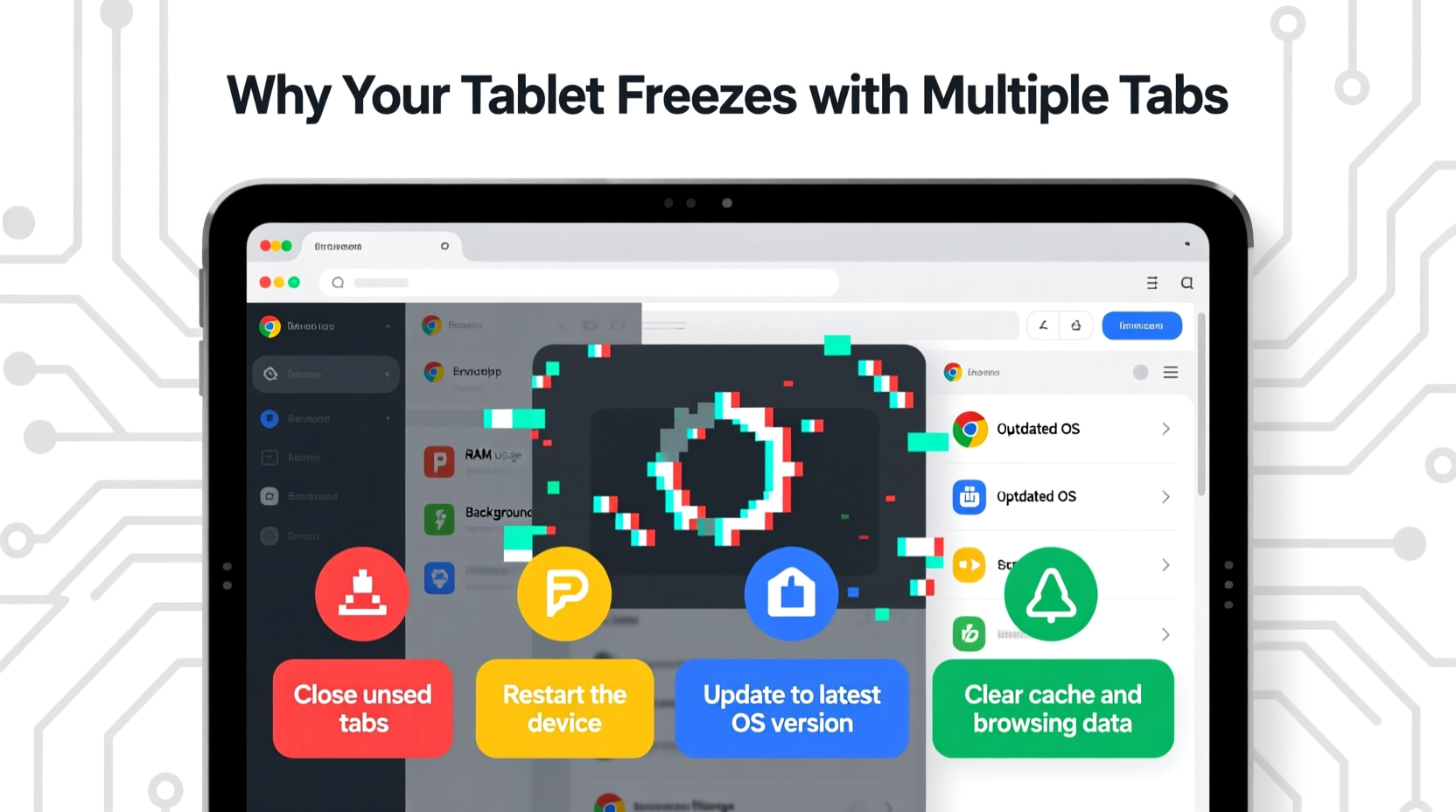
When you open multiple browser tabs, each one consumes a portion of your tablet’s RAM (Random Access Memory). Unlike desktop computers, most tablets have limited RAM—typically between 2GB and 6GB, even in mid-range models. Each tab runs JavaScript, loads images, and maintains active connections, all of which demand resources. When available memory is exhausted, the operating system struggles to keep everything running, often resulting in lag, unresponsive apps, or complete freezes.
Beyond raw memory limits, background processes also contribute. Email sync, cloud backups, notifications, and auto-updating widgets can quietly eat up processing power. Combine these with a cluttered browser, outdated firmware, or an overloaded cache, and even simple multitasking becomes a strain.
“Modern web pages are full-fledged applications. A single complex tab can use as much memory as a native app.” — Dr. Lin Zhao, Mobile Systems Researcher at MIT
The issue is compounded by how browsers handle inactive tabs. While some suspend background tabs, others continue running scripts or tracking pixels, keeping CPU usage high. Over time, this leads to thermal throttling—where the processor slows down to cool off—further degrading performance.
Step-by-Step Guide to Prevent Freezing
Resolving freezing issues requires both immediate fixes and long-term habits. Follow this timeline to stabilize your tablet and prevent future crashes:
- Close all open tabs immediately – Use the tab manager in your browser to shut down unnecessary pages. On Chrome, tap the square icon; on Safari, tap the number in the corner.
- Restart your tablet – This clears RAM and stops rogue processes. Hold the power button, confirm shutdown, wait 10 seconds, then power back on.
- Update your operating system – Go to Settings > System > Software Update (Android) or Settings > General > Software Update (iOS). Install any pending updates.
- Clear browser cache and data – In Settings > Apps > [Browser Name] > Storage, tap “Clear Cache” and “Clear Data.” Note: This logs you out of websites.
- Switch to a lightweight browser – Consider alternatives like Firefox Focus, Brave, or Microsoft Edge, which are optimized for low-memory devices.
- Limit startup tabs and sync settings – Disable automatic sign-in across devices and reduce the number of synced tabs.
- Monitor battery and performance settings – Disable power-saving modes that may interfere with background processes or throttle CPU too aggressively.
Hardware vs. Software: What’s Really to Blame?
While software tweaks help, hardware limitations play a major role. Older tablets or budget models often lack the processing muscle to handle modern web standards. Below is a comparison of typical tablet specs and their impact on multitab performance:
| Ram Size | Max Stable Tabs (Approx.) | Recommended Actions |
|---|---|---|
| 2GB | 3–5 | Use only essential tabs; enable data saver; avoid video-heavy sites |
| 3GB | 6–8 | Close unused tabs daily; update OS monthly |
| 4GB+ | 9–12+ | Use tab groups; consider ad blockers; monitor background apps |
If your tablet has less than 3GB of RAM, managing expectations is key. You may need to accept that true multitasking isn’t feasible without compromise. Upgrading hardware might be the most effective long-term solution—but not always necessary if optimized correctly.
Troubleshooting Checklist: Regain Control of Your Tablet
Use this checklist weekly to maintain peak performance and avoid recurring freezes:
- ✅ Close unused browser tabs at the end of each session
- ✅ Restart your tablet at least once per week
- ✅ Clear browser cache every 7–10 days
- ✅ Disable autoplay for videos in browser settings
- ✅ Turn off unnecessary website permissions (camera, location, microphone)
- ✅ Uninstall unused apps that run in the background
- ✅ Check for OS and browser updates monthly
- ✅ Avoid downloading files directly to the tablet; move them to cloud storage promptly
Real Example: How Sarah Fixed Her Freezing Tablet
Sarah, a freelance writer, relied on her 4-year-old Android tablet for research. She routinely opened 10+ tabs across news sites, reference materials, and client emails. Within minutes, the device would freeze, forcing hard reboots. Frustrated, she considered buying a new tablet—until she tried a systematic cleanup.
First, she closed all tabs and restarted the device. Then, she cleared Chrome’s cache and switched to using bookmarks instead of leaving tabs open. She installed the Brave browser for heavy-duty research sessions and enabled its built-in ad blocker. She also disabled background sync for non-essential apps like weather and social media.
Within a week, her tablet stopped freezing. By limiting active tabs to five and using tab grouping, she maintained productivity without strain. The total cost? Zero dollars. The result? A renewed device that now handles her workflow smoothly.
Advanced Optimization: Browser Settings & Extensions
Most users never adjust browser settings beyond basic search preferences. Yet small changes can dramatically reduce memory consumption:
- Disable JavaScript on non-essential sites – In Firefox or Kiwi Browser, block JS for ad-heavy pages.
- Install a mobile ad blocker – Tools like AdGuard or Blokada filter out resource-hogging ads and trackers.
- Limit tab lifetime – Some browsers allow auto-closing inactive tabs after 30 minutes.
- Reduce animation and visual effects – In developer options (Android), turn off window and transition animations.
On iOS, while extension support is limited, Safari Content Blockers like 1Blocker or Crystal can significantly cut down on background activity. On Android, consider using Kiwi Browser, which supports full Chrome extensions—including those that suspend tabs or block scripts.
“Memory management isn’t just about closing tabs—it’s about preventing bloat before it starts.” — Rajiv Mehta, Mobile Performance Analyst
Frequently Asked Questions
Can too many tabs permanently damage my tablet?
No, excessive tabs won’t cause physical damage. However, constant overheating from sustained high CPU usage can degrade battery health over time. Modern tablets include thermal protection, but repeated stress shortens overall lifespan.
Is it better to use one browser with many tabs or multiple browsers with fewer tabs?
Using one browser is generally more efficient. Each browser instance runs its own engine and memory pool. Running Chrome and Firefox simultaneously uses more RAM than having 8 tabs in Chrome alone. Stick to one optimized browser and manage tabs within it.
Will factory resetting my tablet stop the freezing?
A factory reset can help—if the issue stems from corrupted software or bloated system data. However, it’s a last resort. Back up your files first, as this erases everything. After resetting, reinstall only essential apps and avoid restoring full backups that may contain problematic settings.
Prevention Is Better Than Replacement
Before assuming your tablet is obsolete, consider that most freezing issues stem from manageable causes—not inevitable decline. With mindful usage, regular maintenance, and smart configuration, even older devices can perform reliably. The web is heavier than ever, but so are our tools for controlling it.
Instead of reaching for a new gadget at the first sign of lag, take control. Audit your habits, trim the digital fat, and optimize your setup. You might find your current tablet is more capable than you thought.




 浙公网安备
33010002000092号
浙公网安备
33010002000092号 浙B2-20120091-4
Comments
No comments yet. Why don't you start the discussion?