
Tablets have become essential tools for work, entertainment, and education. With multiple apps open at once—email, video calls, web browsing, and streaming—it’s common to push these devices to their limits. But when your tablet suddenly freezes mid-task, it disrupts productivity and raises concerns about performance and longevity. Understanding the root causes of freezing during multitasking is the first step toward ensuring a consistently smooth experience. More importantly, knowing how to optimize your device can prevent slowdowns before they happen.
Why Tablets Freeze During Multitasking
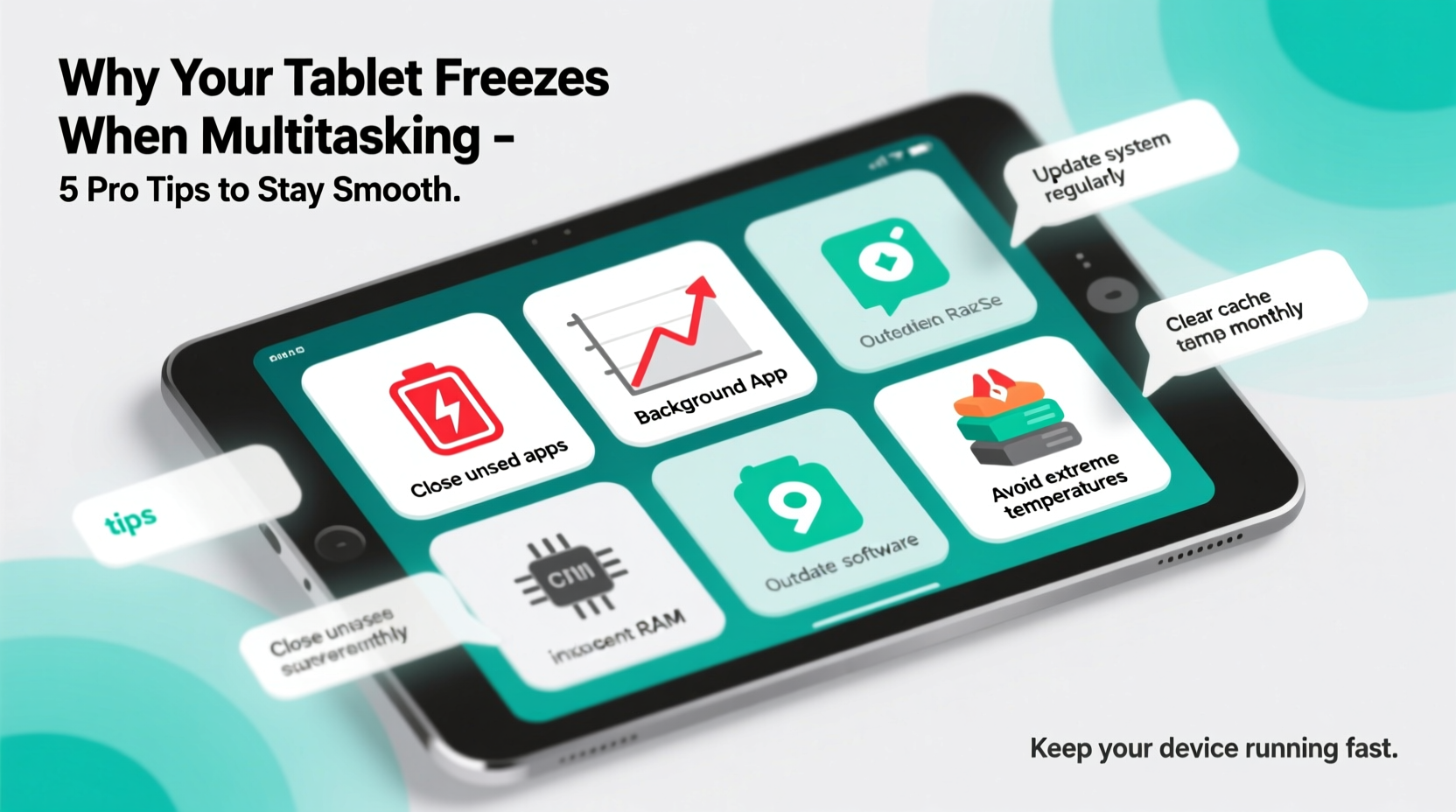
Multitasking places significant demands on a tablet’s hardware and operating system. When you run several apps simultaneously, each consumes portions of RAM (Random Access Memory), CPU processing power, and storage bandwidth. If the cumulative demand exceeds what the device can handle, performance degrades rapidly, often resulting in unresponsiveness or complete freezing.
The most common culprits behind freezing include insufficient RAM, outdated software, background app overload, overheating, and fragmented or full internal storage. Lower-end tablets with limited memory are especially prone to freezing under heavy loads. Even high-end models can struggle if not maintained properly over time.
“Modern tablets are powerful, but they’re not immune to resource exhaustion. Running too many memory-intensive apps at once is like asking a compact car to tow a trailer—it might start, but it won’t last long.” — Dr. Alan Reeves, Mobile Systems Engineer
Hardware Limitations: The Silent Bottleneck
Not all tablets are built equally. Entry-level models often come with 2GB to 4GB of RAM, which may suffice for basic tasks but becomes overwhelmed when handling video conferencing while downloading files and streaming music. In contrast, premium tablets with 6GB or more RAM manage multitasking far more effectively.
CPU architecture also plays a critical role. Older processors or budget chipsets lack the efficiency and thermal management needed for sustained performance. As the processor heats up from continuous use, it throttles speed to protect itself, leading to lag and eventual freezing.
How Background Apps Drain Performance
Many users assume that closing an app by swiping it away from the recent apps menu fully stops it. However, some apps continue running background services such as syncing data, playing audio, or tracking location. These hidden processes consume valuable resources even when the app appears closed.
For example, social media apps like Facebook or Instagram frequently refresh feeds and upload usage data in the background. Cloud storage apps like Google Drive or Dropbox constantly monitor for file changes. Over time, multiple such apps accumulate, eating up RAM and slowing down active applications.
Identifying Resource-Hungry Apps
Both Android and iOS provide built-in tools to monitor app resource usage:
- Android: Go to Settings > Battery & Device Care > Memory to see which apps are using the most RAM.
- iPadOS: Navigate to Settings > General > iPad Storage to view app sizes and activity indicators.
If an app consistently ranks high in memory or CPU usage—even when idle—it may be poorly optimized or contain bugs that cause excessive background activity.
| App Type | Common Background Activities | Impact on Performance |
|---|---|---|
| Social Media | Data syncing, notifications, auto-play videos | High RAM and battery drain |
| Cloud Storage | File indexing, upload monitoring | Moderate to high disk and network use |
| Streaming Services | Preloading content, background playback | Can cause overheating and lag |
| Navigation & Maps | Location tracking, route updates | Drains CPU and GPS resources |
Step-by-Step Guide to Prevent Freezing
Instead of reacting after a freeze occurs, take proactive steps to maintain optimal tablet performance. Follow this sequence regularly to minimize disruptions:
- Restart your tablet weekly. A simple reboot clears cached data and stops rogue background processes.
- Update your OS and apps. Developers release patches that fix memory leaks and improve stability.
- Limit active apps. Avoid having more than three intensive apps open at once (e.g., video editor, browser with 10+ tabs, Zoom).
- Clear cache manually. On Android, go to Settings > Storage > Other Apps, select an app, and tap “Clear Cache.” On iPad, offload unused apps via Settings > General > iPad Storage.
- Disable auto-start and background refresh. In settings, restrict apps from launching automatically or refreshing in the background unless necessary.
- Use Lite versions of apps. For example, Facebook Lite uses significantly less memory than the full version.
- Monitor temperature. If the tablet feels warm, stop using it for 10–15 minutes to allow cooling.
Mini Case Study: Sarah’s Work-from-Home Tablet Struggles
Sarah, a freelance graphic designer, relied on her mid-range Android tablet for client meetings, design work, and email. She frequently experienced freezes during video calls, especially when referencing documents in another window. After investigating, she discovered that her cloud storage app was syncing large project files in the background while her browser had 12 tabs open, including two video tutorials.
She followed the optimization steps: restarted the device, disabled automatic sync during work hours, switched to Chrome’s Lite mode, and began closing unused apps daily. Within a week, freezing incidents dropped from nearly daily to zero. Her tablet now handles split-screen design reviews without issue.
Optimize Storage to Improve Responsiveness
Internal storage isn’t just for saving photos and documents—it directly affects performance. When storage is above 85% capacity, the operating system struggles to create temporary files and manage virtual memory, leading to sluggishness and crashes.
Additionally, fragmented data on older devices (especially those with eMMC storage instead of UFS or NVMe) slows read/write speeds. While users can't defragment mobile storage manually, freeing up space helps the system operate more efficiently.
What You Can Do:
- Delete old screenshots, downloaded files, and duplicate photos.
- Move media to cloud storage or external drives.
- Uninstall apps you haven’t used in over a month.
- Avoid storing large files like movies locally unless actively watching them.
“Storage pressure is one of the most overlooked causes of poor tablet performance. Keeping at least 20% free space dramatically improves system responsiveness.” — Lena Park, Senior UX Analyst at Mobile Insights Group
Checklist: Monthly Tablet Maintenance Routine
To keep your tablet running smoothly, perform the following actions at least once per month:
- Reboot the device completely
- Install pending OS and app updates
- Review battery and memory usage stats
- Clear cache for top 5 resource-heavy apps
- Uninstall unused or redundant apps
- Back up important data to cloud or computer
- Free up at least 1–2 GB of storage
- Check for physical signs of damage or overheating
Frequently Asked Questions
Can too many open tabs really freeze my tablet?
Yes. Each open tab in a browser runs as a separate process and consumes RAM. Having 10+ tabs open—even in the background—can exhaust available memory, especially on tablets with 4GB or less RAM. This leads to lag, delayed responses, and eventual freezing. Use bookmarking and tab groups to reduce clutter.
Is it better to close apps manually or let the system manage them?
Let the system manage them. Modern operating systems are designed to suspend inactive apps and reclaim memory when needed. Manually closing apps repeatedly can actually hurt performance because the system has to reload them from scratch each time. Only force-close an app if it’s frozen or misbehaving.
Does dark mode help prevent freezing?
Dark mode doesn’t directly prevent freezing, but on OLED or AMOLED screens, it reduces power consumption and heat generation. Lower temperatures mean less thermal throttling, which indirectly supports smoother multitasking. It’s a small but meaningful benefit in long sessions.
When to Consider Upgrading Your Device
Despite best efforts, some tablets reach a point where hardware limitations make smooth multitasking impossible. Signs that it may be time to upgrade include:
- Frequent freezes even after restarts and cleanups
- Inability to install the latest OS update
- Apps crashing on launch or failing to load
- Prolonged loading times for basic functions
If your tablet has less than 3GB of RAM and uses a processor older than five years (e.g., MediaTek MT8163, Apple A8X, or Snapdragon 625), upgrading to a newer model will bring noticeable improvements in multitasking stability and overall user experience.
Conclusion: Take Control of Your Tablet’s Performance
A tablet that freezes during multitasking isn’t necessarily broken—it’s likely overburdened. By understanding the balance between hardware capabilities and software demands, you can make informed choices that preserve performance and extend device life. Simple habits like managing background apps, maintaining free storage, and updating software go a long way in preventing frustration.
Don’t wait for the next freeze to act. Implement a regular maintenance routine, stay mindful of what’s running behind the scenes, and give your device the care it needs to keep pace with your lifestyle. A well-maintained tablet can remain responsive and reliable for years, supporting everything from casual browsing to serious productivity.




 浙公网安备
33010002000092号
浙公网安备
33010002000092号 浙B2-20120091-4
Comments
No comments yet. Why don't you start the discussion?