
Streaming video on a tablet should be seamless—crisp visuals, smooth playback, and uninterrupted enjoyment. Yet many users face the frustrating experience of their device freezing mid-episode or buffering unexpectedly. While internet connectivity often takes the blame, the real culprit is frequently hidden within the tablet itself: cache buildup and memory management issues. Understanding these internal processes and how they affect performance can make the difference between constant frustration and smooth, reliable streaming.
Tablets, especially older models or budget devices, have limited RAM and storage capacity. When running resource-heavy apps like Netflix, YouTube, or Disney+, even minor inefficiencies in system memory or excessive cached data can cause lag, stuttering, or complete freezes. This article explores the technical reasons behind streaming freezes, provides practical solutions for clearing cache and optimizing memory, and offers long-term strategies to maintain peak performance.
Understanding Cache and Memory on Tablets
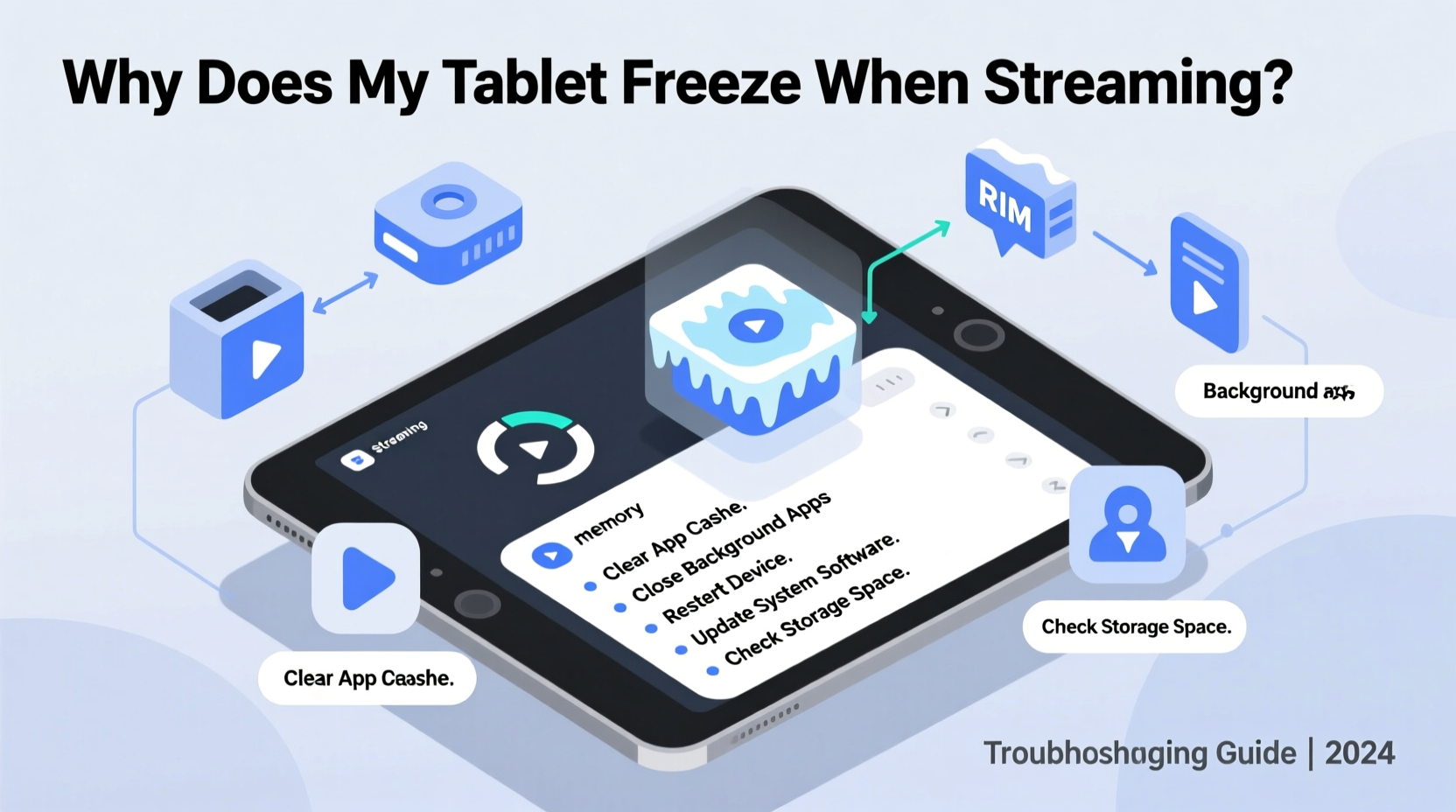
Cache is temporary data stored by apps to speed up loading times. For example, when you open a streaming app, it caches thumbnails, subtitles, login tokens, and partial video segments. While this improves initial load speed, over time, accumulated cache can consume significant storage space and interfere with active memory (RAM), leading to sluggish performance.
Memory, or RAM (Random Access Memory), is where your tablet stores data for currently running applications. Unlike storage, which holds files long-term, RAM handles active tasks. When RAM is overloaded—either by too many background apps or inefficient memory allocation—the system struggles to keep up with demands, especially during high-bandwidth activities like HD video streaming.
When a tablet runs low on available RAM, it begins swapping data to slower storage-based memory, a process known as \"thrashing.\" This dramatically slows down performance and often results in app crashes or screen freezes. Streaming services require consistent access to memory for decoding video, managing network buffers, and rendering graphics. Any disruption in this flow can halt playback entirely.
“Modern streaming apps are more demanding than ever. Devices with less than 3GB of RAM can struggle under sustained loads if not properly maintained.” — Dr. Alan Reyes, Mobile Systems Engineer
Common Causes of Streaming Freezes Related to Cache and Memory
While poor Wi-Fi is a common suspect, hardware and software limitations within the tablet are often the root cause. Below are the primary cache- and memory-related issues that lead to freezing:
- Excessive app cache buildup: Streaming apps store large amounts of temporary data over time, which can corrupt or fragment, slowing down operations.
- Insufficient free RAM: Background apps, auto-start services, and bloatware consume memory, leaving little room for streaming performance.
- Poor memory management by the OS: Older Android versions or unoptimized firmware may not efficiently close unused processes.
- Fragmented storage: When internal storage is nearly full, file access slows down—even cached data becomes harder to retrieve quickly.
- Outdated app versions: Older versions of streaming apps may contain memory leaks or inefficient code that exacerbates performance issues.
Step-by-Step Guide to Fix Cache and Memory Issues
Follow this systematic approach to diagnose and resolve the underlying causes of tablet freezing during streaming.
- Restart your tablet regularly. A simple reboot clears RAM and stops rogue background processes. Make it a habit to restart at least once a week.
- Close all background apps. Swipe away unused apps from the recent apps menu to free up active memory.
- Clear app cache manually:
- Go to Settings > Apps > [Streaming App] > Storage.
- Select Clear Cache (do not tap “Clear Data” unless necessary, as it logs you out).
- Check total storage usage: If your tablet is above 85% capacity, delete unused apps, photos, or downloads to improve system responsiveness.
- Update your operating system and apps: Updates often include memory optimization patches and bug fixes.
- Use a lightweight launcher: Some default launchers consume significant RAM. Switching to a lighter interface can free up resources.
- Enable Developer Options and monitor RAM usage:
- Go to Settings > About Tablet and tap “Build Number” seven times to enable Developer Options.
- Navigate to Developer Options > Running Services to see which apps are consuming the most memory.
Advanced: Factory Reset (Last Resort)
If performance remains poor after regular maintenance, a factory reset can restore optimal function. Be sure to back up essential data first. This wipes all apps, settings, and cached files, returning the system to its original state. After resetting, reinstall only essential apps and avoid immediately restoring all backups, which may re-import bloated data.
Do’s and Don’ts: Managing Tablet Performance
| Do’s | Don’ts |
|---|---|
| Clear cache monthly for heavy-use apps like YouTube, Netflix, Hulu | Ignore persistent freezing—treat it as a warning sign |
| Restart your tablet weekly | Install dozens of background-running apps |
| Use built-in storage cleaner tools (e.g., Samsung Device Care, Google Files) | Store large media files directly on internal storage without cleanup |
| Limit widgets and live wallpapers—they consume RAM continuously | Leave unused apps running in the background |
| Stream in lower resolution on older tablets (e.g., 720p instead of 4K) | Expect flawless 4K streaming on a 5-year-old tablet with 2GB RAM |
Mini Case Study: Resolving Persistent Freezing on a 4-Year-Old Tablet
Sarah, a remote worker and avid streamer, noticed her Android tablet would freeze during evening shows on Netflix. She initially blamed her home Wi-Fi, but troubleshooting revealed stable speeds of 25 Mbps—more than enough for HD streaming. After testing on another network with the same result, she turned to device diagnostics.
Using the Developer Options, she discovered that Netflix was using 1.2 GB of RAM, while background apps like Facebook, weather widgets, and email sync were consuming an additional 1.8 GB. Her tablet had only 3 GB of RAM total. With less than 100 MB of free memory, the system couldn’t handle video decoding smoothly.
Sarah followed the step-by-step guide: she cleared the cache for Netflix and Chrome, uninstalled redundant social media apps, disabled auto-start for non-essential services, and reduced her home screen to two static widgets. After a restart, Netflix ran smoothly with no freezing. She now performs a quick memory check every Sunday night before her usual streaming session.
Preventive Maintenance Checklist
To keep your tablet running smoothly for streaming, follow this monthly checklist:
- ✅ Restart the tablet
- ✅ Clear cache for all streaming and browser apps
- ✅ Delete unused apps and downloaded content
- ✅ Check for OS and app updates
- ✅ Review battery usage for power-hungry background apps
- ✅ Move photos/videos to cloud storage or external drive
- ✅ Limit simultaneous background apps to three or fewer
- ✅ Adjust streaming quality to match device capability (e.g., HD vs. 4K)
Frequently Asked Questions
How do I know if my tablet’s memory is full?
You can check memory usage under Settings > Device Care > Memory (on Samsung) or Settings > Apps > Device Management > Memory on other Android devices. If less than 10% of RAM is free during normal use, performance will likely suffer. On iOS, iPads don’t offer direct RAM monitoring, but slow app switching and frequent reloads indicate low memory.
Is clearing cache safe? Will I lose my login information?
Yes, clearing cache is completely safe. It only removes temporary files like thumbnails and buffered fragments. You won’t lose passwords, account data, or downloaded videos (unless they’re stored in app-specific folders). However, you may need to reload some content the next time you open the app.
Can a tablet become permanently slow over time?
Not necessarily due to age alone, but cumulative software bloat and degraded storage performance (especially on older NAND flash memory) can make a tablet feel slower. Regular maintenance, selective app usage, and periodic resets can extend usability for years beyond expected lifespan.
Optimizing Streaming Settings for Low-Memory Devices
Even with optimized cache and memory, pushing a tablet beyond its hardware limits leads to instability. Adjusting streaming settings can significantly reduce strain:
- Lower video resolution: In Netflix, go to App Settings > Video Quality > Save Data. This reduces bandwidth and memory needs.
- Disable autoplay previews: These constantly load video snippets in the background, consuming RAM and data.
- Turn off HDR and spatial audio: While immersive, these features require extra processing power and are taxing on older hardware.
- Use the mobile site instead of the app: Sometimes, the browser version of YouTube or Hulu uses fewer resources than the native app.
“Streaming doesn’t have to mean maximum settings. Matching quality to device capability ensures reliability over spectacle.” — Lena Torres, UX Performance Analyst
Conclusion: Take Control of Your Tablet’s Performance
A tablet that freezes during streaming isn’t necessarily broken—it’s likely overwhelmed. By understanding the roles of cache and memory, and taking proactive steps to manage them, you can restore smooth playback and extend your device’s useful life. The fixes are straightforward: routine cache clearing, mindful app usage, and smart settings adjustments. These habits not only solve freezing issues but also improve overall responsiveness and battery efficiency.
Technology should serve you, not frustrate you. Don’t accept constant buffering or frozen screens as inevitable. With a few minutes of maintenance each month, your tablet can deliver reliable entertainment for years to come.




 浙公网安备
33010002000092号
浙公网安备
33010002000092号 浙B2-20120091-4
Comments
No comments yet. Why don't you start the discussion?