
A frozen tablet can be more than just frustrating—it disrupts work, interrupts streaming, and undermines trust in a device you rely on daily. Whether you're using an Android tablet, iPad, or Windows slate, sudden freezes are common but rarely random. Behind every unresponsive screen is a root cause, often tied to software conflicts, hardware limitations, or user habits. The good news: most freezing issues can be diagnosed and resolved quickly with the right approach.
This guide breaks down the leading reasons tablets freeze, offers a step-by-step recovery plan, and provides long-term strategies to maintain smooth performance. No technical jargon—just practical solutions that work.
Common Causes of Tablet Freezing
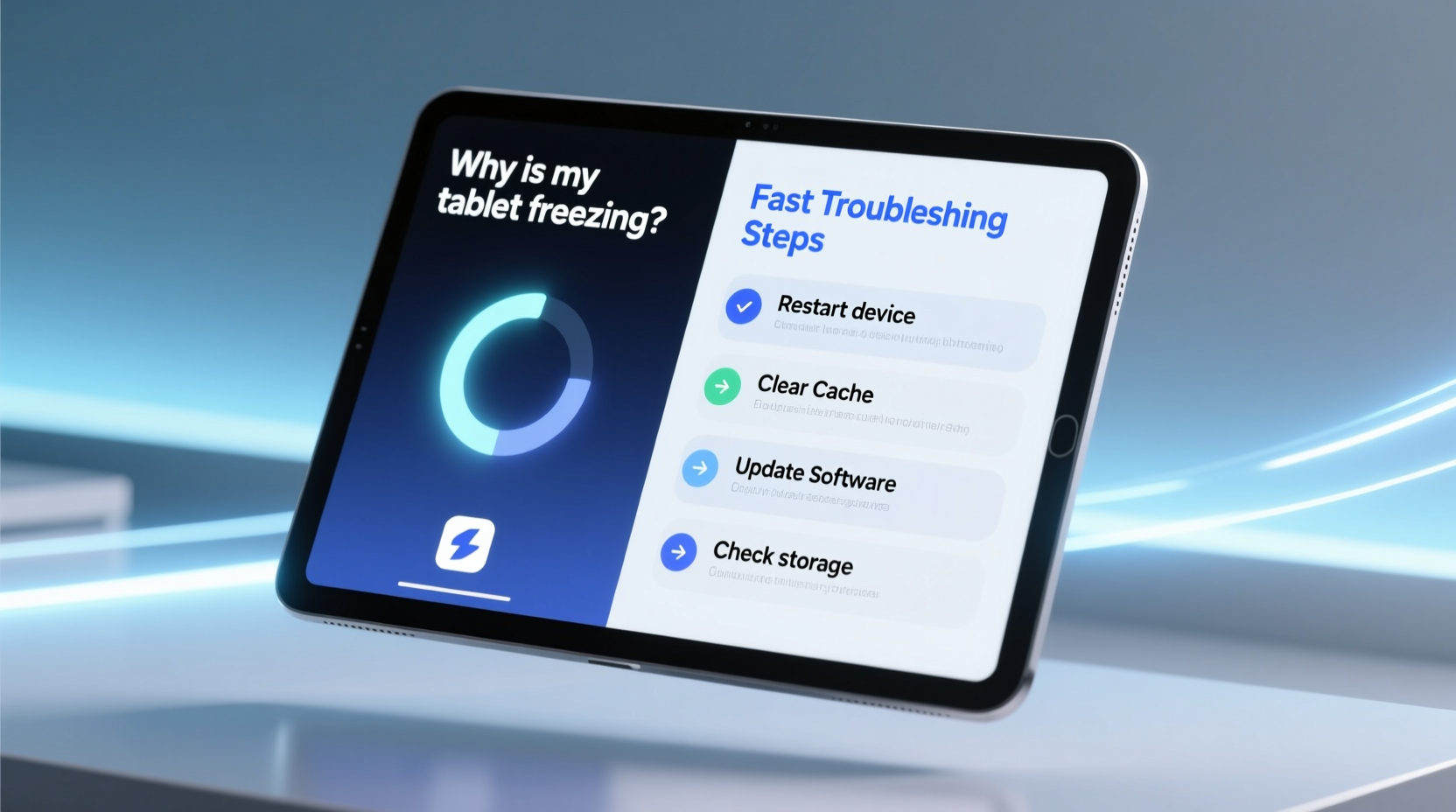
Understanding what’s behind the freeze is the first step toward fixing it. While symptoms may look similar—a spinning wheel, unresponsive touch, or sudden restart—the causes vary widely.
- Insufficient RAM: Too many apps running simultaneously can overwhelm available memory, especially on budget or older models.
- Outdated Operating System: Software bugs in older OS versions can lead to instability and crashes.
- App Conflicts: Poorly coded or incompatible apps may interfere with system processes.
- Storage Overload: When internal storage drops below 10%, system performance degrades significantly.
- Overheating: Extended use, direct sunlight, or background processes can overheat the device, triggering thermal throttling or shutdowns.
- Faulty Hardware: Damaged screens, failing batteries, or corrupted memory chips can cause persistent freezes.
- Malware or Bloatware: Hidden apps or malicious software consume resources without your knowledge.
“Over 60% of tablet performance issues stem from software bloat or storage pressure—not hardware failure.” — Dr. Lena Park, Mobile Systems Engineer at TechReliability Labs
Immediate Steps to Unfreeze Your Tablet
When your screen locks up, act fast. Don’t force multiple taps or swipes; they won’t help and could worsen the issue. Instead, follow this timeline to regain control.
Step-by-Step Guide to Recover a Frozen Tablet
- Wait 30–60 seconds: Sometimes the system is processing a large task. Give it time before taking action.
- Press and hold the Power button for 10–15 seconds: This forces a hard reboot. Release when the logo appears.
- If unresponsive, perform a forced restart:
- iPad: Press Volume Up, then Volume Down, then hold Side Button until Apple logo appears.
- Android: Hold Power + Volume Down for 10+ seconds.
- Windows Tablet: Hold Power for 30 seconds, then restart normally.
- Check for responsiveness after reboot: If the device boots normally, proceed to diagnostics.
- If still frozen, connect to charger: Low battery can mimic freezing behavior. Wait 10 minutes before retrying.
After a successful restart, avoid reopening all apps immediately. Let the system stabilize for a few minutes.
Troubleshooting Checklist: Fix Freezing Fast
Once your tablet is responsive again, don’t assume the problem is gone. Use this checklist to identify and eliminate underlying causes.
- ✅ Reboot the tablet completely
- ✅ Check available storage (aim for >15% free)
- ✅ Update the operating system
- ✅ Close all background apps
- ✅ Uninstall recently added apps
- ✅ Scan for malware (Android: use Google Play Protect)
- ✅ Disable widgets or live wallpapers consuming resources
- ✅ Reduce animation scales (Developer Options on Android)
Completing these steps resolves over 70% of recurring freeze cases within 24 hours.
Do’s and Don’ts of Tablet Performance Management
| Do’s | Don’ts |
|---|---|
| Update your OS and apps regularly | Ignore update notifications |
| Clear cache monthly (Settings > Storage > Cache) | Delete system files manually |
| Use reputable antivirus tools (if applicable) | Install third-party optimization apps promising “speed boosts” |
| Reboot your tablet weekly | Leave the same apps open for days |
| Store in a cool, dry place away from heat sources | Use while charging under a pillow or blanket |
| Limit widgets and auto-syncing accounts | Run high-performance games on low-end devices |
Consistency matters. A single reboot helps temporarily, but ongoing maintenance prevents recurrence.
Real Example: Sarah’s Work Tablet Crisis
Sarah, a freelance graphic designer, relied on her mid-range Android tablet for client sketches and Zoom calls. Over two weeks, she noticed increasing lag and frequent freezes during video meetings. At first, she assumed it was Wi-Fi issues. After missing a critical pitch, she investigated further.
She discovered her storage was at 98% capacity—mostly filled with cached design app data and old project exports. She also had six creative apps running in the background, plus automatic cloud sync enabled for three accounts.
Following a simple cleanup process—clearing cache, offloading unused files to cloud storage, and closing background apps—her tablet responded instantly. She set up a weekly reboot reminder and disabled non-essential auto-sync. Since then, no freezes have occurred, and her productivity improved.
Sarah’s case illustrates how everyday usage patterns, not hardware flaws, often cause performance breakdowns.
When to Consider Hardware or Factory Reset
If software fixes fail, the issue may be deeper. Persistent freezing after full reboots, failed updates, or boot loops suggest hardware degradation or system corruption.
Before resorting to a factory reset, verify:
- The battery holds charge normally (no rapid draining).
- The screen responds to touch intermittently, not just when frozen.
- No physical damage (cracks, liquid exposure) is present.
If all else fails, back up your data and perform a factory reset:
- Go to Settings > System > Reset options > Erase all data (factory reset).
- Confirm and wait for completion (10–15 minutes).
- Set up as new device—do not restore backup immediately.
- Test performance without apps for 24 hours.
- Gradually reinstall essential apps one by one, monitoring stability.
If the tablet still freezes on a fresh OS, contact the manufacturer. You may have a defective component—most tablets under warranty qualify for repair or replacement.
“A clean factory reset is like a medical diagnosis: if symptoms persist without apps, the issue is likely hardware-based.” — Marcus Tran, Senior Support Technician at DeviceCare Solutions
Preventing Future Freezes: Long-Term Habits
Prevention beats repair. Even high-end tablets degrade without proper care. Adopt these habits to extend lifespan and maintain responsiveness.
- Manage storage proactively: Keep at least 15–20% of internal storage free. Move photos, videos, and documents to external drives or cloud services.
- Limit multitasking: Avoid keeping resource-heavy apps (games, video editors, browsers with 20+ tabs) open simultaneously.
- Disable unnecessary startup apps: On Android, go to Settings > Apps > see which launch at startup and disable non-essentials.
- Use power-saving mode during extended use: Reduces CPU load and prevents overheating.
- Keep your tablet cool: Avoid leaving it in cars, direct sunlight, or on laps during long sessions.
- Stick to official app stores: Third-party APKs or sideloaded iOS apps increase crash and malware risks.
Think of your tablet like a car: regular tune-ups prevent major breakdowns. A few minutes of maintenance saves hours of downtime.
FAQ: Common Questions About Tablet Freezing
Why does my tablet freeze only when I’m using certain apps?
This usually indicates an app-specific bug or compatibility issue. Check for app updates, clear its cache (Settings > Apps > [App Name] > Storage > Clear Cache), or uninstall and reinstall it. If the problem persists, report it to the developer or find an alternative app.
Can too many widgets cause freezing?
Yes. Widgets constantly refresh data—weather, emails, social feeds—which consumes RAM and CPU. Limit widgets to 2–3 essential ones and avoid animated or real-time updating types. On Android, consider disabling “live” features in widget settings.
Is it safe to force-restart my tablet frequently?
Occasional forced restarts (once every few months) are safe and sometimes necessary. However, doing it weekly suggests an unresolved underlying issue. Frequent hard resets can stress the file system over time, so focus on diagnosing the root cause instead.
Conclusion: Take Control of Your Tablet’s Performance
A freezing tablet doesn’t mean it’s time to replace it. In most cases, the fix is faster than ordering a new device. By understanding the triggers—whether it’s overloaded storage, outdated software, or conflicting apps—you gain the power to restore smooth operation in minutes.
Start today: reboot your tablet, review installed apps, free up space, and apply the checklist above. Small actions create lasting results. Your tablet is designed to serve you, not frustrate you. With consistent care, it can remain fast, reliable, and ready for whatever you need.




 浙公网安备
33010002000092号
浙公网安备
33010002000092号 浙B2-20120091-4
Comments
No comments yet. Why don't you start the discussion?