
Tablets have become essential tools for work, education, entertainment, and communication. But when your device starts freezing—unresponsive screens, lagging apps, or sudden restarts—it disrupts everything. You're not alone. Millions of users face similar issues across brands like Samsung, Apple, and Amazon Fire. The good news? Most tablet freezes are fixable with simple troubleshooting steps. Understanding the root causes and applying targeted solutions can restore your device’s speed and reliability—often within minutes.
Common Causes of Tablet Freezing
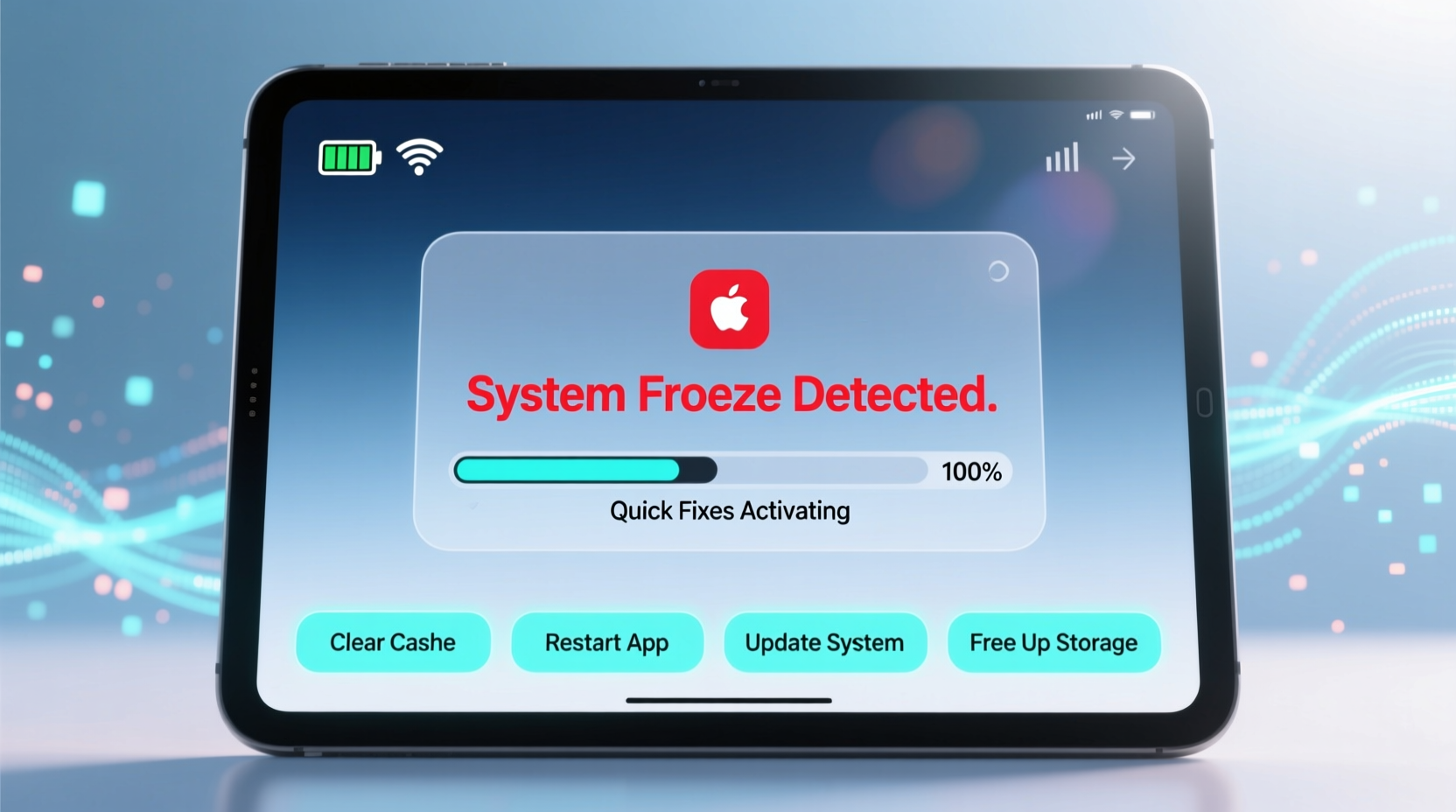
A frozen tablet isn’t always a sign of hardware failure. More often than not, the issue stems from software conflicts, memory overload, or outdated systems. Identifying the cause is the first step toward resolution.
- Insufficient storage space: When internal storage is nearly full, your tablet struggles to run background processes smoothly.
- Too many running apps: Background apps consume RAM, leading to sluggishness and crashes.
- Outdated operating system: Older OS versions may lack critical performance patches or security updates.
- App compatibility issues: Some apps aren’t optimized for your tablet’s OS version or screen size.
- Overheating: Extended use, direct sunlight, or poor ventilation can cause thermal throttling or shutdowns.
- Corrupted cache or system files: Temporary data buildup can interfere with normal operations.
Step-by-Step Guide to Fix a Freezing Tablet
Follow this structured approach to diagnose and resolve freezing issues systematically. Start with the simplest solutions before moving to more advanced ones.
- Restart your tablet: A soft reboot clears temporary glitches and resets active processes. Hold the power button, select “Restart,” or press and hold it for 10 seconds if unresponsive.
- Check for overheating: Feel the back of the device. If it's hot, turn it off and let it cool down in a shaded area for 15–20 minutes.
- Free up storage space: Delete unused apps, clear downloads, and offload photos/videos to cloud storage. Aim to keep at least 10–15% of storage free.
- Update your operating system: Go to Settings > System > Software Update (or equivalent) and install any pending updates.
- Update or reinstall problematic apps: Open your app store, check for updates, or uninstall and reinstall apps that frequently crash.
- Clear app cache (Android): Navigate to Settings > Apps > [App Name] > Storage > Clear Cache. Avoid \"Clear Data\" unless necessary.
- Boot into safe mode (Android): Hold the power button, then long-press “Power Off” and select “Safe Mode.” This disables third-party apps to test for conflicts.
- Reset settings (iOS/Android): Reset all settings (not erase content) to default without losing personal data.
- Factory reset (last resort): Back up your data first, then erase everything and set up as new. This resolves deep-seated software corruption.
How Long Each Fix Takes
| Fix | Time Required | Data Loss Risk? |
|---|---|---|
| Restart tablet | 1–2 minutes | No |
| Update OS | 10–30 minutes | No |
| Clear app cache | 2–5 minutes | No |
| Safe mode test | 5–10 minutes | No |
| Factory reset | 20–40 minutes | Yes (without backup) |
Preventive Measures for Long-Term Performance
Once you’ve resolved the immediate freezing issue, take steps to prevent recurrence. Proactive maintenance keeps your tablet running efficiently over time.
- Limit background activity: Disable auto-sync and background refresh for non-essential apps.
- Install apps only from trusted sources: Third-party app stores may distribute poorly coded or malicious software.
- Use lightweight alternatives: Opt for lite versions of apps (e.g., Facebook Lite) on older or lower-spec devices.
- Regular reboots: Restart your tablet weekly to clear memory and refresh system processes.
- Manage notifications: Too many alerts can trigger background processes that slow down performance.
Storage Management Checklist
- ✅ Check available storage weekly
- ✅ Delete duplicate photos and videos
- ✅ Uninstall rarely used apps
- ✅ Move files to cloud (Google Drive, iCloud, Dropbox)
- ✅ Clear browser cache and download history
- ✅ Use SD card (if supported) for media storage
Real-World Example: Sarah’s Overloaded Learning Tablet
Sarah, a high school teacher, relied on her Android tablet for virtual classes and grading. After six months of continuous use, it began freezing during video calls and taking over a minute to open documents. She tried restarting it multiple times, but the problem persisted.
She followed a diagnostic process: first checking storage (only 3% free), then closing background apps, and finally clearing cache for her learning management system app. After freeing up 4GB by deleting old lesson recordings and updating her OS, the tablet responded instantly again. By setting up automatic cloud backups and limiting installed educational apps to essentials, she maintained smooth performance for months.
This case highlights how everyday usage patterns—especially with media-heavy tasks—can silently degrade performance until a breaking point is reached.
“Most tablet slowdowns aren’t due to aging hardware but accumulated digital clutter. Regular digital hygiene makes a bigger difference than people realize.” — Dr. Alan Zhou, Mobile Systems Analyst at TechInsight Labs
When Hardware Might Be the Issue
While software problems are common, persistent freezing after thorough troubleshooting may indicate hardware degradation. Signs include:
- Frequent random restarts even after factory reset
- Screen flickering or touch unresponsiveness unrelated to apps
- Long boot times or failure to start past the manufacturer logo
- Battery swelling or excessive heat under light use
In such cases, professional repair or replacement may be necessary. For tablets under warranty, contact the manufacturer. Older models may benefit more from upgrading than investing in repairs.
Frequently Asked Questions
Why does my tablet freeze when I open certain apps?
This usually indicates that the app is poorly optimized, needs an update, or requires more RAM than your device can provide. Try updating the app or using an alternative. If the problem persists across multiple apps, the OS or hardware may be struggling.
Can a virus make my tablet freeze?
While true viruses are rare on mobile platforms, malicious apps or adware can overload your system with background activity. Stick to official app stores, avoid sideloading unknown APKs (on Android), and use reputable security apps if concerned.
Is it safe to factory reset my tablet?
Yes, a factory reset is safe and often recommended by manufacturers for resolving deep software issues. However, ensure all important data—photos, documents, login details—is backed up to cloud services or a computer beforehand.
Optimizing Performance by Tablet Type
Different operating systems require slightly different approaches. Here’s how to tailor your strategy:
| Tablet Type | Best Optimization Tips |
|---|---|
| iPad (iOS/iPadOS) | Enable Automatic Updates, use Offload Unused Apps, disable Background App Refresh, restart weekly |
| Android (Samsung, Lenovo, etc.) | Use Device Care tools, clear cache regularly, enable adaptive battery, uninstall bloatware if possible |
| Amazon Fire Tablet | Disable Alexa animations, remove unused Fire apps, use Silk Browser instead of heavy alternatives |
Regardless of platform, avoid installing “cleaner” or “booster” apps that promise performance gains. These often run intrusive background services that do more harm than good.
Conclusion: Take Control of Your Tablet’s Performance
A freezing tablet doesn’t mean it’s time to replace it. In most cases, a few well-placed fixes can breathe new life into your device. From simple restarts to strategic storage management, the solutions are accessible and effective. The key is consistency—just like maintaining a car or laptop, your tablet benefits from regular care.
Start today by performing a quick audit: check storage, close unused apps, and install pending updates. Make small habits—like rebooting weekly or reviewing app usage—part of your routine. If one fix doesn’t work, move to the next. With patience and attention, you’ll restore responsiveness and extend your tablet’s useful life significantly.




 浙公网安备
33010002000092号
浙公网安备
33010002000092号 浙B2-20120091-4
Comments
No comments yet. Why don't you start the discussion?