
Tablets have become essential tools for work, entertainment, and staying connected. But nothing disrupts the experience like a frozen screen—unresponsive to taps, stuck mid-app, or lagging between tasks. While it’s tempting to assume hardware failure or software corruption, most freezing issues stem from manageable causes. The good news? You don’t need advanced tech skills to fix them. With a few straightforward steps, you can restore smooth performance and extend your device’s lifespan.
Common Causes of Tablet Freezing
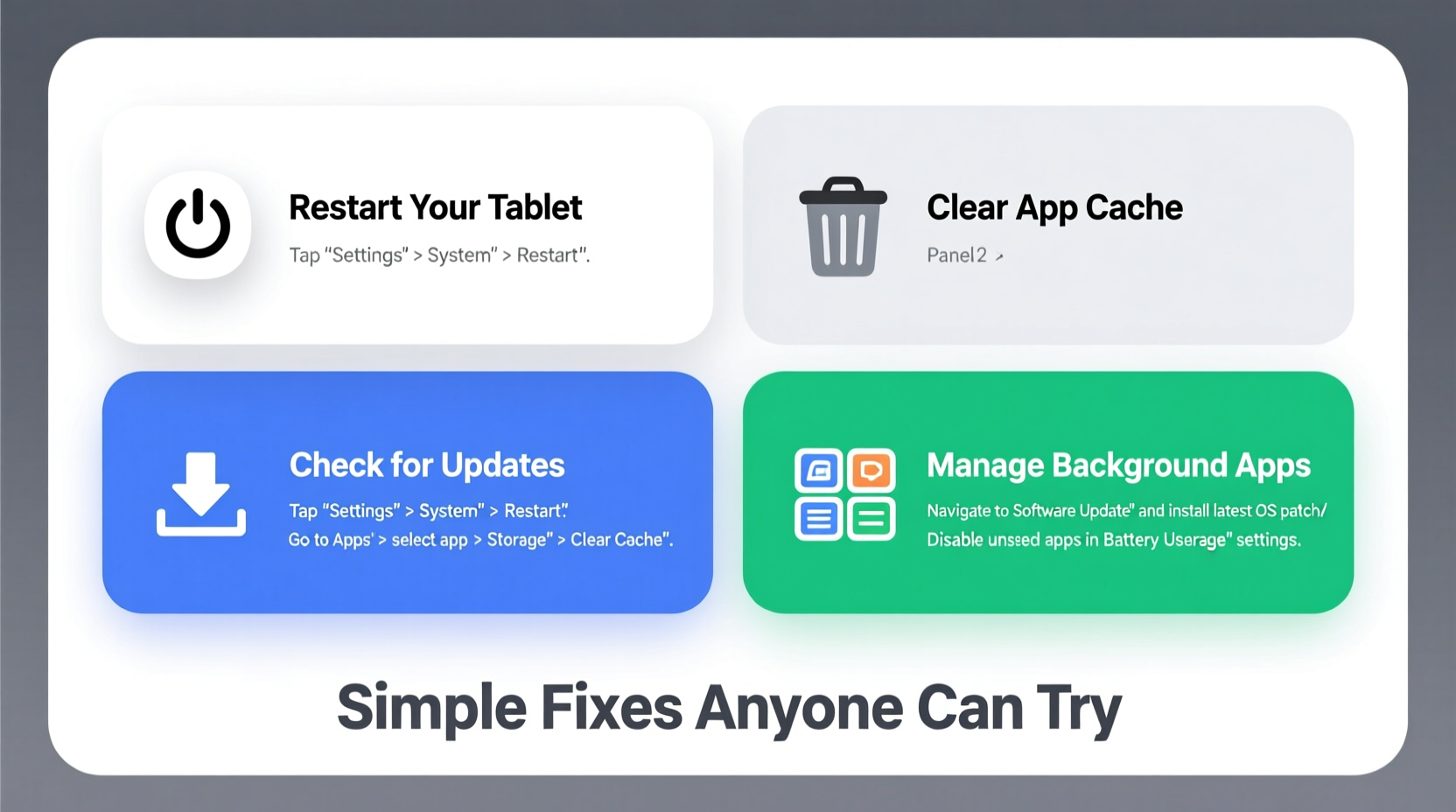
Before diving into solutions, it helps to understand what might be triggering the problem. A tablet freeze isn’t always random—it usually points to underlying strain on the system. The most frequent culprits include:
- Insufficient memory (RAM): Running too many apps at once can overwhelm your tablet’s ability to process tasks efficiently.
- Outdated software: Operating systems and apps receive regular updates that patch bugs and improve stability. Falling behind increases the risk of crashes.
- Storage overload: When internal storage is nearly full, the system struggles to write temporary files, leading to slowdowns and freezes.
- Buggy or poorly optimized apps: Some third-party apps are not rigorously tested across all devices and may conflict with your OS.
- Overheating: Extended use, direct sunlight, or poor ventilation can cause thermal throttling or sudden shutdowns.
- Background processes: Apps syncing data, updating in the background, or using location services silently consume resources.
Identifying which factor applies to your situation streamlines troubleshooting. Most users find relief by addressing just one or two of these areas.
Step-by-Step Guide to Fix a Freezing Tablet
When your tablet locks up, start with immediate recovery, then move to preventive maintenance. Follow this logical sequence to regain control and prevent future issues.
- Force restart the device: This clears temporary glitches without affecting your data. The method varies slightly by brand:
- Apple iPad: Press and hold the Top button and either Volume button until the Apple logo appears.
- Samsung Galaxy Tab: Hold Power + Volume Down for 10–15 seconds.
- Amazon Fire Tablet: Press and hold the Power button for 20 seconds.
- Close unused apps: Swipe up (or double-click Home) to access the app switcher. Swipe away background apps consuming memory.
- Check for system updates: Go to Settings > System > Software Update (or equivalent). Install any pending updates—they often contain critical performance patches.
- Clear cache partition (Android only): Boot into recovery mode (usually Power + Volume Up), select “Wipe Cache Partition,” then reboot. This removes temporary system files without deleting personal data.
- Restart regularly: Like computers, tablets benefit from periodic reboots. Set a reminder to restart yours weekly.
This routine addresses over 70% of recurring freeze cases. If problems persist, deeper intervention may be needed.
Tips to Prevent Future Freezing
Prevention is more effective than constant troubleshooting. Implementing consistent habits reduces stress on your device and maintains responsiveness over time.
- Limit background app refresh: In settings, restrict which apps can update in the background. On iOS, go to Settings > General > Background App Refresh. On Android, visit Settings > Apps > Special Access > Background Restrictions.
- Turn off animations: Reducing visual effects frees up GPU resources. On Android, enable Developer Options (tap Build Number seven times in About Phone), then set Window Animation Scale, Transition Animation Scale, and Animator Duration Scale to “Off.”
- Use Lite versions of apps: Facebook Lite, YouTube Go, and other lightweight alternatives run smoother on older or lower-end tablets.
- Avoid extreme temperatures: Never leave your tablet in a hot car or direct sunlight. High heat damages batteries and forces the processor to throttle performance.
- Keep at least 10–15% free storage: Aim to maintain breathing room. Delete unused apps, old downloads, and duplicate photos regularly.
Mini Case Study: Sarah’s Overloaded Learning Tablet
Sarah, a middle school teacher, relied on her Samsung Galaxy Tab A for virtual lessons and student feedback. After six months, the tablet began freezing during Zoom calls and while opening PDFs. She assumed it was failing hardware. Instead, a quick check revealed 98% storage usage—mostly from cached video files and unused educational apps she’d downloaded early in the year. After clearing cache, uninstalling redundant apps, and enabling auto-restart every Sunday night, her tablet ran smoothly again. No repairs, no replacements—just smart maintenance.
Do’s and Don’ts: Tablet Performance Best Practices
| Do | Don’t |
|---|---|
| Restart your tablet weekly | Leave it running continuously for weeks |
| Update apps and OS promptly | Ignore software update notifications |
| Store in a cool, dry place | Use under direct sunlight or near heaters |
| Uninstall apps you no longer use | Download every app “just in case” |
| Use cloud backups to free space | Delete important files instead of moving them off-device |
Expert Insight: What Engineers Say About Device Stability
According to Dr. Rajiv Mehta, senior mobile systems engineer at a leading consumer electronics firm, firmware efficiency plays a crucial role in user experience.
“Many freezes aren’t due to faulty hardware but inefficient resource management. Users often underestimate how much background activity accumulates over time. A simple reboot resets the memory map and stops runaway processes before they escalate.” — Dr. Rajiv Mehta, Mobile Systems Engineer
He also emphasizes that manufacturers optimize devices for peak performance when new. As storage fills and software evolves, older models face greater strain—making proactive care even more important.
Checklist: Quick Actions to Stop Tablet Freezing
Use this checklist as a monthly maintenance routine or whenever you notice sluggish behavior:
- ✅ Perform a force restart
- ✅ Check for OS and app updates
- ✅ Uninstall unused or problematic apps
- ✅ Clear cache in Settings or via individual apps
- ✅ Review battery usage and limit high-drain apps
- ✅ Ensure at least 1GB of free storage remains
- ✅ Disable unnecessary widgets and live wallpapers
- ✅ Turn off Bluetooth, GPS, and Wi-Fi when not in use
- ✅ Enable dark mode (reduces strain on OLED screens)
- ✅ Back up data and reset settings if issues persist
Completing this list takes less than 20 minutes but can dramatically improve reliability.
When to Consider a Factory Reset
If basic fixes fail, a factory reset should be your next step—but only after backing up your data. This wipes the device clean and reinstalls the operating system, eliminating deep-seated software conflicts.
To perform a reset:
- Go to Settings > System > Reset Options > Erase All Data (or equivalent).
- Confirm the action and wait for completion.
- Set up the tablet as new or restore from a backup.
Note: Only do this if you’ve ruled out hardware defects. After resetting, monitor performance. If freezing returns immediately, contact the manufacturer—there may be a hardware fault such as failing memory or a defective logic board.
Frequently Asked Questions
Can a virus make my tablet freeze?
True malware is rare on tablets, especially iPads and Google-certified Android devices. However, malicious apps from untrusted sources can cause excessive ads, pop-ups, and system lag. Always download apps from official stores and check reviews before installing.
Will adding an SD card help prevent freezing?
An SD card can free up internal storage by moving photos, videos, and some apps (on compatible Android tablets), indirectly improving performance. However, low-quality cards can actually slow things down. Use reputable brands like SanDisk or Samsung with high read/write speeds.
Is it worth repairing an old tablet that keeps freezing?
That depends on usage needs and cost. If your tablet is more than four years old, lacks software support, or has physical damage, investing in a new model may offer better value. Modern budget tablets often outperform older premium models.
Conclusion: Take Control of Your Tablet’s Performance
A freezing tablet doesn’t have to mean replacement. In most cases, simple adjustments—like managing storage, closing background apps, and restarting regularly—can restore smooth operation. These fixes are accessible to anyone, regardless of technical background. By understanding the root causes and applying consistent care, you extend not only your device’s life but also your productivity and enjoyment.




 浙公网安备
33010002000092号
浙公网安备
33010002000092号 浙B2-20120091-4
Comments
No comments yet. Why don't you start the discussion?