
It’s a common frustration: you start downloading a large file—maybe a movie, software update, or game—and suddenly your tablet slows to a crawl. Apps freeze, the screen stutters, and even basic navigation becomes a chore. You’re not imagining it; this is a real performance issue that affects tablets across brands and models. The good news? It’s often preventable and fixable.
This slowdown isn’t just about internet speed. While bandwidth plays a role, the root causes are usually tied to how your tablet manages system resources during high-load operations. Understanding these mechanisms allows you to take targeted action to maintain smooth performance—even during intensive downloads.
Why Tablets Lag During Large Downloads
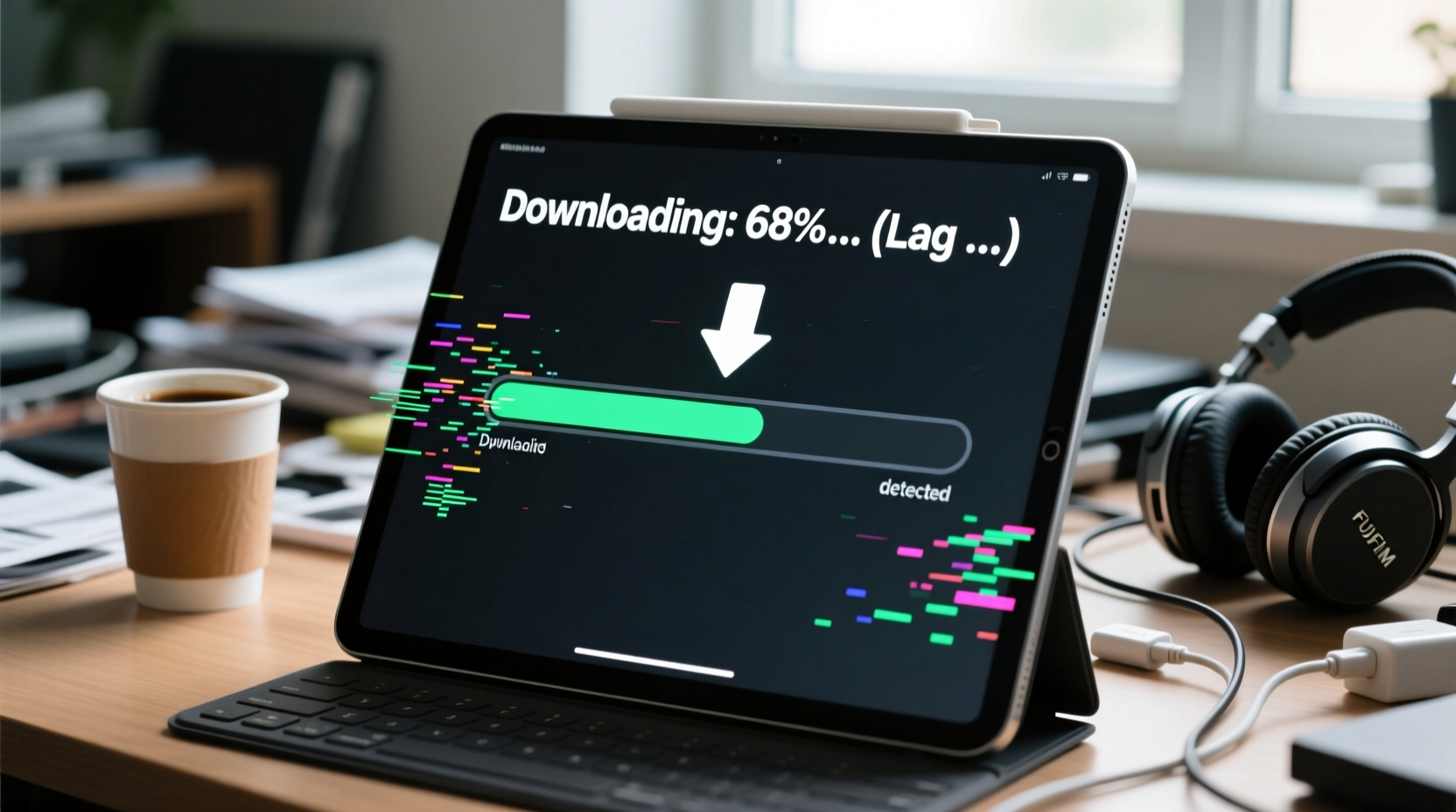
When a tablet begins downloading a large file, multiple background processes activate simultaneously: network communication, disk writing, memory allocation, and sometimes decryption or verification. Each of these consumes CPU cycles, RAM, and storage I/O bandwidth. If your device is already running near capacity, adding a heavy download can push it over the edge.
Unlike desktop computers, tablets have limited thermal headroom and hardware resources. They rely on passive cooling and energy-efficient processors, which throttle under sustained load. When your CPU overheats or memory fills up, the operating system prioritizes essential functions, deprioritizing user-facing tasks like screen rendering and app responsiveness—leading to perceived “lag.”
Additionally, many tablets use eMMC or UFS storage with slower write speeds than SSDs in laptops. A large file download requires continuous data writing. If the storage subsystem can’t keep up, the system buffers more aggressively, consuming RAM and increasing latency across other operations.
“Tablets are designed for efficiency, not sustained high-performance workloads. When users expect desktop-level multitasking during downloads, they often hit hardware limits.” — Dr. Lena Patel, Mobile Systems Engineer at TechInsight Labs
Key Factors Contributing to Download-Induced Lag
- CPU Overload: Managing network traffic and file writing taxes the processor, especially on older or budget models.
- RAM Pressure: Active apps compete with download managers and OS services for limited memory.
- Storage Bottlenecks: Slow internal storage leads to write delays, causing system queuing and UI stuttering.
- Thermal Throttling: Prolonged download activity heats the device, forcing the CPU to reduce clock speed.
- Background Sync: Cloud backups, email fetch, and app updates run concurrently, compounding resource strain.
- Network Congestion: Poor Wi-Fi signal or router limitations can cause inconsistent throughput, leading to erratic system behavior.
Step-by-Step Guide to Reduce Lag During Downloads
Follow this sequence to minimize performance degradation when downloading large files:
- Close Unused Apps: Swipe away background apps from the recent apps menu. This frees up RAM and reduces CPU scheduling overhead.
- Enable Airplane Mode Temporarily: Turn on Airplane Mode, then re-enable Wi-Fi. This resets the network stack and often improves connection stability.
- Switch to a Less Congested Network: Use a 5GHz Wi-Fi band if available. It offers faster speeds and less interference than 2.4GHz.
- Pause Automatic Backups: Disable cloud sync (Google Drive, iCloud, etc.) temporarily to prevent competing upload/download traffic.
- Download During Off-Peak Hours: Between 10 PM and 6 AM, home networks typically experience less congestion.
- Use a Download Manager App: Tools like ADM (Android Download Manager) or Documents by Readdle (iOS) optimize chunked downloads and reduce system strain.
- Keep the Device Cool: Avoid direct sunlight. Place the tablet on a hard surface to improve heat dissipation.
- Reboot Before Large Downloads: A fresh boot clears cached data and stops rogue background processes.
Do’s and Don’ts: Tablet Performance Best Practices
| Do | Don’t |
|---|---|
| Clear cache regularly via Settings > Storage | Run multiple large downloads simultaneously |
| Use a wired Ethernet adapter (with OTG) for critical downloads | Leave downloads running overnight without monitoring temperature |
| Update your OS and apps to ensure efficient background processes | Ignore low storage warnings—under 10% free space severely impacts performance |
| Download files directly to external SD cards (if supported) | Use public Wi-Fi for large downloads—security and speed risks |
| Monitor device temperature with apps like CPU-Z or AIDA64 | Assume all lag is due to internet speed—check system resources first |
Real-World Example: Fixing Persistent Lag on a Samsung Galaxy Tab S7+
Sarah, a freelance graphic designer, relied on her Galaxy Tab S7+ for client file transfers. She frequently downloaded large PSD files from Dropbox but noticed her tablet would freeze mid-download, requiring a forced restart. After ruling out Wi-Fi issues, she investigated deeper.
She discovered that her cloud backup was syncing photos in the background while she downloaded work files. Combined with an outdated version of the Dropbox app and nearly full internal storage (only 3GB free), the system was overwhelmed. By updating the app, clearing 15GB of old media, and pausing Google Photos backup during downloads, Sarah eliminated the lag completely. Her downloads now complete smoothly, and the tablet remains responsive throughout.
This case illustrates how multiple small inefficiencies can compound into major performance issues. Addressing each factor systematically led to a dramatic improvement—without needing new hardware.
Expert-Backed Fixes to Improve Download Performance
Beyond basic troubleshooting, advanced optimizations can make a measurable difference. These strategies are used by mobile IT professionals and power users:
1. Adjust DNS Settings
Using a faster DNS service like Cloudflare (1.1.1.1) or Google (8.8.8.8) can reduce domain lookup times and improve connection reliability. On Android, go to Wi-Fi settings > Modify Network > Advanced > IP Settings > Static, then enter preferred DNS. On iOS, install the 1.1.1.1 app from Cloudflare.
2. Limit Background Data Usage
Restrict apps from using data in the background. On Android: Settings > Apps > [App Name] > Mobile Data & SIM > Background data usage > Deny. On iPad: Settings > Cellular > scroll down and disable background access for non-essential apps.
3. Use a Lightweight Browser for File Links
Instead of downloading large files through Chrome or Safari, copy the link and use a dedicated download accelerator. These tools handle connections more efficiently and don’t load heavy webpage elements.
4. Partition Internal Storage (Advanced)
Some rooted Android tablets allow partitioning internal storage to create a dedicated swap or cache partition. While risky, this can improve I/O performance during large writes. Not recommended for average users.
5. Factory Reset as Last Resort
If lag persists despite all optimizations, a factory reset can eliminate deep-seated software bloat. Be sure to back up data first. After resetting, reinstall only essential apps and monitor performance before restoring everything.
Checklist: Optimize Your Tablet for Smooth Downloads
- ✅ Ensure at least 15% free storage space
- ✅ Close all unnecessary background apps
- ✅ Connect to a stable 5GHz Wi-Fi network
- ✅ Pause cloud backups and automatic updates
- ✅ Update your OS and download-related apps
- ✅ Restart the tablet before starting the download
- ✅ Monitor device temperature during download
- ✅ Use a download manager instead of browser downloads
- ✅ Avoid multitasking during large transfers
- ✅ Verify router firmware is up to date
Frequently Asked Questions
Does internet speed affect tablet lag during downloads?
Yes, but indirectly. Extremely slow speeds may reduce strain, but inconsistent or fluctuating speeds force the system to constantly renegotiate connections, increasing CPU usage. A stable, moderate-speed connection is better than an unstable high-speed one.
Can antivirus apps cause lag during downloads?
Some security apps scan files in real time as they download, which adds processing overhead. If you notice lag only with certain download sources, check whether your antivirus has active scanning enabled. Temporarily disabling real-time scan during large downloads may help—but re-enable it afterward.
Is it safe to download large files on a tablet?
Yes, provided the file source is trusted and your device has sufficient storage and cooling. However, avoid downloading executable files (.exe, .apk from unknown sources) due to malware risks. Stick to reputable platforms like Google Play, Apple App Store, or official cloud services.
Conclusion: Take Control of Your Tablet’s Performance
Lag during large downloads isn’t inevitable. With a clear understanding of how tablets manage resources, you can implement practical changes that preserve responsiveness and protect long-term device health. The key is recognizing that performance isn’t just about specs—it’s about smart usage habits and proactive maintenance.
Start applying these fixes today. Clean up storage, fine-tune settings, and adopt a strategic approach to downloads. Small adjustments lead to significant improvements in daily usability. Your tablet doesn’t need to be replaced—it just needs optimized care.




 浙公网安备
33010002000092号
浙公网安备
33010002000092号 浙B2-20120091-4
Comments
No comments yet. Why don't you start the discussion?