
Digital artists rely on tablets for precision, responsiveness, and creative freedom. But nothing disrupts the flow like sudden lag—jittery lines, delayed strokes, or frozen screens. When your tablet stutters during a crucial brushstroke, it’s more than frustrating; it undermines confidence in your tools. The good news is that most lag issues stem from predictable causes and can be resolved with targeted adjustments. Whether you're using an iPad, Samsung Galaxy Tab, Wacom device, or Android-based drawing tablet, understanding the root causes of performance drops is the first step toward smoother, uninterrupted creation.
Understanding the Causes of Tablet Lag in Digital Art
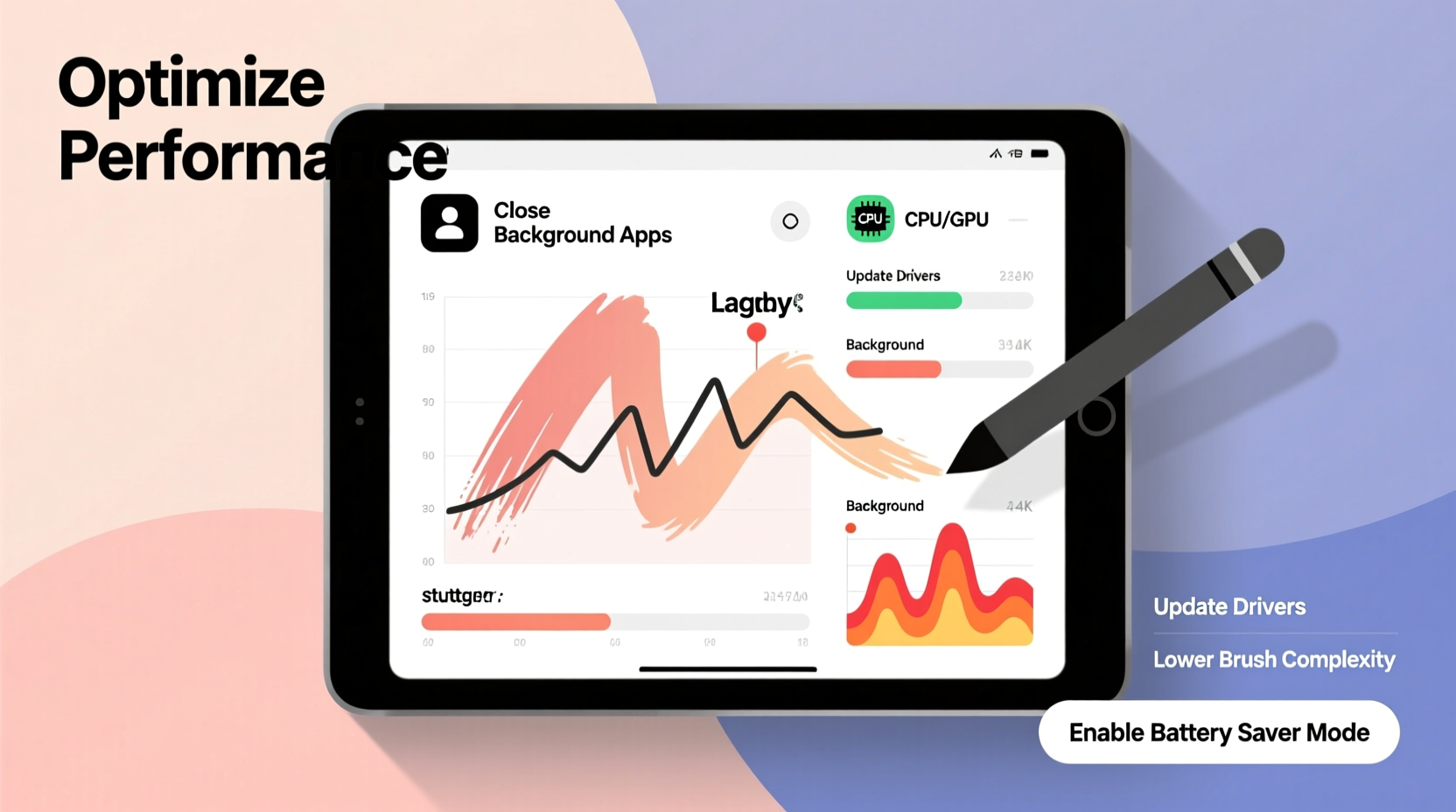
Lag while drawing isn't always due to hardware limitations. It often results from a combination of software inefficiencies, resource-heavy applications, and suboptimal settings. At its core, lag occurs when your tablet cannot process input and render output quickly enough to maintain real-time responsiveness.
The primary contributors include:
- Insufficient RAM: Drawing apps, especially those supporting high-resolution canvases and multiple layers, consume large amounts of memory.
- CPU/GPU overload: Complex brushes, zooming, and layer blending strain processing power.
- Background app interference: Other running apps silently eat up resources needed for smooth drawing.
- Outdated software: Older operating systems or unpatched apps may lack optimizations for current hardware.
- Poor storage management: A nearly full storage drive slows system performance across the board.
- Incompatible stylus or driver issues: Some pens don’t communicate efficiently with the OS or app, causing input delay.
Addressing these factors systematically can dramatically improve responsiveness—even on mid-tier devices.
Optimizing Your Drawing App Settings for Performance
Many artists overlook how much their app configuration impacts performance. High-quality presets are great for final output but overkill during active sketching. Adjusting key settings can yield immediate improvements.
Reduce Canvas Resolution During Drafting
Working at 4K resolution may look impressive, but it demands significant GPU power. For initial sketches and concept work, drop the canvas size to 1080p or even 720p. You can upscale later for detail work or export.
Simplify Brush Complexity
Fancy textured or particle-based brushes are computationally expensive. Use basic round brushes while blocking out shapes and forms, then switch to advanced brushes only when necessary.
Limit the Number of Active Layers
Each additional layer increases memory usage and redraw time. Merge layers when possible, use layer groups to hide unused ones, and avoid exceeding 15–20 layers unless absolutely required.
Disable Unnecessary Features
Turn off real-time effects like dynamic lighting previews, animation timelines (if not animating), and auto-save intervals during intense sessions. Re-enable them afterward.
“Performance tuning starts with intentionality. Every extra feature adds overhead. Strip down to essentials during creation, then enhance in post.” — Lena Tran, Digital Illustration Instructor at ArtTech Academy
Device-Level Optimization Strategies
Your tablet's overall health directly affects drawing performance. Even powerful hardware can underperform if misconfigured or neglected.
Free Up Storage Space
A device with less than 10% free storage experiences slower read/write speeds. This affects app loading times and file handling. Aim to keep at least 15–20% of your storage free.
Update Operating System and Apps
Manufacturers regularly release performance patches and compatibility fixes. An outdated OS might not support efficient multitasking or graphics rendering protocols used by modern art apps.
Restart Regularly
Tablets, like computers, accumulate cached data and background processes over time. A weekly restart clears memory leaks and resets system services.
Manage Background Processes
On Android and iOS, apps continue running in the background, syncing data and refreshing content. Disable auto-refresh for email, social media, and cloud apps when drawing.
| Issue | Symptom | Solution |
|---|---|---|
| Low RAM | App crashes when adding layers | Close other apps; reduce layer count |
| Full Storage | Slow saving/loading times | Delete unused files; move backups to cloud |
| Outdated Drivers | Stylus lag or inaccurate tracking | Check manufacturer website for updates |
| Overheating | Device throttles CPU speed | Avoid direct sunlight; take breaks |
Step-by-Step Guide to Diagnose and Fix Drawing Lag
Follow this structured approach to identify and resolve performance bottlenecks.
- Observe When Lag Occurs: Does it happen only with large canvases? After opening many layers? During zoom/pan? Pinpointing timing helps isolate the cause.
- Test with a Minimal Setup: Open a new project at 1080p, one layer, default brush. If lag persists, the issue is likely system-wide (hardware/driver).
- Monitor Resource Usage: On supported devices, use built-in developer tools or third-party apps to check CPU, RAM, and storage activity.
- Update Everything: Install latest OS, app, and stylus firmware updates. Restart after installation.
- Clear App Cache: Go to Settings > Apps > [Your Drawing App] > Clear Cache. This removes temporary files without deleting artwork.
- Reinstall the App: If problems persist, uninstall and reinstall the drawing app to reset corrupted preferences.
- Test with Another App: Try a lightweight alternative like Sketchbook or Infinite Painter. If performance improves, the original app may be poorly optimized.
Real-World Example: Fixing Lag on a Mid-Range Android Tablet
Jamal, a freelance illustrator, used a three-year-old Samsung Galaxy Tab S6 Lite for client work. He noticed increasing lag in Clip Studio Paint, especially when using textured brushes. His workflow slowed significantly, affecting deadlines.
He began troubleshooting by closing unused apps—freeing 1.2GB of RAM. Next, he reduced his canvas size from 3000x4000 to 1920x1080 during sketching phases. He also switched to a simplified brush set and merged layers every 30 minutes.
Still experiencing minor delays, he checked for updates and found a pending firmware patch for his S Pen. After installing it and restarting, input latency dropped noticeably. Finally, he enabled “Performance Mode” in Samsung’s Device Care settings, which prioritized CPU allocation to active apps.
The combined changes eliminated 90% of the lag. Jamal now maintains two canvas profiles—one for roughing out ideas, another for final detailing—and schedules weekly maintenance checks.
Performance Checklist for Digital Artists
Use this checklist before each major drawing session to ensure optimal performance:
- ✅ Close all non-essential apps
- ✅ Ensure at least 20% free storage space
- ✅ Update OS, drawing app, and stylus drivers
- ✅ Set canvas resolution appropriate to task
- ✅ Limit active layers to under 20
- ✅ Use simple brushes during sketching
- ✅ Disable real-time effects and auto-save temporarily
- ✅ Enable battery/performance mode if available
- ✅ Restart tablet after heavy usage days
- ✅ Test stylus responsiveness with a quick stroke test
Frequently Asked Questions
Can antivirus or security apps cause lag in drawing apps?
Yes. Some security apps scan files in real time, including temporary project files created by drawing software. This can introduce micro-lags. Exclude your art app folder from active scanning in your security settings.
Is cloud syncing slowing down my tablet?
Possibly. Continuous syncing—especially of large PSD or AI files—can consume bandwidth and storage I/O. Pause syncing during active drawing sessions and enable it manually afterward.
Does screen refresh rate affect drawing experience?
Absolutely. Tablets with 120Hz displays (like iPad Pro or Samsung S-series) offer smoother pen tracking and lower perceived lag compared to 60Hz models. If you frequently draw complex scenes, a higher refresh rate device is worth considering.
Conclusion: Take Control of Your Creative Flow
Lag shouldn’t dictate the pace of your creativity. Most performance issues are fixable with awareness and routine optimization. By understanding how your tablet allocates resources and adjusting your workflow accordingly, you reclaim control over your artistic process. Small changes—like managing layers, updating firmware, or simplifying brushes—compound into a dramatically smoother experience.
Don’t wait for frustration to build. Apply these strategies now, create a personalized performance checklist, and make lag a thing of the past. Your next masterpiece deserves a responsive, reliable canvas.




 浙公网安备
33010002000092号
浙公网安备
33010002000092号 浙B2-20120091-4
Comments
No comments yet. Why don't you start the discussion?