
A flickering tablet screen can be more than just an annoyance—it can strain your eyes, disrupt productivity, and even signal deeper hardware or software issues. Whether you're reading an e-book, watching a video, or working remotely, a stable display is essential. At the same time, incorrect brightness settings can contribute to screen instability and reduce battery efficiency. Understanding the causes of screen flickering and mastering brightness adjustments can significantly improve your tablet experience.
Common Causes of Tablet Screen Flickering
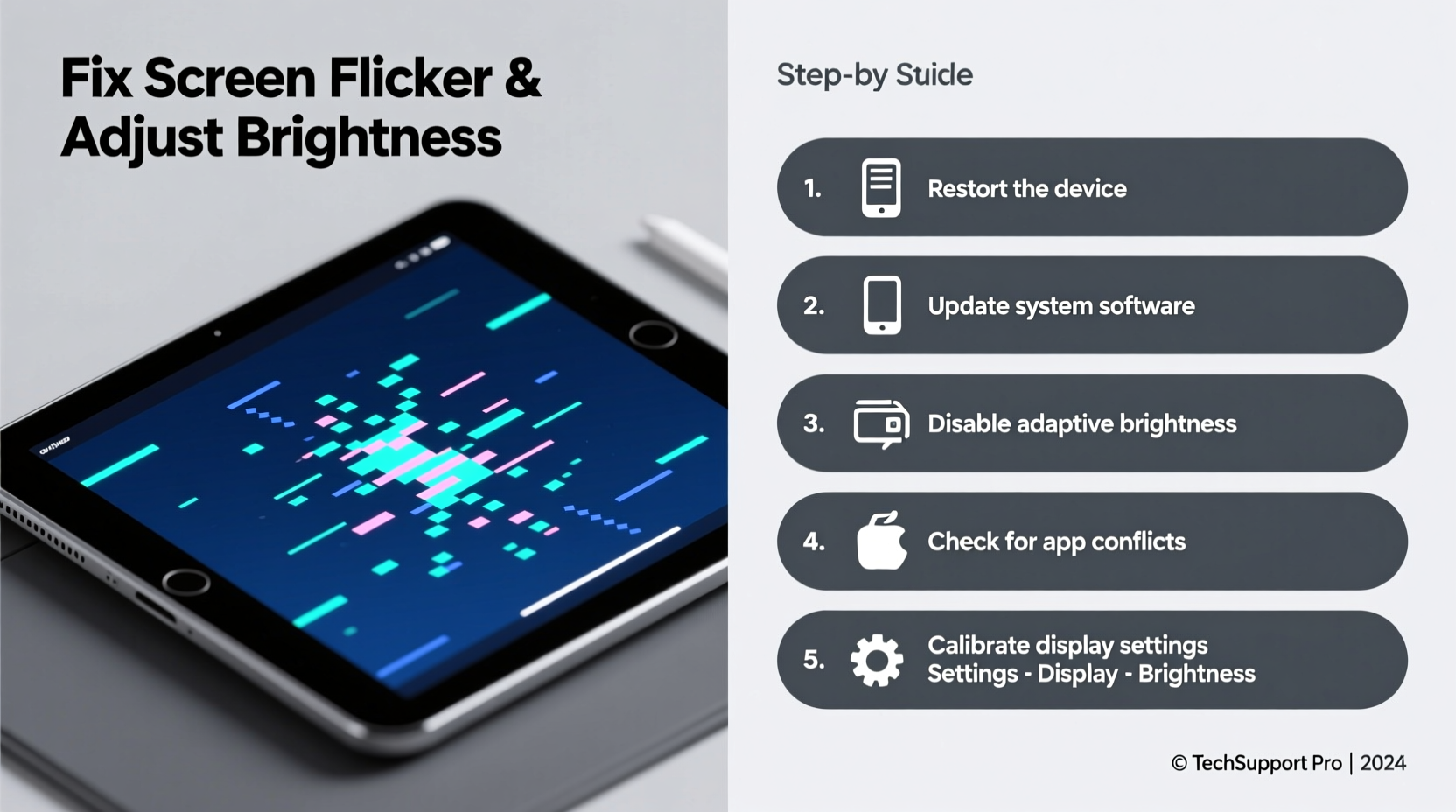
Screen flickering on tablets isn’t always due to a single cause. It often results from a combination of hardware, software, or environmental factors. Identifying the root issue is crucial before attempting fixes.
- Software Glitches: Outdated operating systems or buggy apps may interfere with display drivers, causing intermittent flickering.
- Brightness Settings: Auto-brightness features that rely on faulty ambient light sensors can trigger rapid changes in screen intensity, perceived as flickering.
- Display Hardware Issues: Physical damage, aging LCD panels, or loose internal connections can lead to inconsistent screen behavior.
- Power Management Problems: Inconsistent power delivery—especially during charging—can destabilize the display.
- Third-Party Apps: Some poorly coded applications manipulate screen properties (e.g., blue light filters), which may conflict with system functions.
How to Adjust Brightness Settings for Optimal Performance
Brightness plays a pivotal role in both visual comfort and device longevity. Setting it too high strains your eyes and drains the battery; setting it too low makes content hard to read. Modern tablets offer multiple ways to control brightness, but not all users leverage them effectively.
Manual vs. Automatic Brightness
Most tablets allow you to choose between manual and automatic brightness modes. Manual mode gives full control, while auto-brightness uses a built-in light sensor to adapt to ambient conditions.
“Auto-brightness can save energy and enhance readability, but only when the sensor is functioning correctly.” — Dr. Lena Park, Display Technology Researcher at Mobile UX Lab
Steps to Adjust Brightness on Major Platforms
- Android Tablets: Swipe down from the top of the screen to open the Quick Settings panel. Tap the sun icon and slide left or right to decrease or increase brightness. To enable auto-brightness, tap the gear icon next to the slider.
- iPadOS Devices: Swipe down from the top-right corner to access Control Center. Drag the brightness slider up or down. Enable auto-brightness via Settings > Accessibility > Display & Text Size > Auto-Brightness.
- Windows Tablets: Use the Action Center (bottom-right notification icon) or go to Settings > System > Display. Toggle “Change brightness automatically when lighting changes” for adaptive control.
| Platform | Access Method | Auto-Brightness Location |
|---|---|---|
| Android | Quick Settings Panel | Gear icon beside brightness slider|
| iPadOS | Control Center / Settings | Settings > Accessibility > Display & Text Size|
| Windows | Action Center / Settings | Settings > System > Display
Step-by-Step Guide to Diagnose and Fix Screen Flickering
If your tablet screen flickers persistently, follow this structured troubleshooting process to isolate and resolve the issue.
- Restart the Device: A simple reboot clears temporary glitches. Hold the power button, select \"Restart,\" and wait for the system to reload.
- Disable Auto-Brightness: Go into display settings and turn off auto-brightness. Set the level manually to see if flickering stops.
- Check for Software Updates: Navigate to Settings > System > Software Update (Android), Settings > General > Software Update (iPad), or Settings > Windows Update (PC). Install any pending updates.
- Boot in Safe Mode (Android): Press and hold the power button, then long-press the \"Power Off\" option until \"Safe Mode\" appears. This disables third-party apps. If flickering stops, an app is likely the culprit.
- Inspect for Physical Damage: Look for cracks, pressure marks, or discoloration on the screen. Even minor internal damage can affect display stability.
- Reset Display Settings: On some devices, resetting preferences under Accessibility or Display settings can restore default behavior without erasing data.
- Contact Manufacturer Support: If none of the above works, the issue may involve the display driver or panel. Professional repair may be required.
Real-World Example: Resolving Flickering After a System Update
Samantha, a freelance graphic designer, noticed her Samsung Galaxy Tab S7 began flickering after an Android 13 update. Initially, she assumed hardware failure and considered replacement. Instead, she methodically tested solutions. First, she disabled auto-brightness—no change. Then, she booted into safe mode and found the flickering stopped. This pointed to a rogue app. After reviewing recently updated apps, she identified a night mode tool that had become incompatible post-update. Uninstalling it resolved the issue completely. Samantha later reinstalled a newer version compatible with Android 13, restoring functionality without further problems.
This case illustrates how software conflicts—especially after updates—can manifest as display anomalies. A logical diagnostic approach saved time and money.
Best Practices for Long-Term Screen Health
Maintaining a stable, clear display requires ongoing attention. These habits help prevent flickering and extend screen lifespan.
- Keep the operating system and apps updated to ensure compatibility and security patches.
- Avoid exposing the tablet to extreme temperatures, which can damage LCD components.
- Use moderate brightness levels—around 50% in normal indoor lighting—to balance visibility and power use.
- Enable dark mode in low-light environments to reduce eye strain and minimize backlight stress.
- Clean the screen regularly with a microfiber cloth to prevent dust buildup near sensors.
“Preventive maintenance is the most effective way to avoid screen-related failures. Users who manage brightness wisely report fewer display complaints over time.” — Mark Tran, Senior Technician at TechCare Pro
Frequently Asked Questions
Can screen flickering damage my eyes?
Yes, prolonged exposure to a flickering screen can cause eye strain, headaches, and fatigue. The human eye may not consciously detect rapid fluctuations, but the brain still processes them, leading to discomfort over time. If flickering occurs, stop using the device until the issue is resolved.
Why does my screen flicker only when charging?
This often indicates a power delivery problem. Using a non-certified charger or damaged cable can introduce electrical noise that affects the display driver. Try switching to the original charger and cable. If the flickering stops, the third-party accessory was likely the cause.
Is it safe to use my tablet in direct sunlight?
While brief use is generally safe, prolonged exposure to direct sunlight can overheat the device and degrade the screen over time. High brightness demands in bright environments also accelerate battery drain. Whenever possible, seek shade or use a screen hood to maintain visibility without maxing out brightness.
Checklist: What to Do When Your Tablet Screen Flickers
- ✅ Restart the tablet
- ✅ Disable auto-brightness temporarily
- ✅ Check for OS and app updates
- ✅ Boot into safe mode (Android) to rule out third-party apps
- ✅ Inspect for physical damage or debris near sensors
- ✅ Test with original charger and cable
- ✅ Reset display or accessibility settings
- ✅ Contact support if issue persists
Conclusion: Take Control of Your Tablet’s Display Experience
Your tablet’s screen is your primary interface with digital content, and its stability directly impacts usability and comfort. Flickering doesn’t always mean the end of your device’s life—often, it’s a solvable issue rooted in settings, software, or accessories. By understanding how brightness functions and following a disciplined troubleshooting process, you can restore smooth performance and extend your device’s lifespan.




 浙公网安备
33010002000092号
浙公网安备
33010002000092号 浙B2-20120091-4
Comments
No comments yet. Why don't you start the discussion?