
If you’ve found yourself staring at your tablet’s charging screen for what feels like hours, wondering why it’s barely climbed past 20%, you’re not alone. Slow charging is one of the most frustrating tech issues users face today. While tablets are designed for portability and convenience, their usefulness drops dramatically when they can’t hold or gain power efficiently. The good news is that in most cases, slow charging isn’t a sign of irreversible damage—it’s often caused by fixable factors ranging from worn cables to background app activity. Understanding the root causes empowers you to restore normal charging speeds and extend your device’s lifespan.
Understanding How Tablet Charging Works
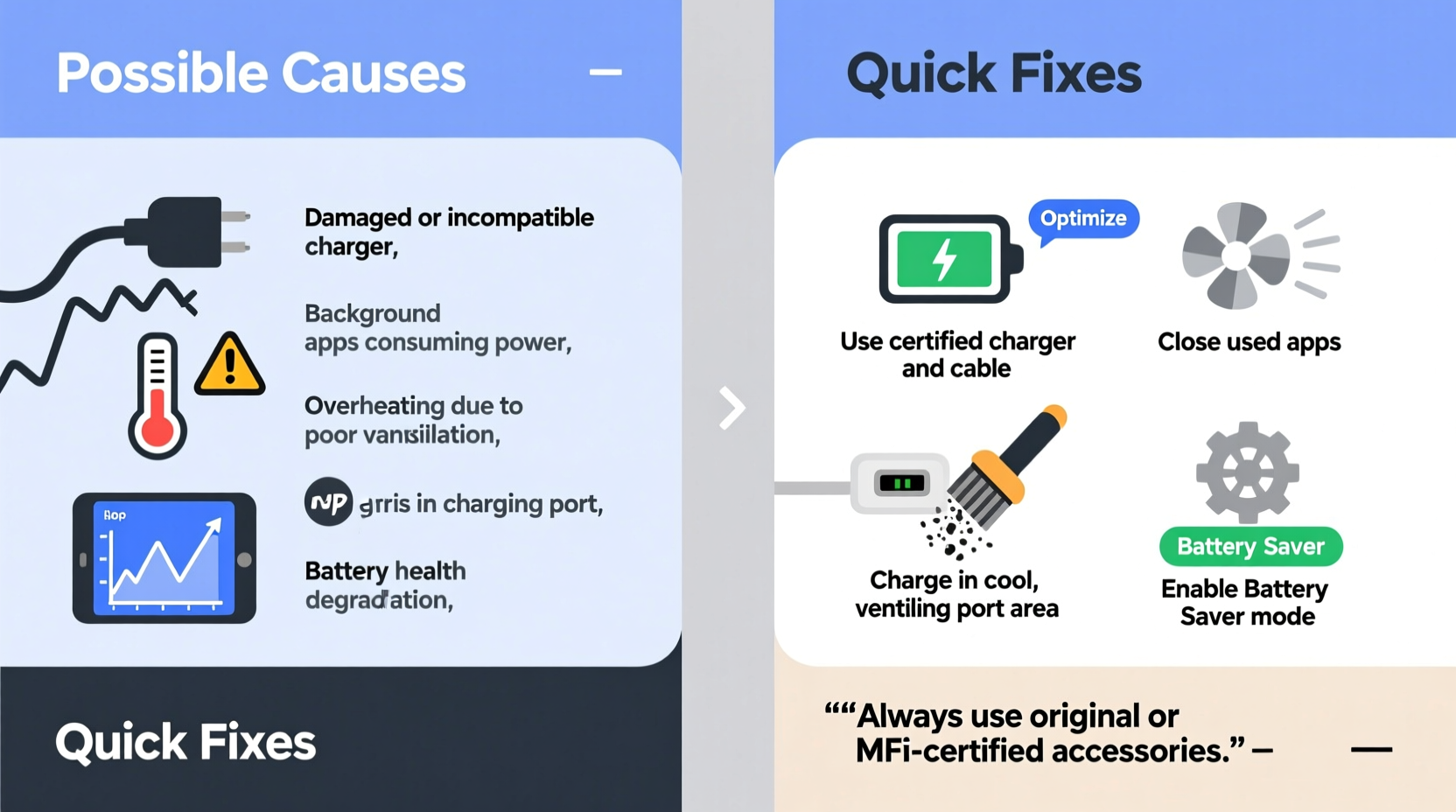
Before diving into troubleshooting, it helps to understand the basic mechanics of how your tablet charges. When you plug in your device, electrical current flows from the wall outlet through the charger and cable into the tablet’s battery. The speed of this process depends on several variables: the power output (measured in watts or volts/amps) of the charger, the condition of the cable, the health of the battery, and how much the device is being used during charging.
Modern tablets support various charging standards such as USB Power Delivery (PD) or Qualcomm Quick Charge, which allow faster energy transfer when matched with compatible hardware. However, if any component in the chain—charger, cable, port, or battery—is substandard or degraded, the entire system slows down. This mismatch is often the silent culprit behind sluggish charging.
“Many users assume their tablet is broken when charging slowly, but more often than not, the issue lies in the accessories or usage habits.” — David Lin, Senior Electronics Technician at MobileFix Labs
Common Reasons Your Tablet Charges Slowly
Slow charging rarely stems from a single cause. Instead, it’s usually the result of multiple overlapping factors. Below are the most frequent contributors:
- Low-power or incompatible charger: Using a phone charger (typically 5W–10W) with a tablet that requires 12W or more drastically reduces charging speed.
- Damaged or low-quality charging cable: Frayed, bent, or uncertified cables can't carry full current, leading to intermittent or slow charging.
- Dirty or obstructed charging port: Dust, lint, or pocket debris in the port can prevent a secure connection, disrupting power flow.
- Battery degradation: After hundreds of charge cycles, lithium-ion batteries lose capacity and efficiency, resulting in longer charge times and reduced performance.
- Background app activity: Streaming video, downloading files, or running GPS while charging forces the battery to work harder, slowing net charge gain.
- Software bugs or OS glitches: Occasionally, firmware issues can interfere with power management systems, causing inefficient charging behavior.
- Charging via computer USB ports: Most laptop USB ports deliver only 5V/0.5A–0.9A, far below what tablets need for optimal charging.
Step-by-Step Guide to Diagnose and Fix Slow Charging
Follow this systematic approach to identify and resolve the cause of slow charging. This method helps eliminate variables one at a time, ensuring accurate diagnosis.
- Check your charging equipment: Confirm that your charger outputs sufficient wattage (e.g., 10W or higher for most tablets). Look for labels like “12W,” “Fast Charging,” or “Adaptive Fast Charging” depending on your brand.
- Inspect the charging cable: Examine both ends for fraying, kinks, or loose connections. Try wiggling the cable near the connectors—if charging stops intermittently, replace it immediately.
- Clean the charging port: Use a dry toothpick or compressed air to gently remove lint and dust. Avoid metal tools to prevent short circuits.
- Test with a different power source: Plug into a wall outlet instead of a power strip or computer. Some outlets may have voltage fluctuations or shared loads that reduce output.
- Charge while powered off: Turn off the tablet completely and let it charge for 30 minutes. If it gains significantly more charge than usual, background processes were likely interfering.
- Monitor temperature: Overheating slows charging. Remove thick cases and avoid charging under pillows or direct sunlight.
- Update your software: Install the latest OS updates, as manufacturers often release patches that improve battery and charging efficiency.
- Reset battery calibration (if applicable): Fully drain the tablet until it shuts down, then charge uninterrupted to 100%. Repeat once a month to recalibrate the battery gauge.
Do’s and Don’ts: Charging Best Practices
| Do’s | Don’ts |
|---|---|
| Use manufacturer-recommended chargers and cables | Use cheap, unbranded charging accessories |
| Keep the charging port clean and dry | Force a cable into a misaligned port |
| Charge in a cool, well-ventilated area | Leave the tablet charging under blankets or in hot cars |
| Turn off the device or enable Airplane Mode while charging | Stream videos or play graphics-heavy games while charging |
| Replace aging cables every 6–12 months | Continue using frayed or stiff cables |
Real-World Example: Sarah’s Weekend Charging Struggle
Sarah, a freelance graphic designer, relied on her tablet for client meetings and sketching ideas on the go. One weekend, she noticed her tablet took over six hours to reach 80%—a stark contrast to its usual two-hour charge. Frustrated, she assumed the battery was failing and considered buying a replacement. Instead, she followed a diagnostic checklist.
First, she tested a different cable and saw no improvement. Then she cleaned the charging port with a soft brush and discovered a clump of lint blocking contact. After removing it, she tried charging again—this time with the original wall charger, not her laptop. The tablet jumped from 15% to 60% in just 45 minutes. The real issue? A combination of a clogged port and an underpowered USB port on her laptop. By addressing both, Sarah restored normal charging without spending a dime.
Tips to Maximize Charging Efficiency and Battery Longevity
Prevention is often more effective than repair. Incorporating smart charging habits can keep your tablet performing optimally for years.
- Avoid full discharges: Lithium-ion batteries last longest when kept between 20% and 80%. Frequent deep drains accelerate wear.
- Unplug at 100%: Leaving your tablet plugged in overnight stresses the battery due to continuous trickle charging.
- Use fast charging wisely: While convenient, regular use of fast charging generates more heat, which degrades the battery over time.
- Store at partial charge: If storing your tablet long-term, charge it to about 50% to preserve battery health.
- Disable unnecessary features: Turn off Bluetooth, Wi-Fi, and location services when not needed during charging to minimize power draw.
Frequently Asked Questions
Can a virus make my tablet charge slowly?
No, malware cannot directly interfere with the physical charging process. However, malicious apps running in the background can increase CPU usage and power consumption, making it seem like the device is charging slower because energy is being drained as fast as it’s added.
Is wireless charging slower than wired?
Yes, in most cases. Wireless charging is generally 20–40% slower than wired due to energy loss through electromagnetic induction. It also generates more heat, which can trigger thermal throttling and further reduce charging speed.
How do I know if my battery is failing?
Signs include rapid discharge (losing charge within minutes), swelling of the device body, failure to charge past a certain percentage, or the operating system displaying messages like “Service Battery” or “Condition: Poor.” On Android, apps like AccuBattery can estimate battery health; iOS users can check “Battery Health” in Settings.
Comprehensive Charging Checklist
Use this checklist whenever you notice slow charging. Ticking off each item helps isolate the problem quickly.
- ✅ Am I using the correct charger (wall adapter, not USB from laptop)?
- ✅ Is the charger rated for sufficient power output (e.g., 10W or higher)?
- ✅ Is the charging cable undamaged and certified?
- ✅ Is the charging port free of dust and debris?
- ✅ Is the tablet overheating or unusually warm?
- ✅ Are background apps consuming excessive power?
- ✅ Has the device been updated to the latest software version?
- ✅ Have I tried restarting the tablet or charging while powered off?
- ✅ Does the battery show signs of physical damage or swelling?
- ✅ Have I tested with a different cable and charger to confirm the issue?
When to Seek Professional Help
If you’ve gone through all troubleshooting steps and your tablet still charges extremely slowly, the issue may be internal. Possible hardware problems include a failing battery, damaged charging port, or malfunctioning power management IC (integrated circuit). These require professional diagnosis and repair.
Visit an authorized service center rather than third-party shops, especially if your device is under warranty. Unauthorized repairs can void warranties and risk further damage. Technicians can run diagnostics, measure actual charge input (using tools like USB ammeters), and determine whether replacement parts are needed.
“The first rule of battery care is consistency. Charge moderately, avoid extremes, and treat your accessories with the same care as the device itself.” — Dr. Lena Park, Battery Research Scientist at GreenTech Labs
Conclusion: Take Control of Your Tablet’s Charging Performance
Your tablet shouldn’t take all day to charge. With the right knowledge and habits, most slow-charging issues can be resolved quickly and inexpensively. Start by evaluating your charging setup—your cable, charger, and port are often the weakest links. Eliminate environmental factors like heat and background usage, and adopt long-term practices that protect battery health. Small changes, like cleaning the port monthly or avoiding overnight charging, add up to significant improvements in performance and longevity.




 浙公网安备
33010002000092号
浙公网安备
33010002000092号 浙B2-20120091-4
Comments
No comments yet. Why don't you start the discussion?