
If your outdoor lights, smart home devices, or irrigation systems turn on too early or too late during certain parts of the year, you're likely dealing with a timer that fails to adjust accurately for daylight saving time (DST) and shifting sunset patterns. This is a common issue for homeowners relying on basic timers instead of dynamic, location-aware automation. While it may seem like a minor inconvenience, inconsistent timing can impact security, energy efficiency, and convenience—especially as days grow shorter or longer.
The root of the problem often lies in how your timer interprets time changes and whether it uses real-time astronomical data. Many people assume their device automatically adjusts like a smartphone, but not all timers are created equal. Understanding the technical and environmental factors behind this disconnect empowers you to choose better tools and configurations moving forward.
How Timers Work: Fixed vs. Astronomical vs. Smart
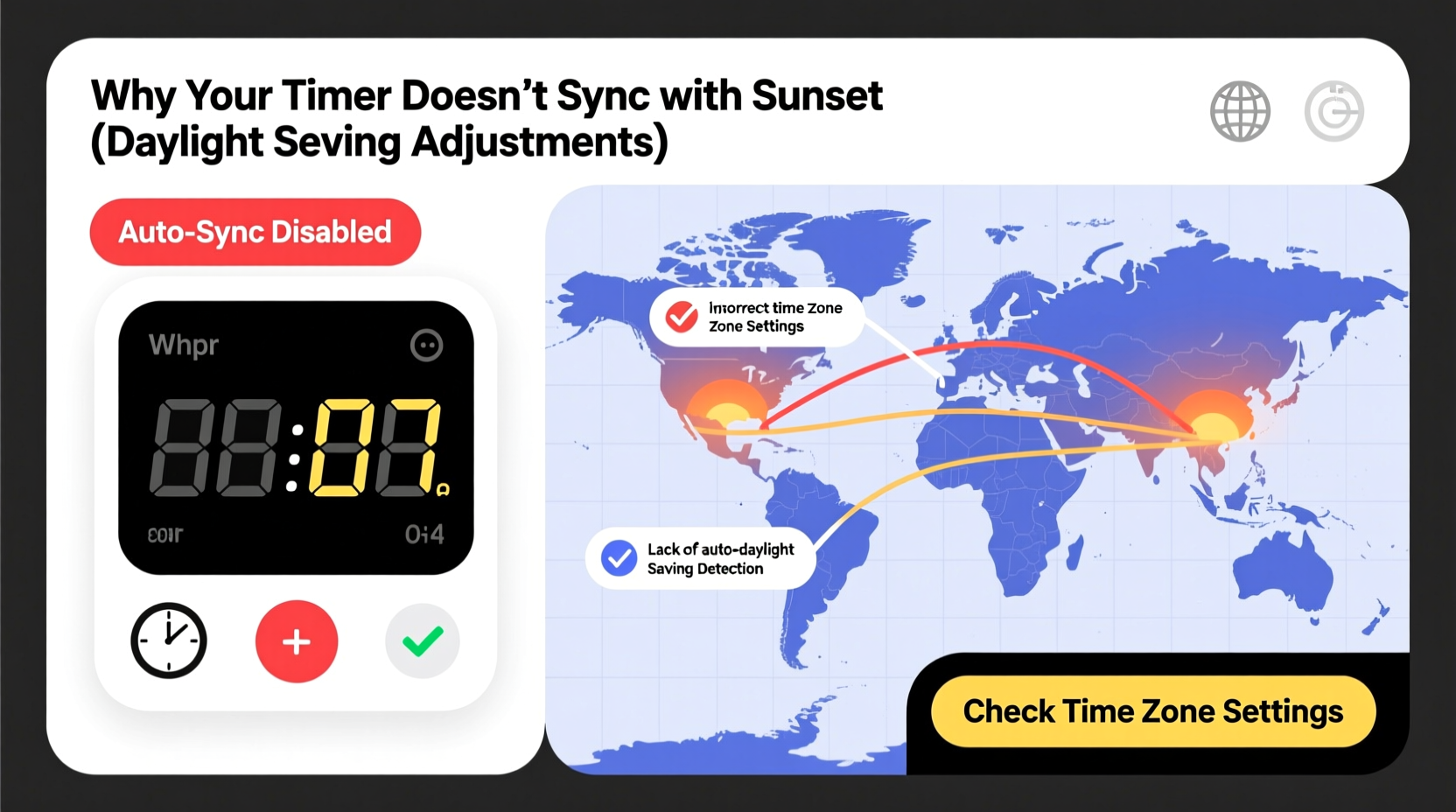
Not all timers function the same way. The type you use determines how well it adapts to seasonal light changes and DST transitions. Here’s a breakdown of the three main categories:
- Fixed (Mechanical or Digital) Timers: These operate on preset schedules based on clock time. For example, “turn on at 6:00 PM.” They do not account for sunrise or sunset and require manual adjustment several times a year.
- Astronomical Timers: These calculate daily sunrise and sunset times based on your geographic coordinates and date. They automatically adjust throughout the year, including during DST shifts, without user input.
- Smart Timers: Connected to Wi-Fi and integrated with apps or platforms like Alexa, Google Home, or IFTTT, these use live weather and location data to optimize timing dynamically. Most also auto-adjust for DST if the network time is correctly synced.
If your timer isn’t syncing with sunset times, there's a high chance you're using a fixed timer—or a so-called “smart” device that hasn't been properly configured.
Daylight Saving Time: Why It Disrupts Basic Automation
Daylight saving time begins on the second Sunday in March and ends on the first Sunday in November in most of the United States. During these transitions, clocks either spring forward one hour or fall back. While modern smartphones and computers update instantly, many standalone timers do not.
Consider this scenario: You’ve programmed your porch light to turn on at 5:30 PM, which aligns perfectly with sunset in early November. But when DST ends, sunset may shift to around 4:45 PM while your timer still activates at 5:30 PM by local clock time. That 45-minute gap means your home sits in darkness during peak evening activity hours—a potential safety concern.
The reverse happens in March. When clocks spring forward, sunset appears later, but your timer jumps ahead prematurely. A light set to go on at 6:00 PM might now activate when it’s still bright outside, wasting energy and reducing bulb lifespan.
“Most residential-grade electronic timers lack built-in GPS or internet connectivity, making them blind to both location-based twilight changes and policy-driven time shifts.” — Dr. Alan Reeves, Electrical Systems Engineer, University of Colorado Boulder
Common Causes of Sunset Sync Failure
Beyond the absence of astronomical logic, several specific issues prevent accurate sunset alignment:
- No Location Data: Even some digital timers need manual ZIP code or latitude/longitude entry to compute sun position. If skipped during setup, they default to fixed times.
- Incorrect Time Zone Settings: A mismatch between your actual time zone and the one selected in the timer causes permanent offset errors.
- Disabled Auto-DST Function: Some devices have an option labeled “Auto DST” that must be manually enabled. If left off, the device won’t adjust in spring or fall.
- Outdated Firmware: Smart timers depend on software updates to maintain compatibility with changing DST rules, especially if regional policies evolve (e.g., proposed permanent DST).
- Wi-Fi or NTP Sync Issues: Networked devices rely on Network Time Protocol (NTP) servers. Poor connectivity or incorrect network settings delay or prevent time updates.
Mini Case Study: The Garage Light That Was Always Late
Mark from Portland, Oregon, installed a new digital outdoor timer to control his garage and driveway lights. He set it to turn on at 5:15 PM each day, believing it would match winter evenings. By late October, he noticed the lights came on nearly an hour after dark. After checking forums, he realized two things: first, his timer had an “Astronomical Mode,” but it was never activated; second, he hadn’t entered his ZIP code during initial setup. Once he enabled geo-sync and inputted his location, the lights began turning on precisely at sunset—automatically adjusting every day.
Solutions: How to Ensure Accurate Sunset-Based Timing
To eliminate timing drift and ensure your devices follow natural light cycles, follow this actionable checklist:
✅ Sunset Sync Checklist
- Confirm your timer has astronomical or smart capabilities
- Enter your correct ZIP code or GPS coordinates
- Enable “Auto DST” or “Daylight Saving Adjustment” in settings
- Ensure Wi-Fi connection (for smart models) is stable
- Check for firmware updates monthly
- Test timing weekly during seasonal transitions
- Use a backup sensor (e.g., photocell) if available
Step-by-Step: Configuring an Astronomical Timer
- Power On: Install batteries or connect power.
- Select Mode: Navigate to “Settings” and choose “Astronomical” or “Sunset/Sunrise” mode.
- Input Location: Enter your ZIP code or manually input latitude and longitude (e.g., 45.5231° N, 122.6765° W for Portland).
- Set Time Zone: Choose your correct time zone (e.g., Pacific Time). Double-check DST observance settings.
- Enable Auto DST: Turn on automatic daylight saving adjustment.
- Sync Device: Allow 1–2 minutes for internal calculation of today’s sunset time.
- Verify: Check that activation occurs within 5–10 minutes of actual sunset using a trusted source like timeanddate.com.
Comparison Table: Timer Types and Sunset Accuracy
| Timer Type | DST Adjustment | Sunset Tracking | Setup Complexity | Best For |
|---|---|---|---|---|
| Fixed Mechanical | No | No | Low | Simple appliances, indoor use |
| Basic Digital | Manual or Optional | No | Medium | Users who prefer full control |
| Astronomical | Yes (if enabled) | Yes (location-based) | Medium-High | Outdoor lighting, seasonal needs |
| Smart Wi-Fi | Yes (auto-sync) | Yes (real-time data) | High (app setup) | Automated homes, remote access |
Frequently Asked Questions
Why does my smart plug still show the wrong sunset time?
This usually stems from incorrect location permissions in the companion app. Smart plugs pull time and location from your phone or router. If your device is set to a different city or lacks precise location access, sunset calculations will be inaccurate. Go into the app settings and reconfirm your home address or enable GPS.
Can I fix an old timer that doesn’t support DST?
Yes, but with limitations. You can manually adjust the clock twice a year when DST starts and ends. Alternatively, install a plug-in astronomical adapter between the outlet and your timer. These adapters override timing based on ambient light and cost under $20.
Do all states observe daylight saving time?
No. Arizona (except Navajo Nation) and Hawaii do not observe DST. Parts of Indiana did not until 2006. If you live in or manage property in these areas, ensure your timer is set to “No DST” mode to avoid erroneous shifts.
Conclusion: Align Your Automation with Nature’s Rhythm
Your timer shouldn’t work against you as the seasons change. With the right equipment and configuration, automation can seamlessly adapt to sunset times—no matter the month or time policy. The key is moving beyond static schedules and embracing technology that understands both geography and time. Whether you upgrade to a smart system or simply fine-tune your existing setup, accurate timing improves safety, saves energy, and reduces maintenance effort.
Take action today: pull out your timer’s manual, check its mode settings, and verify your location and DST preferences. A five-minute review could save months of misaligned lighting.




 浙公网安备
33010002000092号
浙公网安备
33010002000092号 浙B2-20120091-4
Comments
No comments yet. Why don't you start the discussion?