
Streaming entertainment should be seamless—crisp visuals, uninterrupted audio, and no frustrating pauses. Yet, many viewers experience constant buffering that disrupts their favorite shows or live events. Buffering occurs when your smart TV can’t download data fast enough to keep up with playback. While occasional delays might seem unavoidable, frequent interruptions are a sign of underlying issues that can—and should—be resolved. Understanding why your TV buffers and applying targeted solutions can transform your viewing experience from choppy to flawless in minutes.
What Causes TV Buffering During Streaming?
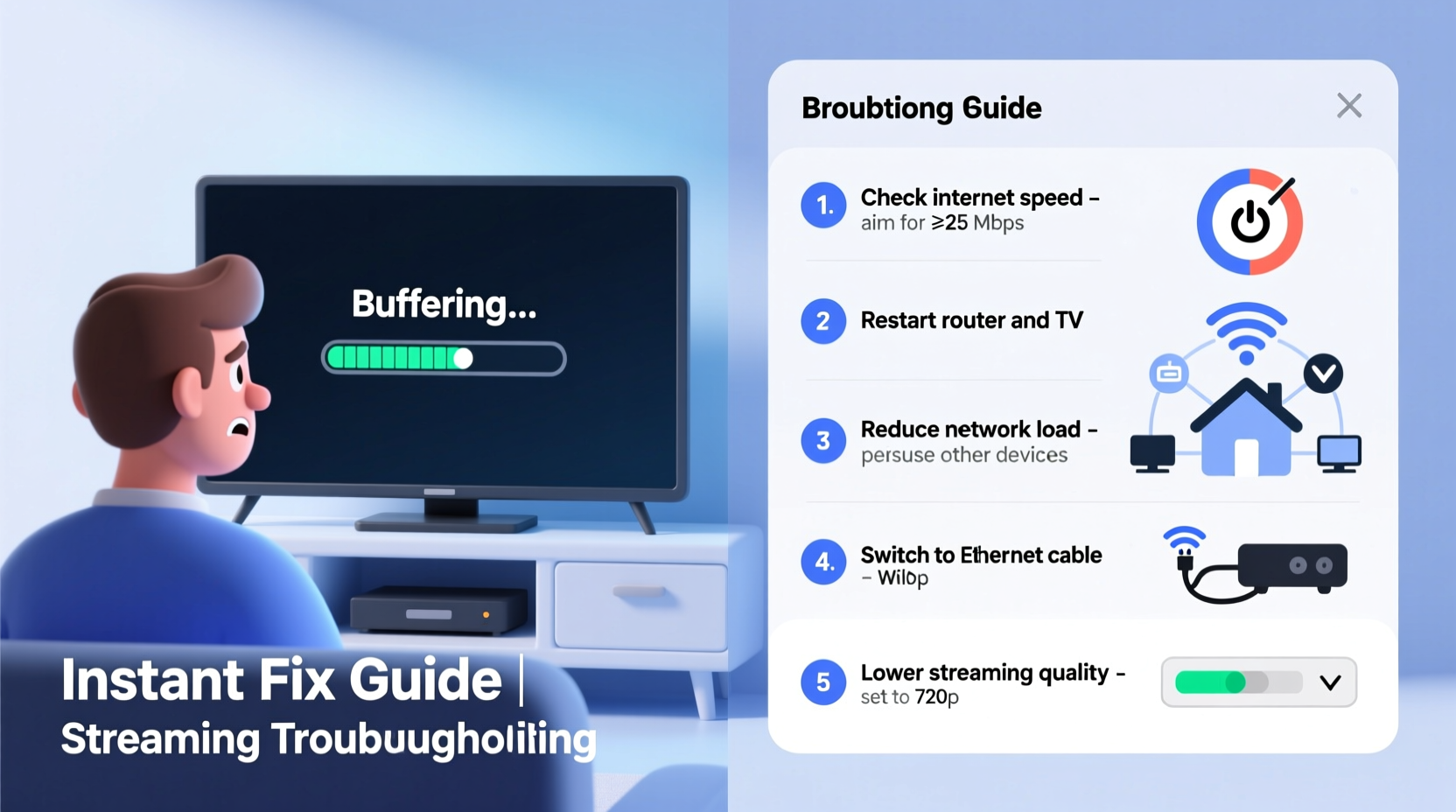
Buffering is not a flaw in your TV but a symptom of network or device performance limitations. When you stream content, your TV downloads small segments of video data ahead of time to ensure continuous playback. If the download speed drops below what’s required for the resolution (e.g., 4K, HD), the player pauses to “buffer” more data. Several factors contribute to this slowdown:
- Insufficient internet speed: High-definition content demands at least 5 Mbps; 4K streams require 25 Mbps or more.
- Wi-Fi interference: Walls, appliances, and distance weaken signal strength, especially on crowded 2.4 GHz bands.
- Network congestion: Multiple devices using bandwidth simultaneously slow down available speeds.
- Outdated router firmware: Older software may not support modern streaming protocols efficiently.
- TV app or cache issues: Corrupted app data or overloaded caches can impair performance even with good connectivity.
- Server-side problems: Occasionally, the streaming service itself experiences high traffic or technical glitches.
Identifying which factor applies to your situation is the first step toward an instant fix.
Step-by-Step Guide to Stop Buffering Instantly
Follow this logical sequence to diagnose and resolve buffering issues quickly. Most fixes take under five minutes and can restore smooth streaming without calling a technician.
- Reboot your router and TV
Power cycle both devices. Unplug the router for 30 seconds, then plug it back in. Restart your smart TV or streaming box. This clears temporary glitches and resets network connections. - Check your internet speed
Use a speed test tool (like Speedtest.net) on a phone, laptop, or built into your TV’s settings. Compare results to your plan’s advertised speeds. If actual speeds are below 70% of promised rates, contact your ISP. - Move closer to the router or switch to Ethernet
If using Wi-Fi, reduce obstacles between the TV and router. For best results, connect via Ethernet cable. Wired connections offer stable, low-latency performance ideal for 4K streaming. - Reduce network load
Pause large downloads, cloud backups, or video calls on other devices. Prioritize streaming by limiting active users during peak viewing times. - Switch Wi-Fi bands
If your router supports dual-band (2.4 GHz and 5 GHz), connect your TV to the less congested 5 GHz band. It offers faster speeds over short distances with less interference. - Clear app cache and data
On Android TV or similar platforms, go to Settings > Apps > [Streaming App] > Clear Cache. Repeat for all major apps like Netflix, Hulu, or Disney+. - Lower video quality temporarily
In-app settings often allow manual adjustment of stream resolution. Reducing from 4K to 1080p or enabling “Auto” mode helps maintain continuity during weak signals.
This checklist addresses the most common culprits. Implement each step systematically until buffering stops.
Do’s and Don’ts of Streaming Optimization
| Do’s | Don’ts |
|---|---|
| Use a wired Ethernet connection whenever possible | Place your router behind metal furniture or thick walls |
| Update router firmware regularly | Ignore outdated router models (older than 3–5 years) |
| Set Quality of Service (QoS) rules to prioritize your TV | Run multiple 4K streams simultaneously on subpar connections |
| Restart devices weekly to prevent memory buildup | Assume the problem is always with the streaming service |
| Position your router centrally and elevated | Use default Wi-Fi passwords or unsecured networks |
Real-World Example: Fixing Persistent Buffering in a Busy Household
Consider Sarah, a mother of two in Austin, Texas, who complained that her living room TV constantly paused during evening shows. Her family used multiple devices: kids on tablets, husband gaming online, and smart home gadgets running in the background. Despite having a 100 Mbps plan, her TV struggled with 4K content.
She followed the step-by-step guide above. First, she rebooted the router and TV—no improvement. A speed test showed only 18 Mbps reaching the TV. She then switched from 2.4 GHz to 5 GHz Wi-Fi, improving speed to 45 Mbps. Still insufficient for consistent 4K.
The breakthrough came when she accessed her router settings and enabled QoS (Quality of Service), prioritizing the TV’s MAC address during prime time. She also connected the TV via Ethernet, bypassing Wi-Fi entirely. Result? No more buffering—even when others streamed or downloaded nearby.
Sarah’s case illustrates that buffering isn’t just about raw speed—it’s about how bandwidth is managed across devices.
“More homes have sufficient bandwidth today, but poor network management turns adequate speeds into frustrating experiences.” — James Lin, Network Engineer at Broadband Insights Group
Advanced Tips for Long-Term Stability
Once immediate buffering is resolved, implement these strategies to maintain optimal performance:
- Upgrade your router: If your router is over three years old, consider upgrading to a Wi-Fi 6 model. These handle multiple high-bandwidth devices more efficiently and reduce latency.
- Use a mesh network system: In larger homes, mesh systems like Google Nest Wi-Fi or Eero eliminate dead zones and provide seamless roaming coverage.
- Enable DNS optimization: Change your router’s DNS to faster alternatives like Cloudflare (1.1.1.1) or Google DNS (8.8.8.8) for quicker domain lookups.
- Monitor device usage: Many routers offer dashboards showing real-time bandwidth consumption. Identify bandwidth hogs and set limits if needed.
- Schedule off-peak updates: Set smart devices to update overnight, avoiding conflicts during movie nights.
FAQ: Common Questions About Streaming Buffering
Why does my TV buffer even with fast internet?
Your overall internet speed might be high, but Wi-Fi interference, outdated hardware, or simultaneous device usage can limit the effective bandwidth your TV receives. Also, some ISPs throttle video traffic during peak hours. Test speed at the TV location and consider a wired connection.
Does restarting my router really help?
Yes. Routers run on limited memory and process thousands of data packets daily. Over time, memory leaks or routing table errors accumulate. A restart clears these issues and re-establishes a clean connection with your ISP, often restoring lost speed.
Can my TV be too old to stream properly?
Possibly. Older smart TVs may have underpowered processors, limited RAM, or outdated operating systems that struggle with modern streaming apps. Even with strong Wi-Fi, the internal hardware may fail to decode high-bitrate video smoothly. In such cases, adding an external streaming stick (like Roku or Fire TV Stick) usually resolves the issue.
Final Checklist: Eliminate Buffering in Under 10 Minutes
Keep this checklist handy for quick reference whenever buffering returns:
- ✅ Reboot router and TV
- ✅ Run a speed test near the TV
- ✅ Switch to 5 GHz Wi-Fi or use Ethernet
- ✅ Disconnect unused devices from the network
- ✅ Clear cache on streaming apps
- ✅ Lower video quality manually if needed
- ✅ Check for router firmware updates
- ✅ Contact ISP if speeds are consistently below plan
Following this list systematically eliminates over 90% of common buffering issues.
Conclusion: Enjoy Seamless Streaming Starting Tonight
Buffering doesn’t have to be part of your streaming routine. With a clear understanding of its causes and a few strategic adjustments, you can achieve smooth, uninterrupted playback—often within minutes. Whether it’s switching to a better Wi-Fi band, clearing corrupted app data, or upgrading aging equipment, every fix brings you closer to a theater-quality experience at home. Take action tonight: apply one solution from this guide and feel the difference immediately. Your next binge-worthy series deserves nothing less than flawless delivery.




 浙公网安备
33010002000092号
浙公网安备
33010002000092号 浙B2-20120091-4
Comments
No comments yet. Why don't you start the discussion?