
Streaming entertainment should be seamless—crisp visuals, uninterrupted playback, and instant access to your favorite shows. Yet, if you've ever been interrupted by a spinning loading icon mid-episode, you're not alone. Buffering is one of the most common frustrations among smart TV users. While many immediately blame their internet connection, the real cause might lie in the device itself or a combination of factors. Understanding the difference between internet speed limitations and device-related performance issues is key to solving the problem for good.
Understanding Buffering: What It Really Means
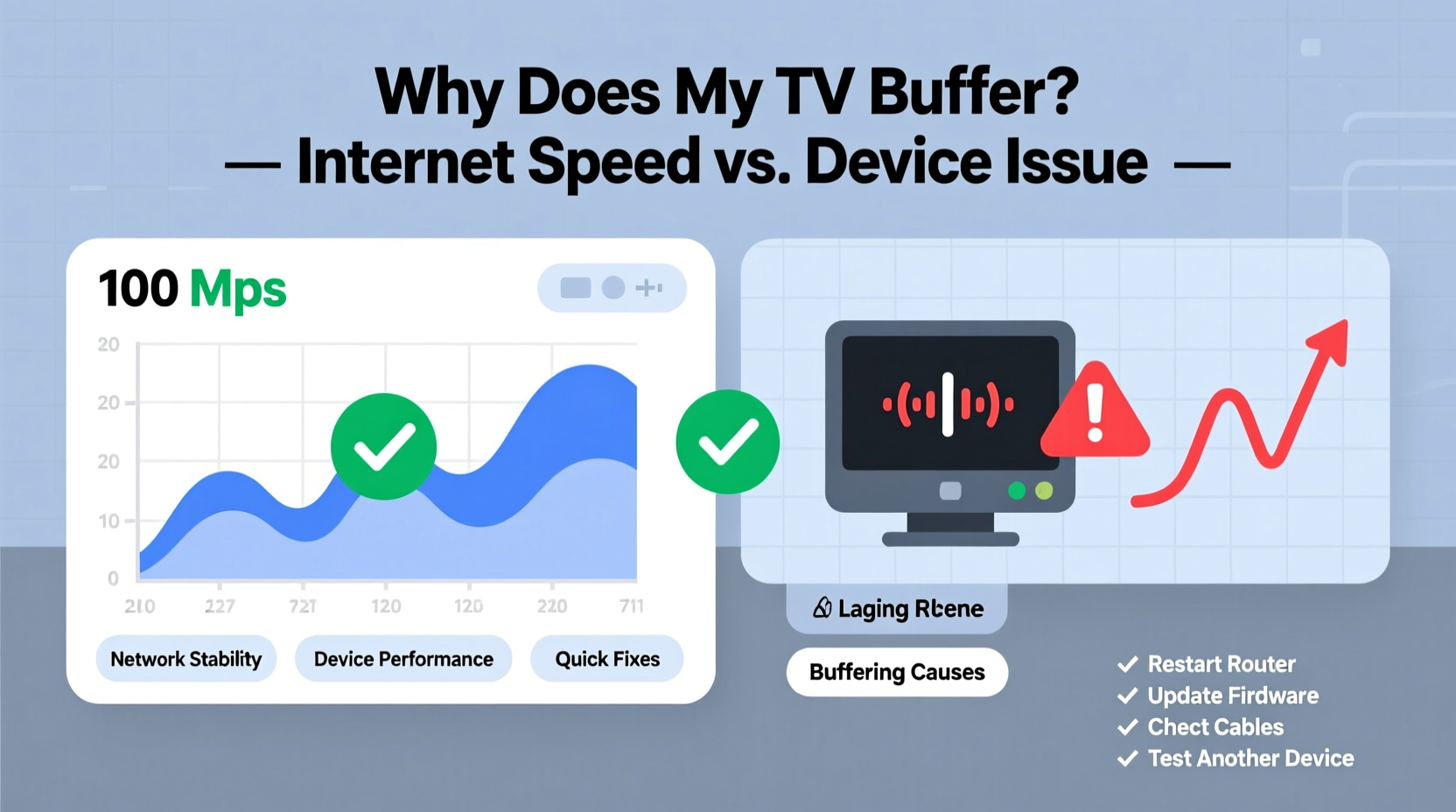
Buffering occurs when your streaming device temporarily downloads part of a video before playing it. This allows playback to continue smoothly even if there’s a brief drop in internet speed. However, if the download rate falls below the playback rate, the buffer runs out, and the video pauses to refill. This is what we experience as “buffering.”
The root cause can stem from either insufficient data delivery (internet speed) or poor processing (device capability), or both. To determine which factor is responsible, it's essential to examine your entire streaming ecosystem—from your router to your TV’s hardware.
Internet Speed: The Foundation of Smooth Streaming
Your internet connection is the pipeline through which all streaming data flows. If this pipeline is too narrow or clogged, buffering becomes inevitable. But speed isn’t just about bandwidth—it also involves latency, jitter, and consistency.
Internet service providers often advertise “up to” certain speeds, but real-world performance can vary significantly based on time of day, number of connected devices, and signal strength. For example, Netflix recommends:
- 3 Mbps for standard definition (SD)
- 5 Mbps for high definition (HD)
- 15 Mbps for ultra-high definition (4K/UHD)
However, these are per-stream requirements. If multiple devices are streaming simultaneously, your total available bandwidth must accommodate all streams. A 50 Mbps plan may seem adequate, but with two 4K streams (30 Mbps total), background updates, and mobile devices using data, the network quickly becomes overloaded.
How to Test Your Internet Speed Accurately
To assess whether your internet is the culprit, conduct a real-time speed test directly from your TV or streaming device. Many platforms like YouTube TV, Xfinity xFi, or apps such as Fast.com (by Netflix) offer built-in speed tests.
- Connect your streaming device directly to your router via Ethernet (if possible) for the most accurate baseline.
- Close all other applications and disconnect non-essential devices.
- Run the test at different times of day—especially during peak usage hours (7–10 PM).
- Repeat the test over Wi-Fi to compare results.
A significant drop in speed over Wi-Fi suggests signal interference or distance issues rather than ISP throttling.
“More than 60% of home Wi-Fi networks suffer from coverage dead zones that degrade streaming quality—even with fast internet plans.” — Dr. Alan Reyes, Network Performance Analyst at Broadband Insights Group
Device Limitations: When Hardware Holds You Back
Even with excellent internet, an underpowered or outdated streaming device can cause persistent buffering. Smart TVs, streaming sticks (like Roku or Fire TV), and game consoles all have processors, RAM, and operating systems that impact performance.
Older models may struggle with modern codecs like HEVC (H.265) used in 4K content, leading to inefficient decoding and playback stutters. Additionally, firmware bloat, background apps, and fragmented storage can slow down response times.
Consider this: a five-year-old smart TV might support 4K streaming on paper, but its processor wasn't designed for today’s higher bitrates and adaptive streaming protocols. As services like Disney+ and Apple TV+ increase video compression efficiency, older hardware can't keep up—resulting in constant rebuffering.
Common Device-Related Causes of Buffering
- Outdated firmware: Missing critical performance patches or codec updates.
- Limited RAM: Inability to maintain smooth multitasking while streaming.
- Overheating: Poor ventilation causes thermal throttling, reducing processing power.
- Background processes: Automatic updates, ads, or voice assistant listeners consuming resources.
- Storage fragmentation: On devices with internal storage, cluttered memory slows app launches and streaming stability.
Differentiating Internet vs Device Issues: A Diagnostic Checklist
Before investing in a new router or upgrading your TV, use this checklist to pinpoint the source of the problem.
| Test | Indicates Internet Issue | Indicates Device Issue |
|---|---|---|
| Speed test on another device (laptop/phone) | Low speed across all devices | Good speed elsewhere, poor on TV |
| Streaming on multiple devices simultaneously | All devices buffer | Only one device affected |
| Switch from Wi-Fi to Ethernet | Buffering stops | Still buffers despite wired connection |
| Try a different streaming app | All apps buffer | Only one app has issues |
| Restart the streaming device | No improvement | Temporary fix, returns after hours |
If the issue persists only on your TV—even with strong internet and after restarts—the device itself is likely the bottleneck.
Real-World Example: Sarah’s Weekend Streaming Struggle
Sarah upgraded her internet to 100 Mbps fiber, expecting flawless 4K streaming. Yet every Friday night, her living room TV would buffer during movie nights. Her laptop streamed fine, and speed tests showed full bandwidth. Frustrated, she contacted her ISP, who confirmed no outages.
After running diagnostics, she discovered that her three-year-old smart TV was the issue. Despite supporting 4K, it used an older Wi-Fi chip (802.11n) and only had 1.5GB of RAM. During peak household usage, the TV couldn’t maintain a stable decode rate. She switched to a dedicated streaming stick with Wi-Fi 6 support and 4K HDR optimization—and the buffering stopped instantly.
This case illustrates how a single weak link in the chain—here, the TV’s internal hardware—can undermine even the best internet service.
Step-by-Step Guide to Fix Buffering Permanently
Follow this sequence to systematically eliminate buffering causes:
- Assess current internet speed: Use Fast.com or Speedtest.net directly on your TV or streaming box. Record download, upload, and ping values.
- Check concurrent usage: See how many devices are online. Disconnect unused ones or set Quality of Service (QoS) rules in your router.
- Optimize Wi-Fi placement: Position your router centrally, away from walls, microwaves, and cordless phones. Avoid placing it inside cabinets.
- Switch to 5 GHz band: If your router supports dual-band, connect your streaming device to 5 GHz for faster speeds and less interference (though shorter range).
- Use Ethernet when possible: Connect your TV or streaming box directly to the router with a cable for maximum stability.
- Update firmware: Check for system updates on your TV, streaming stick, or soundbar. Enable automatic updates if available.
- Clear cache and data: On Android TV or Fire OS devices, go to Settings > Apps > [Streaming App] > Clear Cache.
- Lower video quality temporarily: In the app settings (e.g., Netflix), reduce streaming quality to HD instead of Auto or 4K to test if buffering stops.
- Replace outdated hardware: If troubleshooting fails, consider upgrading to a modern streaming device like Apple TV 4K, NVIDIA Shield, or Roku Ultra.
- Upgrade your router: If you’re still on an old router, invest in a Wi-Fi 6 or mesh system (e.g., Eero, Netgear Orbi) for better coverage and device handling.
Preventive Maintenance Tips for Long-Term Stability
Buffering doesn’t have to be a recurring issue. With regular maintenance, you can ensure smooth streaming for years.
- Limit background apps: Disable auto-launch features and close unused apps running in the background.
- Monitor data caps: Some ISPs throttle speeds after reaching a monthly limit. Track your usage via your provider’s portal.
- Use a DNS optimizer: Switch to Google DNS (8.8.8.8) or Cloudflare (1.1.1.1) for faster domain resolution.
- Enable QoS settings: Prioritize media streaming traffic in your router’s admin panel to reduce competition during peak times.
Frequently Asked Questions
Does restarting my router really help with buffering?
Yes. Routers accumulate temporary data and connection logs over time. Restarting clears memory, resets IP assignments, and can resolve DNS or routing glitches that slow down streaming. Make it a weekly habit.
Can a VPN cause my TV to buffer?
Yes. While VPNs enhance privacy, they add encryption overhead and route traffic through distant servers, increasing latency. If you're using a TV-based VPN, try disabling it to see if streaming improves. Choose a high-speed, low-latency provider if you need one.
Is 4K streaming worth it if my internet fluctuates?
Only if your connection consistently delivers 15+ Mbps. Otherwise, adaptive streaming will constantly downgrade quality, causing visual jumps and rebuffering. Consider sticking to HD unless you have a stable, high-speed connection.
Conclusion: Take Control of Your Streaming Experience
Buffering is rarely caused by a single factor—it’s usually the result of overlapping weaknesses in your network and device setup. By methodically testing your internet speed, evaluating your hardware capabilities, and optimizing your home network, you can eliminate frustrating interruptions and enjoy seamless viewing.
Don’t accept buffering as normal. Whether it’s upgrading your router, switching to Ethernet, or replacing an aging smart TV, small investments now can deliver years of uninterrupted entertainment. Start with one step today—run a speed test on your TV—and build from there.




 浙公网安备
33010002000092号
浙公网安备
33010002000092号 浙B2-20120091-4
Comments
No comments yet. Why don't you start the discussion?