
Waking up to a glowing screen in the middle of the night or finding your TV unexpectedly active when no one touched the remote can be unsettling. While it might seem like a scene from a sci-fi movie, this behavior is usually rooted in technical features rather than supernatural forces. Modern smart TVs come equipped with numerous automated functions—designed for convenience—that sometimes trigger unintended results. The most common culprit behind a self-activating TV is automatic power settings, but other factors like HDMI-CEC, network signals, or even external devices can also play a role.
Understanding why this happens isn’t just about peace of mind—it’s about regaining control over your home entertainment system. More importantly, knowing how to disable these auto power features ensures your TV behaves predictably and respects your viewing habits. This guide breaks down the real causes, walks you through step-by-step solutions, and offers expert-backed strategies to prevent future surprises.
Common Reasons Your TV Turns On Automatically
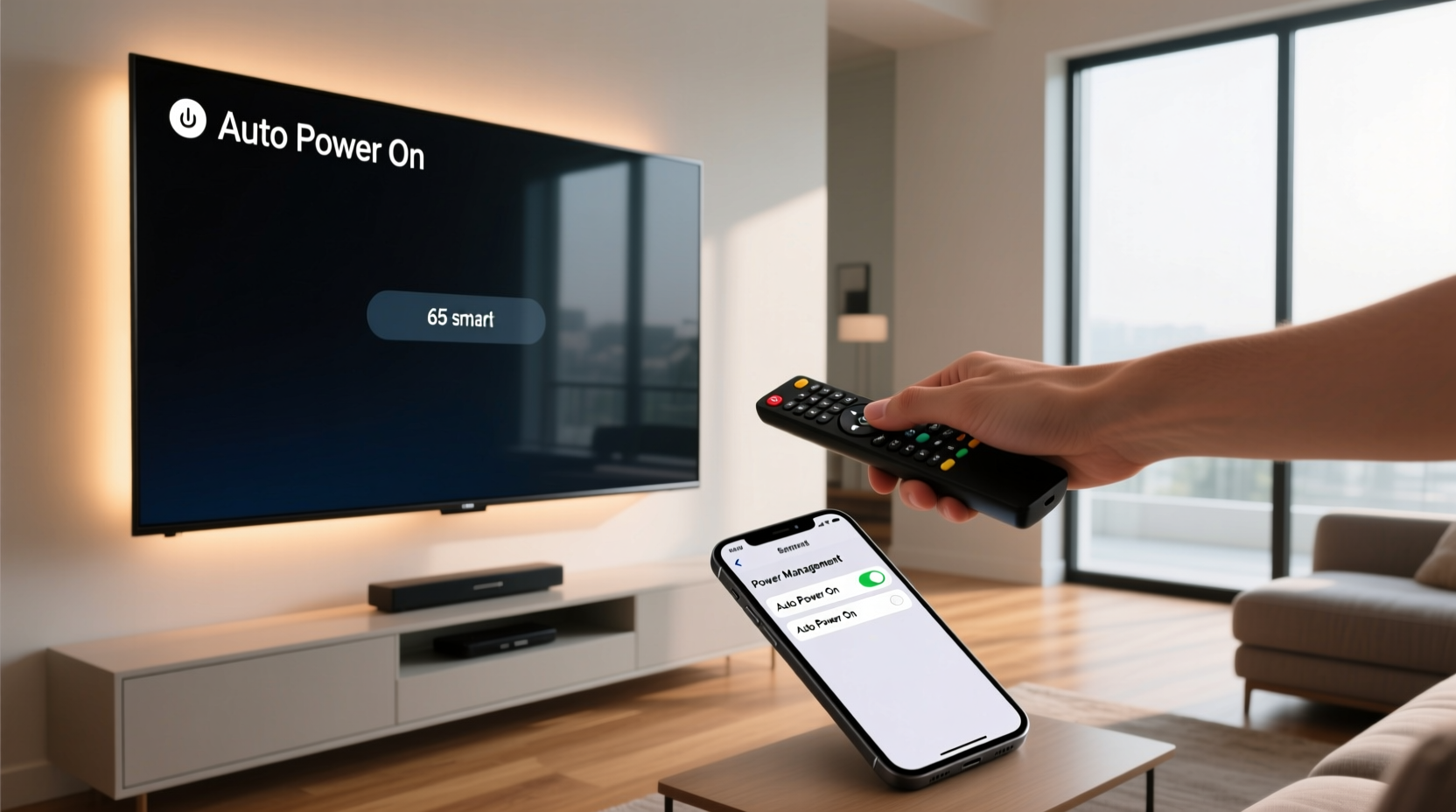
Before attempting fixes, it's essential to identify what’s triggering the unwanted activation. Most modern TVs don't turn on randomly; instead, they respond to specific internal or external signals. Here are the top reasons:
- HDMI-CEC (Consumer Electronics Control): This feature allows connected devices—like soundbars, gaming consoles, or streaming boxes—to power on the TV when they become active. For example, turning on your PlayStation may automatically wake your TV.
- Wake-on-LAN or Network Wake-Up: Some smart TVs support network-based wake commands. If enabled, a signal from your home network (e.g., a phone app or background service) can turn the TV on remotely.
- Scheduled Power-On Timers: Certain models allow users to set timers that power the TV on at specific times, often used for morning news or alarms.
- Faulty Remote or IR Interference: A stuck power button, low batteries causing erratic signals, or infrared interference from sunlight or other electronics can trick the TV into thinking it received an ON command.
- Firmware Glitches: Outdated or buggy firmware can cause erratic behavior, including spontaneous startups.
- Voice Assistant Integration: If your TV is linked to Alexa, Google Assistant, or Bixby, voice commands—even accidental ones—can activate the device.
How to Disable Auto Power Settings by Brand
Disabling automatic startup features varies depending on your TV brand and operating system. Below is a detailed breakdown for the most popular manufacturers.
| Brand | Setting Name | Path to Disable | Additional Notes |
|---|---|---|---|
| Samsung | Auto Power On / Anynet+ (HDMI-CEC) | Settings → General → External Device Manager → Anynet+ (HDMI-CEC) → Off Settings → General → Power On → Set to \"Off\" |
Anynet+ enables CEC; disabling it stops联动device triggers. |
| LG | Quick Start+ / Simplink (HDMI-CEC) | Settings → All Settings → System → Quick Start+ → Off Simplink → Off under Sound or Device Connection |
Quick Start+ keeps the TV in standby mode for faster booting—disable to stop phantom starts. |
| Sony | Bravia Sync / HDMI Control / BRAVIA Theater Sync | Settings → External Inputs → HDMI Control → Off Settings → Power Settings → Quick Start → Off |
BRAVIA Theater Sync links audio devices; turning it off prevents cross-device activation. |
| TCL / Roku TV | Power On with Remote | Settings → System → Power & Energy Saving → Instant On → Off | Roku TVs use \"Instant On\" to resume quickly; switch to \"Energy Saving\" mode for full shutdown. |
| Vizio | Wake on LAN / CEC | Menu → System → CEC → Disabled Network → Wake on LAN → Off |
Vizio calls HDMI-CEC “CEC”; ensure both CEC and Wake on LAN are disabled. |
“Modern TVs are designed to integrate seamlessly with other devices, but that interconnectedness often leads to unexpected behaviors. Disabling non-essential automation restores user control.” — Mark Tran, Senior Home Theater Technician at AV Integrity Labs
Step-by-Step Guide to Stop Your TV From Turning On Automatically
If you're experiencing unexplained TV activations, follow this structured approach to diagnose and resolve the issue permanently.
- Check for Scheduled Timers
Navigate to your TV’s timer settings (usually under System or Power). Look for any programmed “Power On” events. Delete or disable them if present. - Disable HDMI-CEC Features
Access your TV’s input or external device menu and turn off HDMI-CEC (known as Anynet+, Simplink, Bravia Sync, etc.). Repeat this process on connected devices like soundbars or consoles. - Turn Off Network Wake-Up Functions
Go to Network Settings → IP Control or Remote Start and disable options like “Wake on LAN,” “Remote Access,” or “Mobile App Control.” - Switch to Full Power-Off Mode
Replace instant-start or quick-boot modes with energy-saving shutdowns. This ensures the TV fully powers down instead of lingering in a semi-active state. - Test the Remote Control
Remove the batteries from your remote overnight. If the TV doesn’t turn on spontaneously, the remote may be sending false signals due to moisture, debris, or worn buttons. - Update Firmware
Outdated software can cause erratic behavior. Check for updates in Settings → Support → Software Update and install the latest version. - Perform a Factory Reset (if needed)
If problems persist, reset the TV to default settings. Be sure to reconfigure preferences afterward, this time with automation features disabled from the start.
Real-World Example: Solving a Phantom TV Activation
Consider the case of Sarah M., a homeowner in Portland who reported her LG OLED TV turning on around 3 a.m. daily. Initially suspecting a glitch, she tried unplugging the TV, only for the issue to return upon reconnection. After ruling out remotes and power surges, she reviewed her settings and discovered “Quick Start+” was enabled. Further investigation revealed her Sonos Arc soundbar was sending a wake signal via HDMI-CEC every time it checked for software updates—a routine process occurring in the early hours.
By disabling both Quick Start+ and Simplink in her LG TV’s system menu, Sarah eliminated the automatic startups. She retained full functionality during normal use while preventing unwanted nighttime activations. This case highlights how seemingly minor integrations between high-end devices can create disruptive side effects without proper configuration.
Prevention Checklist: Keep Your TV Under Control
To avoid future issues, apply this proactive checklist after setting up any new TV or peripheral device:
- ✅ Disable HDMI-CEC unless actively using multi-device control
- ✅ Turn off “Quick Start,” “Instant On,” or similar fast-boot features
- ✅ Disable Wake on LAN and remote access services if not needed
- ✅ Regularly inspect remote controls for physical damage or battery leaks
- ✅ Keep firmware updated to patch known bugs affecting power management
- ✅ Avoid placing the TV near strong sources of infrared light (e.g., direct sunlight, halogen lamps)
- ✅ Use a smart plug with scheduling to cut power overnight if necessary
Frequently Asked Questions
Can a software update cause my TV to start turning on by itself?
Yes. Occasionally, a firmware update resets factory defaults or introduces new features that enable auto-wake functions. Always review power and connectivity settings after an update to ensure automation features remain disabled.
Is it safe to leave my TV plugged in if it turns on randomly?
While generally safe from a fire hazard perspective, constant cycling can reduce the lifespan of internal components and increase electricity usage. It’s best to resolve the root cause rather than leaving it unchecked.
Will disabling HDMI-CEC affect my soundbar or gaming console?
It may limit some conveniences—like one-touch play or unified remote control—but core functionality remains intact. You’ll simply need to power devices manually or use individual remotes. For many users, the trade-off in reliability is worth the loss of partial automation.
Final Thoughts and Recommendations
Your TV should serve your needs—not operate independently. While features like HDMI-CEC and network wake-up offer convenience, they often do so at the cost of predictability and privacy. By understanding how these systems work and taking deliberate steps to disable unnecessary automation, you reclaim full control over your viewing environment.
The solution isn’t always a single setting; it’s a combination of awareness, configuration, and maintenance. Whether you own a Samsung QLED, LG C-series, or budget-friendly Roku TV, the principles remain the same: audit your power settings, isolate external triggers, and prioritize stability over seamless integration when it compromises performance.
Start today by reviewing your TV’s system menu. Chances are, one toggle buried in the settings is responsible for the mystery. Once disabled, enjoy uninterrupted nights and peace of mind knowing your screen stays dark—until you decide otherwise.




 浙公网安备
33010002000092号
浙公网安备
33010002000092号 浙B2-20120091-4
Comments
No comments yet. Why don't you start the discussion?