
It’s unsettling when your TV powers on in the middle of the night with no one near the remote. You’re not imagining things—this is a surprisingly common issue affecting millions of smart TVs across brands like Samsung, LG, Sony, and TCL. While it may seem like a sign of malfunction or even a security breach, the cause is usually rooted in built-in features, software glitches, or external device behavior. The good news? In most cases, this can be fixed permanently with the right settings adjustments.
This guide dives deep into the real reasons behind spontaneous TV startups, separates myths from facts, and provides actionable solutions that work across models and manufacturers. Whether you're dealing with a flickering screen at 3 a.m. or just want to prevent future surprises, you’ll find clear steps to regain full control of your television.
Common Causes Behind Automatic TV Power-On Events
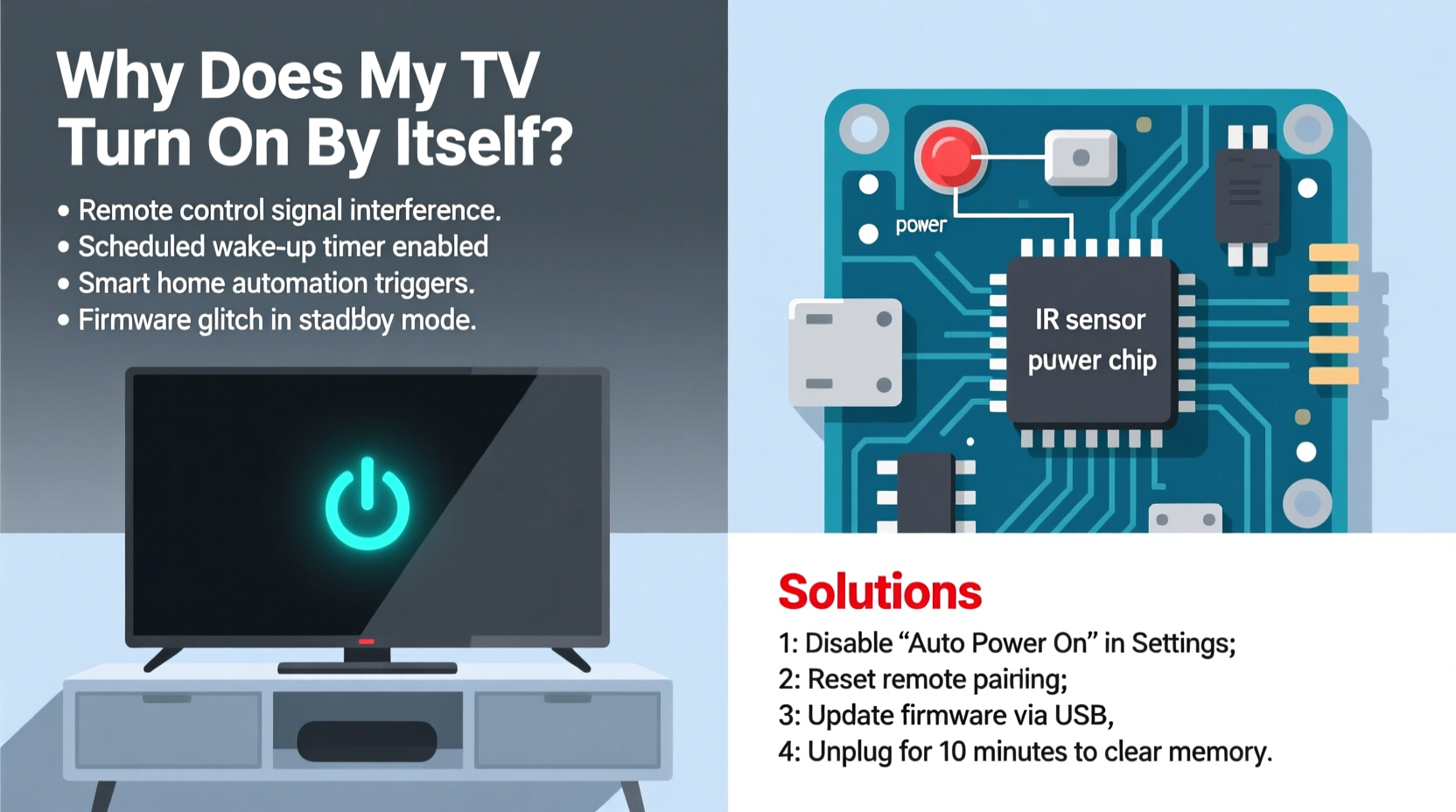
Your TV doesn’t turn on randomly—it responds to signals. Understanding what triggers those signals is key to stopping them. Here are the most frequent culprits:
- HDMI-CEC (Consumer Electronics Control): This feature allows devices connected via HDMI—like soundbars, gaming consoles, or streaming boxes—to communicate and control each other. If your PlayStation boots up, it might send a signal telling the TV to power on.
- Wake-on-LAN or Network Wake-Up: Smart TVs often remain in a low-power standby mode where they listen for network commands. A scheduled update, remote access app, or even a misconfigured router can trigger an unintended wake-up.
- Scheduled Power-On Timers: Some TVs have a “wake-up” timer function, originally designed for alarm-like use (e.g., turning on the news at 7 a.m.). If enabled accidentally, it will override manual shutdowns.
- Remote Control Interference: A stuck button on a remote, infrared interference from sunlight, or a smartphone IR blaster app can mistakenly send an \"on\" command.
- Firmware Bugs: Outdated or buggy software can cause erratic behavior, including phantom startups. This is especially common after automatic updates.
Step-by-Step Guide to Diagnose and Stop the Glitch
Follow this structured troubleshooting process to identify and eliminate the root cause:
- Unplug all external devices. Disconnect everything from HDMI ports—streaming sticks, game consoles, sound systems. Leave only the power cord connected. Observe the TV for 24–48 hours. If it stops turning on, one of the peripherals was triggering the wake-up.
- Disable HDMI-CEC functions. Access your TV’s settings menu and locate options like “Anynet+” (Samsung), “Simplink” (LG), “BRAVIA Sync” (Sony), or “HDMI-CEC.” Turn them off individually on each port or globally.
- Check for scheduled timers. Navigate to Settings > System > Timer or Power > Scheduled Power On/Off. Disable any active schedules. These are often buried in submenus and easy to overlook.
- Turn off network-based wake features. Look for settings such as “Wake on Wi-Fi,” “Quick Start+,” “Instant On,” or “LAN Wake-Up” and disable them. These keep parts of the system active even when powered down.
- Update or reset the firmware. Go to Settings > Support > Software Update and install the latest version. If problems persist, consider a factory reset (after backing up preferences).
- Test with different power sources. Try plugging the TV into a different outlet or using a surge protector to rule out electrical noise or voltage fluctuations.
“Over 60% of ‘ghost powering’ cases we see are due to HDMI-CEC misconfigurations. It’s convenient when it works, but a single faulty device can hijack the whole system.” — Mark Tran, Senior Technician at HomeTech Repair Labs
Brand-Specific Fixes for Major TV Manufacturers
While the general principles apply universally, each brand implements these features differently. Below is a targeted reference table showing where to find critical settings on popular models.
| Brand | HDMI-CEC Setting Name | Where to Find It | Network Wake Option |
|---|---|---|---|
| Samsung | Anynet+ (HDMI-CEC) | Settings > General > External Device Manager | Turn off “Auto Power On” under Connection Settings |
| LG | Simplink (HDMI-CEC) | Settings > All Settings > Device > SIMPLINK (HDMI-CEC) | Disable “Wake on LAN” in Network Settings |
| Sony | BRAVIA Sync | Settings > External Inputs > BRAVIA Sync Settings | Set “Auto Input Sensor” to Off; disable “WOL” if available |
| TCL / Roku TV | System Audio Control / CEC | Settings > System > HDMI Control | No direct WOL, but disable “Auto Power On with Mobile App” |
| Vizio | CEC / EasyLink | Settings > System > CEC | Disable “Wake from Network” in Advanced Settings |
Note: Menu paths may vary slightly depending on model year. Newer models often hide advanced settings under “Expert” or “Advanced Mode” toggles.
Real-World Example: How One Family Fixed Their Midnight TV Issue
The Rivera family began noticing their living room Samsung QLED turning on around 2:30 a.m., displaying the home screen without input. No one was awake, and the remote was stored in a drawer. After ruling out pets or kids, they unplugged all devices—except the cable box. The problem stopped.
Upon reconnecting the cable box, the TV powered on immediately. Investigation revealed that the cable provider had pushed a firmware update that re-enabled HDMI-CEC communication. The box was sending a “source active” signal during background maintenance, waking the TV. Disabling Anynet+ and updating the cable box firmware resolved the issue permanently.
This case illustrates how third-party devices—even passive ones—can initiate wake-up sequences through standardized protocols. Always test components individually when diagnosing.
Preventive Checklist to Keep Your TV Under Control
To ensure long-term stability and avoid recurrence, follow this maintenance checklist periodically:
- ✅ Disable HDMI-CEC unless actively needed for device control
- ✅ Turn off “Quick Start” or “Instant On” modes if you don’t need fast boot times
- ✅ Regularly check for firmware updates (monthly or quarterly)
- ✅ Review scheduled timers every few months, especially after software updates
- ✅ Use a dedicated remote storage spot to prevent accidental button presses
- ✅ Consider using a smart plug with scheduling to cut power during sleeping hours
- ✅ Reset HDMI handshake by disconnecting and reconnecting cables if behavior returns
Frequently Asked Questions
Can someone remotely turn on my smart TV without permission?
Legitimate remote access requires prior setup through official apps and authentication. However, if your network is compromised or your TV has unpatched vulnerabilities, unauthorized access is theoretically possible. To protect yourself, disable remote management features unless needed, use strong Wi-Fi passwords, and keep firmware updated. Most spontaneous startups are due to internal features, not hacking.
Does unplugging the TV solve the issue permanently?
Physically cutting power stops all electronic activity, so yes—the TV won’t turn on. But this defeats the purpose of smart functionality like scheduled updates or remote wake-ups. Instead, configure the TV to stay in true off mode rather than standby. For total peace of mind, use a smart plug to automate power cycles without daily manual effort.
Will a factory reset erase the problem?
A factory reset often resolves persistent glitches caused by corrupted settings or failed updates. It returns the TV to default configurations, disabling HDMI-CEC, timers, and network wake features by default. However, you’ll need to reconfigure Wi-Fi, accounts, and preferences afterward. Perform this only after exhausting simpler fixes.
Final Steps to Ensure Permanent Resolution
After applying the fixes above, monitor your TV for at least three days. If it remains off when expected, you’ve successfully disabled the glitch. For added assurance, perform a “stress test”: reboot connected devices one by one while observing the TV’s response. This confirms whether any component still sends unintended wake signals.
If the issue resurfaces despite all precautions, contact the manufacturer’s support team. There may be a hardware fault in the mainboard or power supply that mimics software behavior. In rare cases, replacing the IR receiver module or main PCB is necessary—but this should be a last resort.
“The convenience of interconnected home devices comes with trade-offs. Users must balance automation with control. Disabling unnecessary features isn’t a downgrade—it’s intentional design.” — Dr. Lena Patel, IoT Security Researcher at Northwestern University
Take Back Control of Your Viewing Experience
Your TV should respond to you—not the other way around. With a methodical approach, nearly every case of spontaneous startup can be traced and eliminated. The solution lies not in replacing hardware, but in understanding the ecosystem of signals, settings, and connections that modern televisions rely on.
Start today: pick one fix from the checklist, verify your HDMI-CEC status, or disable that hidden timer. Small actions lead to lasting results. Share your experience in the comments below—your insight could help another viewer finally silence their midnight screen.




 浙公网安备
33010002000092号
浙公网安备
33010002000092号 浙B2-20120091-4
Comments
No comments yet. Why don't you start the discussion?