
Sitting in front of a screen for hours has become a daily reality for most people—whether working from home, attending virtual meetings, or unwinding with digital entertainment. While technology keeps us connected and productive, many notice an unsettling side effect: blurred vision after extended screen time. This isn’t just fatigue—it’s a real physiological response known as digital eye strain or computer vision syndrome. Understanding the root causes and adopting practical prevention techniques can restore visual comfort and protect long-term eye health.
The Science Behind Screen-Induced Vision Blur
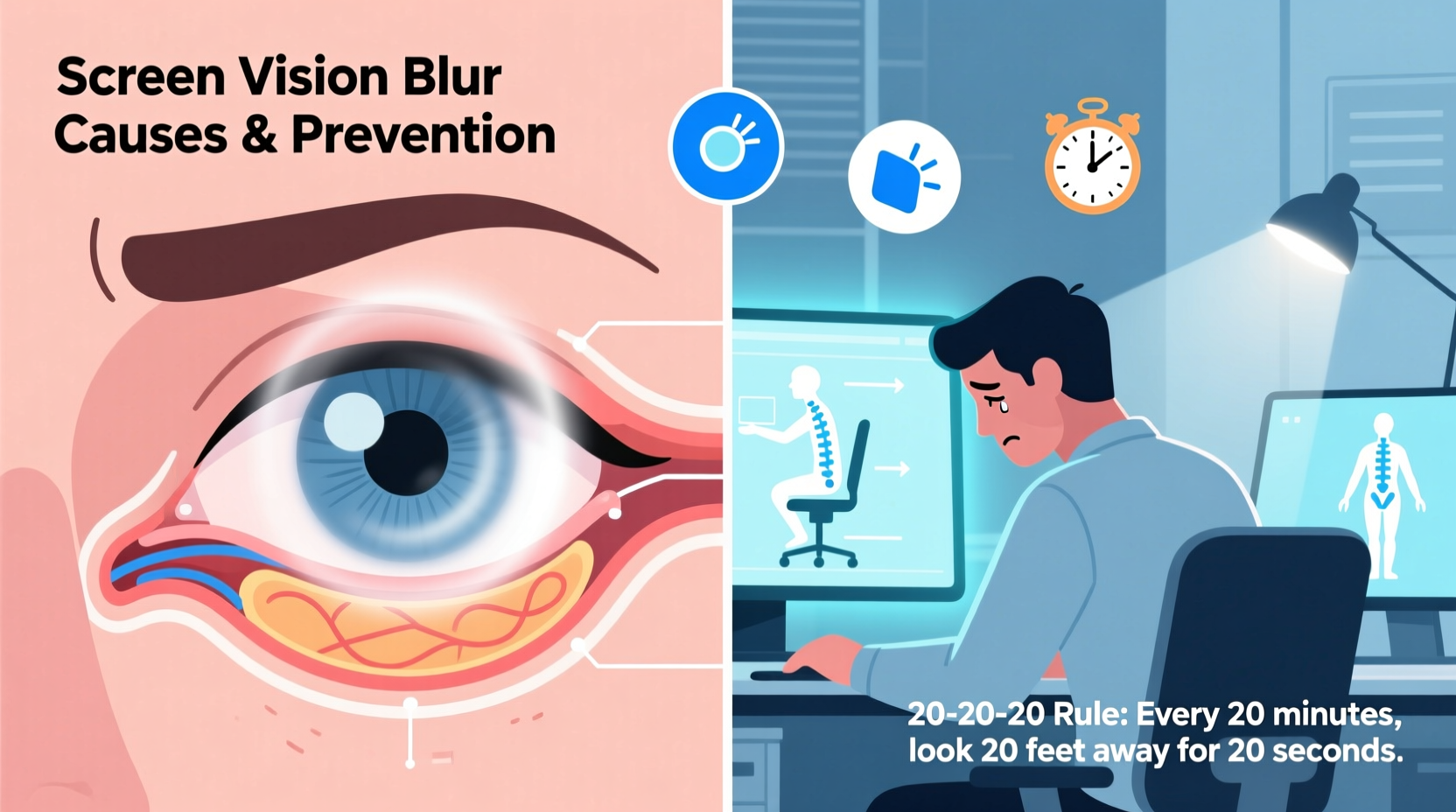
When you focus on a screen, especially for more than 2–3 hours without breaks, several biological factors contribute to temporary blurring. The primary culprit is reduced blinking. Studies show that people blink about 66% less while using digital devices. Blinking spreads tears evenly across the cornea, keeping the eye surface moist and optically smooth. Less blinking leads to dry eyes, which disrupts light refraction and results in hazy or fluctuating vision.
Another factor is accommodative stress—the effort your eye muscles exert to keep images in focus. Screens emit high-energy visible (HEV) blue light, which scatters more easily than other wavelengths. This forces your eyes to work harder to maintain sharp focus, leading to micro-fatigue in the ciliary muscles responsible for lens adjustment. Over time, this strain manifests as blurred vision, particularly when shifting focus between near and distant objects.
Additionally, poor screen ergonomics—such as viewing distance, angle, glare, or improper lighting—can compound these effects. Your eyes constantly adjust to contrast changes, flicker, and pixel density, all of which degrade visual clarity over time.
“Prolonged screen exposure doesn’t permanently damage your eyes, but chronic strain can accelerate age-related issues like dry eye disease and even impact focusing ability.” — Dr. Lena Patel, Optometrist and Vision Health Specialist
Common Symptoms Beyond Blurriness
Blurred vision is often just one sign of digital eye strain. Recognizing related symptoms early helps prevent escalation:
- Dry or gritty sensation in the eyes
- Headaches, especially behind the eyes or forehead
- Double vision or difficulty focusing
- Neck, shoulder, or back pain due to poor posture
- Increased sensitivity to light
- Difficulty concentrating or feeling mentally fatigued
If these symptoms occur regularly after screen use, they likely point to unmanaged visual workload rather than an underlying eye disease. However, persistent issues should be evaluated by an eye care professional to rule out conditions like astigmatism, presbyopia, or binocular vision dysfunction.
Evidence-Based Prevention Strategies
Preventing screen-related vision blur isn’t about eliminating device use—it’s about optimizing how you interact with screens. The following strategies are supported by clinical research and ergonomic guidelines.
Follow the 20-20-20 Rule
Every 20 minutes, look at something 20 feet away for at least 20 seconds. This simple habit gives your focusing muscles a chance to relax and recalibrate. It also encourages natural blinking, helping maintain tear film stability.
Optimize Your Workspace Lighting
Brightness contrast between your screen and surroundings strains your eyes. Avoid working in dark rooms with bright screens or under harsh overhead lights that create glare. Use indirect, ambient lighting and consider a matte screen filter to reduce reflections.
Adjust Screen Settings
Modern devices offer settings that reduce visual load:
- Lower brightness to match room lighting
- Increase text size to reduce squinting
- Enable “night mode” or blue light filters in the evening
- Set refresh rate to 60Hz or higher to minimize flicker perception
Improve Ergonomic Alignment
Your screen should be positioned about an arm’s length away (20–28 inches) and slightly below eye level. This promotes a neutral head and neck posture and reduces strain on both eyes and musculoskeletal system.
| Factor | Recommended Setting | Risk of Ignoring |
|---|---|---|
| Viewing Distance | 20–28 inches | Increased accommodative effort |
| Screen Height | Top at or slightly below eye level | Neck strain, dry eyes |
| Lighting Contrast | Screen brightness ≈ ambient light | Pupil fatigue, glare discomfort |
| Text Size | Minimum 16px for readability | Squinting, mental fatigue |
| Break Frequency | 5-min break every hour | Accumulated eye strain |
A Step-by-Step Guide to Daily Eye Protection
Integrating eye-friendly habits into your routine takes consistency. Follow this timeline to build sustainable practices:
- Morning Setup (5 minutes): Adjust chair height so elbows rest at 90°, position monitor correctly, and check lighting. Apply lubricating eye drops if you have chronic dryness.
- Hourly Routine (20-20-20 + Movement): Set a timer to remind you to look away every 20 minutes. Stand up, stretch, and walk briefly each hour to improve circulation.
- Lunch Break Reset (15 minutes): Step outside or sit in natural light. Close your eyes and breathe deeply. This resets circadian rhythms and reduces HEV light accumulation.
- Afternoon Refresh (Midday Check): Reassess screen glare and posture. Use artificial tears if eyes feel dry—preservative-free drops are best for frequent use.
- End-of-Day Recovery (10 minutes): Perform gentle eye exercises: roll eyes clockwise/counter-clockwise, focus near-to-far, and apply a warm compress to stimulate oil glands in eyelids.
Who Is Most at Risk?
While anyone can experience screen-related vision blur, certain groups face higher risks:
- Contact lens wearers: Lenses reduce oxygen flow and increase dryness, especially in air-conditioned environments.
- People over 40: Age-related decline in tear production and lens flexibility amplifies digital strain.
- Those with pre-existing dry eye or refractive errors: Even minor uncorrected vision issues become magnified during screen use.
- Night shift workers: Blue light at night disrupts melatonin and worsens eye fatigue.
If you fall into any of these categories, proactive management is essential. Consider computer-specific glasses with anti-reflective coating and mild magnification. These lenses reduce focusing demand and block harmful blue-violet light without affecting color perception.
“Computer glasses aren’t a luxury—they’re a necessity for anyone spending more than four hours daily on screens. They reduce visual workload by up to 30%.” — Dr. Alan Zhou, Occupational Vision Consultant
Real-Life Example: Maria’s Turnaround
Maria, a 34-year-old data analyst, began experiencing daily blurriness and headaches after transitioning to full-time remote work. Initially dismissing it as stress, she found herself needing to remove her contacts by mid-afternoon. After visiting an optometrist, she learned she had mild dry eye exacerbated by screen use.
She implemented several changes: adjusted her desk setup, started using the 20-20-20 rule with a smartwatch reminder, switched to preservative-free eye drops, and invested in blue-light-filtering glasses. Within two weeks, her symptoms decreased significantly. By month’s end, she no longer experienced blurriness and reported improved concentration and sleep quality.
Maria’s case illustrates that small, consistent adjustments yield substantial improvements—without requiring drastic lifestyle changes.
Checklist: Prevent Screen-Related Vision Blur
Use this checklist daily to protect your eyes:
- ☑ Position screen at arm’s length and slightly below eye level
- ☑ Enable blue light filter during evening hours
- ☑ Take a 20-second break every 20 minutes
- ☑ Blink consciously during focused tasks
- ☑ Use artificial tears if eyes feel dry
- ☑ Ensure room lighting matches screen brightness
- ☑ Schedule annual eye exams, even if vision seems fine
- ☑ Replace old screens with low flicker rates or motion blur
Frequently Asked Questions
Can screen-induced blurriness lead to permanent vision loss?
No, temporary blurriness from screen use does not cause permanent damage. However, chronic eye strain may accelerate conditions like dry eye disease or contribute to long-term discomfort. Consistent prevention minimizes these risks.
Are blue light blocking glasses really effective?
Yes, but with nuance. They don’t prevent macular degeneration, as some claim, but they do reduce visual scatter and improve contrast, easing eye muscle strain. Look for lenses that block 15–30% of blue light (around 400–455 nm), not 100%, which can distort color perception.
How do I know if my symptoms are serious?
If blurriness persists beyond 30 minutes after stopping screen use, is accompanied by pain, double vision, or light flashes, consult an eye doctor immediately. These could indicate migraines, glaucoma, or retinal issues unrelated to screen strain.
Conclusion: Take Control of Your Visual Well-Being
Blurred vision after screen use is a common yet avoidable consequence of modern digital life. It’s not a sign of weakness or aging—it’s your body signaling that your visual system needs relief. By understanding the mechanisms behind digital eye strain and applying targeted, science-backed strategies, you can maintain clear vision, reduce discomfort, and enhance productivity.
Your eyes are designed for movement, variation, and natural light—not fixed focus on glowing rectangles. Respect their limits. Build habits that support sustained visual health, from proper ergonomics to mindful breaks. Small changes today can preserve your clarity for decades to come.




 浙公网安备
33010002000092号
浙公网安备
33010002000092号 浙B2-20120091-4
Comments
No comments yet. Why don't you start the discussion?