
If you've ever joined a Zoom meeting only to hear your own voice replayed through the speakers—thin, sharp, and oddly nasal—you're not alone. Many remote workers, educators, and presenters report this unsettling audio distortion, which can undermine confidence and clarity during professional interactions. The issue isn't just in your head; it's rooted in a mix of acoustics, microphone technology, and environmental factors that shape how your voice is captured and transmitted.
Nasal-sounding audio doesn’t mean there’s something wrong with your vocal cords—it usually means something is wrong with how your setup captures and processes sound. The good news? With the right adjustments, you can eliminate that boxy, congested tone and project a clear, natural voice across every virtual call.
Understanding Nasal Audio: What Causes the Effect?
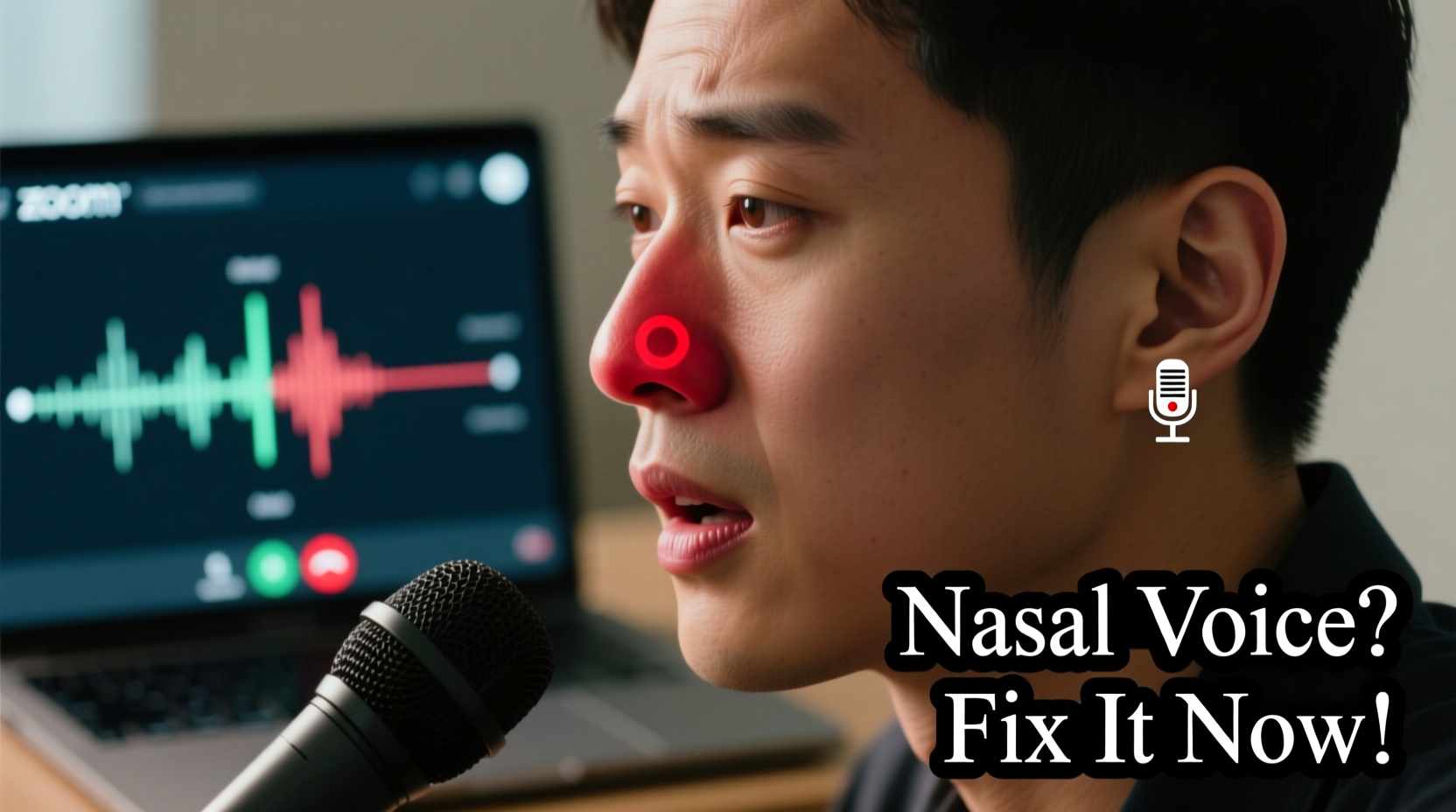
The perception of a \"nasally\" voice on Zoom typically stems from an overemphasis on mid-to-high frequencies (around 1,000 Hz to 3,000 Hz), where nasal resonance occurs. When microphones or software amplify these frequencies disproportionately—or fail to capture lower, richer tones—your voice loses warmth and appears pinched or tinny.
Several technical and environmental factors contribute to this phenomenon:
- Microphone placement: Built-in laptop mics are often positioned too far below the mouth, capturing more reflected sound than direct vocal projection.
- Poor room acoustics: Hard surfaces like glass, tile, and bare walls cause sound reflections that interfere with clean audio pickup.
- Low-quality hardware: Entry-level microphones lack frequency balance and noise filtering, exaggerating certain tonal ranges.
- Audio compression: Zoom compresses audio data to save bandwidth, sometimes sacrificing low-frequency richness in favor of intelligibility.
- Vocal technique: Speaking too softly or with raised larynx tension can naturally increase nasal resonance.
“Many people don’t realize that their environment shapes their digital voice as much as their vocal cords do. A poorly treated room can make even the most resonant speaker sound thin and nasal.” — Dr. Lena Torres, Audio Acoustics Researcher at MIT Media Lab
How Microphones Shape Your Digital Voice
Your microphone is essentially your voice’s translator into the digital world. Not all translators are equally skilled. Most built-in laptop or webcam microphones use omnidirectional polar patterns, meaning they pick up sound from all directions—including background noise, echo, and ceiling reflections. This unfocused capture distorts tonal balance, often amplifying higher frequencies associated with nasal resonance.
In contrast, directional (cardioid) microphones focus on sound directly in front of them, reducing ambient interference and preserving vocal clarity. Even small differences in frequency response curves can dramatically alter how your voice is perceived. For example:
| Microphone Type | Frequency Response | Common Issue | Solution |
|---|---|---|---|
| Built-in Laptop Mic | Peaks between 2–4 kHz | Overemphasizes nasal tones | Use external mic or adjust position |
| USB Condenser Mic | Balanced (80 Hz – 16 kHz) | Sensitive to room echo | Treat room acoustics |
| Dynamics Handheld Mic | Rolled-off highs, strong mids | Muffled if too close | Optimize distance |
| Smartphone Mic | Narrow band, compressed | Lacks depth and warmth | Avoid for professional calls |
The takeaway? Your microphone choice and placement significantly influence whether your voice sounds full-bodied or like it’s trapped inside a cardboard tube.
Step-by-Step Guide to Fix Nasal-Sounding Audio
Improving your Zoom audio quality doesn’t require expensive gear. Follow this systematic approach to diagnose and correct the root causes of nasal resonance.
- Test Your Current Setup
Record yourself speaking naturally in Zoom using your current equipment. Play it back immediately. Note: Does your voice sound thin? Are consonants like “t,” “s,” and “k” overly sharp? These are signs of high-frequency dominance. - Reposition Your Microphone
Move your mic closer to mouth level, about 6–12 inches away. Angle it slightly upward toward your mouth to avoid breath blasts while maintaining line-of-sight to vocal output. - Reduce Room Reflections
Hang thick curtains, place rugs on hard floors, or speak near bookshelves. Soft materials absorb excess sound energy that otherwise bounces back into the mic. - Use Headphones
This prevents audio feedback and ensures you’re not picking up speaker leakage, which can confuse Zoom’s noise suppression algorithms. - Adjust Zoom’s Audio Settings
Go to Settings > Audio > Advanced. Disable “Automatically adjust microphone settings” to maintain manual control. Enable “High fidelity music mode” if available (helps preserve tonal range). - Enable Original Sound (if licensed)
In Zoom, click the upward arrow next to Mute and select “Turn on Original Sound.” This bypasses aggressive compression and preserves more natural vocal texture. - Use a Dedicated Audio Interface or USB Mic
Invest in a cardioid condenser mic like the Audio-Technica AT2020USB+ or Shure MV7. These offer flatter frequency responses and better analog-to-digital conversion. - Apply Subtle EQ (Optional)
Use software like Krisp, Voicemeeter, or GarageBand to gently reduce frequencies around 2,000 Hz (where nasal resonance peaks) and boost lows around 120–150 Hz for warmth.
Real Example: From Nasal to Natural in One Week
Sarah Kim, a university lecturer based in Portland, noticed students frequently asked her to repeat herself during online lectures. “I kept getting comments like, ‘You sound like a robot,’ or ‘Is your nose stuffed up?’ But I wasn’t sick,” she recalls. Her voice sounded fine to her in person, but recordings revealed a piercing, metallic timbre.
After testing several fixes, Sarah discovered her laptop mic was picking up reflections from a large glass window behind her desk. She moved her workspace to a corner lined with bookshelves, added a $99 Blue Yeti mic, and enabled Zoom’s Original Sound feature. Within days, student feedback shifted: “Now you sound so much clearer,” one wrote. “I can actually focus on what you’re saying.”
“It wasn’t my voice that changed,” Sarah says. “It was how it was being heard.”
Checklist: Optimize Your Zoom Audio in 10 Minutes
Use this quick checklist before your next call to ensure crisp, non-nasal audio:
- ✅ Sit within 18 inches of your microphone
- ✅ Use headphones to prevent echo
- ✅ Close windows and doors to reduce background noise
- ✅ Place soft furnishings nearby (pillows, blankets, rugs)
- ✅ Test mic input levels in Zoom (Settings > Audio)
- ✅ Turn off automatic gain control
- ✅ Enable “Original Sound” if available
- ✅ Speak at a consistent volume and pace
- ✅ Avoid wearing noisy clothing (e.g., rustling jackets)
- ✅ Restart your router if connection feels laggy
Do’s and Don’ts of Virtual Call Audio
| Do | Don’t |
|---|---|
| Position mic at mouth level, 6–12 inches away | Place mic far below or above your face |
| Use a pop filter or angled mic to reduce plosives | Speak directly into the mic without protection |
| Speak clearly and at moderate volume | Shout or whisper to compensate for poor audio |
| Treat your room with soft materials | Set up in echo-prone spaces like bathrooms or empty rooms |
| Update Zoom and drivers regularly | Ignore software updates affecting audio processing |
Frequently Asked Questions
Can my internet connection affect how nasal my voice sounds?
Yes. Low bandwidth forces Zoom to compress audio more aggressively, often cutting lower frequencies to prioritize speech clarity. This results in thinner, higher-pitched sound. A stable upload speed of at least 1.5 Mbps helps maintain fuller audio quality.
Does speaking louder make my voice sound less nasal?
Not necessarily. Raising volume without proper support can increase tension in the vocal tract, making nasality worse. Focus instead on diaphragmatic breathing and relaxed articulation. A well-placed microphone will capture your natural tone without needing to shout.
Will turning off noise suppression help?
Sometimes. While Zoom’s noise suppression reduces background distractions, it can also flatten vocal dynamics and accentuate mid-range frequencies. If you’re in a quiet space, try disabling it under Audio Settings > Advanced to preserve tonal richness.
Final Thoughts: Take Control of How You’re Heard
Your voice is your presence in the digital workspace. When it sounds distorted or unnatural, it distracts from your message and weakens your impact. The nasal tone many experience on Zoom isn’t inevitable—it’s a solvable engineering challenge involving microphone behavior, room dynamics, and signal processing.
By rethinking your setup, optimizing your environment, and leveraging tools like Original Sound and directional microphones, you can transform how you’re perceived in virtual meetings. Clarity, warmth, and authority aren’t reserved for studio professionals—they’re achievable for anyone willing to fine-tune their audio chain.




 浙公网安备
33010002000092号
浙公网安备
33010002000092号 浙B2-20120091-4
Comments
No comments yet. Why don't you start the discussion?