
Random Wi-Fi disconnections are more than just an annoyance—they disrupt video calls, freeze online games, and interrupt critical downloads. If your internet cuts out without warning, you're not alone. Millions of users experience intermittent connectivity, often without understanding the root cause. The good news is that most issues can be diagnosed and resolved with practical steps. This guide dives into the technical and environmental factors behind unstable connections and provides actionable solutions to restore reliability.
Common Causes of Random Wi-Fi Disconnections
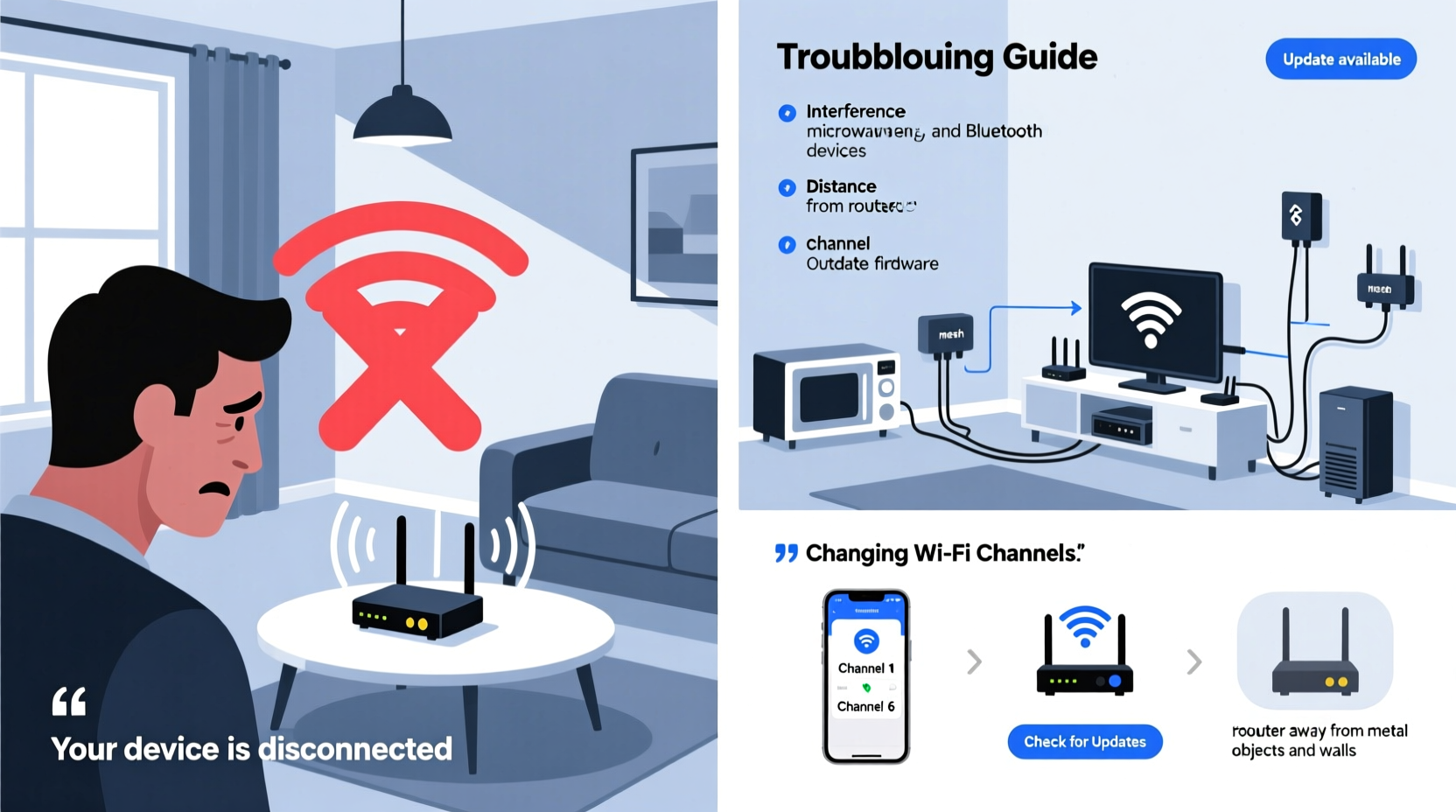
Wi-Fi instability rarely stems from a single source. Instead, multiple overlapping factors contribute to erratic performance. Identifying the primary culprit requires understanding both hardware limitations and network dynamics.
- Router Overheating: Routers generate heat during continuous operation. Poor ventilation or placement near heat sources can cause thermal throttling or automatic shutdowns.
- Signal Interference: Household appliances like microwaves, cordless phones, and Bluetooth devices operate on the 2.4 GHz band, competing with Wi-Fi signals.
- Outdated Firmware: Manufacturers release firmware updates to patch bugs and improve stability. An outdated router may lack these fixes.
- Network Congestion: Too many connected devices strain bandwidth and processing power, especially on older routers.
- ISP Issues: Internet service providers may experience regional outages or throttling that manifest as disconnections.
- Weak Signal Strength: Distance, walls, and large metal objects degrade signal quality, leading to frequent drops.
- IP Address Conflicts: When two devices receive the same IP address, communication breaks down until one is reassigned.
How to Diagnose Your Wi-Fi Instability
Before applying fixes, confirm whether the issue lies with your local network or your ISP. A structured diagnostic process saves time and prevents unnecessary equipment upgrades.
- Test Across Multiple Devices: Check if disconnections occur on smartphones, laptops, and tablets. If all devices drop simultaneously, the problem is likely your router or ISP.
- Use Ethernet as a Baseline: Connect a computer directly to the router via Ethernet. If the wired connection remains stable while Wi-Fi drops, the issue is wireless-specific.
- Monitor Signal Strength: On Windows, use
wlan report(accessible via Command Prompt) to generate a detailed Wi-Fi usage history. On macOS, hold Option and click the Wi-Fi icon to view RSSI (Received Signal Strength Indicator). Values below -70 dBm indicate weak reception. - Check Router Logs: Access your router’s admin panel (usually at 192.168.1.1 or 192.168.0.1) and review system logs for reboot events, errors, or DHCP conflicts.
- Contact Your ISP: Report persistent outages. They can check for line noise, signal degradation, or account-level throttling.
Mini Case Study: The Home Office Struggle
Sarah, a freelance graphic designer in Austin, experienced daily Wi-Fi drops during client Zoom calls. Her laptop showed full bars, but audio would cut out every 15–20 minutes. After testing with Ethernet, she confirmed her wired connection was flawless—pointing to a Wi-Fi-specific flaw. She discovered her microwave, placed next to the router, was disrupting the 2.4 GHz band. By switching her laptop to the 5 GHz network and relocating the router, her connection stabilized completely within a day.
Proven Methods to Stabilize Your Wi-Fi Connection
Once you’ve identified potential causes, targeted solutions can dramatically improve reliability. These strategies range from simple tweaks to strategic hardware investments.
Optimize Router Placement
Position your router centrally, elevated, and away from obstructions. Avoid placing it inside cabinets, near mirrors, or adjacent to large metal appliances. Even fish tanks can distort signals due to water's electromagnetic properties.
Switch Between 2.4 GHz and 5 GHz Bands
Modern dual-band routers offer two frequencies:
| Band | Pros | Cons | Best For |
|---|---|---|---|
| 2.4 GHz | Better wall penetration, longer range | Slower speeds, more interference | Smart home devices, distant rooms |
| 5 GHz | Faster speeds, less congestion | Shorter range, weaker through walls | Streaming, gaming, home offices |
If your device supports 5 GHz and is within 30 feet of the router, prefer this band for stability and speed.
Update Router Firmware
Manufacturers release firmware updates to fix security flaws and improve performance. Log into your router’s admin interface and check for updates under “Administration” or “Firmware.” Enable automatic updates if available.
Change Wi-Fi Channel Manually
In dense neighborhoods, multiple networks on the same channel create interference. Use apps like WiFi Analyzer (Android) or NetSpot (Windows/macOS) to identify the least congested channel. On 2.4 GHz, stick to channels 1, 6, or 11 to avoid overlap. On 5 GHz, choose non-DFS channels (e.g., 36, 40, 44, 48) for consistent availability.
Limit Connected Devices
Each connected device consumes router resources. Smart TVs, phones, thermostats, and security cameras all share processing power and bandwidth. Disconnect unused devices or set up a guest network for visitors to reduce load.
Upgrade Hardware When Necessary
Routers older than 3–4 years may lack modern standards like MU-MIMO (multi-user, multiple input, multiple output) or beamforming, which enhance efficiency. Consider upgrading to a Wi-Fi 6 (802.11ax) model for better handling of multiple devices and improved range.
“Modern homes with over 15 connected devices need more than basic routers. Mesh systems or Wi-Fi 6 gateways are no longer luxuries—they’re necessities.” — David Lin, Network Infrastructure Engineer at NetSecure Solutions
Step-by-Step Guide to a Stable Wi-Fi Setup
Follow this sequence to systematically eliminate common issues and build a resilient network.
- Restart All Equipment: Power cycle the modem and router. Unplug both, wait 60 seconds, then plug in the modem first. Wait for it to fully connect (all lights stable), then power on the router.
- Access Router Settings: Open a browser and enter your router’s IP address. Log in with your credentials (check the label on the device if unsure).
- Check for Firmware Updates: Navigate to the firmware section and install any pending updates. Do not interrupt the process.
- Adjust Wireless Settings: Split 2.4 GHz and 5 GHz networks with distinct names (SSIDs) to control device allocation. Assign high-bandwidth tasks to 5 GHz.
- Select Optimal Channels: Based on your neighborhood scan, manually set the least crowded channel or enable auto-selection.
- Enable Quality of Service (QoS): Prioritize traffic for video calls or gaming by assigning higher priority to specific devices in the QoS settings.
- Reposition the Router: Move it to a central, open location. Keep it at least 3 feet away from electronics and metal surfaces.
- Test Stability: Run a 24-hour ping test using the command
ping 8.8.8.8 -t(Windows) orping 8.8.8.8(macOS/Linux). Monitor for timeouts or latency spikes.
Wi-Fi Stability Checklist
Use this checklist to ensure no step is overlooked when troubleshooting or optimizing your network:
- ✅ Restart modem and router weekly
- ✅ Confirm wired connection stability
- ✅ Update router firmware
- ✅ Switch to 5 GHz for close-range devices
- ✅ Change Wi-Fi channel to reduce interference
- ✅ Position router centrally and off the floor
- ✅ Limit active connected devices
- ✅ Enable QoS for critical applications
- ✅ Monitor signal strength via device tools
- ✅ Contact ISP if issues persist after local fixes
Frequently Asked Questions
Why does my phone lose Wi-Fi but my laptop stays connected?
This usually indicates a device-specific issue. Your phone may have aggressive power-saving settings that turn off Wi-Fi during sleep. Disable Wi-Fi optimization in battery settings. Alternatively, the phone’s antenna might be less sensitive, making it prone to dropping weak signals that your laptop can still maintain.
Can too many devices crash my Wi-Fi?
Yes. Routers have finite memory and processing power. Exceeding their capacity leads to lag, slow speeds, and disconnections. Most entry-level routers handle 10–15 devices reliably. Beyond that, consider upgrading to a mesh system or enterprise-grade router.
Is it better to leave Wi-Fi on all the time?
Generally, yes. Frequent on/off cycling stresses components and may shorten lifespan. However, rebooting once a week clears memory and resets connections. If you're away for extended periods, turning it off saves energy and enhances security.
Final Steps Toward a Reliable Connection
Stable Wi-Fi isn’t magic—it’s the result of smart configuration, regular maintenance, and informed hardware choices. Start with simple fixes like repositioning your router and updating firmware. Then move to advanced optimizations like channel selection and QoS. Monitor changes over time and keep records of disconnection patterns. If problems persist despite thorough troubleshooting, contact your ISP or consult a network technician. In today’s connected world, a reliable internet connection isn’t optional—it’s essential.




 浙公网安备
33010002000092号
浙公网安备
33010002000092号 浙B2-20120091-4
Comments
No comments yet. Why don't you start the discussion?