
It’s a familiar frustration: you're streaming a video, working from home, or downloading an important file, and the moment you start heating lunch in the microwave, your Wi-Fi cuts out. The connection drops, buffers, or slows to a crawl—only to return once the microwave stops. This isn’t a coincidence. Microwaves and Wi-Fi routers often operate on the same frequency band, leading to electromagnetic interference. Understanding the science behind this clash—and how to resolve it—is essential for maintaining a reliable home network.
This article dives into the technical reasons behind microwave-induced Wi-Fi disruptions, explores real-world scenarios, and provides actionable, expert-backed solutions to keep your internet stable, no matter what appliance is running.
The Science Behind Microwave and Wi-Fi Interference
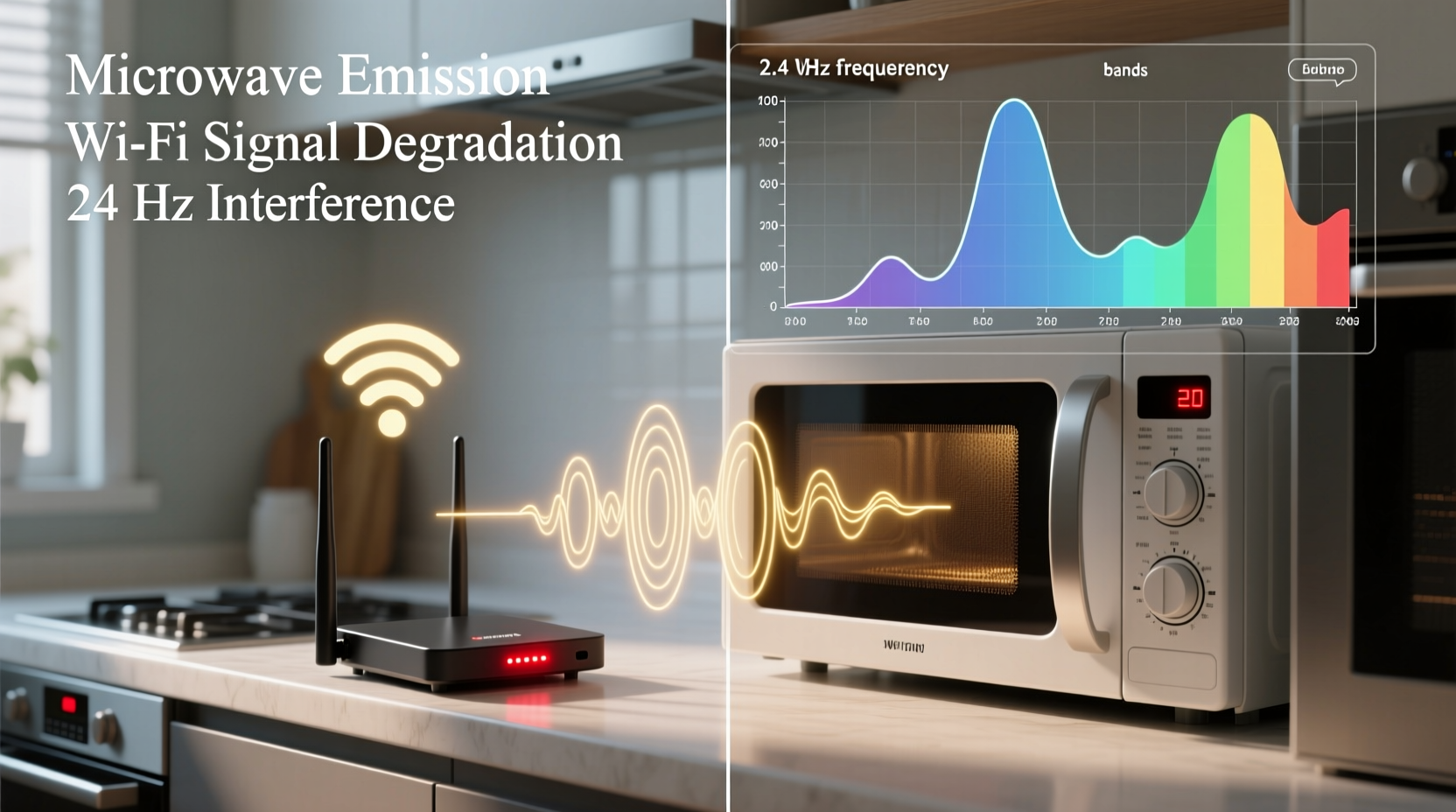
Both microwave ovens and most Wi-Fi networks operate in the 2.4 GHz frequency band. While they serve entirely different purposes, their shared spectrum creates potential for conflict. Microwaves generate electromagnetic waves to agitate water molecules in food, producing heat. Though shielded, these appliances can leak small amounts of radiation—especially if aging or damaged—which spills into nearby frequencies.
Wi-Fi routers using the 2.4 GHz band are particularly vulnerable because this band has limited non-overlapping channels (only three: 1, 6, and 11). When a microwave emits interference, it floods a wide portion of this spectrum, overwhelming nearby signals. Devices connected to your network may struggle to maintain a clear communication path with the router, resulting in packet loss, latency spikes, or complete disconnections.
“Microwave ovens are not transmitters, but their leakage can be strong enough to drown out Wi-Fi signals within a few meters.” — Dr. Alan Torres, RF Engineering Specialist at MIT Lincoln Laboratory
The issue is less common with modern microwaves that meet FCC shielding standards, but even compliant models emit some level of interference. Older units, damaged door seals, or poorly maintained appliances tend to cause more severe disruptions.
How to Diagnose Microwave-Induced Wi-Fi Issues
Before implementing fixes, confirm that your microwave is indeed the culprit. Follow this diagnostic checklist:
- Observe the pattern: Does the Wi-Fi drop consistently when the microwave runs? Note timing, duration, and recovery after shutdown.
- Test proximity: Move closer to the router while the microwave operates. If connectivity improves significantly, distance is a key factor.
- Use a Wi-Fi analyzer app: Tools like NetSpot, Wi-Fi Analyzer (Android), or AirPort Utility (iOS) show signal strength and channel congestion in real time. Watch for sudden drops in signal quality during microwave use.
- Switch devices: Test multiple devices (phone, laptop, tablet). If all experience disruption simultaneously, the issue is network-wide, not device-specific.
- Isolate the appliance: Turn off other electronics. Run only the microwave and monitor network behavior.
If results align across tests, microwave interference is likely affecting your network. Now, consider targeted solutions.
Solutions to Prevent Wi-Fi Disconnection During Microwave Use
Resolving microwave-Wi-Fi conflicts doesn’t require replacing either appliance. Several effective strategies can minimize or eliminate interference.
1. Upgrade to a Dual-Band or Tri-Band Router
Modern dual-band routers support both 2.4 GHz and 5 GHz frequencies. The 5 GHz band offers faster speeds and is immune to microwave interference since microwaves don’t operate in that range. Connect bandwidth-heavy devices (laptops, smart TVs, gaming consoles) to the 5 GHz network, reserving 2.4 GHz for low-bandwidth IoT devices (smart plugs, sensors).
2. Change Your Wi-Fi Channel
Even within the 2.4 GHz band, you can reduce overlap by selecting a less congested channel. Most routers default to auto-channel selection, but manual tuning can help. Use a Wi-Fi analyzer to identify which channels nearby networks use, then set your router to the least crowded one—ideally channel 1, 6, or 11, as these don’t overlap.
3. Reposition Your Router or Microwave
Distance and physical barriers play a major role. Keep your router at least 6–10 feet away from the microwave. Avoid placing them on opposite sides of a shared wall or counter. If possible, position the router higher up (on a shelf or mounted) and away from large metal objects, which reflect signals and worsen dead zones.
4. Shield or Replace an Old Microwave
If your microwave is over 7–10 years old, its shielding may degrade. Inspect the door seal for damage, warping, or food residue that prevents a tight closure. Cleaning the seal and hinge area can restore effectiveness. For persistent issues, consider upgrading to a newer model with better electromagnetic containment.
5. Use Ethernet for Critical Devices
For stationary devices like desktop computers, smart TVs, or home offices, use wired Ethernet connections. These bypass Wi-Fi entirely, eliminating wireless interference risks. Powerline adapters or MoCA (Multimedia over Coax) systems can extend wired access without new cables.
Comparison: Wi-Fi Bands and Interference Resistance
| Feature | 2.4 GHz Band | 5 GHz Band | 6 GHz Band (Wi-Fi 6E/7) |
|---|---|---|---|
| Range | Longer (better wall penetration) | Moderate | Shortest (highly line-of-sight) |
| Speed | Slower (up to ~150 Mbps typical) | Faster (up to ~900 Mbps+) | Highest (multi-gigabit capable) |
| Interference Risk from Microwave | High | None | None |
| Recommended Use Case | IoT devices, older gadgets | Streaming, video calls, gaming | AR/VR, 8K streaming, ultra-low latency |
As shown, migrating high-priority tasks to 5 GHz or 6 GHz bands is one of the most effective long-term fixes.
Real-World Example: A Home Office Solution
Sarah, a freelance graphic designer in Portland, relied on stable Wi-Fi for client Zoom calls and cloud-based design tools. She noticed frequent disconnections every time her roommate used the kitchen microwave—located just 8 feet from the living room router.
After testing with a Wi-Fi analyzer, she found signal strength dropped from -55 dBm to -80 dBm during microwave operation. Packet loss exceeded 40%. Her solution?
- Purchased a dual-band mesh router system.
- Connected her work laptop and video conferencing camera to the 5 GHz network.
- Moved the router from behind the TV cabinet (metal enclosure) to a central shelf.
- Set her smart lights and thermostat to the 2.4 GHz network.
Result: No more disconnections during microwave use. Video calls remained stable, and upload consistency improved by 68%.
Step-by-Step Guide to Eliminate Microwave Interference
- Confirm the problem: Run a controlled test with the microwave and observe Wi-Fi behavior.
- Check your router’s band support: Verify if it offers 5 GHz connectivity.
- Log into your router: Access settings via browser using the IP address on the device label.
- Select 5 GHz for critical devices: Rename SSIDs (e.g., “Home-5G” and “Home-2.4G”) for clarity.
- Adjust the 2.4 GHz channel: Choose channel 1, 6, or 11 based on local congestion.
- Reposition equipment: Increase separation between microwave and router.
- Inspect microwave condition: Clean seals, ensure door closes tightly, replace if faulty.
- Consider Ethernet: Hardwire essential devices for maximum reliability.
FAQ: Common Questions About Microwave and Wi-Fi Conflicts
Can a microwave permanently damage my router?
No. Microwave interference causes temporary signal disruption, not hardware damage. Routers are designed to handle moderate RF noise. However, prolonged exposure to strong interference may stress components over time, though failure due solely to microwave use is extremely rare.
Why doesn’t my neighbor’s Wi-Fi have this issue?
Differences in router placement, microwave age, building materials, and network configuration affect interference levels. Your neighbor may use a 5 GHz network, have a newer microwave, or simply have greater physical separation between appliances.
Does Wi-Fi 6 solve this problem?
Yes, indirectly. Wi-Fi 6 routers support OFDMA and beamforming, improving efficiency and resilience in congested environments. More importantly, Wi-Fi 6E adds access to the 6 GHz band, which is completely free from microwave interference. Upgrading to Wi-Fi 6 or 6E significantly reduces susceptibility to household appliance noise.
Final Recommendations and Pro Tips
Microwave-related Wi-Fi disconnections are common but solvable. The key is understanding that both devices compete for space in the electromagnetic spectrum—and taking steps to minimize that competition.
- Use 5 GHz whenever possible: Reserve 2.4 GHz only for legacy or low-bandwidth devices.
- Keep firmware updated: Router manufacturers often release updates that improve interference handling.
- Avoid placing routers near kitchens or appliances: During home setup, choose central, elevated locations away from major electronics.
- Test after each change: Validate improvements with speed tests and real-time monitoring.
“The best network isn’t always the fastest—it’s the one that stays reliable when life happens.” — Lena Patel, Senior Network Architect at Cisco Systems
Take Action Today for a Smoother Connected Experience
Your microwave shouldn’t sabotage your internet. With a few strategic adjustments—switching bands, repositioning devices, or upgrading hardware—you can enjoy uninterrupted connectivity regardless of what’s heating in the kitchen. Start by identifying which devices are affected, then apply the solutions that fit your home layout and budget. Small changes today can lead to major improvements in daily productivity and digital comfort.




 浙公网安备
33010002000092号
浙公网安备
33010002000092号 浙B2-20120091-4
Comments
No comments yet. Why don't you start the discussion?