
If your internet slows to a crawl or disconnects every time you heat up lunch, you're not imagining things. This frustrating issue—Wi-Fi dropping when the microwave turns on—is surprisingly common in modern homes. The culprit? Electromagnetic interference between two everyday appliances that operate on similar frequencies. While it may seem like a minor annoyance, repeated signal disruption can affect streaming, video calls, gaming, and remote work. The good news is that this problem is both diagnosable and fixable with practical solutions.
The Science Behind Microwave and Wi-Fi Interference
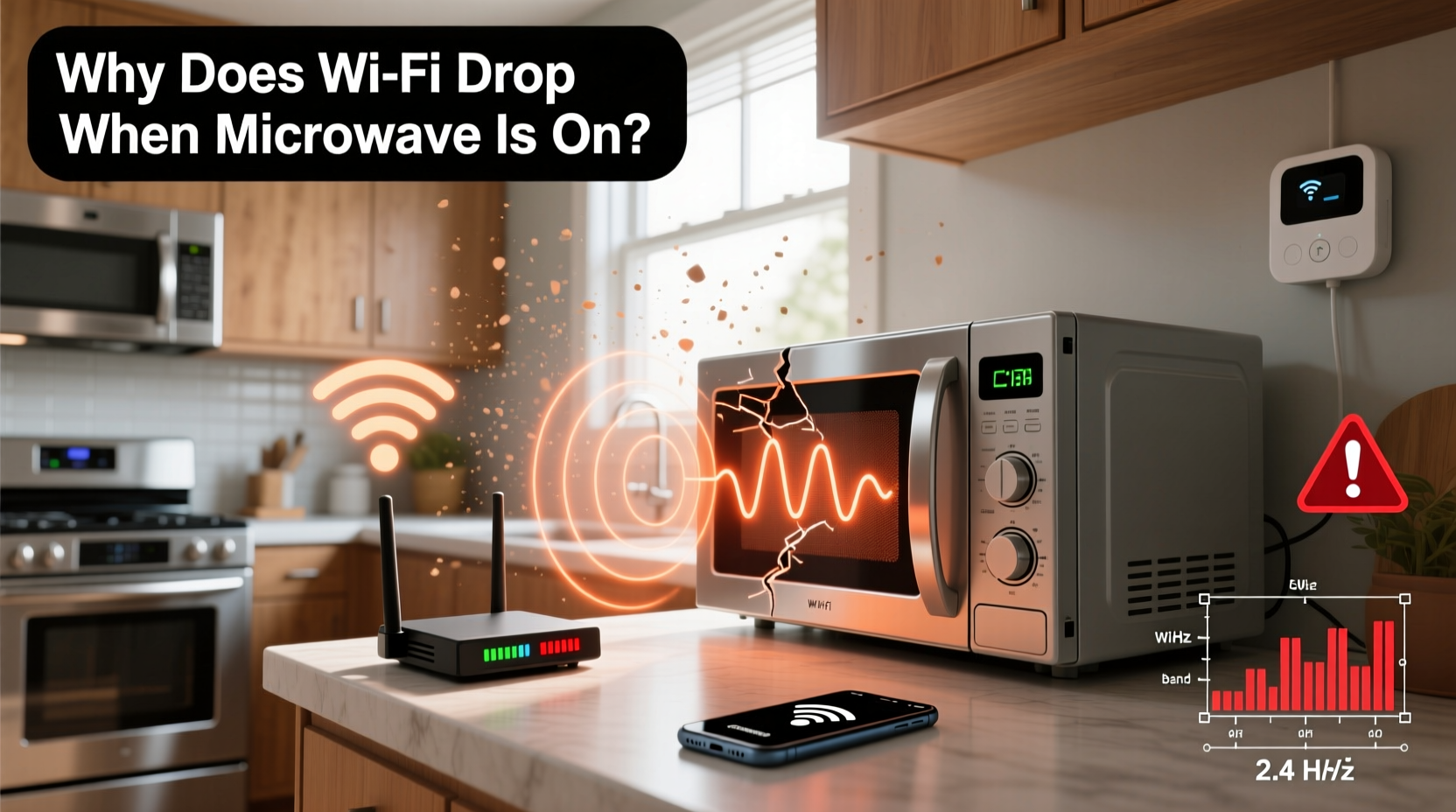
Both microwave ovens and most home Wi-Fi networks operate in the 2.4 GHz frequency band. Microwaves generate electromagnetic waves at around 2.45 GHz to agitate water molecules in food and produce heat. Although these devices are shielded, older or poorly sealed microwaves can leak small amounts of radiation. This leakage doesn’t pose a health risk under normal conditions, but it can flood the surrounding area with electromagnetic noise that overwhelms nearby 2.4 GHz Wi-Fi signals.
Wi-Fi routers use channels within the 2.4 GHz band to transmit data. When a microwave leaks energy, it effectively \"jams\" multiple channels at once, causing packet loss, latency spikes, and complete disconnections. The closer your router is to the microwave, the more pronounced the effect. Even newer dual-band routers that support 5 GHz are often set to default on 2.4 GHz for backward compatibility, leaving them vulnerable.
“Microwave ovens are among the most common sources of unintentional RF interference in residential environments.” — Dr. Alan Reeves, Senior RF Engineer at the Institute of Electrical and Electronics Engineers (IEEE)
How to Diagnose Microwave-Induced Wi-Fi Drops
Before applying fixes, confirm that your microwave is actually the cause. Other devices—cordless phones, baby monitors, Bluetooth gadgets, and even neighboring Wi-Fi networks—can also interfere with 2.4 GHz signals. Use this diagnostic checklist to isolate the source:
- Observe the pattern: Does your Wi-Fi consistently drop only when the microwave runs—and recover immediately after it stops?
- Test proximity: Move your phone or laptop closer to the router while the microwave is on. If the connection improves significantly, distance is amplifying the interference.
- Switch bands: Connect a device to your router’s 5 GHz network (if available) and run the microwave. If there’s no drop, the issue is isolated to 2.4 GHz interference.
- Use a Wi-Fi analyzer app: Tools like NetSpot (Windows/macOS), Wi-Fi Analyzer (Android), or AirPort Utility (iOS) show real-time channel congestion. Look for sudden spikes in noise during microwave operation.
- Try another microwave: Borrow a different unit temporarily. If the problem disappears, your current microwave has excessive leakage.
Proven Fixes to Stop Wi-Fi Dropouts from Microwave Interference
Once confirmed, several effective strategies can minimize or eliminate the disruption. These range from simple repositioning to hardware upgrades, depending on your setup and budget.
1. Switch to the 5 GHz Wi-Fi Band
If your router supports dual-band Wi-Fi (most do since 2015), prioritize connecting devices to the 5 GHz network. Unlike 2.4 GHz, the 5 GHz band is unaffected by microwave emissions because microwaves don't operate near this frequency. While 5 GHz offers faster speeds and less congestion, its signal doesn’t penetrate walls as well. For best results, place the router centrally and avoid large obstructions.
2. Reposition Your Router and Microwave
Distance and physical barriers reduce interference. Keep your router at least 6–10 feet away from the microwave. Avoid placing them on opposite sides of a kitchen wall, as metal shielding in walls can reflect signals unpredictably. Elevating the router off countertops and away from appliances helps maintain a cleaner signal path.
3. Upgrade to a Mesh Network System
Multipoint mesh systems like Google Nest Wifi, Eero, or TP-Link Deco automatically route traffic through the strongest available path. If one node experiences interference, others can maintain connectivity. Many mesh systems also feature intelligent band steering, which moves compatible devices to 5 GHz without user input.
4. Replace an Old or Faulty Microwave
Microwaves degrade over time. Door seals wear out, latches loosen, and shielding deteriorates—leading to increased RF leakage. If your microwave is over 7–10 years old, consider upgrading. Newer models meet stricter FCC standards for electromagnetic containment. Look for units labeled “low-interference” or those tested for Wi-Fi compatibility.
5. Change Your Wi-Fi Channel
The 2.4 GHz band has 11–13 channels (depending on region), but only channels 1, 6, and 11 are non-overlapping. Microwaves typically flood channels 7–11. Manually switching your router to channel 1 or 6 via the admin interface may reduce overlap. Use a Wi-Fi scanner to identify the least congested channel before making changes.
6. Use Wired Connections Where Possible
For stationary devices like smart TVs, desktop computers, or game consoles, Ethernet cables eliminate wireless interference entirely. Even if your router is far from the device, powerline adapters or long Ethernet runs provide stable, high-speed connections immune to RF noise.
Do’s and Don’ts: Managing Microwave-WiFi Interference
| Do’s | Don’ts |
|---|---|
| ✅ Use 5 GHz for high-bandwidth activities like streaming or video calls | ❌ Rely solely on 2.4 GHz for all devices, especially near kitchens |
| ✅ Position the router away from major appliances | ❌ Place the router directly above, below, or beside the microwave |
| ✅ Test microwave leakage with a Wi-Fi analyzer app | ❌ Ignore persistent drops—assume it's “normal” |
| ✅ Upgrade outdated equipment every 5–7 years | ❌ Continue using a microwave that causes daily disruptions |
| ✅ Enable Quality of Service (QoS) settings on your router | ❌ Overload a single band with too many connected devices |
Real-World Example: A Home Office Saved by Simple Adjustments
Sarah, a freelance graphic designer in Austin, Texas, struggled with dropped Zoom calls every time her roommate used the kitchen microwave. Her home office was adjacent to the kitchen, and her aging router sat just five feet from the appliance. After ruling out ISP issues, she downloaded the Wi-Fi Analyzer app and noticed her signal strength plummeted from -50 dBm to -85 dBm during microwave use.
She implemented three changes: moved the router to a hallway shelf farther from the kitchen, switched her laptop to the 5 GHz network, and updated her router’s firmware to optimize channel selection. The result? No more call drops—even with back-to-back microwave use. She later replaced her 12-year-old microwave with a newer model, further stabilizing her network.
“I didn’t realize how much productivity I was losing,” Sarah said. “Now my internet is reliable all day, and I don’t have to warn clients about potential glitches.”
Step-by-Step Plan to Eliminate Microwave Interference
Follow this timeline to systematically resolve the issue:
- Day 1: Confirm the issue using a Wi-Fi analyzer app. Run the microwave for 2 minutes and monitor signal strength and channel noise.
- Day 2: Switch your primary devices to the 5 GHz band. Check your router’s admin panel (usually accessible via 192.168.1.1 or similar) to ensure 5 GHz is enabled.
- Day 3: Reposition the router. Choose a central, elevated location away from metal objects and appliances.
- Day 4: Log into your router settings and manually set the 2.4 GHz channel to 1 or 6. Save and reboot.
- Day 5: Test again. If problems persist, consider investing in a mesh system or replacing the microwave.
- Ongoing: Monitor performance monthly and replace aging equipment proactively.
Frequently Asked Questions
Can a microwave permanently damage my router?
No, microwave interference does not cause physical damage to your router. It creates temporary signal disruption due to radio frequency noise, not electrical surges. However, constant exposure to electromagnetic fields may contribute to long-term component stress in very close proximity, though this is rare in household setups.
Is 2.4 GHz Wi-Fi obsolete because of interference?
Not obsolete, but increasingly limited. The 2.4 GHz band remains essential for older devices, smart home gadgets, and longer-range coverage. However, for speed and reliability, 5 GHz or newer Wi-Fi 6E/7 networks (which use 6 GHz) are superior. Modern routers handle both bands intelligently, so the key is proper configuration—not elimination.
How can I test if my microwave is leaking too much radiation?
While professional RF meters are most accurate, a simple test involves placing a working cell phone inside the microwave (do not turn the microwave on!) and calling it. If it rings, the shielding is poor—but this only tests cellular signals, not RF leakage. For true assessment, use a dedicated RF leakage detector (available online for $30–$60) or consult an appliance technician.
Conclusion: Take Control of Your Home Network Stability
Wi-Fi dropping when you turn on the microwave isn’t something you have to live with. Understanding the technical overlap between household devices empowers you to make informed adjustments that restore seamless connectivity. From strategic router placement to embracing 5 GHz networks and upgrading aging appliances, each step brings you closer to a resilient, interference-free internet experience.




 浙公网安备
33010002000092号
浙公网安备
33010002000092号 浙B2-20120091-4
Comments
No comments yet. Why don't you start the discussion?