
If your Wi-Fi works perfectly on laptops, tablets, and smart TVs—but keeps dropping on your phone—there’s likely a specific issue tied to the device itself, its settings, or how it interacts with your network. Unlike broad internet outages, this selective instability can be frustratingly inconsistent. The good news: most of these problems are fixable without technical expertise. Understanding why your phone disconnects while other devices stay connected is the first step toward a permanent solution.
This guide walks through the most common causes of Wi-Fi disconnections isolated to smartphones, from software glitches to router compatibility quirks. Whether you're using an iPhone or Android, the solutions here are designed to restore reliable connectivity with minimal effort.
Understanding Device-Specific Wi-Fi Issues
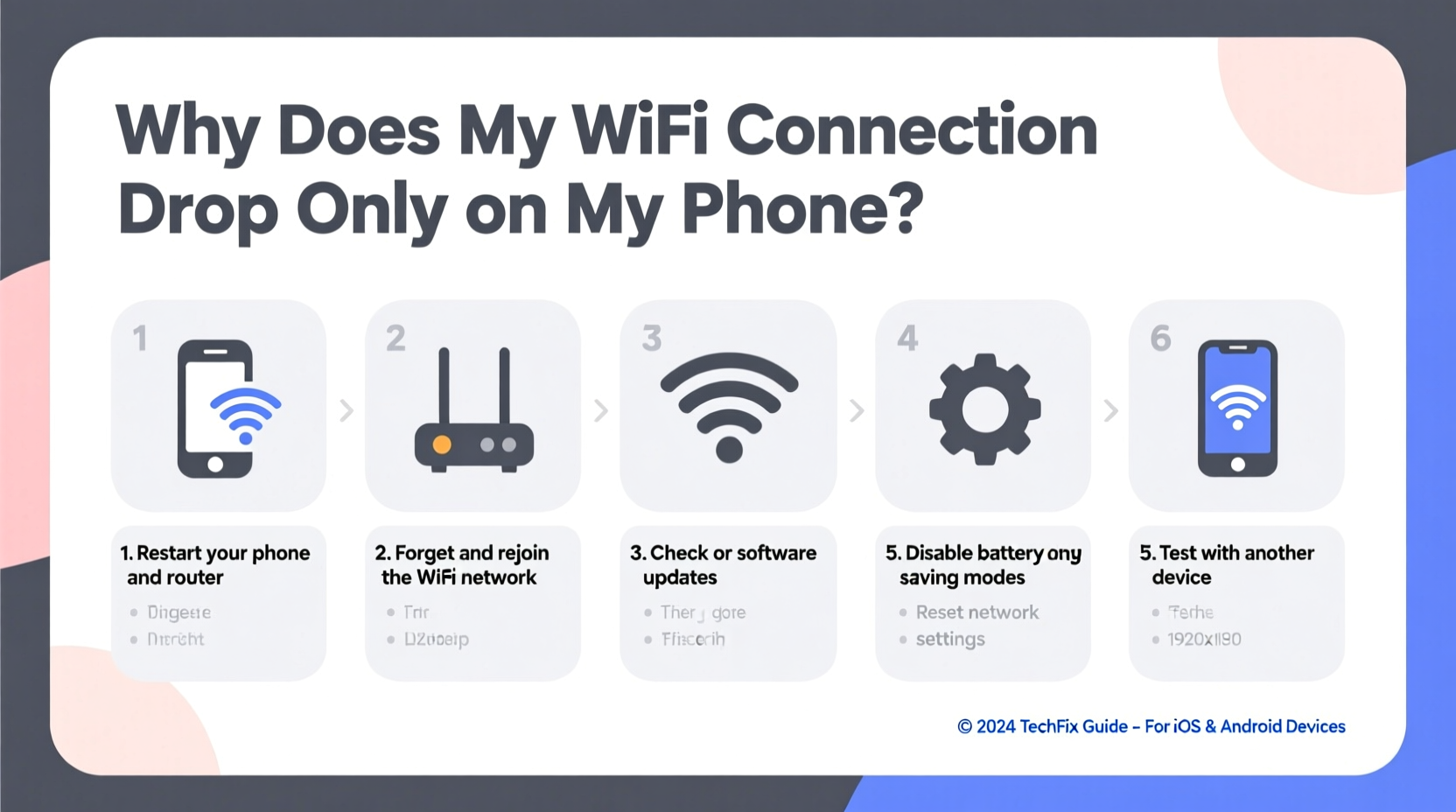
When only one device struggles with Wi-Fi, the problem typically isn’t your internet service provider or modem. Instead, focus shifts to factors unique to that device: operating system bugs, hardware limitations, or configuration errors. Phones, especially older models, may not support newer Wi-Fi standards used by modern routers. For example, a phone limited to 2.4 GHz bands will struggle on networks optimized for 5 GHz, particularly if signal strength fluctuates.
Another frequent culprit is power-saving features. Many phones aggressively manage battery life by turning off Wi-Fi during inactivity. While helpful for conserving energy, this behavior can cause abrupt disconnections when background apps need data access. Similarly, automatic network switching—where the phone toggles between Wi-Fi and cellular data—can create the illusion of dropped connections even when technically functioning as intended.
“Phones are more prone to Wi-Fi issues than other devices due to their mobility, compact antennas, and aggressive power management.” — Dr. Lin Zhao, Wireless Network Engineer at NetSignal Labs
Step-by-Step Troubleshooting Process
Follow this systematic approach to identify and resolve the root cause of intermittent Wi-Fi on your phone. Start with simple checks before moving to advanced configurations.
- Reboot your phone and router: A temporary glitch might be causing the issue. Power cycle both devices—turn them off completely, wait 30 seconds, then restart.
- Check for nearby interference: Microwaves, cordless phones, Bluetooth speakers, and thick walls can disrupt Wi-Fi signals. Move closer to the router to test stability.
- Forget and rejoin the network: On your phone, go to Wi-Fi settings, select your network, and tap “Forget.” Then reconnect by entering the password again. This clears corrupted network profiles.
- Disable Wi-Fi auto-switch: Prevent your phone from jumping to cellular data when Wi-Fi seems weak. On Android, disable “Switch to mobile data” under Wi-Fi settings. On iPhone, turn off “Wi-Fi Assist” in Settings > Cellular.
- Test with another network: Connect to a different Wi-Fi (e.g., at a friend’s house or public hotspot). If the problem persists, the issue is likely with the phone.
Common Causes and Fixes
Below are the most frequent reasons for phone-specific Wi-Fi drops, along with targeted remedies.
1. Outdated Operating System
Older versions of iOS or Android may contain unresolved Wi-Fi bugs. Manufacturers regularly release patches to improve network stability. Check for updates:
- iPhone: Settings > General > Software Update
- Android: Settings > System > System Update
2. Router Band Incompatibility
Many modern routers broadcast dual-band signals (2.4 GHz and 5 GHz) under the same network name (SSID). While convenient, some phones struggle to switch seamlessly between bands. Older phones often perform better on 2.4 GHz due to wider coverage, but routers may prioritize pushing devices to faster 5 GHz channels—even when signal strength is poor.
Solution: Log into your router settings (usually via 192.168.1.1 or 192.168.0.1) and split the SSIDs. Assign separate names like “Home_WiFi_2G” and “Home_WiFi_5G.” Then manually connect your phone to the 2.4 GHz network for greater range and stability.
3. IP Address Conflicts
If multiple devices request the same IP address, conflicts occur. Your phone might lose connection when the router reallocates addresses. Renewing the IP lease often resolves this.
To renew on Android: Go to Wi-Fi settings, tap the gear icon next to your network, and select “Renew Lease.” On iPhone, simply forget and rejoin the network—iOS automatically requests a new IP.
4. Overloaded Wi-Fi Channel
In dense neighborhoods, many routers operate on the same default channel, causing congestion. Use a free app like WiFi Analyzer (Android) or NetSpot (desktop) to check which channels nearby networks use. Switch your router to a less crowded channel—preferably 1, 6, or 11 on 2.4 GHz.
5. Hardware or Antenna Damage
Physical damage—especially after a drop or water exposure—can degrade Wi-Fi reception. If your phone has visible damage near the top or edges (common antenna locations), internal components may be compromised. Consider professional repair if software fixes fail.
Troubleshooting Checklist
Use this checklist to methodically eliminate potential causes:
- ✅ Reboot phone and router
- ✅ Forget and rejoin Wi-Fi network
- ✅ Disable Wi-Fi assist / auto-switch to mobile data
- ✅ Ensure OS is up to date
- ✅ Test connection on another Wi-Fi network
- ✅ Connect to 2.4 GHz band instead of 5 GHz
- ✅ Change router channel to reduce interference
- ✅ Reset network settings (last resort)
When to Reset Network Settings
If none of the above steps work, resetting your phone’s network settings can clear deep-seated configuration errors. This action erases saved Wi-Fi passwords, Bluetooth pairings, and cellular settings—but won’t delete personal files.
How to reset:
- iPhone: Settings > General > Transfer or Reset iPhone > Reset > Reset Network Settings
- Android: Settings > System > Reset Options > Reset Wi-Fi, Mobile & Bluetooth
After resetting, reconnect to your Wi-Fi and monitor for improvements. If the issue returns within hours, consider testing with a factory-reset phone on the same network to isolate whether the problem lies with the device hardware or firmware.
Real-World Example: Office Worker with Persistent Dropouts
Jamie, a remote project manager, noticed her Android phone kept losing Wi-Fi during video calls, while her laptop stayed connected. She worked from a home office about 30 feet from the router, with two walls in between. Initially assuming router issues, she upgraded firmware and moved the router—no improvement.
She followed the checklist: disabled Wi-Fi auto-switch, updated her phone, and tested on a neighbor’s network. On the neighbor’s slower 2.4 GHz-only network, her phone remained stable. Back home, she logged into her router and discovered both bands were merged under one SSID. She split them, renamed the 2.4 GHz network, and manually connected her phone. The dropouts stopped immediately.
The root cause? Her phone was being pushed to the 5 GHz band, which couldn’t penetrate the walls effectively. Once forced onto the more resilient 2.4 GHz frequency, connectivity became consistent.
Do’s and Don’ts: Wi-Fi Optimization Table
| Do | Don't |
|---|---|
| Use separate SSIDs for 2.4 GHz and 5 GHz – Gives you control over which band your phone uses. | Merge both bands under one name if your phone struggles with handoffs. |
| Keep your phone's OS updated – Ensures Wi-Fi drivers and protocols are current. | Ignore software updates for months; they often include critical network fixes. |
| Place the router centrally and elevated – Improves signal reach across all devices. | Hide the router in a cabinet or basement where signals weaken. |
| Limit background app refresh – Reduces unnecessary Wi-Fi wake-ups that drain battery and strain connections. | Allow all apps to refresh in the background constantly. |
Frequently Asked Questions
Why does my phone lose Wi-Fi but not my laptop?
Differences in Wi-Fi chipsets, antenna design, and supported standards explain this. Laptops generally have stronger transmitters and larger antennas. Additionally, laptops don’t use aggressive power-saving modes that can interrupt Wi-Fi sessions on phones.
Can a virus cause Wi-Fi disconnections on my phone?
True malware that directly disrupts Wi-Fi is rare on iOS and tightly controlled Android environments. However, malicious apps can overload the network interface or trigger crashes. If you suspect malware, uninstall recently added apps and run a security scan using trusted tools like Google Play Protect or Malwarebytes.
Will upgrading my router fix the problem?
It might—if your current router uses outdated standards (like 802.11n) or lacks proper band steering controls. A modern Wi-Fi 6 router with MU-MIMO and beamforming can improve performance for compatible phones. But if your phone is old (pre-2018), it may not benefit significantly. Focus first on optimizing settings before investing in new hardware.
Final Steps and Long-Term Stability
Most single-device Wi-Fi issues stem from mismatched expectations between phone capabilities and network demands. By adjusting settings, separating frequency bands, and keeping software updated, you can achieve lasting reliability. Don’t assume the problem is unsolvable—many users give up after trying one or two quick fixes, missing deeper but manageable causes.
For long-term success, periodically audit your Wi-Fi environment. Every few months, check for router firmware updates, reassess channel congestion, and ensure your phone remains compatible with evolving network standards. Small maintenance habits prevent recurring disruptions.
“Stability isn’t just about speed—it’s about consistency. A well-tuned network respects the limits of each connected device.” — Rafael Nguyen, Senior Network Architect at UrbanNet Solutions
Take Control of Your Connection
Your phone shouldn’t suffer from avoidable Wi-Fi drops while other devices thrive. With the right diagnosis and adjustments, you can restore seamless browsing, streaming, and calling. Start with the basics: reboot, forget the network, update software. Then dive deeper—split bands, change channels, reset settings. Most importantly, observe patterns. Does the dropout happen at certain times? Near specific locations? Tracking behavior leads to smarter fixes.




 浙公网安备
33010002000092号
浙公网安备
33010002000092号 浙B2-20120091-4
Comments
No comments yet. Why don't you start the discussion?