
If your Wi-Fi consistently drops every evening just as you're settling in to stream a show or join a video call, you're not alone. Many users experience this frustrating pattern—strong signal during the day, intermittent disconnections at night. While it may feel random, there’s usually a logical cause behind the disruption. Understanding what triggers nighttime Wi-Fi instability is the first step toward restoring reliability. From network congestion to overheating hardware and outdated firmware, several factors can interfere with your connection when you need it most.
This guide breaks down the most common reasons your Wi-Fi fails after dark and provides practical, step-by-step solutions you can implement immediately—no technical expertise required.
Why Wi-Fi Fails at Night: Common Causes
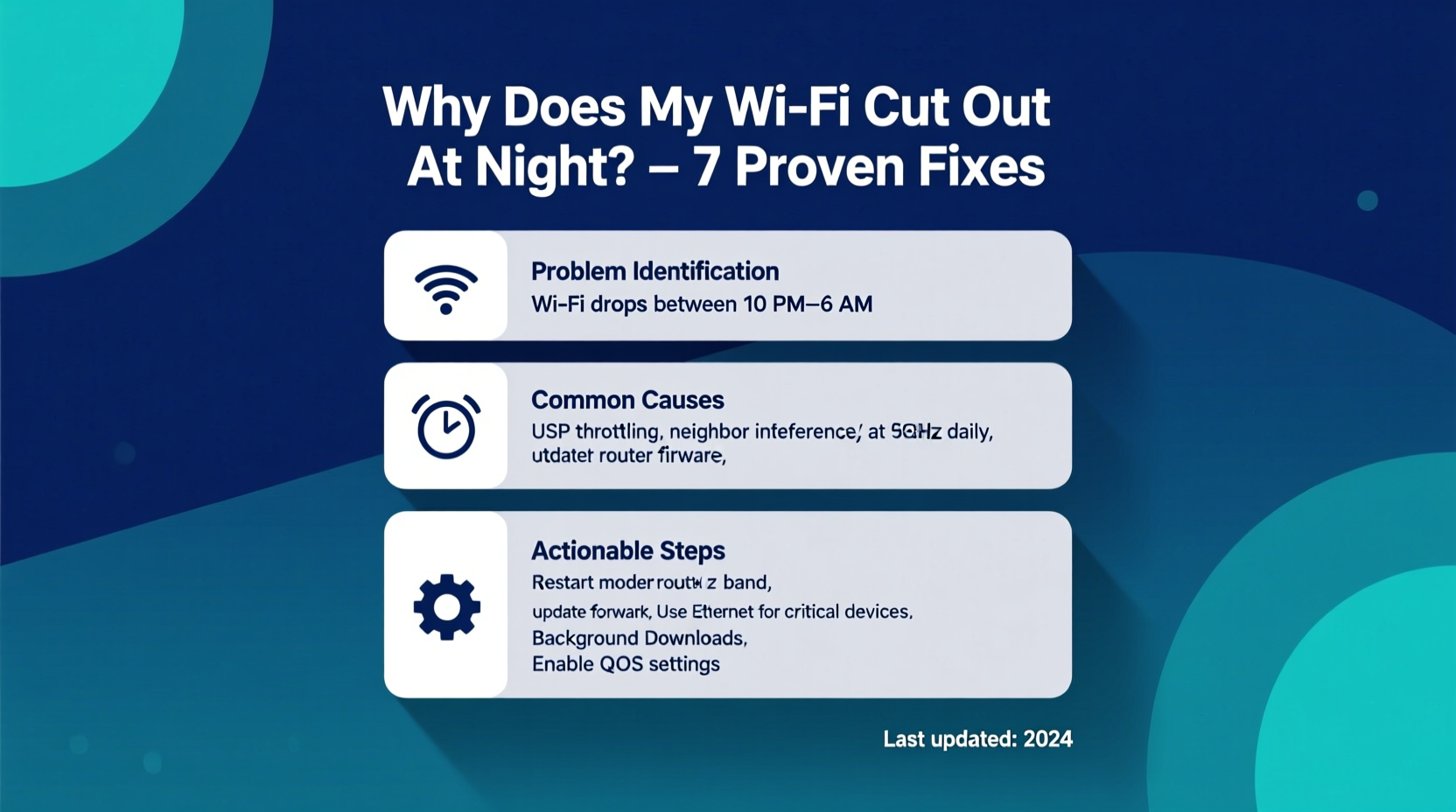
The evening hours bring increased demand on both your home network and the broader internet infrastructure. What works smoothly during the day can collapse under pressure by 8 PM. Here are the top culprits:
- Network Congestion: More people come home, turn on devices, stream videos, and game online. This spikes local bandwidth usage.
- ISP Throttling or Network Overload: Some Internet Service Providers manage traffic during peak hours, reducing speeds or stability.
- Router Overheating: After running all day, routers can overheat, especially in poorly ventilated areas, leading to crashes or reboots.
- Interference from Other Devices: Microwaves, baby monitors, cordless phones, and even LED lights emit signals that disrupt 2.4 GHz bands, often used more heavily at night.
- Outdated Firmware: Routers need regular updates. Old firmware can cause instability under load.
- Channel Overlap: In dense neighborhoods, multiple Wi-Fi networks compete on the same channel, worsening interference at peak times.
Step-by-Step Troubleshooting Guide
Follow this systematic approach to identify and resolve your nighttime Wi-Fi issues. Start with the simplest checks and move toward more advanced fixes.
- Restart Your Router and Modem
Unplug both devices, wait 30 seconds, then plug the modem back in first. Once its lights stabilize, reconnect the router. This clears temporary glitches and resets connections. - Check for Active Downloads or Updates
Inspect all devices connected to your network. Background updates (Windows, macOS, gaming consoles) often run overnight and consume large bandwidth. - Limit Connected Devices Temporarily
Disconnect non-essential devices—smart TVs, tablets, phones—to see if performance improves. Use your router’s admin interface to view active connections. - Switch Wi-Fi Bands (2.4 GHz vs. 5 GHz)
The 2.4 GHz band travels farther but is prone to interference. The 5 GHz band is faster and less crowded but has shorter range. Try connecting devices to 5 GHz where possible. - Update Router Firmware
Log into your router’s dashboard (usually via 192.168.1.1 or similar). Check for firmware updates under “Administration” or “Maintenance.” Install if available.
Change Wi-Fi Channel
Use a free app like Wi-Fi Analyzer (Android) or NetSpot (Mac/PC) to scan nearby networks. If many use channel 6 on 2.4 GHz, switch your router to channel 1 or 11 to reduce overlap.- Adjust QoS (Quality of Service) Settings
Prioritize critical devices (e.g., work laptop, smart TV) in your router settings so they get more bandwidth during high-usage periods.
Real-World Example: The Johnson Family’s Fix
The Johnsons in suburban Chicago faced nightly buffering on Netflix and dropped Zoom calls after 7 PM. Their kids’ gaming consoles and smart speakers were always on, but the real issue wasn’t volume—it was timing. Every evening at 7:15 PM, their security camera system initiated a cloud backup, consuming nearly all upload bandwidth.
After using their router’s traffic monitor, they discovered the spike. By rescheduling backups to 3 AM and switching their main TV to the 5 GHz band, stability improved instantly. They also updated their three-year-old router’s firmware, which had been ignoring QoS rules due to a known bug.
“We didn’t realize one device could ruin everything,” said Mark Johnson. “Now our evenings are smooth, and we barely think about the Wi-Fi.”
“We’ve seen a 40% increase in support tickets related to evening connectivity. Often, it’s not the ISP—it’s configuration and device behavior.” — Lisa Tran, Senior Network Engineer at NetSecure Systems
Do’s and Don’ts: Quick Reference Table
| Do’s | Don’ts |
|---|---|
| Place your router centrally, elevated, and away from walls | Hide your router in a cabinet or basement corner |
| Use the 5 GHz band for streaming and gaming | Rely solely on 2.4 GHz in a congested area |
| Schedule large downloads or backups for off-peak hours | Allow automatic updates to run during family time |
| Update firmware every 3–6 months | Ignore firmware update notifications |
| Monitor bandwidth usage via your router’s dashboard | Assume all devices behave the same way |
Advanced Fixes for Persistent Issues
If basic troubleshooting doesn’t resolve the problem, consider these deeper interventions:
Upgrade Your Equipment
Older routers (especially those more than 3–4 years old) may not handle modern demands. Dual-band or tri-band mesh systems distribute load better and provide consistent coverage. Look for Wi-Fi 6 (802.11ax) models if you have multiple heavy-use devices.
Test with a Wired Connection
Connect a computer directly to your modem via Ethernet. If the wired connection remains stable at night, the issue is wireless (router or interference). If it also drops, the problem likely lies with your ISP or modem.
Contact Your ISP
Ask specifically: “Is there throttling or network maintenance during evening hours?” Request a line quality test. Frequent packet loss or latency spikes between 7–10 PM suggest upstream problems.
Set Up a Guest Network
Move smart home devices (doorbells, lights, thermostats) to a guest network. These devices constantly phone home, creating background chatter that adds up.
Preventive Maintenance Checklist
To keep your Wi-Fi reliable long-term, follow this monthly checklist:
- ✅ Reboot your router and modem
- ✅ Check for firmware updates
- ✅ Review connected devices for unknown entries
- ✅ Scan for interference using a Wi-Fi analyzer tool
- ✅ Clean dust from router vents with compressed air
- ✅ Test speed at different times (morning, afternoon, night)
- ✅ Confirm parental controls or scheduling aren’t limiting access
Frequently Asked Questions
Can too many devices really crash my Wi-Fi?
Yes. Most consumer routers support 20–30 simultaneous connections, but performance degrades as more devices actively use bandwidth. Streaming, gaming, and video calls are especially demanding. Consider a mesh system if you regularly exceed 15 active devices.
Does my neighbor’s Wi-Fi affect mine?
Absolutely. In apartment buildings or dense suburbs, overlapping networks on the same channel cause interference, especially on 2.4 GHz. Use a Wi-Fi scanner to find the least crowded channel and adjust your router settings accordingly.
Is it safe to leave my router on all the time?
It’s normal to run routers continuously, but periodic reboots (weekly) help maintain performance. If your model runs hot or has failed before, turning it off overnight can extend its life—though this disables smart home functions and updates.
Final Thoughts: Take Control of Your Connection
Nighttime Wi-Fi dropouts aren’t inevitable. With a methodical approach, you can diagnose the root cause and apply targeted fixes that restore peace to your evenings. Whether it’s adjusting settings, updating firmware, relocating hardware, or upgrading your system, the solution often lies within your control—not your ISP’s.
Start tonight: reboot your router, check for updates, and observe how your network behaves over the next few days. Small changes can lead to dramatic improvements. A stable, fast Wi-Fi connection shouldn’t be a luxury reserved for daylight hours.




 浙公网安备
33010002000092号
浙公网安备
33010002000092号 浙B2-20120091-4
Comments
No comments yet. Why don't you start the discussion?