
If your internet slows to a crawl or disconnects every evening, you're not imagining things. Many households experience degraded Wi-Fi performance after sunset, often just when they need it most—during streaming, video calls, or online gaming. While frustrating, nighttime Wi-Fi dropouts are rarely random. They stem from predictable patterns of network congestion, environmental interference, and increased device usage. Understanding the root causes is the first step toward restoring stability.
This article breaks down the most common reasons your Wi-Fi fails at night, explains how interference works, and offers actionable solutions to keep your connection strong around the clock.
Why Nighttime Is Worse for Wi-Fi Performance
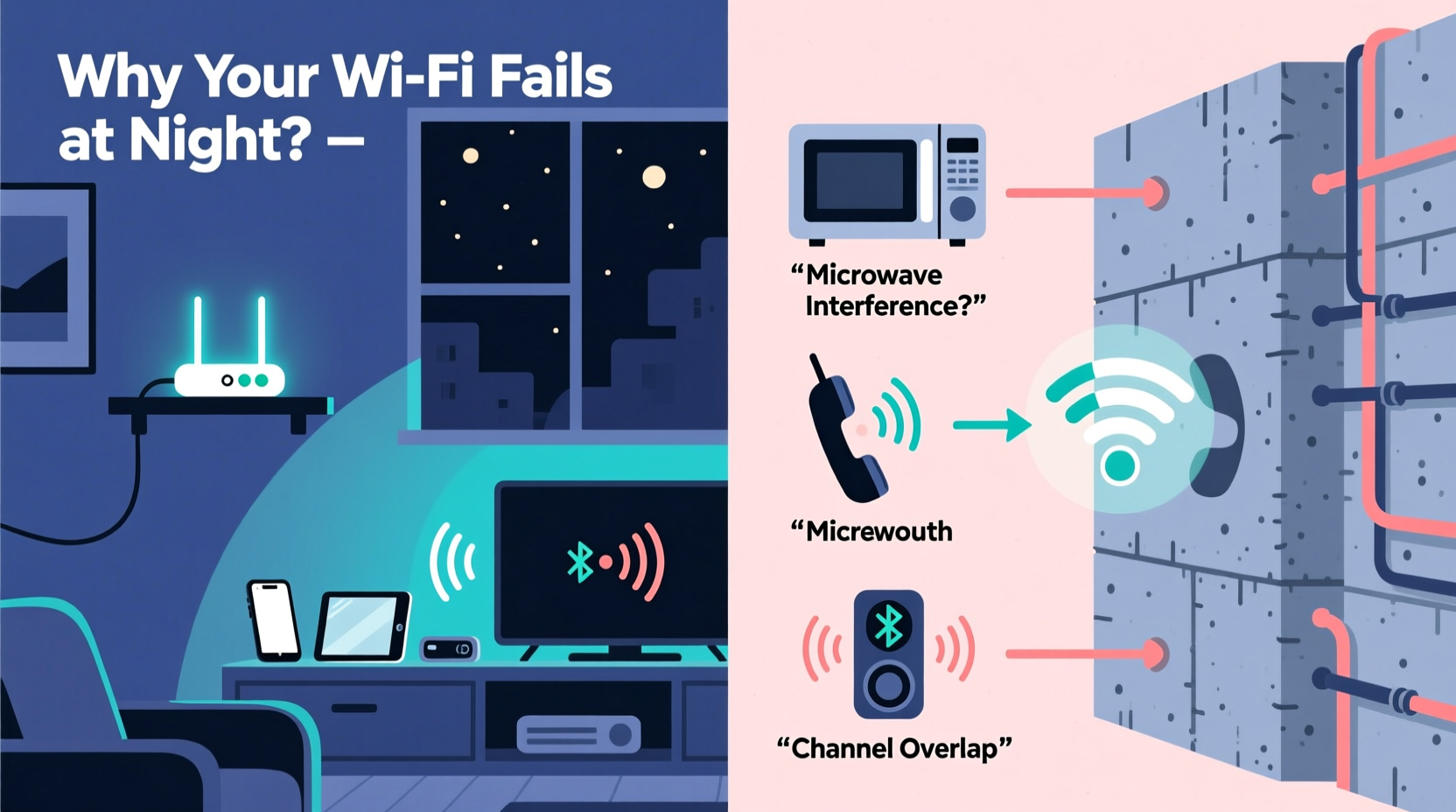
Wi-Fi operates on radio frequencies—primarily 2.4 GHz and 5 GHz bands—that transmit data between your router and connected devices. These signals can be disrupted by physical barriers, competing networks, and electronic noise. During the day, fewer devices are active, and neighbors may be away from home, reducing strain on local airwaves. But as evening approaches, several factors converge:
- Increased household device usage: Multiple users stream, game, browse, and download simultaneously.
- Neighbor network congestion: Nearby homes activate their routers, increasing channel overlap.
- Electronic interference: Appliances like microwaves and cordless phones run more frequently.
- Router overheating or poor placement: Prolonged use combined with suboptimal location worsens signal degradation.
The cumulative effect is a noticeable decline in speed, latency spikes, and intermittent disconnections—all symptoms of interference and bandwidth saturation.
Common Sources of Nighttime Wi-Fi Interference
1. Neighbor Network Congestion (Co-Channel Interference)
In densely populated areas—apartments, townhouses, suburban neighborhoods—multiple Wi-Fi networks operate within close proximity. The 2.4 GHz band has only three non-overlapping channels (1, 6, and 11). If your neighbors’ routers use the same or adjacent channels, signals interfere, causing packet loss and reduced throughput.
At night, more people return home and turn on their networks, increasing the density of overlapping transmissions. This “neighborhood noise” forces your router to retransmit data, slowing everything down.
“Wi-Fi congestion in urban environments behaves like traffic on a narrow road—more vehicles mean slower movement.” — Dr. Alan Reyes, Wireless Network Engineer
2. In-Home Device Overload
Modern homes host dozens of connected devices: smartphones, tablets, smart TVs, security cameras, voice assistants, gaming consoles, and IoT gadgets. At night, many of these activate simultaneously.
Even if individual devices aren’t using much bandwidth, the sheer number of active connections can overwhelm older or lower-end routers. Routers have finite processing power and memory; exceeding their capacity leads to lag, timeouts, and dropped signals.
3. Microwave Ovens and Bluetooth Devices
Microwave ovens emit electromagnetic radiation in the 2.4 GHz range—the same band used by most Wi-Fi networks. While shielded, cheaper or aging microwaves leak enough energy to disrupt nearby wireless signals. This interference is typically brief but recurring during dinner prep or late-night snacks.
Bluetooth devices (wireless headphones, speakers, keyboards) also operate in the 2.4 GHz spectrum. When multiple Bluetooth gadgets are active, especially near the router, they contribute to spectral crowding.
4. Cordless Phones and Baby Monitors
Many older DECT cordless phones and analog baby monitors broadcast on frequencies close to or within the 2.4 GHz band. These devices often lack modern interference mitigation and can cause persistent signal degradation, particularly if placed near the router or access point.
5. Physical Obstructions and Signal Attenuation
Walls, floors, mirrors, and metal objects absorb or reflect Wi-Fi signals. At night, people move through rooms, closing doors or placing furniture that blocks line-of-sight between devices and the router. Even human bodies—mostly water—can attenuate signals when positioned between devices and the access point.
Additionally, some materials like plaster with metal lath or concrete walls severely limit signal penetration, making multi-story coverage challenging without proper planning.
6. Router Overheating or Aging Hardware
Routers generate heat during prolonged operation. Poor ventilation—such as being enclosed in a cabinet or stacked with other electronics—can lead to thermal throttling or temporary shutdowns. Many users report improved stability after relocating their router to an open, elevated space.
Older routers (3+ years) may struggle with modern demands due to outdated processors, limited RAM, or support for obsolete Wi-Fi standards (e.g., 802.11n instead of Wi-Fi 5/6).
Do’s and Don’ts: Managing Wi-Fi Interference
| Do | Don't |
|---|---|
| Use the 5 GHz band for high-bandwidth activities like streaming | Place your router in a closet or behind metal objects |
| Update router firmware regularly | Ignore repeated restarts—this indicates deeper issues |
| Switch to less congested Wi-Fi channels using a scanner app | Run microwave ovens near the router while streaming |
| Invest in a mesh network for large or multi-floor homes | Assume slow Wi-Fi is always your ISP’s fault |
| Limit background device activity during peak hours | Use outdated security protocols like WEP |
Step-by-Step Guide to Diagnose and Fix Nighttime Wi-Fi Drops
Follow this systematic approach to identify and resolve your evening connectivity issues:
- Confirm the issue is Wi-Fi, not ISP-related: Connect a device directly to the router via Ethernet. If the wired connection remains stable at night, the problem lies within your wireless setup.
- Check for patterns: Note exactly when drops occur and what devices or appliances are in use. Correlate disconnections with microwave use, video calls, or neighbor activity.
- Scan for nearby networks: Use apps like Wi-Fi Analyzer (Android) or NetSpot (Windows/Mac) to visualize channel congestion. Switch your router to the least crowded channel (preferably 1, 6, or 11 on 2.4 GHz).
- Switch to 5 GHz where possible: The 5 GHz band offers faster speeds and less interference, though with shorter range. Reserve 2.4 GHz for distant or low-power devices.
- Reposition your router: Place it centrally, elevated, and away from appliances, mirrors, and thick walls. Avoid basements or enclosed spaces.
- Reduce connected devices: Temporarily disconnect unused devices. Consider setting up Quality of Service (QoS) rules to prioritize critical traffic (e.g., video calls over file downloads).
- Upgrade hardware if needed: If your router is over three years old or lacks dual-band support, consider upgrading to a Wi-Fi 6 model or a mesh system for better coverage.
- Monitor temperature: Feel the router at night. If it’s hot, improve airflow or consider a cooling pad. Some routers benefit from scheduled reboots via admin settings.
Real-World Example: A Suburban Family’s Fix
The Thompson family in Portland, Oregon, experienced nightly buffering on their living room smart TV. Their kids couldn’t finish homework videos, and Zoom calls froze consistently after 7 PM. After testing, they discovered their router was in a basement closet, surrounded by cables and a cordless phone base station.
Using a Wi-Fi analyzer, they found 14 neighboring networks on channel 6—their current setting. They moved the router to the main floor hallway, switched to channel 1, and upgraded to a dual-band mesh system. They also replaced their old 2.4 GHz baby monitor with a digital model operating on a different frequency.
Result: No more dropouts. Streaming remained smooth even during peak usage, and upload speeds improved by 40%.
When to Consider a Mesh Network or Extender
If your home exceeds 1,500 square feet or has complex layouts, a single router may not suffice. Range extenders can help but often halve bandwidth. A better solution is a mesh Wi-Fi system (e.g., Google Nest Wifi, Eero, TP-Link Deco), which uses multiple nodes to create a seamless, self-healing network.
Mesh systems automatically manage band steering (connecting devices to the best available band) and handle interference more intelligently than traditional routers. They’re especially effective in combating dead zones and maintaining consistent performance across large areas.
“Mesh networks don’t just extend coverage—they optimize it dynamically based on real-time conditions.” — Lisa Tran, Senior Network Architect at NetSecure Solutions
Frequently Asked Questions
Can LED lights or smart bulbs interfere with Wi-Fi?
Most LED bulbs do not interfere with Wi-Fi. However, poorly designed smart bulbs or power supplies can emit electromagnetic noise. If you notice correlation between turning on certain lights and signal loss, try replacing them or moving the router farther away.
Does weather affect Wi-Fi at night?
Indoor Wi-Fi is generally unaffected by weather. However, high humidity or temperature changes at night can slightly impact signal propagation, especially in older buildings. Outdoor units (like point-to-point links) are more vulnerable, but typical home setups aren’t weather-sensitive.
Should I reboot my router every night?
While rebooting clears memory and resets connections, doing it manually nightly isn’t practical. Instead, configure your router to reboot automatically during off-hours (e.g., 3 AM) via its admin interface. This maintains freshness without user effort.
Action Plan Checklist
Use this checklist to systematically address your nighttime Wi-Fi issues:
- ✅ Test wired connection to rule out ISP problems
- ✅ Use a Wi-Fi analyzer to check channel congestion
- ✅ Switch to a less crowded channel (2.4 GHz) or use 5 GHz
- ✅ Reposition router to a central, elevated, ventilated location
- ✅ Turn off or relocate interfering devices (microwave, cordless phone)
- ✅ Limit unnecessary connected devices during peak hours
- ✅ Update router firmware and enable automatic updates
- ✅ Consider QoS settings to prioritize important traffic
- ✅ Evaluate upgrading to a mesh Wi-Fi system if coverage is poor
- ✅ Schedule automatic nightly reboots if instability persists
Conclusion: Take Control of Your Home Network
Nighttime Wi-Fi dropouts are a common but solvable problem. By identifying interference sources—whether from neighbors, appliances, or outdated equipment—you can take targeted steps to restore reliability. Simple changes like repositioning your router, switching channels, or upgrading hardware often yield dramatic improvements.
Your internet shouldn’t fail when you need it most. With a few adjustments and a bit of technical awareness, you can enjoy smooth, uninterrupted connectivity every evening. Start diagnosing tonight, and make your home network work as hard as you do.




 浙公网安备
33010002000092号
浙公网安备
33010002000092号 浙B2-20120091-4
Comments
No comments yet. Why don't you start the discussion?