
If your internet connection mysteriously slows or drops every evening, you're not alone. Many households experience the same frustrating pattern: smooth browsing during the day, followed by buffering videos, frozen Zoom calls, and lagging games after sunset. While it might seem like magic—or a conspiracy against your Netflix binge—there are logical explanations rooted in network congestion, hardware behavior, and environmental interference. Understanding these causes is the first step toward restoring reliable connectivity when you need it most.
The issue often isn’t that your internet “stops working” at night—it’s being overwhelmed or disrupted. Whether it's increased usage from household members, neighborhood bandwidth competition, or internal router limitations, pinpointing the root cause allows for targeted fixes. This guide breaks down the most common reasons for nighttime Wi-Fi dropouts, evaluates potential router problems, and provides practical, no-nonsense solutions you can implement immediately.
Common Causes of Nighttime Wi-Fi Disruptions
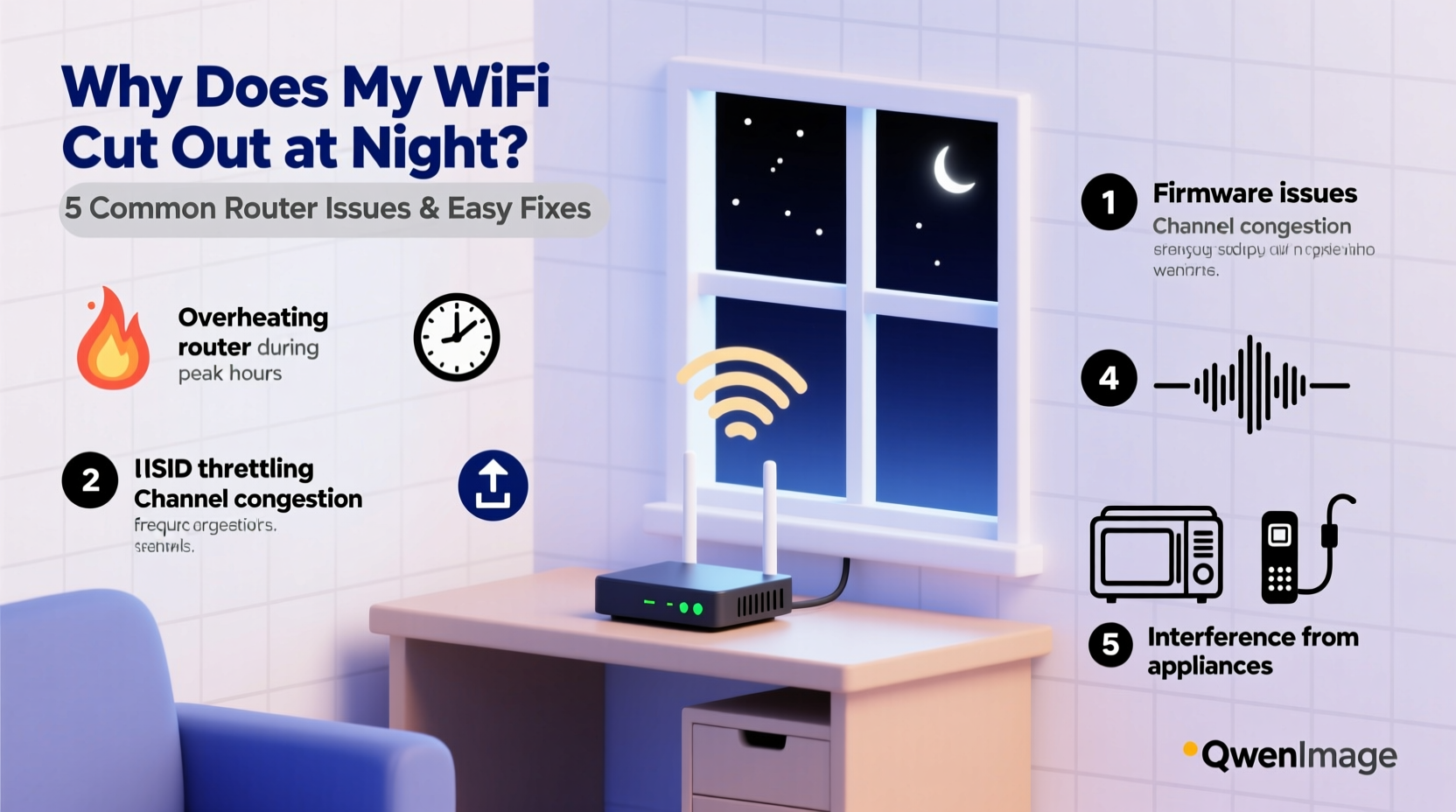
Nighttime internet instability rarely stems from a single factor. Instead, it's usually the result of overlapping influences that intensify after dark. Here are the primary culprits:
- Increased household usage: As family members return home, multiple devices begin streaming, gaming, video calling, and downloading simultaneously.
- Neighbor network congestion: In densely populated areas, nearby Wi-Fi networks operating on the same channel can interfere with yours.
- Bandwidth-heavy activities: 4K streaming, cloud backups, and large file downloads often run automatically at night, consuming available bandwidth.
- Router overheating: Prolonged use throughout the day can cause routers to overheat by evening, leading to throttling or disconnections.
- ISP throttling or network maintenance: Some providers limit speeds during peak hours or perform updates overnight.
- Wireless signal interference: Household appliances like microwaves, cordless phones, or baby monitors may be used more frequently at night and emit signals that disrupt Wi-Fi.
Each of these factors can degrade performance independently, but their combined effect is often what turns a minor slowdown into a complete outage.
Router-Specific Issues That Worsen at Night
Your router is the central hub of your home network. Over time, or under stress, it can develop behaviors that manifest as intermittent failures—especially during peak load periods.
Firmware Bugs and Memory Leaks
Many consumer-grade routers run outdated firmware that contains unpatched bugs. Some models suffer from memory leaks—where temporary data isn't properly cleared—which accumulate over time. By evening, the router’s RAM may be nearly full, causing crashes or slow response times.
Overheating Due to Poor Ventilation
Routers generate heat during operation. If placed in enclosed spaces, stacked with other electronics, or covered in dust, they can overheat. Thermal throttling (slowing down to cool off) or automatic shutdowns may occur precisely when usage peaks.
Aging Hardware and Signal Degradation
Routers older than three to five years may struggle with modern demands. They often support only older Wi-Fi standards (like 802.11n), have weaker processors, and lack beamforming or MU-MIMO technology needed to serve multiple devices efficiently.
Channel Congestion and Auto-Switching Failures
Most routers operate on the 2.4 GHz band by default—a frequency shared by dozens of nearby networks. At night, when more neighbors are online, this band becomes saturated. Even if your router supports 5 GHz, it may fail to steer devices appropriately due to poor band steering logic.
“Routers aren’t meant to run flawlessly forever. Like any electronic device, they degrade—especially under constant load. A reboot isn’t just a quick fix; it clears accumulated errors.” — David Lin, Network Infrastructure Engineer
Step-by-Step Guide to Diagnose and Fix Nighttime Wi-Fi Drops
Follow this structured approach to identify and resolve the underlying cause of your nightly disruptions.
- Reboot your router and modem. Unplug both devices for 60 seconds, then power them back on. This clears cache, resets connections, and resolves many transient issues.
- Check connected devices. Log into your router’s admin interface (usually via 192.168.1.1 or 192.168.0.1) and review active devices. Look for unknown or unusually active ones.
- Monitor bandwidth usage. Use tools like your ISP’s app or third-party software (e.g., GlassWire or NetBalancer) to see which devices or applications consume the most data at night.
- Update router firmware. Visit the manufacturer’s website, enter your model number, and install the latest firmware version. Never skip this step—security and stability patches matter.
- Switch to less congested Wi-Fi channels. Use a Wi-Fi analyzer app (like Wi-Fi Analyzer for Android or AirPort Utility for iOS) to find the least crowded 2.4 GHz and 5 GHz channels. Manually set your router to use them.
- Enable Quality of Service (QoS). QoS prioritizes critical traffic (video calls, gaming) over background tasks (backups, updates). Set priority rules based on device or application.
- Relocate the router. Place it centrally, elevated, and away from walls, metal objects, and appliances. Avoid basements or cabinets.
- Test with Ethernet. Connect a computer directly via cable. If the wired connection remains stable while Wi-Fi drops, the issue is wireless-specific.
Do’s and Don’ts: Managing Your Home Network Effectively
| Do | Don’t |
|---|---|
| Place the router in a central, open location | Hide it in a closet or behind furniture |
| Use the 5 GHz band for streaming and gaming | Force all devices onto 2.4 GHz |
| Update firmware quarterly | Ignore firmware update notifications |
| Limit background downloads at night | Allow cloud backups during prime-time hours |
| Use strong encryption (WPA3 or WPA2) | Leave your network open or use outdated WEP |
Real-World Example: The Johnson Family’s Fix
The Johnsons in suburban Chicago experienced nightly Wi-Fi blackouts between 7 PM and 10 PM. Their two kids streamed YouTube, the parents worked remotely, and a smart TV ran 4K content—all without issue until evening. After ruling out ISP problems, they checked their router logs and discovered a smart home hub initiating massive cloud syncs at 7:30 PM nightly.
They also found their router was four years old, running outdated firmware, and stuck on a crowded 2.4 GHz channel. By updating the firmware, rescheduling the hub’s backup to 2 AM, switching to a clear 5 GHz channel, and enabling QoS for laptops and tablets, their evening stability improved instantly. No hardware replacement was needed—just smarter configuration.
When to Upgrade Your Router
Not every problem can be solved through tweaks. If you’ve tried the above steps and still face nightly dropouts, consider upgrading. Modern Wi-Fi 6 (802.11ax) routers offer significant advantages:
- Higher efficiency: Serve more devices simultaneously without slowdowns.
- Better interference handling: Advanced signal processing reduces noise impact.
- Target Wake Time (TWT): Reduces device contention by scheduling communication windows.
- Improved beamforming: Focuses signals directly to connected devices.
For homes with more than five connected devices or large floor plans, a mesh Wi-Fi system (like Google Nest Wifi or Eero) may provide better coverage and self-healing capabilities than a single router.
FAQ: Common Questions About Nighttime Wi-Fi Issues
Why does my Wi-Fi work fine during the day but fail at night?
Daytime usage is typically lighter. At night, multiple users and devices strain the network. Combined with external congestion and router fatigue, this leads to instability. It’s not necessarily your internet speed—it’s how that bandwidth is managed under load.
Can my neighbors really affect my Wi-Fi?
Yes. In apartment buildings or dense neighborhoods, dozens of Wi-Fi networks may compete for the same radio frequencies. The 2.4 GHz band has only three non-overlapping channels (1, 6, 11). If many networks use the same one, interference increases dramatically.
Should I contact my ISP if my Wi-Fi drops at night?
Only after eliminating local causes. Contact your ISP if: wired connections also drop, speed tests show significantly lower results than advertised, or outages coincide with known maintenance windows. Ask if they throttle bandwidth during peak hours—a practice some providers still use.
Quick Action Checklist
Use this checklist to systematically address and eliminate nighttime Wi-Fi issues:
- ✅ Reboot router and modem
- ✅ Update router firmware
- ✅ Identify and limit bandwidth-heavy devices
- ✅ Switch to a less congested Wi-Fi channel
- ✅ Enable Quality of Service (QoS) settings
- ✅ Relocate router to a central, ventilated area
- ✅ Test with a wired connection
- ✅ Schedule automatic reboots
- ✅ Consider upgrading to a Wi-Fi 6 or mesh system if problems persist
Conclusion: Take Control of Your Evening Internet Experience
Nightly Wi-Fi disruptions don’t have to be an accepted part of modern life. With a methodical approach, most issues can be diagnosed and resolved using simple, low-cost strategies. From firmware updates to smarter device management, the tools are already within reach. The key is consistency—regular maintenance prevents small issues from snowballing into recurring frustrations.
Start tonight. Reboot your router, check your connected devices, and make one change based on what you’ve learned. Small actions compound into major improvements in reliability and speed. Share your experience, leave a comment, or help someone else troubleshoot—because better internet shouldn’t depend on the time of day.




 浙公网安备
33010002000092号
浙公网安备
33010002000092号 浙B2-20120091-4
Comments
No comments yet. Why don't you start the discussion?