
If your internet slows to a crawl or disconnects every evening, you're not imagining things—and you're certainly not alone. Many households experience degraded Wi-Fi performance after sunset, leading to interrupted video calls, buffering streams, and lost smart home connectivity. While it might seem like the problem is mysterious or random, nighttime Wi-Fi dropouts are often rooted in predictable causes, from network congestion to hardware limitations. Understanding the underlying factors can help you restore stability and enjoy seamless connectivity around the clock.
Understanding Nighttime Network Congestion
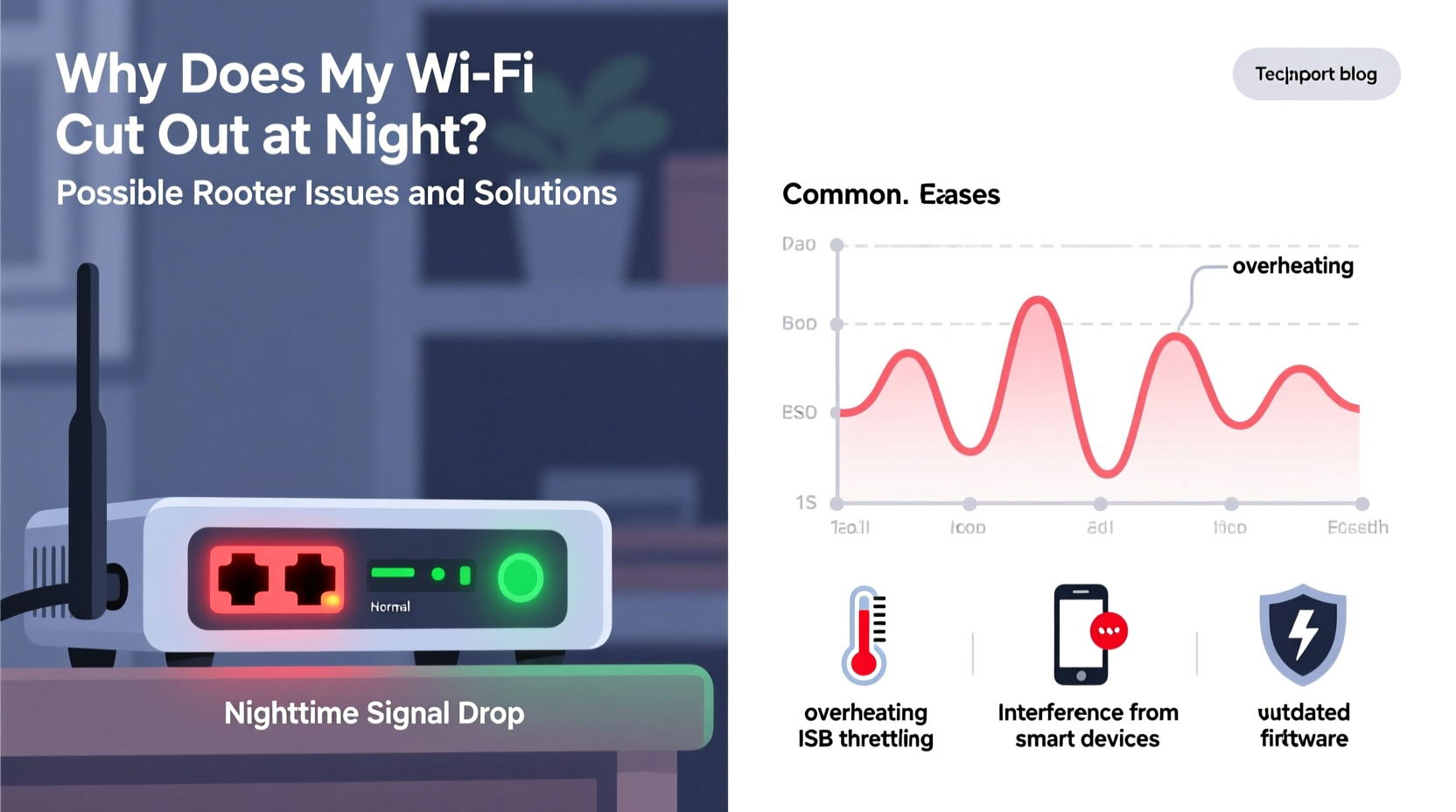
One of the most common reasons for Wi-Fi instability at night is increased network traffic. During daytime hours, many people are at work or school, using fewer devices at home. Once everyone returns, multiple users begin streaming, gaming, browsing, and downloading simultaneously. This surge in demand can overwhelm your router’s capacity, especially if it’s an older model or designed for smaller networks.
In densely populated areas—such as apartment complexes or suburban neighborhoods—your Wi-Fi signal may also suffer from interference caused by neighboring networks. Most routers default to channels 6 or 11 on the 2.4 GHz band, which becomes overcrowded during peak usage times. When too many nearby networks operate on the same frequency, data packets collide, causing lag, disconnections, or complete signal loss.
Router Overheating and Hardware Limitations
Routers generate heat during operation, and continuous use—especially under heavy load—can cause them to overheat. Unlike computers, most consumer-grade routers lack robust cooling systems. If your router is tucked away in a cabinet, placed near other electronics, or located in a poorly ventilated area, heat buildup can trigger thermal throttling or automatic shutdowns.
Overheating symptoms include intermittent disconnections, sudden reboots, or sluggish performance that worsens over time. These issues often become noticeable at night when usage peaks and internal temperatures rise beyond safe thresholds.
Additionally, older routers may struggle with modern bandwidth demands. Devices manufactured before 2017 likely support only Wi-Fi 4 (802.11n) or early Wi-Fi 5 (802.11ac), lacking the efficiency, range, and multi-device handling capabilities of newer standards like Wi-Fi 6 (802.11ax). As more smart devices join your network—from thermostats to security cameras—the strain increases exponentially.
“Routers aren’t designed to last forever. After three to five years, performance degradation is common due to outdated firmware, component wear, and evolving network demands.” — David Lin, Senior Network Engineer at ConnectWave Systems
Common Router Settings That Cause Nighttime Disruptions
Beyond hardware and congestion, certain router configurations can unintentionally disrupt your Wi-Fi at specific times. Some models come with built-in scheduling features meant to limit usage—often used by parents to enforce digital curfews. If enabled, these settings could be cutting off access during evening hours without your knowledge.
Another potential culprit is automatic reboot scheduling. ISPs sometimes push updates or require periodic restarts during off-peak hours. If your router is set to reboot daily at 10 PM, this would explain a recurring dropout pattern.
Additionally, power-saving modes on some routers reduce transmission strength or disable bands overnight to conserve energy. While intended to improve longevity, these settings can severely impact connectivity for essential devices.
How to Check for Problematic Settings
- Access your router’s admin panel by entering its IP address (commonly 192.168.1.1 or 192.168.0.1) into a web browser.
- Log in using your username and password (check the router label or manual if unsure).
- Navigate to “Wireless Settings” and verify no time-based restrictions are active.
- Check “Administration” or “Maintenance” sections for scheduled reboots.
- Review “Power Management” or “Energy Saving” options and disable any that may affect performance.
| Setting | Potential Impact | Action |
|---|---|---|
| Parental Controls / Access Schedules | Blocks Wi-Fi at certain times | Disable or adjust timing |
| Auto Reboot Schedule | Causes temporary outage | Reschedule to off-hours or disable |
| Transmit Power (Low Mode) | Reduces signal strength | Set to High or Medium-High |
| Guest Network Timer | May affect main network indirectly | Verify independence of guest and primary networks |
Environmental and External Factors
Physical obstructions and electronic interference play a larger role than many realize. Walls, metal furniture, mirrors, and even large appliances can weaken Wi-Fi signals. At night, additional sources of interference emerge—microwaves, cordless phones, baby monitors, and Bluetooth devices all operate in the 2.4 GHz spectrum and can disrupt wireless communication.
Moreover, electrical wiring in homes can emit electromagnetic noise, particularly if circuits are overloaded or outdated. This interference tends to increase at night when lighting, heating, and entertainment systems are in full use.
Another overlooked factor is weather. Humidity levels often rise in the evening, especially in coastal or temperate climates. Moisture in the air can slightly attenuate radio waves, reducing signal reach. While not usually severe enough to cause total failure, it can compound existing weaknesses in marginal setups.
Step-by-Step Guide to Diagnose and Fix Nighttime Wi-Fi Dropouts
Follow this structured approach to identify and resolve the root cause of your nightly connectivity issues:
- Observe the Pattern: Note exactly when the disconnection occurs, how long it lasts, and whether it affects all devices or just one. Consistency points to router or ISP issues; isolated problems suggest device-specific faults.
- Restart Your Equipment: Power cycle both the router and modem. Unplug them for 30 seconds, then plug the modem back in first, wait for it to stabilize, then reconnect the router.
- Check for Firmware Updates: Log into your router’s interface and look for a “Firmware Update” option. Manufacturers regularly release patches for bugs, security flaws, and performance improvements.
- Analyze Channel Congestion: Use a mobile Wi-Fi scanner app to view nearby networks. If channels 1, 6, or 11 on 2.4 GHz are crowded, switch to a less-used channel. On 5 GHz, choose non-DFS channels like 36, 40, 44, or 48 for better stability.
- Test with Ethernet: Connect a computer directly to the router via Ethernet cable. If the wired connection remains stable while Wi-Fi drops, the issue is wireless-specific.
- Monitor Temperature: Feel the router’s casing. If it’s hot to the touch, improve airflow or consider relocating it. You can also purchase a small router cooling pad.
- Contact Your ISP: Report the issue and ask if there are known outages, throttling policies, or scheduled maintenance during evening hours. Request signal levels on your line—low SNR (Signal-to-Noise Ratio) or high downstream power can indicate infrastructure problems.
Real-World Example: The Case of the Failing Apartment Router
Samantha, a remote worker living in a downtown Chicago apartment, began experiencing nightly Wi-Fi outages around 8 PM. Her video meetings would freeze, and her smart lights disconnected repeatedly. Initially, she assumed her neighbors were hogging bandwidth. After testing with a Wi-Fi analyzer, she found her router was stuck on channel 6, surrounded by 15 other networks.
She changed to channel 1 on the 2.4 GHz band and switched her laptop to the less congested 5 GHz network. Performance improved slightly, but dropouts persisted. She then discovered her ISP-provided router—a five-year-old model—was overheating inside a closed entertainment center.
After moving the router to an open shelf and updating its firmware, stability improved. However, the final fix came when she replaced the aging unit with a Wi-Fi 6 mesh system. Not only did the new system handle congestion better, but its intelligent band steering automatically directed devices to optimal frequencies. Since the upgrade, her nighttime connectivity has remained flawless.
When It’s Time to Upgrade Your Equipment
If troubleshooting fails to resolve the issue, your hardware may simply be obsolete. Consider upgrading if:
- Your router is more than four years old.
- It doesn’t support dual-band (2.4 GHz and 5 GHz) or beamforming.
- You have more than 10 connected devices.
- Streaming or gaming buffers frequently, even during low-usage periods.
- Firmware updates are no longer available.
Modern mesh Wi-Fi systems offer superior coverage, self-healing networks, and advanced Quality of Service (QoS) features that prioritize critical traffic. Brands like TP-Link Deco, ASUS ZenWiFi, and Google Nest Wifi Pro provide intuitive apps for monitoring performance and adjusting settings remotely.
Preventive Maintenance Checklist
Stay ahead of Wi-Fi issues with this monthly maintenance routine:
- ✅ Reboot the router and modem
- ✅ Check for firmware updates
- ✅ Inspect physical placement and ventilation
- ✅ Review connected devices for unknown intruders
- ✅ Test internet speed at different times of day
- ✅ Clean dust from vents using compressed air
- ✅ Verify no new sources of interference have been introduced
Frequently Asked Questions
Can my ISP throttle my internet at night?
Some ISPs implement traffic shaping or data caps that result in slower speeds during peak hours. While outright throttling is less common in regions with net neutrality protections, bandwidth deprioritization after hitting a data threshold can occur. Check your plan details and use a speed test before and after suspected throttling times. A VPN may help bypass certain forms of discrimination, though it won't fix network congestion.
Why does only one device lose connection at night?
If a single device disconnects while others remain online, the issue likely lies with that device—not the router. Causes include outdated Wi-Fi drivers, power-saving settings that turn off the wireless adapter, or hardware malfunctions. Try forgetting the network and reconnecting, updating the OS, or testing the device on another Wi-Fi network.
Should I leave my router on all the time?
Yes. Routers are designed for continuous operation. Frequent power cycling can shorten lifespan and disrupt services like DNS caching and device synchronization. However, rebooting once a month helps clear memory leaks and apply pending updates. Use a smart plug with a schedule to automate reboots during convenient hours, such as 3 AM on weekends.
Conclusion: Take Control of Your Home Network
Nighttime Wi-Fi dropouts are frustrating but rarely inevitable. By systematically evaluating congestion, hardware health, configuration settings, and environmental factors, you can pinpoint the cause and apply targeted fixes. Whether it’s switching channels, relocating your router, or investing in newer technology, each step brings you closer to reliable, round-the-clock connectivity.
Don’t accept spotty internet as the cost of modern life. With a little investigation and proactive care, your home network can perform consistently—day or night. Start tonight: power-cycle your router, check for updates, and observe the difference tomorrow evening. Small changes today can lead to seamless streaming, smoother calls, and smarter automation tomorrow.




 浙公网安备
33010002000092号
浙公网安备
33010002000092号 浙B2-20120091-4
Comments
No comments yet. Why don't you start the discussion?