
If your Wi-Fi disconnects like clockwork every afternoon, evening, or early morning, you're not imagining things — and it’s likely not random. Many users experience consistent daily dropouts that coincide with specific times, often leaving them frustrated and disconnected during critical moments. The good news is that these recurring issues are usually rooted in identifiable patterns tied to your router, network environment, or external devices. Understanding these patterns is the first step toward restoring a stable connection.
Unlike random signal fluctuations, timed outages suggest a predictable trigger. Whether it's a scheduled device reboot, interference from smart appliances, or ISP maintenance windows, pinpointing the cause requires methodical observation and technical awareness. This article breaks down the most common reasons behind daily Wi-Fi disruptions, equips you with diagnostic tools, and provides actionable solutions to eliminate the problem for good.
Common Causes of Daily Wi-Fi Disconnections
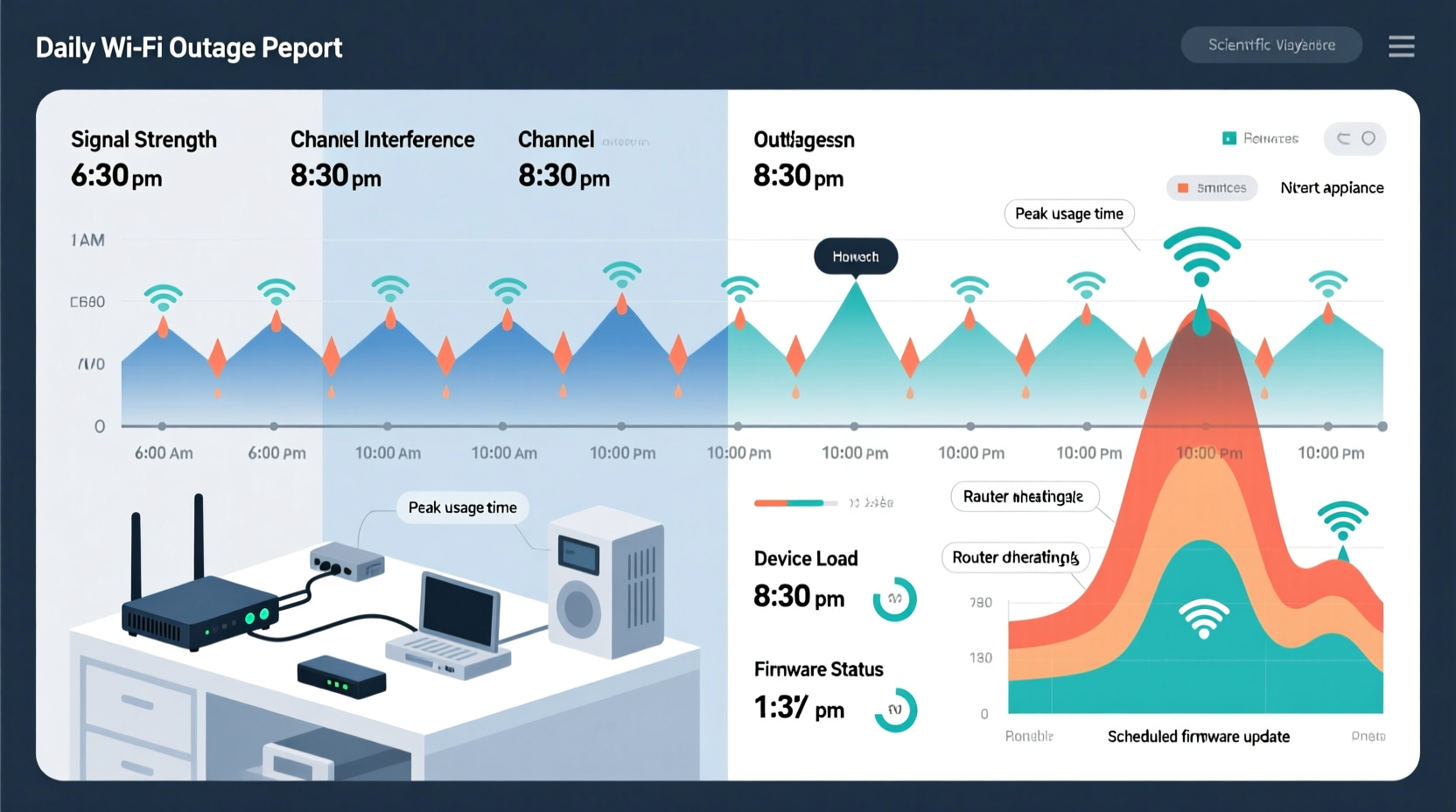
Daily disconnections aren’t typically due to hardware failure unless the timing aligns with usage spikes or environmental changes. More often, they stem from automation, interference, or network policies. Below are the primary culprits:
- Scheduled router reboots: Some ISPs configure routers to restart automatically during off-peak hours to clear cache and apply updates.
- Interference from household devices: Microwaves, cordless phones, baby monitors, or smart home hubs operating on the 2.4 GHz band can disrupt signals at predictable times.
- ISP throttling or maintenance: Internet providers sometimes perform network maintenance or bandwidth adjustments during low-usage periods, which may impact connectivity.
- Overheating routers: If your router sits in direct sunlight or an enclosed space, it may overheat after prolonged use—especially during peak internet hours.
- Automatic firmware updates: Routers may install updates without notification, requiring a brief restart that interrupts service.
- Neighboring networks: In dense urban areas, nearby routers might sync up during high-usage times (e.g., after school or work), creating channel congestion.
How to Identify Your Router’s Behavior Patterns
To determine whether your router is the source of the issue, begin by analyzing its behavior over several days. Most modern routers provide access to logs, uptime statistics, and performance metrics through their admin interface.
- Access your router’s admin panel: Open a browser and enter your router’s IP address (commonly 192.168.1.1 or 192.168.0.1). Log in using your credentials (often found on a sticker on the device).
- Check system logs: Navigate to the \"System Log\" or \"Event Log\" section. Look for entries such as “Reboot,” “Firmware Update,” or “Connection Lost” occurring at the same time daily.
- Monitor uptime: If your router shows a consistent uptime of exactly 24 hours before dropping, it may be set to reboot automatically each day.
- Review connected devices: See if any smart devices (like thermostats or security cameras) activate simultaneously with the outage and consume large bandwidth.
Some routers also support third-party firmware like DD-WRT or OpenWRT, which offer enhanced logging and scheduling features. Upgrading firmware—even within the stock version—can resolve bugs causing unexpected resets.
Mini Case Study: The Evening Microwave Interference
Consider Sarah, a remote worker living in an apartment complex. She noticed her Zoom calls consistently froze at 6:45 PM. After ruling out ISP issues and device problems, she began tracking household activity. She discovered the dropout coincided precisely with her downstairs neighbor turning on the microwave for dinner prep. Using a Wi-Fi analyzer app, she confirmed strong interference on channel 9—the same channel her router used. By switching her router to channel 1 or 11 (less congested), she eliminated the nightly disruption without needing new equipment.
External Factors That Trigger Timed Outages
Not all causes originate from your router. External influences—some within your control, others not—can create repeating interference patterns.
| Factor | Description | Solution |
|---|---|---|
| Smart Home Devices | Devices like robotic vacuums, security systems, or lighting hubs may initiate syncs or updates at fixed times. | Reschedule updates or isolate devices on a guest network. |
| Neighbor Network Congestion | In apartments, multiple routers may operate on overlapping channels during peak hours. | Switch to 5 GHz band or change Wi-Fi channel manually. |
| Electricity Fluctuations | Power dips or surges at certain times can reset poorly protected routers. | Use a surge protector or UPS battery backup. |
| ISP Scheduled Maintenance | Providers often run diagnostics or roll out updates between 1 AM–5 AM. | Contact ISP to confirm schedule; consider upgrading service tier. |
| Environmental Heat Buildup | Routers in cabinets or near heating vents may throttle performance when temperatures rise. | Relocate router to open, cool area with airflow. |
“Many ‘random’ Wi-Fi issues are actually time-based events masked as instability. Pattern recognition is half the battle.” — Marcus Tran, Network Infrastructure Engineer at NetSecure Solutions
Step-by-Step Guide to Diagnose and Fix Daily Dropouts
Follow this structured approach to isolate and resolve your timed Wi-Fi outage:
- Document the outage pattern: For three consecutive days, record the exact time, duration, and affected devices. Note any concurrent activities (e.g., appliance use, video streaming).
- Restart and update your router: Perform a manual reboot and check for firmware updates in the admin panel. Outdated firmware can cause unexplained resets.
- Test on different bands: If your router supports dual-band (2.4 GHz and 5 GHz), connect a device to each and observe which one drops. The 2.4 GHz band is more prone to interference.
- Scan for interference: Use free apps like Wi-Fi Analyzer (Android) or NetSpot (Windows/Mac) to visualize nearby networks and signal strength throughout the day.
- Disable QoS or parental controls temporarily: Some routers have Quality of Service (QoS) settings that limit bandwidth at scheduled times. Disable these to test if they’re causing disconnections.
- Check for automatic reboot settings: In your router settings, look under “Maintenance,” “Administration,” or “System Tools” for options like “Auto Reboot” or “Scheduled Restart.” Turn it off if enabled.
- Contact your ISP: Ask if they perform routine maintenance, shape traffic, or push updates at specific times. Request logs if available.
- Upgrade hardware if necessary: Older routers (more than 3–5 years old) may struggle with modern demands. Consider replacing with a mesh system or Wi-Fi 6 model.
Troubleshooting Checklist
- ✅ Record outage time and duration for 3 days
- ✅ Reboot router and check for firmware updates
- ✅ Access router admin panel and review system logs
- ✅ Disable any scheduled reboot or parental control timers
- ✅ Switch Wi-Fi channel to avoid congestion
- ✅ Test connection on both 2.4 GHz and 5 GHz bands
- ✅ Use a Wi-Fi analyzer app to detect interference
- ✅ Contact ISP to inquire about maintenance schedules
- ✅ Relocate router to cooler, central location
- ✅ Consider upgrading to a newer router or mesh system
Frequently Asked Questions
Why does my Wi-Fi keep dropping at 3 AM?
This is commonly caused by automatic router reboots or ISP maintenance. Many internet providers schedule updates and network optimizations during late-night hours when usage is lowest. Check your router’s admin settings for a “Scheduled Reboot” option and contact your ISP to confirm if they perform overnight maintenance.
Can a microwave really disrupt my Wi-Fi every day?
Yes. Microwaves emit electromagnetic radiation around 2.4 GHz—the same frequency used by many Wi-Fi routers. When operating, they can drown out nearby signals, especially if your router is close or using an overlapping channel. This interference typically lasts only while the microwave is running, explaining the short, repeatable outage.
Is it normal for a router to restart itself?
While not standard, some ISPs configure routers to reboot automatically to prevent memory leaks and maintain performance. However, unscheduled or undocumented restarts may indicate overheating, power issues, or outdated firmware. If self-restarts persist, investigate further or request a replacement from your provider.
Preventing Future Recurring Issues
Once you’ve resolved the immediate problem, take steps to minimize future disruptions. Proactive maintenance ensures long-term stability:
- Set up notifications: Some advanced routers can email or push alerts when a reboot occurs or connection is lost.
- Enable band steering: If you have a dual-band router, enable band steering so devices automatically use the less congested 5 GHz band.
- Use static IP assignments: Assign fixed IPs to critical devices to reduce DHCP-related hiccups during network shifts.
- Monitor temperature: Place a small thermometer near your router. If it exceeds 40°C (104°F) regularly, improve ventilation or add cooling pads.
- Schedule speed tests: Use online tools or apps to run automated speed tests at various times of day, helping catch degradation early.
Additionally, consider transitioning to a mesh Wi-Fi system if you live in a larger home. These systems offer better coverage, self-healing networks, and centralized management dashboards that make spotting patterns easier.
Conclusion: Take Control of Your Connection
Daily Wi-Fi outages don’t have to be a mystery. With careful observation and systematic troubleshooting, most timed disruptions can be traced to a single root cause—whether it’s a misconfigured setting, environmental interference, or ISP policy. The key is consistency in monitoring and willingness to dig into your router’s settings. Once identified, most issues are easily corrected with a few clicks or a simple hardware adjustment.




 浙公网安备
33010002000092号
浙公网安备
33010002000092号 浙B2-20120091-4
Comments
No comments yet. Why don't you start the discussion?