
Video calls have become essential—for work, school, or staying connected with loved ones. But nothing disrupts focus and professionalism like a frozen screen or sudden disconnection. While you might blame your internet provider or device, the real culprit is often closer: your router. Many people overlook how basic router behavior, placement, and settings can directly impact call quality. The good news? Most issues are fixable with simple, low-cost adjustments. Understanding why your WiFi cuts out—and how to stop it—can transform your online experience from frustrating to seamless.
Why WiFi Drops During Video Calls
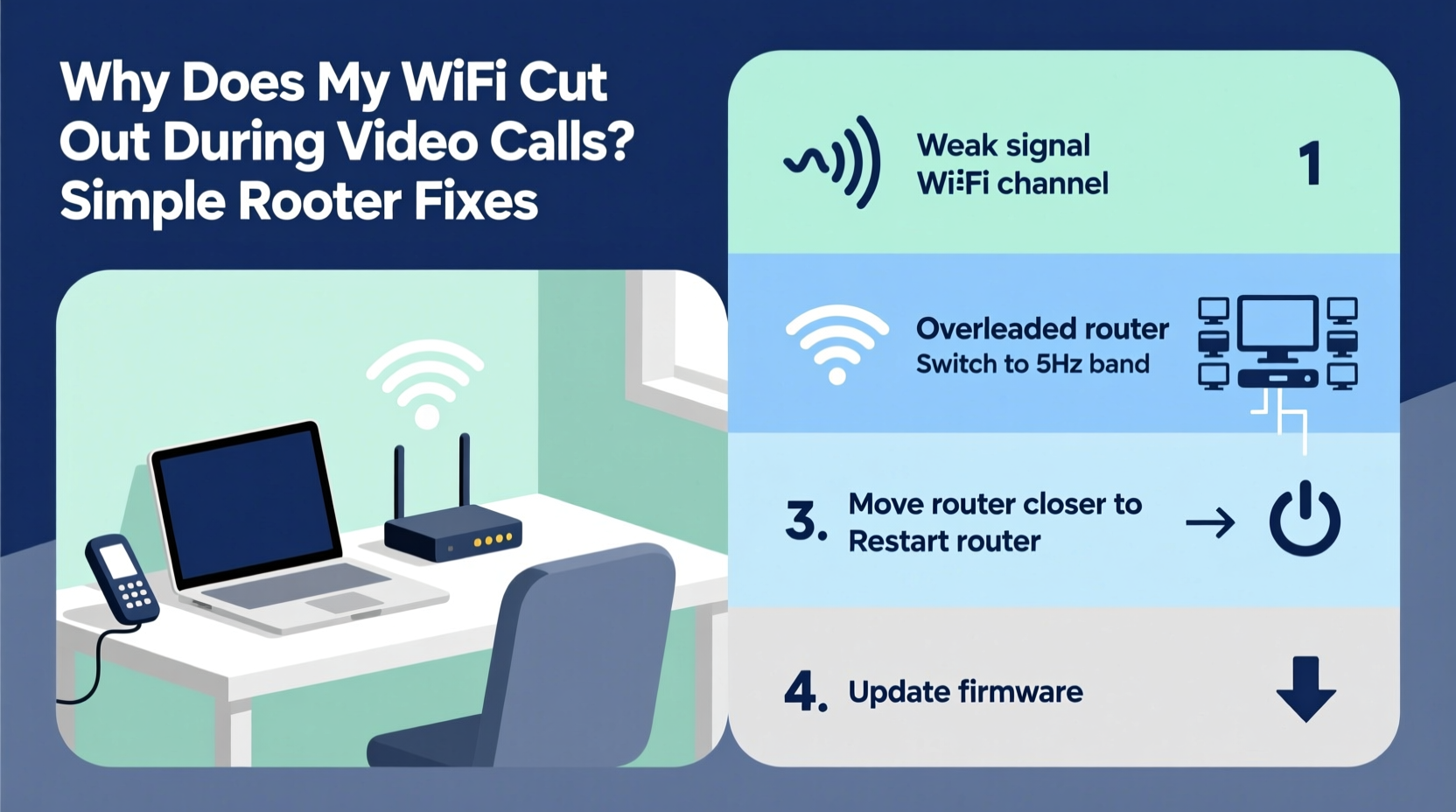
Video calls demand consistent bandwidth and low latency. Unlike browsing or streaming, which can buffer and recover, real-time communication requires uninterrupted data flow. When your WiFi stutters, packets of information are delayed or lost, leading to audio glitches, frozen video, or complete disconnections.
Routers manage traffic between your devices and the internet. Over time, they can become overwhelmed by interference, outdated firmware, poor placement, or congestion from multiple connected devices. Even if your internet speed test looks fine, inconsistent performance during peak usage times—like mid-morning team meetings—is a sign of underlying network instability.
“WiFi dropouts during video calls are rarely about raw speed. They’re usually due to signal interference, device overload, or router inefficiency.” — David Lin, Network Infrastructure Engineer at NetSignal Labs
5 Simple Router Fixes to Stop WiFi Dropouts
You don’t need technical expertise or expensive upgrades to improve your connection. These practical fixes address the most common causes of video call disruptions.
1. Reboot Your Router Regularly
Like any electronic device, routers accumulate memory leaks and temporary errors over time. A simple reboot clears the cache, resets connections, and refreshes the system. This is especially important if your router has been running continuously for weeks.
Rebooting won’t solve structural issues, but it’s the fastest way to rule out temporary glitches. If your calls stabilize after a restart, it’s a sign your router needs regular maintenance.
2. Optimize Router Placement
Where you place your router dramatically affects signal strength. Walls, metal objects, appliances, and even mirrors can block or reflect WiFi signals. If your router is tucked behind a cabinet or in a basement, your devices may struggle to maintain a stable connection.
- Place the router in a central, elevated location (e.g., on a shelf).
- Avoid proximity to microwaves, cordless phones, or Bluetooth speakers.
- Keep it away from large metal objects and thick concrete walls.
- Ensure antennas are vertical for optimal coverage.
If possible, position yourself within line of sight of the router during critical calls. Even moving your laptop a few feet closer can make a noticeable difference.
3. Switch to the 5 GHz Band
Most modern routers broadcast two networks: 2.4 GHz and 5 GHz. The 2.4 GHz band travels farther but is slower and more congested—common in densely populated areas. The 5 GHz band is faster and less prone to interference, making it ideal for video calls.
If your devices support 5 GHz (most laptops and smartphones do), connect to that network instead. You may see both names when selecting WiFi—look for one labeled “_5G” or similar.
| Band | Speed | Range | Best For |
|---|---|---|---|
| 2.4 GHz | Slower | Longer range | Smart home devices, basic browsing |
| 5 GHz | Faster | Shorter range | Video calls, HD streaming, gaming |
Note: 5 GHz doesn’t penetrate walls as well, so you’ll need to be relatively close to the router. But for high-bandwidth tasks, it’s worth the trade-off.
4. Limit Connected Devices During Calls
Every device on your network consumes bandwidth. Background activities like software updates, cloud backups, or video streaming on smart TVs can starve your video call of necessary resources—even if you’re not actively using them.
Before an important meeting:
- Pause large downloads or uploads.
- Turn off smart TVs, gaming consoles, or secondary devices.
- Ask household members to avoid bandwidth-heavy tasks.
Some routers offer Quality of Service (QoS) settings, allowing you to prioritize specific devices or applications. If available, set your laptop or phone as a priority during calls.
5. Update Router Firmware
Manufacturers release firmware updates to fix bugs, improve security, and enhance performance. An outdated router may lack optimizations for handling real-time traffic efficiently.
To update:
- Access your router’s admin page (usually via 192.168.1.1 or 192.168.0.1 in a browser).
- Log in with your admin credentials (check the router label or manual).
- Navigate to the firmware or system section.
- Check for updates and install if available.
Not all routers notify you of updates automatically. Check every few months, especially if you notice new connectivity issues.
Step-by-Step Guide: Stabilize Your WiFi in 20 Minutes
Follow this quick routine before your next video call to minimize disruptions:
- Reboot the router – Unplug for 30 seconds, then reconnect.
- Move closer to the router – Reduce physical barriers and distance.
- Switch to 5 GHz – Select the faster band in your WiFi settings.
- Disconnect non-essential devices – Temporarily turn off tablets, smart speakers, etc.
- Close background apps – Shut down cloud sync tools, game clients, or streaming apps.
- Test your connection – Run a speed test at speedtest.net to confirm stability.
This sequence addresses the most common causes of dropouts. If your call remains stable, repeat the process regularly. If problems persist, deeper troubleshooting may be needed.
Real-World Example: Fixing Remote Work Disruptions
Sarah, a project manager in Chicago, struggled with daily Zoom call disconnections. Her internet plan was 100 Mbps, and her laptop was new—yet she’d freeze mid-sentence multiple times per meeting. Frustrated, she contacted her ISP, who confirmed no outages.
After reviewing her setup, she realized her router was in a closet near the kitchen. The microwave and refrigerator were causing interference, and the thick door blocked the signal. She moved the router to a shelf in the living room, switched to the 5 GHz network, and started rebooting it weekly.
The result? No more dropouts. Her team noticed the improvement immediately. “I went from apologizing every day to delivering presentations smoothly,” she said. “It wasn’t my internet—it was my router’s environment.”
Do’s and Don’ts for Stable Video Calls
| Do | Don't |
|---|---|
| Use wired Ethernet when possible | Run large downloads during calls |
| Position router centrally and openly | Place router near appliances or metal objects |
| Connect to 5 GHz for high-bandwidth tasks | Ignore firmware updates |
| Limit active devices on the network | Assume higher speed plans fix all issues |
| Reboot router weekly | Leave router in overheated or enclosed spaces |
These guidelines help prevent recurring issues. Small habits compound into reliable performance over time.
Troubleshooting Checklist
- ✅ Reboot router today
- ✅ Confirm connection to 5 GHz network
- ✅ Move router to open, central location
- ✅ Disconnect unused devices
- ✅ Close bandwidth-heavy apps (Dropbox, Steam, etc.)
- ✅ Check for firmware updates
- ✅ Test call quality with a short trial run
Run through this list before each important meeting. It takes less than five minutes and significantly reduces the risk of technical hiccups.
Frequently Asked Questions
Can a better router really stop video call dropouts?
Yes. Older or entry-level routers often lack advanced features like beamforming, dual-band optimization, or MU-MIMO (multi-user, multiple input, multiple output). Upgrading to a modern AC or AX (Wi-Fi 6) router improves signal stability and device management, especially in homes with multiple users.
Is Ethernet better than WiFi for video calls?
Absolutely. Wired connections eliminate wireless interference and provide consistent latency and bandwidth. If your workspace allows, use an Ethernet cable. It’s the single most effective way to ensure call reliability—even more than upgrading your internet plan.
Why does my WiFi work fine otherwise but drops during calls?
General browsing uses small bursts of data, while video calls require steady, two-way transmission. Latency spikes or momentary packet loss go unnoticed when loading web pages but cause visible disruptions in real-time communication. This sensitivity makes calls a “stress test” for your network.
Final Thoughts: Take Control of Your Connection
Your WiFi shouldn’t sabotage your productivity. Most video call disruptions stem from overlooked router habits—not faulty equipment or insufficient speed. By repositioning your router, switching to the right frequency, managing connected devices, and maintaining your hardware, you regain control over your digital experience.
Start with one fix—like rebooting or changing bands—and build from there. Small changes yield immediate results. Once you’ve stabilized your connection, share what worked with colleagues or family. In a world where virtual presence matters, a reliable connection isn’t a luxury—it’s a necessity.




 浙公网安备
33010002000092号
浙公网安备
33010002000092号 浙B2-20120091-4
Comments
No comments yet. Why don't you start the discussion?