
Video calls have become essential for work, education, and staying connected with loved ones. Yet few things are more frustrating than a sudden Wi-Fi dropout mid-conversation. You’re in the middle of an important presentation or a heartfelt catch-up, only to be frozen on screen or disconnected entirely. While it may feel like random bad luck, intermittent Wi-Fi during video calls is usually rooted in identifiable causes—many of which can be resolved with targeted fixes.
This guide dives into the technical and environmental factors behind unstable connections, offering actionable steps to diagnose and resolve issues. Whether you're using Zoom, Microsoft Teams, Google Meet, or another platform, these strategies will help you maintain a consistent signal and avoid embarrassing disconnections.
Understanding Why Wi-Fi Fails During Video Calls
Video conferencing demands more from your network than typical browsing. It requires steady upload and download speeds, low latency, and minimal packet loss. When any of these elements falter, your call suffers. Unlike streaming a movie, where buffering can mask delays, video calls are real-time—any lag or interruption becomes immediately apparent.
Common culprits include bandwidth congestion, outdated hardware, physical obstructions, interference from other devices, and ISP limitations. The issue may not lie with your internet plan alone; it could stem from how your home network is configured or how your device manages wireless signals.
“Real-time communication exposes network weaknesses that casual browsing never reveals.” — Dr. Lena Patel, Network Performance Analyst at Broadband Insights Group
Step-by-Step Troubleshooting Guide
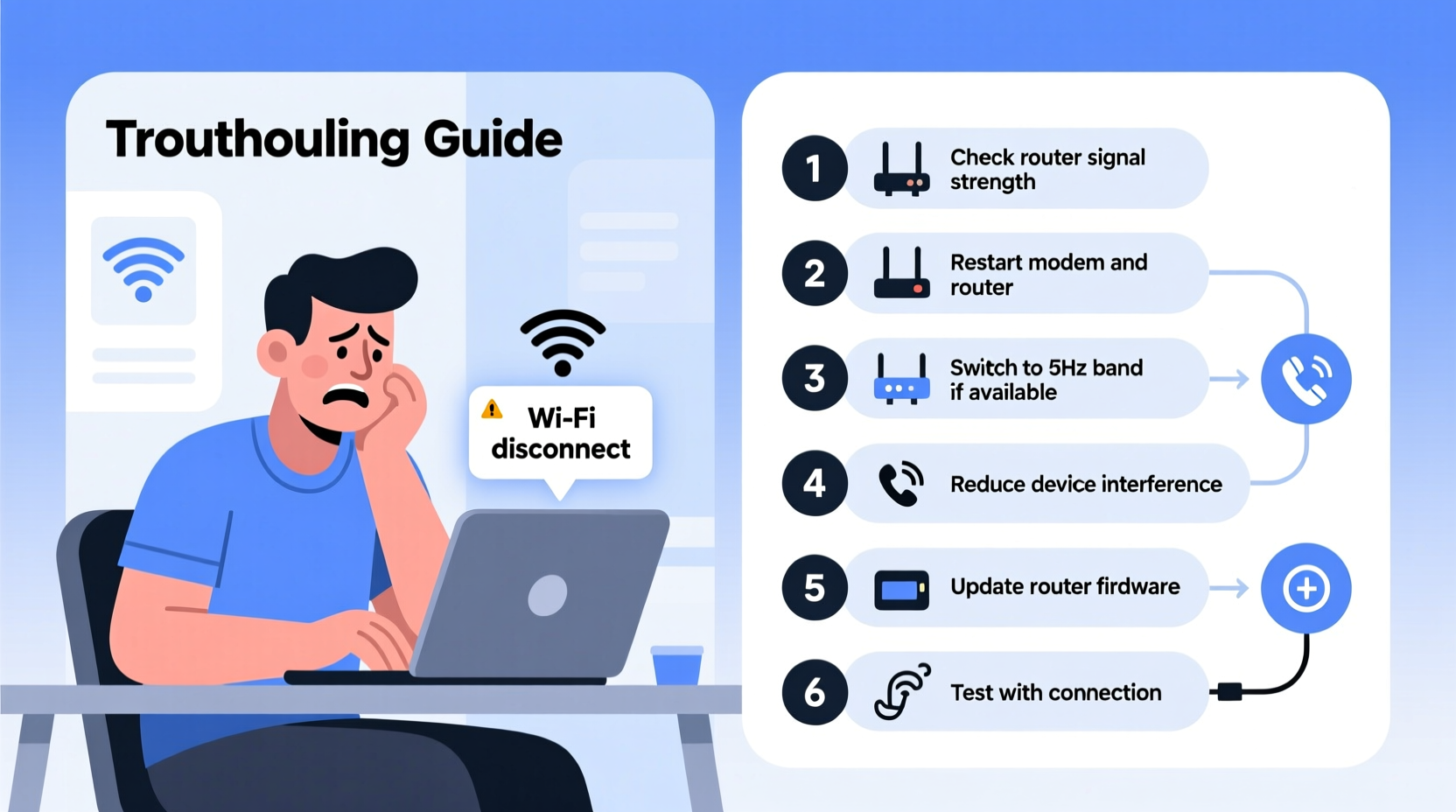
Follow this structured approach to identify and fix the root cause of your Wi-Fi instability during video calls.
- Test Your Internet Speed
Use a reliable speed test tool (like Speedtest.net or Fast.com) while running a video call. Look specifically at upload speed—most video platforms require at least 1.5 Mbps for HD quality. If your upload speed drops significantly during the call, bandwidth is likely the bottleneck. - Check for Network Congestion
Other devices on your network may be consuming bandwidth. Streaming, gaming, cloud backups, or automatic updates can starve your video call of resources. Disconnect or pause non-essential devices temporarily. - Restart Your Router and Modem
Power cycle your networking equipment by unplugging both the modem and router for 30 seconds, then plugging them back in. This clears temporary glitches and resets IP assignments, often resolving connectivity hiccups. - Move Closer to the Router
Distance and physical barriers weaken Wi-Fi signals. Concrete walls, metal appliances, and even mirrors can block or reflect signals. Try moving your device closer to the router or eliminating obstacles between them. - Switch to 5 GHz Band if Available
If your router supports dual-band Wi-Fi, connect to the 5 GHz network instead of 2.4 GHz. The 5 GHz band offers faster speeds and less interference, though its range is shorter. Ideal for devices within one room of the router. - Update Firmware and Drivers
Outdated router firmware or network adapter drivers can cause instability. Check your router manufacturer’s website for updates. On your computer, ensure your OS and Wi-Fi drivers are current. - Limit Background Applications
Applications like Dropbox, OneDrive, or software updaters may sync in the background, consuming bandwidth. Close unnecessary programs before starting a call.
Do’s and Don’ts of Home Wi-Fi Optimization
| Do | Don't |
|---|---|
| Place your router centrally, elevated, and away from walls or metal objects | Hide your router in a cabinet or basement corner |
| Use Quality of Service (QoS) settings to prioritize video traffic | Allow multiple 4K streams during a critical meeting |
| Upgrade to a mesh Wi-Fi system for larger homes | Rely on outdated routers more than 3–5 years old |
| Use Ethernet whenever possible for maximum stability | Assume strong signal bars mean good performance |
| Reboot your router weekly as preventive maintenance | Ignore recurring dropouts—they rarely fix themselves |
When Wi-Fi Isn’t Enough: Wired Connections and Network Upgrades
If troubleshooting doesn’t eliminate dropouts, consider upgrading your setup. A wired Ethernet connection bypasses Wi-Fi entirely, offering unmatched reliability. Even in modern laptops without Ethernet ports, USB-to-Ethernet adapters are inexpensive and effective.
For homes with persistent dead zones, a mesh Wi-Fi system (such as Google Nest Wifi, Eero, or Netgear Orbi) can provide seamless coverage across multiple floors. These systems use satellite nodes to extend the signal, eliminating weak spots.
Additionally, evaluate your internet plan. If you frequently host multiple video calls simultaneously or share bandwidth with several users, you may need higher-tier service. For households with 3+ active users, a minimum of 100 Mbps download and 10 Mbps upload is recommended.
Real-World Example: Fixing Remote Work Connectivity
Sarah, a project manager in Austin, experienced frequent disconnections during daily team stand-ups. Her internet speed tests showed 75 Mbps down and 5 Mbps up—on paper, sufficient for video calls. However, her router was located in a closet near the garage, and her laptop relied on a distant 2.4 GHz signal.
After testing various solutions, she moved her router to a central shelf, switched to the 5 GHz band, and enabled QoS to prioritize Zoom traffic. She also connected her desktop via Ethernet for key meetings. These changes eliminated dropouts, and her call quality improved noticeably—even when others in the house were streaming.
Sarah’s case illustrates that raw speed isn’t everything. Signal strength, placement, and traffic management play equally critical roles.
Expert Insight: What ISPs Don’t Always Tell You
Many users assume their ISP guarantees consistent performance. In reality, most residential plans are best-effort services, meaning they don’t guarantee uptime or latency. During peak hours (typically 7–10 PM), network congestion can degrade performance even if your local Wi-Fi is fine.
“Your ISP might deliver the promised speed, but shared neighborhood infrastructure can create bottlenecks during high-usage periods.” — Marcus Tran, Senior Network Engineer at ConnectFirst Telecom
To combat this, consider business-class internet if available. These plans often come with service-level agreements (SLAs), better support, and dedicated bandwidth—worth the investment for professionals relying on uninterrupted connectivity.
Quick Checklist: Stabilize Your Video Call Connection
- ✅ Test both upload and download speeds during a call
- ✅ Restart your router and modem
- ✅ Move closer to the router or remove obstructions
- ✅ Switch to the 5 GHz Wi-Fi band
- ✅ Close bandwidth-heavy apps and background processes
- ✅ Enable Quality of Service (QoS) on your router
- ✅ Connect via Ethernet when possible
- ✅ Upgrade outdated routers or consider a mesh system
- ✅ Contact your ISP if issues persist after local fixes
Frequently Asked Questions
Why does my Wi-Fi work fine for browsing but fail during video calls?
Browsing uses small bursts of data and can tolerate minor delays. Video calls require continuous two-way transmission with strict timing. Even brief interruptions or high latency can disrupt audio and video synchronization, causing freezes or disconnections.
Can too many devices on Wi-Fi cause video call issues?
Yes. Each connected device consumes a portion of available bandwidth and competes for router attention. Multiple smartphones, tablets, smart TVs, and IoT devices can overwhelm older or lower-end routers, leading to dropped packets and unstable connections during real-time applications.
Does restarting my router really help?
Often, yes. Routers accumulate memory leaks, failed connections, and routing table errors over time. A restart clears these issues and re-establishes a clean connection with your ISP. Make it a habit to reboot your router weekly, especially if you work from home.
Conclusion: Take Control of Your Connection
Wi-Fi dropouts during video calls are more than just annoying—they can damage professional credibility and disrupt personal relationships. But with systematic troubleshooting, strategic upgrades, and proactive habits, you can achieve a stable, reliable connection.
Start with simple fixes: reposition your router, switch bands, and manage bandwidth. Then progress to advanced solutions like Ethernet cabling or mesh networks. Most importantly, don’t accept poor performance as inevitable. Your internet experience is shaped by choices—many of which are within your control.




 浙公网安备
33010002000092号
浙公网安备
33010002000092号 浙B2-20120091-4
Comments
No comments yet. Why don't you start the discussion?