
It’s a familiar frustration: your WiFi works fine with one or two devices, but as soon as more join the network—your phone, laptop, smart TV, and kids’ tablets—the connection slows to a crawl or drops entirely. You're not imagining it. This is a real and increasingly common issue in modern homes, where the average household now has over 15 connected devices. The root causes range from outdated hardware to poor network configuration. The good news? Most of these problems can be diagnosed and fixed without calling a technician.
Understanding the Root Causes
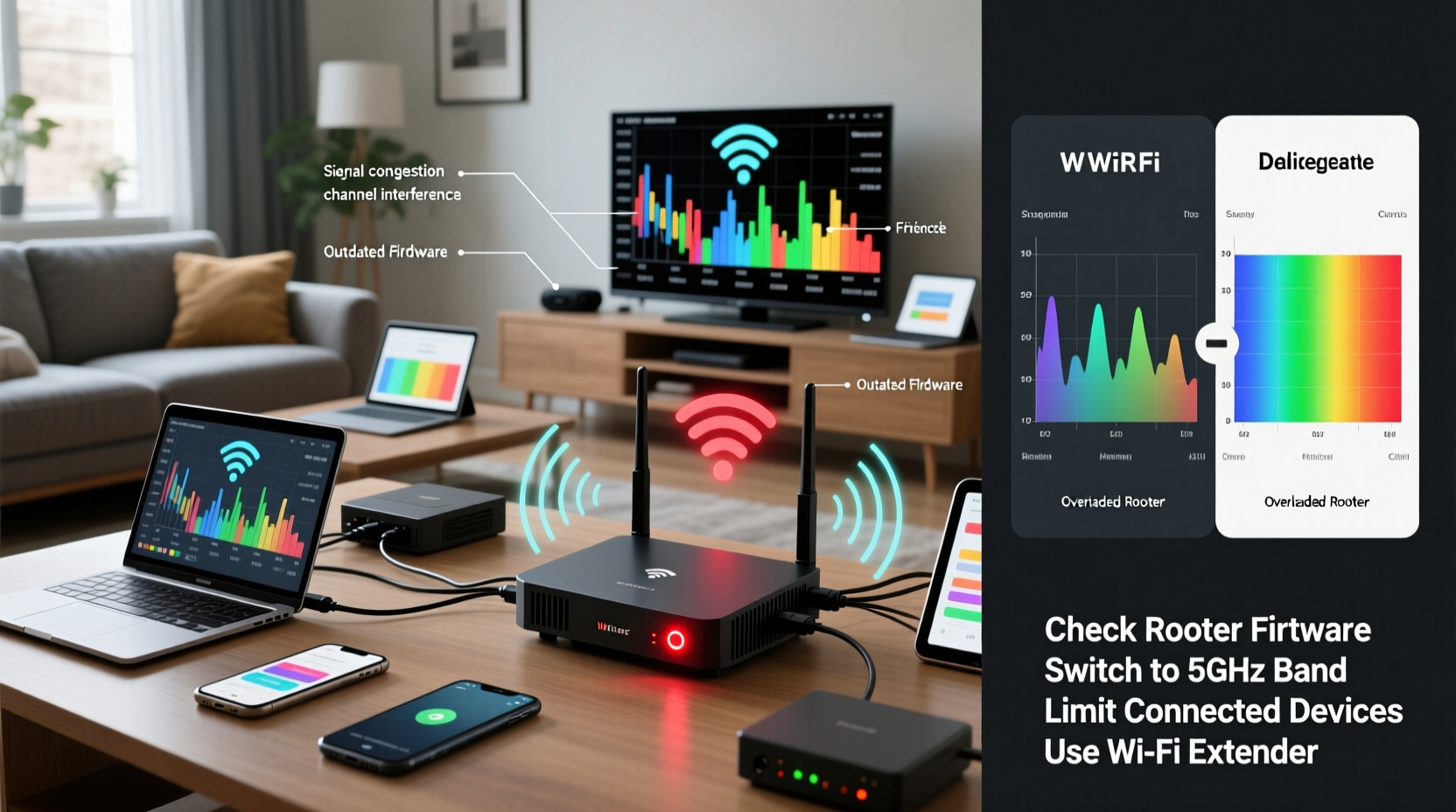
WiFi instability under load isn’t random—it's usually the result of bandwidth saturation, interference, or router limitations. When multiple devices connect simultaneously, they compete for limited airtime on your wireless network. Each device sends and receives data through radio signals, and if your router can't manage that traffic efficiently, performance degrades.
Modern homes run everything from video calls and 4K streaming to smart thermostats and security cameras. These devices don’t just use bandwidth; they maintain constant connections, creating persistent background demand. Older routers, especially those using outdated standards like 802.11n (Wi-Fi 4), struggle with this level of concurrency.
Additionally, many people overlook physical factors such as distance from the router, building materials (like concrete walls), and signal interference from microwaves or neighboring networks. All contribute to poor performance when demand increases.
“Most WiFi issues under multi-device load stem from capacity mismatches—not necessarily speed, but how many devices the network can handle at once.” — Raj Patel, Network Infrastructure Engineer at NetSignal Labs
Step-by-Step Guide to Diagnose and Fix the Problem
Before investing in new gear, follow this logical troubleshooting sequence to identify and resolve the core issue.
- Check your internet plan and actual speeds. Run a speed test on a single device while others are disconnected. If you’re not getting close to your subscribed speed, the problem may lie with your ISP, not your WiFi.
- Reboot your router and modem. Power down both devices, wait 60 seconds, then power the modem first, followed by the router. This clears temporary glitches and refreshes IP assignments.
- Count active devices. Log into your router’s admin panel (usually via 192.168.1.1 or 192.168.0.1) and check how many devices are currently connected. Remove any unknown or unused ones.
- Update router firmware. Manufacturers release updates to fix bugs and improve stability. Check your router brand’s support page or the admin dashboard for available updates.
- Change the WiFi channel. In crowded areas, overlapping channels cause interference. Use a tool like Wi-Fi Analyzer (Android) or built-in macOS tools to find the least congested 2.4GHz or 5GHz channel and manually set it in your router settings.
- Enable Quality of Service (QoS). QoS lets you prioritize critical devices (e.g., your work laptop) over less important ones (e.g., a smart light bulb). This prevents bandwidth hogs from disrupting key tasks.
Upgrade Your Hardware Strategically
If basic troubleshooting doesn’t help, your hardware may be the bottleneck. Consider these upgrades based on your home size and usage needs.
| Scenario | Recommended Solution | Expected Benefit |
|---|---|---|
| Small apartment, 5–8 devices | Wi-Fi 6 (802.11ax) single router | Better efficiency, reduced latency, improved multi-device handling |
| Medium home, 10+ devices, thick walls | Mesh WiFi system (e.g., Eero, TP-Link Deco) | Seamless coverage, automatic band steering, unified network |
| Large home, heavy streaming/gaming | Tri-band mesh with dedicated backhaul | Less congestion, faster speeds between nodes, consistent performance |
| Older home, rental restrictions | Powerline adapter + access point | Uses electrical wiring to extend signal where WiFi struggles |
Wi-Fi 6 routers are particularly effective because they use OFDMA (Orthogonal Frequency Division Multiple Access) technology to serve multiple devices simultaneously rather than cycling through them one by one. This reduces lag and improves throughput under load.
When to Replace Your Router
If your router is more than four years old, especially if it only supports 802.11ac or earlier, replacement should be your top priority. Look for models with:
- Support for Wi-Fi 6 or Wi-Fi 6E
- Dual or tri-band operation (5GHz + 5GHz dedicated backhaul)
- At least 1GB RAM and a dual-core processor
- Beamforming technology for stronger targeted signals
Optimize Device Behavior and Network Settings
Even with great hardware, poor habits can degrade performance. Many users don’t realize that devices continue to sync, update, and stream in the background—even when idle.
Common Offenders That Drain Bandwidth
- Automatic app updates (iOS, Android, Windows)
- Cloud backup services (iCloud, Google Photos, Dropbox)
- Smart home hubs syncing with servers
- Streaming apps preloading content (Netflix, YouTube)
- Gaming consoles checking for patches
These processes often activate simultaneously after waking from sleep or reconnecting to WiFi, causing sudden spikes in demand.
Mini Case Study: The Martinez Family
The Martinez family in Austin, Texas, struggled with nightly WiFi crashes every evening at 7 PM. Their 3-year-old router served 12 devices: three laptops, four phones, two TVs, a gaming console, and several smart home gadgets. After ruling out ISP issues, they discovered their children’s tablets were downloading weekly educational updates automatically at the same time the parents started video calls.
By enabling QoS and scheduling updates for early morning, and upgrading to a Wi-Fi 6 mesh system, they eliminated dropouts. “We didn’t realize how much silent traffic was happening,” said Maria Martinez. “Now the network feels faster even with more devices online.”
Preventative Maintenance Checklist
To keep your network stable long-term, follow this monthly checklist:
- ✅ Reboot router and modem
- ✅ Review connected devices; remove unknowns
- ✅ Check for firmware updates
- ✅ Test speeds on multiple devices
- ✅ Verify QoS settings are active
- ✅ Scan for nearby network congestion
- ✅ Clean dust from router vents (overheating reduces performance)
Frequently Asked Questions
Can too many devices permanently damage my router?
No, having many devices won’t physically damage your router. However, sustained high loads can cause overheating, especially in poorly ventilated areas, which may shorten its lifespan. Make sure your router has space around it for airflow.
Does turning off WiFi on unused devices help?
Yes. Even idle devices maintain a connection handshake with the router, consuming resources. Turning off WiFi on devices you aren’t using frees up airtime and reduces overhead, improving stability for active devices.
Is 5GHz better for multiple devices than 2.4GHz?
Generally, yes. The 5GHz band offers faster speeds and less interference, making it ideal for streaming and video calls. However, it has shorter range and weaker wall penetration. Modern dual-band routers automatically steer capable devices to 5GHz. For best results, ensure older devices aren’t hogging the 2.4GHz band unnecessarily.
Advanced Tips for Power Users
If you're comfortable with technical settings, consider these advanced optimizations:
- Set up separate SSIDs: Create different network names for 2.4GHz and 5GHz bands. This gives you control over which devices use which band.
- Limit DHCP pool size: If your router allows it, restrict the number of assignable IP addresses to prevent unauthorized access and reduce strain.
- Use wired connections when possible: Connect desktops, TVs, and game consoles via Ethernet. This frees up wireless capacity and provides a more stable link.
- Monitor network usage: Tools like Fing, Wireshark, or router-based analytics (e.g., ASUS Router App) show real-time bandwidth consumption per device.
For households with remote workers or students, setting up a guest network for IoT devices (smart lights, speakers, appliances) isolates low-priority traffic and enhances security.
Conclusion: Take Control of Your Home Network
WiFi cutting out under multiple connections is a solvable problem—not an inevitable part of modern life. By understanding the limitations of your current setup and applying targeted fixes, you can achieve smooth, reliable performance no matter how many devices are online. Start with simple steps like rebooting and updating firmware, then assess whether a hardware upgrade makes sense for your lifestyle.
A stable WiFi network isn’t just about convenience; it affects productivity, entertainment, and even safety when smart home systems rely on connectivity. Don’t accept spotty service as normal. With the right knowledge and tools, you can build a resilient network that keeps up with your digital demands.




 浙公网安备
33010002000092号
浙公网安备
33010002000092号 浙B2-20120091-4
Comments
No comments yet. Why don't you start the discussion?