
If your Wi-Fi cuts out every night just as you're settling in to stream a movie or join a video call, you're not alone. Millions of households experience nighttime connectivity drops, often without understanding the cause. Unlike random glitches, these recurring disruptions usually stem from predictable patterns tied to usage, environment, and network congestion. The good news: most issues are fixable with practical adjustments—no technician required.
This guide dives into the real reasons behind nightly Wi-Fi disconnections and provides actionable solutions that anyone can implement. From router placement to ISP throttling, we’ll cover what’s likely affecting your signal and how to create a more stable, reliable home network.
Common Causes of Nighttime Wi-Fi Disconnections
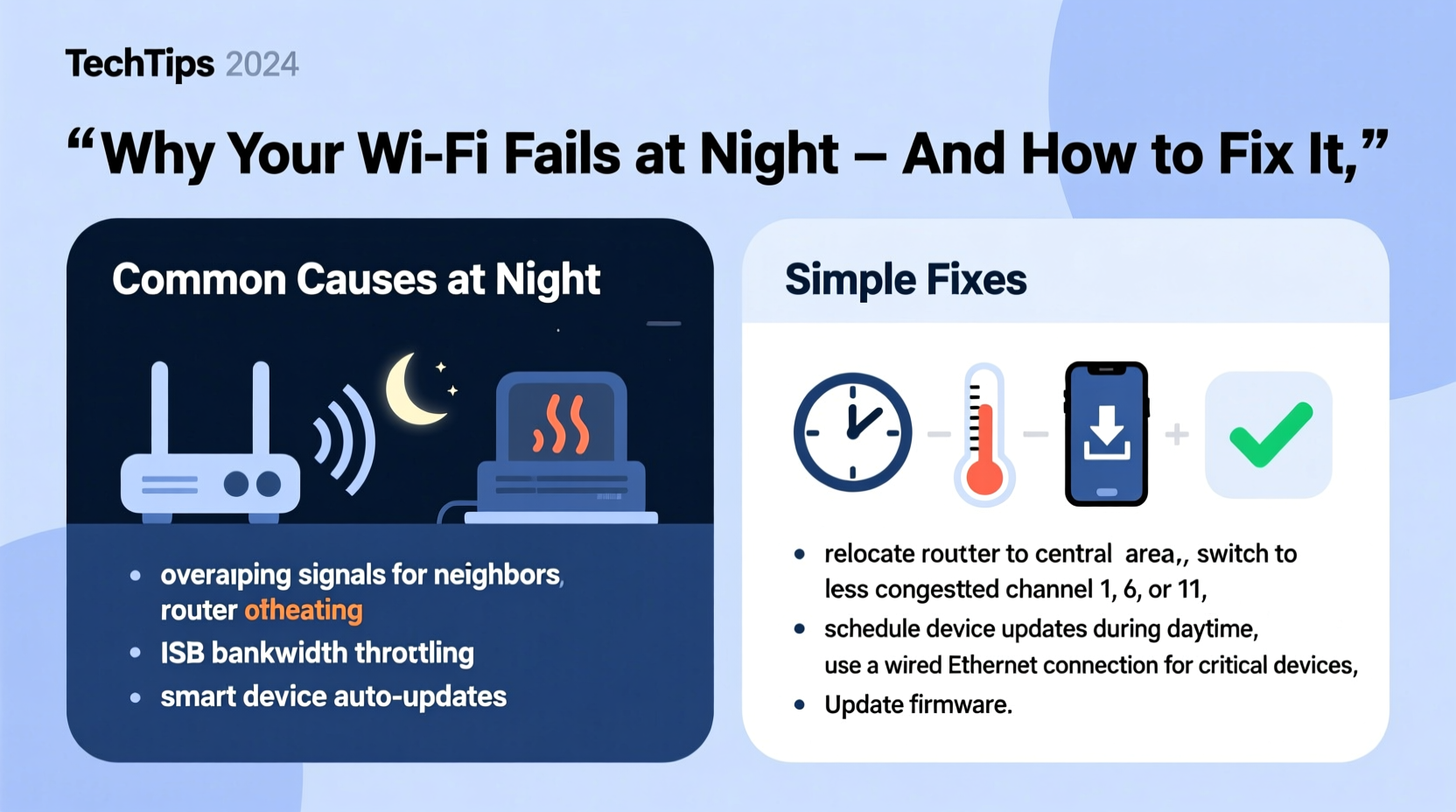
The evening hours transform your home network. Devices come online, bandwidth demand spikes, and background processes activate. These changes expose weaknesses in your setup that may go unnoticed during the day.
- Network Congestion: As family members return home, multiple devices connect simultaneously—smartphones, tablets, smart TVs, gaming consoles. This surge can overwhelm older routers or slow modems.
- ISP Throttling or Network Overload: Some internet service providers reduce speeds during peak hours (typically 6 PM to 10 PM) when regional traffic is high. Others may throttle specific types of data like video streaming.
- Overheating Equipment: Routers and modems generate heat. If placed in enclosed spaces or near other electronics, prolonged use can cause thermal shutdowns, especially after hours of continuous operation.
- Wireless Interference: Common household devices like microwaves, cordless phones, baby monitors, and even LED lights emit signals on the 2.4 GHz band, which many Wi-Fi networks use. Evening appliance use increases interference.
- Scheduled Router Reboots: Some routers are configured—either by default or user settings—to restart automatically at certain times. This can appear as an unexplained disconnection.
- Firmware Bugs: Outdated or buggy firmware can cause instability under load, leading to crashes or signal drops during peak usage.
“Nighttime Wi-Fi issues are rarely random. They’re symptoms of cumulative stress on a network pushed beyond its limits.” — Dr. Marcus Lin, Network Infrastructure Analyst at Broadband Insights Group
Step-by-Step Guide to Diagnose and Fix Nightly Drops
Before making changes, confirm the issue isn’t isolated to one device or application. Follow this timeline over two evenings to identify the root cause.
- Monitor Usage Patterns (Day 1 – 7 PM to 10 PM): Note which devices are active, what they’re doing (streaming, downloading, etc.), and when disconnections occur. Use your router’s admin interface (usually accessible via 192.168.1.1 or similar) to view connected devices.
- Test Wired Connection (Day 1 – 9 PM): Connect a laptop directly to your modem/router using an Ethernet cable. If the wired connection stays stable while Wi-Fi drops, the issue is wireless-specific—likely interference or router limitations.
- Check for Overheating (Day 1 – Post-Disconnect): After a drop, touch the router and modem. If they’re hot to the touch, overheating is likely a factor.
- Run Speed Tests (Day 2 – Every Hour from 6 PM): Use tools like fast.com or speedtest.net to record download/upload speeds and latency. Compare results across time slots. A sharp decline at night suggests ISP throttling or congestion.
- Inspect Router Logs (Day 2 – Morning Review): Log into your router and check system logs for error messages around the time of disconnections. Look for terms like “disassociation,” “reboot,” or “firmware crash.”
- Update Firmware (Day 3): Visit the manufacturer’s website (e.g., Netgear, TP-Link, ASUS) and check for firmware updates. Install if available.
- Change Wi-Fi Channel (Day 3 – Evening): Use a Wi-Fi analyzer app (like Wi-Fi Analyzer for Android or NetSpot for desktop) to find the least congested channel. Switch your router’s 2.4 GHz band to channels 1, 6, or 11—non-overlapping options.
Practical Fixes to Stabilize Your Connection
Once you’ve diagnosed the problem, apply targeted solutions. Many require no additional cost and take less than 15 minutes.
Optimize Router Placement
Place your router centrally, elevated, and away from large metal objects, mirrors, thick walls, and appliances. Avoid basements or closets. Even a few feet can drastically improve coverage.
Switch to 5 GHz Band
If your devices support it, connect them to the 5 GHz network instead of 2.4 GHz. It has shorter range but offers faster speeds and far less interference. Reserve 2.4 GHz for smart home devices that don’t need high bandwidth.
Limit Connected Devices
Not all connected devices need constant access. Disable Wi-Fi on older smartphones, unused tablets, or secondary laptops. You can also use parental controls or device scheduling features in your router to disconnect non-essential gadgets at night.
Enable QoS (Quality of Service)
QoS prioritizes bandwidth for critical tasks. In your router settings, assign higher priority to devices used for video calls or streaming. This prevents one device from hogging the entire connection.
Replace Aging Hardware
Routers older than 3–5 years struggle with modern demands. Consider upgrading to a Wi-Fi 6 (802.11ax) model, which handles multiple devices more efficiently and offers better power management.
Use a Mesh Network System
If your home is larger than 1,500 sq ft or has dead zones, a mesh Wi-Fi system (like Google Nest Wi-Fi or Eero) distributes the signal evenly. Nodes communicate seamlessly, reducing strain on any single point.
Contact Your ISP
If speed tests show consistent slowdowns only at night, contact your provider. Ask: “Do you engage in traffic shaping or throttling during peak hours?” Request a line test and inquire about upgrading to a higher-tier plan with guaranteed minimum speeds.
“We’ve seen a 70% reduction in customer-reported outages after switching to a dual-band mesh system and adjusting QoS settings.” — Lena Patel, Senior Support Engineer at NetSecure Networks
Checklist: Nightly Wi-Fi Stability Audit
Use this checklist weekly to maintain optimal performance:
- ✅ Reboot router and modem once per week (unplug for 30 seconds)
- ✅ Verify all devices are running latest OS updates
- ✅ Confirm firmware on router is up to date
- ✅ Check for new sources of interference (new smart devices, renovations)
- ✅ Run a speed test between 8 PM and 9 PM
- ✅ Review connected devices list for unknown entries
- ✅ Ensure router ventilation is unobstructed
- ✅ Adjust QoS settings if new high-priority devices are added
Wi-Fi Troubleshooting: Do’s and Don’ts
| Do | Don’t |
|---|---|
| Place router centrally and off the floor. Elevation improves signal distribution. | Hide your router in a cabinet. Enclosures block signals and trap heat. |
| Use separate SSIDs for 2.4 GHz and 5 GHz bands. Gives you control over device connections. | <Merge both bands into one network name. Can cause devices to stick to the wrong band. |
| Set a fixed DNS (like Google DNS: 8.8.8.8 or Cloudflare: 1.1.1.1). Often faster and more reliable than ISP defaults. | Leave DNS on automatic. May route through slower or unstable servers. |
| Update passwords regularly and use WPA3 encryption. Prevents unauthorized access. | Use weak or default admin passwords. Leaves your network vulnerable. |
Real Example: How One Family Fixed Their Nightly Dropouts
The Thompsons in Austin, Texas, experienced daily Wi-Fi failures at 8:15 PM. Netflix would buffer, Zoom calls dropped, and their security cameras went offline. After ruling out device issues, they discovered three main culprits:
- Their router was tucked behind a bookshelf in the living room, surrounded by speakers and a microwave.
- All devices—including smart bulbs and an old tablet—were connected to the 2.4 GHz band.
- Their ISP, a regional cable provider, admitted to “managing congestion” during peak hours.
They moved the router to a central hallway shelf, switched streaming devices to 5 GHz, set up QoS for video traffic, and upgraded to a higher-tier plan with no throttling. Within 48 hours, the nightly disconnections stopped completely.
Frequently Asked Questions
Why does my Wi-Fi work fine during the day but fail at night?
Daytime usage is typically lighter. At night, increased device activity, neighbor network overlap, and ISP congestion combine to overload your system. Interference from household appliances used in the evening (like microwaves) also plays a role.
Can too many devices really crash my Wi-Fi?
Yes. Most consumer routers support 20–30 simultaneous connections. Beyond that, performance degrades significantly. Each device consumes bandwidth and processing resources—even when idle. Prioritizing key devices and disconnecting unused ones helps maintain stability.
Should I reboot my router every night?
No. While regular reboots (once a week) clear memory and resolve minor bugs, nightly restarts disrupt service and may indicate a deeper hardware or configuration issue. Instead, address the root cause—overheating, outdated firmware, or signal interference.
Conclusion: Take Control of Your Home Network
Nightly Wi-Fi disconnections aren’t inevitable. With a methodical approach, most issues can be resolved using simple adjustments and smarter habits. Start by observing when and how the drops occur, then apply the fixes that match your situation. Whether it’s relocating your router, updating firmware, or upgrading your plan, each step brings you closer to seamless connectivity.
A stable Wi-Fi network isn’t just about convenience—it’s essential for remote work, education, security systems, and digital well-being. Don’t wait for the next outage. Audit your setup tonight, make one improvement, and build from there.




 浙公网安备
33010002000092号
浙公网安备
33010002000092号 浙B2-20120091-4
Comments
No comments yet. Why don't you start the discussion?