
It’s a familiar frustration: your Wi-Fi works perfectly during the day, but as soon as evening hits, streaming buffers, video calls freeze, and devices drop connection. You’re not imagining it—many households experience this exact issue. The root causes are often tied to network congestion, hardware limitations, or environmental factors that intensify after dark. Understanding why your Wi-Fi disconnects at night is the first step toward eliminating the problem for good.
This guide dives deep into the most common reasons behind nighttime Wi-Fi instability, backed by real-world patterns and technical insights. More importantly, it provides actionable, long-term solutions—not just temporary workarounds—so you can enjoy reliable connectivity when you need it most.
Network Congestion Peaks After Dark
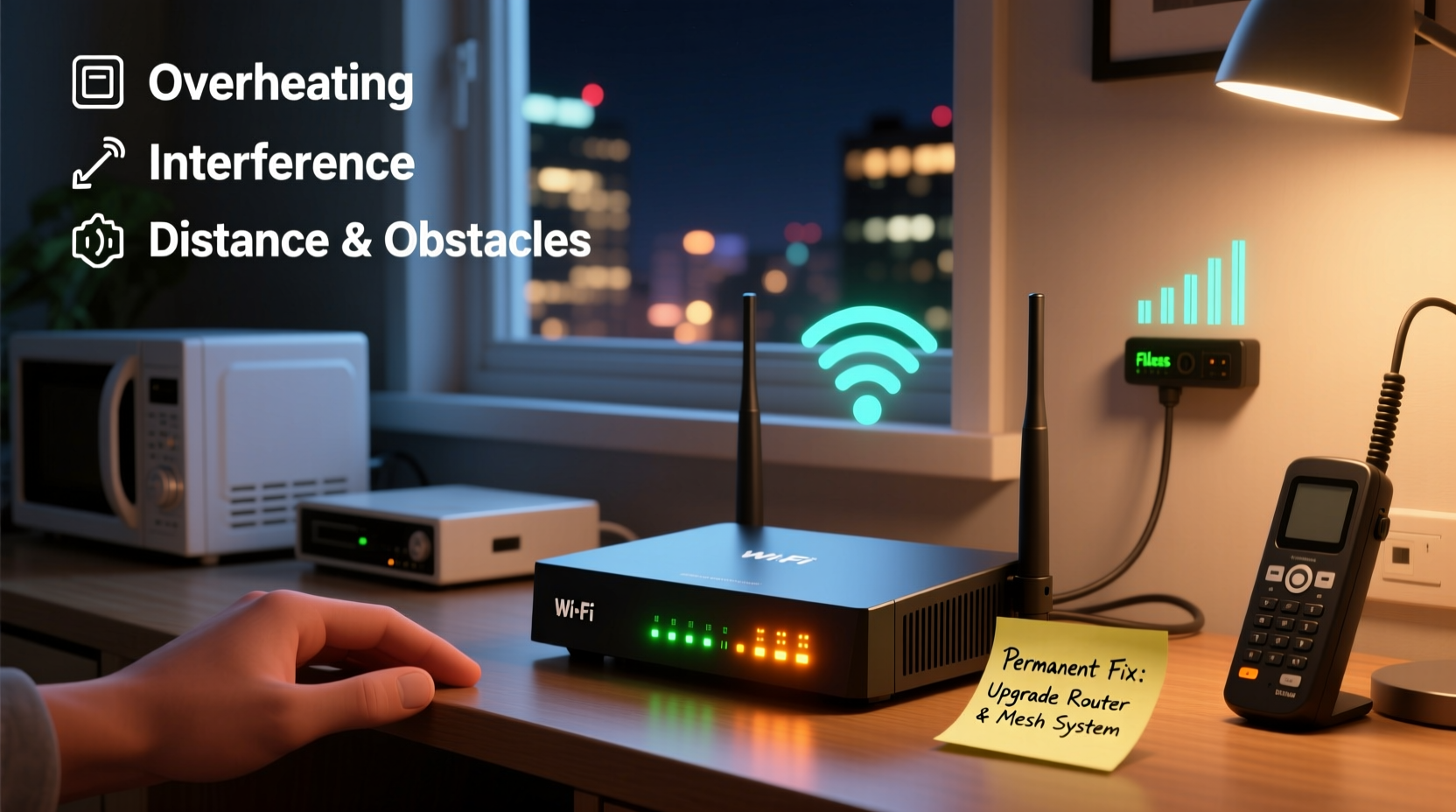
One of the primary reasons Wi-Fi performance degrades at night is increased network traffic. During daytime hours, many people are away—at work, school, or running errands. But once evening arrives, homes fill up, devices power on, and bandwidth demand spikes.
Consider this: multiple family members may be streaming 4K video, gaming online, attending virtual meetings, or downloading large files simultaneously. Even smart home devices like security cameras, thermostats, and voice assistants contribute to background data usage. Your router, especially if outdated, may struggle to manage this surge in concurrent connections.
Additionally, neighborhood-wide congestion plays a role. In densely populated areas, dozens of nearby Wi-Fi networks operate on the same radio frequencies. When everyone goes online at once, interference increases, especially on the crowded 2.4 GHz band.
Router Overheating and Hardware Limitations
Many users overlook the physical condition of their router. Routers generate heat during operation, and prolonged use without proper ventilation can lead to overheating—especially problematic in enclosed spaces like cabinets or entertainment centers.
Heat buildup forces internal components to throttle performance or reset automatically to prevent damage. This often manifests as intermittent disconnections precisely during peak usage times, when the device has been running at full load for hours.
Older routers also lack modern features such as Quality of Service (QoS), beamforming, or dual/tri-band support. These technologies help prioritize traffic and maintain stable signals under pressure. A router from five or more years ago simply wasn’t designed for today’s connected lifestyle.
“Routers are like any electronic device—they degrade over time. After three to four years, performance drops become noticeable, especially under load.” — David Lin, Senior Network Engineer at NetSecure Solutions
Interference from Household Devices
Electromagnetic interference (EMI) is another silent culprit behind nighttime Wi-Fi issues. Certain household appliances emit signals that disrupt Wi-Fi frequencies, particularly on the 2.4 GHz band, which overlaps with microwave ovens, cordless phones, baby monitors, and even LED lighting.
These devices are typically used more frequently in the evenings. For example, microwaves are active during dinner prep, Bluetooth speakers play music, and smart lights turn on—all contributing to signal noise. Even poorly shielded power strips or extension cords can create localized interference.
The 5 GHz band is less prone to EMI but has shorter range and poorer wall penetration. If your devices default to 2.4 GHz due to distance or obstacles, they’re more vulnerable to disruption.
Common Sources of Wi-Fi Interference
| Device | Frequency Band Affected | Impact Level |
|---|---|---|
| Microwave Oven | 2.4 GHz | High |
| Cordless Phones | 2.4 GHz | Medium |
| Baby Monitors | 2.4 GHz | Medium-High |
| Bluetooth Devices | 2.4 GHz | Low-Medium |
| LED Lights (cheap models) | 2.4 GHz | Low |
ISP Throttling and Network Management
Some Internet Service Providers (ISPs) implement bandwidth throttling during peak hours to manage overall network load. While not always disclosed, this practice involves intentionally slowing down customer speeds when network usage is highest—typically between 7 PM and 11 PM.
Throttling may target specific types of traffic, such as video streaming or peer-to-peer file sharing. If your ISP offers “unlimited” data with fine print about “network optimization,” you could be affected without realizing it.
To check for throttling:
- Run speed tests at different times of day using tools like Ookla Speedtest or FCC Measuring Broadband America.
- Compare results: if download/upload speeds drop significantly at night despite consistent equipment, throttling may be occurring.
- Use a trusted VPN to reroute traffic. If speeds improve with the VPN enabled, your ISP might be filtering certain data streams.
Outdated Firmware and Security Vulnerabilities
Firmware is the software that runs your router. Manufacturers release updates to fix bugs, patch security flaws, and improve stability. Many users never update their router’s firmware, leaving them exposed to crashes, slowdowns, or even malware exploits that can cause disconnections.
Routers with outdated firmware may fail to handle modern protocols efficiently or mismanage client connections under stress. Some older models have known bugs that trigger automatic reboots after several hours of heavy use—coinciding with evening downtime.
Worse, unpatched routers can be hijacked by botnets like Mozi or Gafgyt, which consume bandwidth in the background for malicious purposes, reducing available speed and causing instability.
Step-by-Step Guide to Updating Router Firmware
- Access your router’s admin panel by typing its IP address (usually 192.168.1.1 or 192.168.0.1) into a web browser.
- Log in using your username and password (check the router label or manual if forgotten).
- Navigate to the “Administration,” “Maintenance,” or “Firmware Update” section.
- Check the current version and compare it with the latest version listed on the manufacturer’s official website.
- If an update is available, download it and follow instructions to upload and install it via the admin interface.
- Wait for the process to complete—do not power off the router during update.
- Reboot the router and reconnect devices.
“Keeping firmware updated is one of the simplest yet most effective ways to prevent crashes and security-related outages.” — Maria Tran, Cybersecurity Analyst at BroadNet Labs
Mini Case Study: The Johnson Family’s Nighttime Buffering Problem
The Johnsons, a family of four in suburban Chicago, experienced nightly Wi-Fi disconnections starting around 8 PM. Their kids couldn’t finish homework, movies stalled mid-scene, and Zoom calls dropped repeatedly.
They tried restarting the router daily, moving devices closer, and even calling their ISP, who insisted the line was fine. Frustrated, they contacted a local networking consultant.
After inspection, two key issues were identified:
- Their ISP-provided router was six years old and overheating inside a closed media cabinet.
- All devices connected to the 2.4 GHz band, which suffered interference from a new smart speaker and kitchen microwave.
The solution?
- Relocated the router to an open shelf with airflow.
- Upgraded to a modern tri-band mesh system.
- Configured QoS settings to prioritize video conferencing and streaming.
- Set devices to prefer 5 GHz where possible.
Within 48 hours, the nightly disconnections ceased entirely. The investment paid off in improved productivity, entertainment quality, and peace of mind.
Premium Fixes That Deliver Permanent Results
If basic troubleshooting hasn’t resolved your issue, consider these long-term upgrades:
1. Upgrade to a Mesh Wi-Fi System
Traditional routers broadcast signal from a single point, leading to dead zones and weak coverage in larger homes. Mesh systems use multiple nodes to blanket your space with seamless, self-healing Wi-Fi. They dynamically route traffic and balance loads across bands, drastically improving reliability at peak times.
2. Enable Quality of Service (QoS)
QoS allows you to assign priority to critical applications—like video calls or gaming—over less urgent tasks like software updates. Most modern routers include this feature in their admin dashboard. Set high-priority tags for devices used during evening hours.
3. Switch to 5 GHz or Use Band Steering
Manually connect devices capable of 5 GHz operation to that band. Better yet, enable “band steering” on dual-band routers so compatible devices automatically choose the optimal frequency.
4. Replace ISP-Provided Equipment
Many ISPs lease outdated or locked-down routers. Purchasing your own high-performance model (e.g., TP-Link Deco, ASUS RT-AX86U, Netgear Nighthawk) gives you full control over settings and eliminates monthly rental fees.
5. Install a Wired Backbone
For maximum stability, connect major devices (smart TVs, desktop PCs, game consoles) via Ethernet cables. This reduces wireless congestion and ensures consistent throughput regardless of airwave conditions.
Wi-Fi Troubleshooting Checklist
Follow this checklist to diagnose and resolve nighttime disconnections:
- ✅ Restart the router and modem every few days
- ✅ Ensure firmware is up to date
- ✅ Position the router centrally, elevated, and away from obstructions
- ✅ Avoid placing near microwaves, metal objects, or thick walls
- ✅ Run speed tests at different times to detect ISP throttling
- ✅ Enable QoS and prioritize essential devices
- ✅ Switch to 5 GHz where feasible
- ✅ Consider upgrading to a mesh system for large homes
- ✅ Monitor connected devices for unknown intruders
- ✅ Contact ISP if issues persist—request line diagnostics
FAQ
Why does my Wi-Fi work fine during the day but fail at night?
Daily patterns of device usage, neighborhood congestion, appliance interference, and ISP traffic management all intensify in the evening. Combined with potential router overheating or outdated hardware, these factors commonly cause nighttime disconnections.
Can other people’s Wi-Fi affect mine?
Yes. In apartments or dense neighborhoods, overlapping Wi-Fi networks on the same channel create interference. Using a Wi-Fi scanner app can help you find the least congested channel and adjust your router settings accordingly.
Should I leave my Wi-Fi on all the time?
Yes. Modern routers are designed for continuous operation. Frequent power cycling can actually shorten lifespan. However, rebooting once a week helps clear memory leaks and refresh connections.
Conclusion: Take Control of Your Home Network
Nighttime Wi-Fi disconnections aren’t inevitable—they’re symptoms of identifiable and solvable problems. Whether it’s outdated hardware, poor placement, interference, or ISP limitations, each issue has a practical remedy. By understanding the underlying causes and applying targeted fixes, you can transform an unreliable connection into a resilient, high-performance network.
Start with simple steps like relocating your router and updating firmware. Then progress to strategic upgrades like mesh systems or wired backbones. The result? Seamless streaming, uninterrupted calls, and a smarter home that works when you need it most.




 浙公网安备
33010002000092号
浙公网安备
33010002000092号 浙B2-20120091-4
Comments
No comments yet. Why don't you start the discussion?