
If your Wi-Fi drops every evening just as you're settling in to stream a show, work remotely, or video call family, you're not alone. Many households experience intermittent connectivity between 7 PM and midnight. While frustrating, these nighttime outages are rarely random. They stem from predictable causes—primarily increased network congestion, environmental interference, and router performance limitations. The good news is that most of these issues can be diagnosed and corrected with simple, practical steps.
Understanding the root cause of your nightly disconnections is the first step toward a stable, reliable connection. This guide breaks down the most common reasons behind after-dark Wi-Fi failures and offers actionable solutions grounded in real-world testing and expert insights.
Why Nighttime Wi-Fi Problems Occur
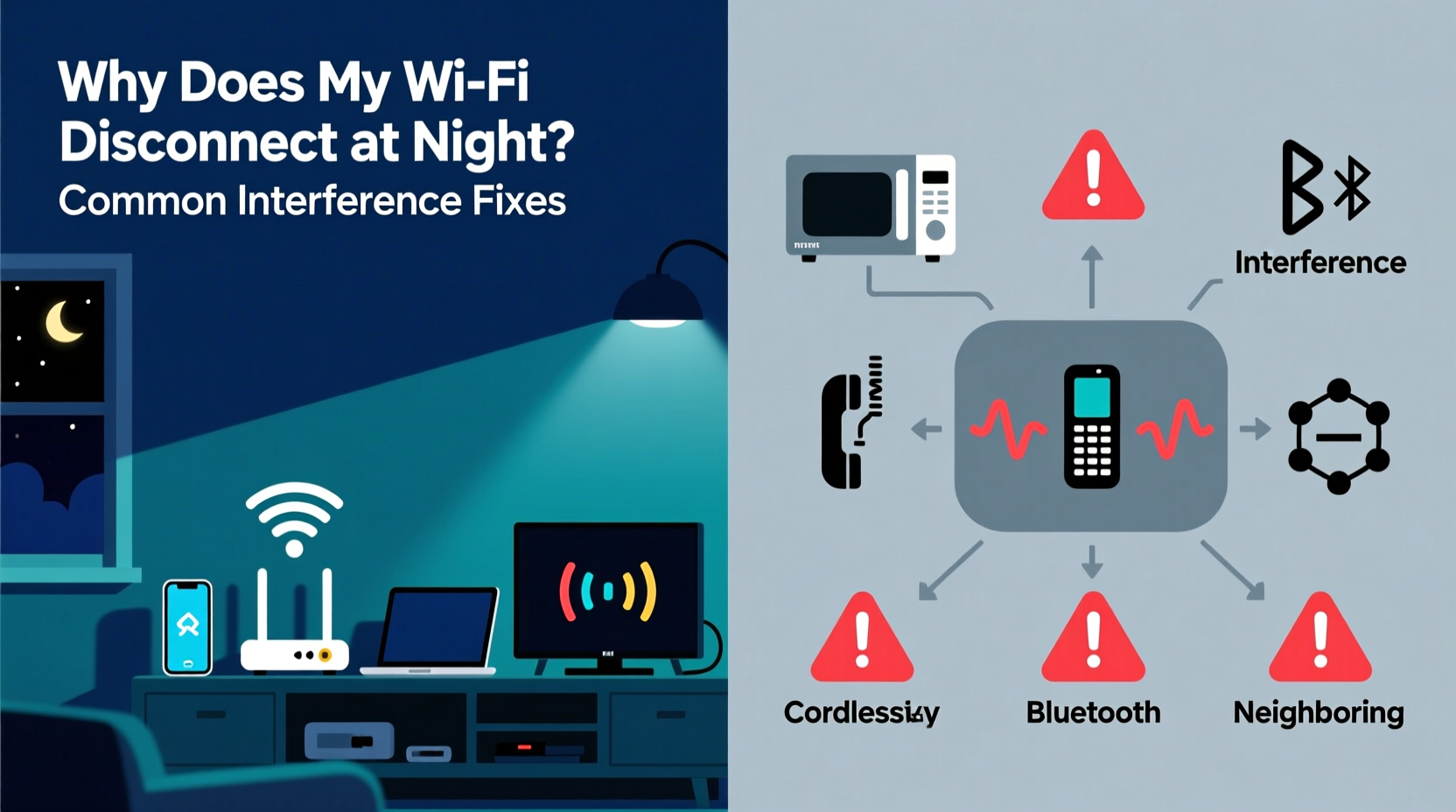
During the day, internet usage in most homes is moderate. People are at work, school, or out running errands. But when evening arrives, multiple users return home, devices power on, and demand surges. Streaming, gaming, smart home systems, and video conferencing all compete for bandwidth. This spike in activity stresses your router and modem, especially if they’re outdated or poorly configured.
Additionally, external factors like neighborhood network congestion peak during these hours. As more neighbors go online, overlapping Wi-Fi signals interfere with each other. This phenomenon—known as co-channel interference—is particularly severe in densely populated areas such as apartment complexes or suburban neighborhoods.
“Even a well-configured router can struggle under peak load. Time-based slowdowns often reflect environmental stress rather than hardware failure.” — Dr. Alan Reyes, Network Systems Engineer, IEEE Member
Common Causes of Nightly Wi-Fi Disconnections
- Network Congestion: Multiple devices and users strain bandwidth limits.
- Interference from Nearby Networks: Overlapping channels reduce signal clarity.
- Electromagnetic Interference (EMI): Appliances like microwaves, cordless phones, or baby monitors disrupt 2.4 GHz bands.
- Router Overheating: Prolonged use leads to thermal throttling or shutdown.
- Firmware Issues: Outdated software may contain bugs affecting stability.
- Scheduled ISP Throttling: Some providers reduce speeds during high-demand periods.
Step-by-Step Guide to Diagnose and Fix Nighttime Wi-Fi Drops
Follow this structured troubleshooting process to pinpoint and resolve the issue efficiently.
- Check Device Activity Between 7–10 PM: Use your router’s admin interface (typically accessed via 192.168.1.1) to view connected devices. Look for unusual spikes in device count or bandwidth hogs like automatic backups or cloud syncs.
- Test Speeds at Different Times: Run speed tests (using sites like fast.com or speedtest.net) during the day and again at night. A significant drop indicates congestion or throttling.
- Inspect Router Temperature: Feel the casing. If it's hot to the touch, overheating may be forcing reboots. Ensure vents are unobstructed and place the router in an open, elevated location.
- Scan for Signal Interference: Download a Wi-Fi analyzer app (e.g., Wi-Fi Analyzer for Android or AirPort Utility for iOS). Check which channels nearby networks are using and whether your router overlaps heavily.
- Update Firmware: Log into your router settings and check for firmware updates. Manufacturers regularly release patches for stability and security flaws.
- Reboot Your Equipment: Power cycle both the modem and router. Unplug them for 30 seconds, then restart. This clears memory leaks and resets unstable connections.
- Contact Your ISP: If problems persist, ask if they perform bandwidth shaping during peak hours. Some ISPs throttle heavy users unless you upgrade plans.
Effective Fixes for Common Interference Sources
Once you've identified likely culprits, implement targeted solutions to stabilize your network.
Switch to Less Congested Wi-Fi Channels
Routers operate on either 2.4 GHz or 5 GHz frequency bands. The 2.4 GHz band has only three non-overlapping channels (1, 6, and 11), making interference common. In contrast, the 5 GHz band offers more channels and less crowding.
| Frequency Band | Pros | Cons | Best For |
|---|---|---|---|
| 2.4 GHz | Better wall penetration, longer range | High interference, slower speeds | Smart home devices, distant rooms |
| 5 GHz | Faster speeds, minimal interference | Weaker through walls, shorter range | Streaming, gaming, HD video calls |
If your router supports dual-band operation, connect high-demand devices (like TVs and laptops) to the 5 GHz network. Reserve 2.4 GHz for low-bandwidth IoT gadgets.
Minimize Electromagnetic Interference
Many household electronics emit radio noise that interferes with Wi-Fi, especially on the 2.4 GHz band. Common offenders include:
- Microwave ovens (especially during use)
- Cordless phones (DECT 6.0 models are safer)
- Baby monitors
- Bluetooth speakers and headphones
- Fluorescent lighting and dimmer switches
Upgrade or Replace Aging Hardware
Routers older than 3–4 years may lack support for modern standards like MU-MIMO (multi-user, multiple input, multiple output) or beamforming. These technologies improve efficiency by directing signals to specific devices instead of broadcasting uniformly.
Consider upgrading to a Wi-Fi 6 (802.11ax) router if you have multiple users or smart devices. Wi-Fi 6 handles congestion better, reduces latency, and improves battery life on connected devices.
Mini Case Study: Resolving Recurring Evening Outages in a Suburban Home
The Thompson family in Austin, Texas, experienced daily Wi-Fi dropouts between 8:00 and 9:30 PM. Their children couldn’t finish homework, and video calls kept freezing. After ruling out ISP issues, they used a Wi-Fi analyzer app and discovered their router was on channel 6—shared by seven neighboring networks.
They switched their 2.4 GHz band to channel 1 and moved streaming devices to the 5 GHz network. They also relocated the router from a basement closet to a central shelf on the main floor. Within two days, disconnections ceased. A follow-up speed test showed download speeds improved from 18 Mbps at night to a consistent 85 Mbps.
This case illustrates how environmental factors—not equipment failure—are often responsible for time-specific disruptions.
Preventive Maintenance Checklist
To maintain stable nighttime Wi-Fi, perform these actions regularly:
- ✅ Reboot your modem and router weekly
- ✅ Update router firmware monthly
- ✅ Audit connected devices for unauthorized access
- ✅ Use Quality of Service (QoS) settings to prioritize critical devices
- ✅ Position the router centrally, elevated, and away from obstructions
- ✅ Limit high-bandwidth activities during peak hours (e.g., large downloads)
- ✅ Consider mesh networking for large or multi-story homes
Using QoS to Prevent Bandwidth Hogging
Quality of Service (QoS) allows you to assign priority to certain devices or applications. For example, you can ensure your work laptop gets higher bandwidth than a background software update on a tablet.
In your router settings, locate the QoS section and configure rules based on:
- Device MAC address
- Application type (e.g., video conferencing, gaming)
- Time of day (e.g., prioritize streaming from 7–10 PM)
This prevents one user or device from monopolizing the network and causing others to disconnect.
Frequently Asked Questions
Does my internet provider slow down service at night?
Some ISPs implement \"traffic shaping\" during peak usage hours, especially on lower-tier plans. This isn't universal, but it happens. Contact customer support and ask directly. You can also test by connecting via Ethernet—if wired speeds remain stable while Wi-Fi drops, the issue is likely local, not ISP-related.
Can too many devices crash my Wi-Fi?
Yes. Most consumer routers handle 20–30 simultaneous connections reliably. Beyond that, performance degrades. Smart lights, thermostats, cameras, phones, tablets, and TVs all count. If you exceed this limit, consider a mesh system or enterprise-grade router designed for high-density environments.
Is it safe to leave my router on all night?
Yes, routers are designed for continuous operation. However, periodic reboots (once a week) help maintain performance. If your router frequently overheats or crashes, it may need replacement or better ventilation.
Final Recommendations and Long-Term Stability
Nighttime Wi-Fi disconnections are a widespread but solvable problem. By understanding the interplay between network load, physical environment, and hardware capability, you can restore reliability without costly upgrades.
Start with low-effort fixes: relocate your router, change Wi-Fi channels, and reboot regularly. Then progress to advanced configurations like QoS and firmware updates. For larger homes or persistent issues, investing in a mesh Wi-Fi system can eliminate dead zones and balance traffic across nodes.
Remember, consistency matters more than perfection. Even small improvements—like switching to a less crowded channel—can dramatically enhance your evening browsing, streaming, and working experience.




 浙公网安备
33010002000092号
浙公网安备
33010002000092号 浙B2-20120091-4
Comments
No comments yet. Why don't you start the discussion?