
If your Wi-Fi cuts out every night without warning, you're not alone. Many users experience frustrating disconnections during evening hours, just when streaming, gaming, or remote work demand a reliable connection. Unlike random glitches, nighttime dropouts often stem from predictable causes tied to usage patterns, network congestion, or hardware behavior. Understanding the root causes—and knowing how to address them—can restore stability and peace of mind. This guide explores the most common reasons behind nightly Wi-Fi failures and provides actionable steps to resolve them for good.
Increased Network Congestion After Dark
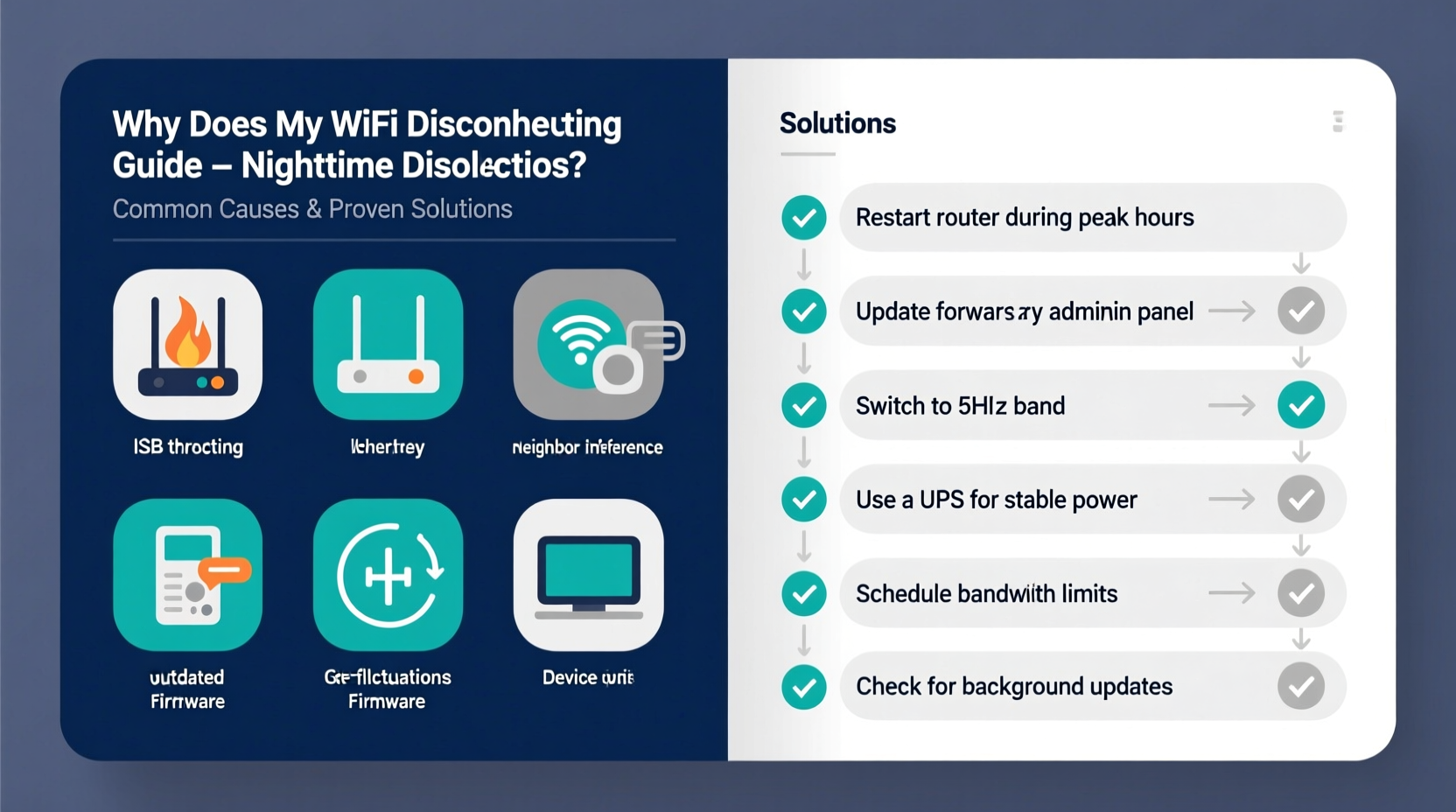
One of the most frequent culprits behind nighttime Wi-Fi disconnections is network congestion. As the sun sets, households come alive with activity: family members stream movies, kids play online games, smart home devices sync, and video calls increase. This surge in demand can overwhelm your router’s capacity, especially if it's an older model or designed for lighter use.
Wi-Fi operates on shared frequency bands—primarily 2.4 GHz and 5 GHz. The 2.4 GHz band has better range but is more prone to interference due to its popularity among household devices like microwaves, baby monitors, and neighboring networks. During peak evening hours, multiple devices competing for bandwidth can cause packet loss, latency spikes, and eventual disconnection.
How to Identify Congestion Issues
To determine if congestion is affecting your network:
- Use a Wi-Fi analyzer app (like NetSpot or Wi-Fi Analyzer) to scan nearby networks and signal strength.
- Check your router’s admin interface to see how many devices are connected simultaneously.
- Monitor speed tests at different times—slower speeds at night suggest congestion.
If you find that your 2.4 GHz band is crowded, switching to the less congested 5 GHz band (if supported by your devices) can significantly improve performance.
Router Overheating or Hardware Fatigue
Routers generate heat during operation, and continuous use throughout the day can lead to overheating—especially in poorly ventilated areas like entertainment centers or enclosed shelves. As temperatures rise, internal components may throttle performance or shut down temporarily to prevent damage, leading to intermittent disconnections that often occur at night when the router has been running for hours.
Plastic enclosures trap heat, and dust accumulation inside vents worsens the issue. Some routers have built-in thermal protection that automatically reboots the device when it exceeds safe operating temperatures. While this prevents hardware failure, it also results in unexpected outages.
“Routers are small computers processing constant data flow. Like any electronic device, sustained load without cooling leads to instability.” — David Lin, Network Infrastructure Engineer
Solutions for Router Overheating
- Relocate the router to an open area with good airflow, away from walls, TVs, or other electronics.
- Clean dust regularly using compressed air on vents and fans (if present).
- Avoid stacking devices around the router; allow at least 6 inches of clearance on all sides.
- Consider a cooling pad or small USB fan if overheating persists.
For older routers showing signs of fatigue, upgrading to a newer model with better heat dissipation and dual-band capabilities can offer long-term relief.
ISP Throttling or Network Maintenance
Your internet service provider (ISP) may engage in bandwidth throttling during peak usage hours, intentionally slowing down certain types of traffic (such as streaming or peer-to-peer file sharing). Some ISPs implement “fair usage” policies that limit heavy users after specific thresholds, which often coincide with evening activity.
In addition, many providers schedule network maintenance during low-traffic windows—typically late evening or early morning. These updates can briefly interrupt service or cause temporary outages. While they usually notify customers in advance via email or account portals, not all do so consistently.
How to Check for ISP-Related Causes
- Contact your ISP directly to inquire about scheduled maintenance or known outages in your area.
- Review your service agreement for clauses related to bandwidth limits or throttling.
- Run speed tests before and after disconnections to detect sudden drops inconsistent with normal usage.
If throttling is confirmed, consider upgrading your plan, switching providers, or using a virtual private network (VPN) to mask traffic type—though note that some ISPs may still throttle based on volume regardless of encryption.
Automatic Router Reboots or Firmware Glitches
Some routers are configured—either by default or user settings—to reboot automatically at set intervals. This feature is intended to clear memory leaks and refresh connections, but if timed for late-night hours, it can appear as an unexplained outage. Similarly, outdated or buggy firmware may cause instability under prolonged load, resulting in crashes only noticeable after extended use.
Firmware is the software embedded in your router that manages everything from security protocols to channel selection. When manufacturers release updates, they often fix bugs related to connectivity, power management, and interference handling. Failing to update leaves your router vulnerable to known issues.
Step-by-Step: Update Router Firmware and Disable Auto-Reboot
- Open a browser and enter your router’s IP address (commonly 192.168.1.1 or 192.168.0.1).
- Login using your admin credentials (check the router label or manual if forgotten).
- Navigate to the “Administration,” “Maintenance,” or “Firmware” section.
- Check for available updates and follow prompts to install.
- Look for “Auto Reboot” or “Scheduled Reboot” settings and disable unless needed.
- Save changes and manually restart the router to apply.
After updating, monitor your connection over several nights to assess improvement.
Interference from Household Devices
Electromagnetic interference (EMI) from common household appliances can disrupt Wi-Fi signals, particularly on the 2.4 GHz band. Devices such as cordless phones, microwave ovens, Bluetooth speakers, and even LED lighting emit frequencies that overlap with Wi-Fi channels. If these are used primarily at night, their interference could explain recurring dropouts.
Microwaves, for example, operate at around 2.45 GHz—almost identical to Wi-Fi Channel 9. When running, they can drown out nearby signals for short periods. Similarly, poorly shielded electronics or dimmer switches may introduce noise into the environment.
| Device | Frequency Range | Impact on Wi-Fi |
|---|---|---|
| Microwave Oven | ~2.45 GHz | High (short-term disruption) |
| Cordless Phone | 1.9–2.4 GHz | Moderate to High |
| Bluetooth Devices | 2.4 GHz | Low (usually coexists) |
| LED Lights / Dimmers | Varies | Low to Moderate (if unshielded) |
Reducing Interference
- Keep the router at least 5–6 feet away from major appliances.
- Switch to the 5 GHz band where possible—it's less susceptible to EMI.
- Change your Wi-Fi channel manually to avoid overlapping with noisy frequencies.
- Replace older cordless phones or microwave ovens if interference is severe.
Mini Case Study: The Johnson Family’s Nighttime Outage
The Johnsons experienced daily Wi-Fi disconnections between 8 PM and 9 PM. Their children couldn’t finish homework, and video calls dropped repeatedly. Initial troubleshooting focused on restarting the router and checking device counts, but the issue persisted.
Upon investigation, they discovered two key factors: first, their microwave was located directly beside the router cabinet; second, their ISP had imposed a 600 GB monthly cap, and their usage peaked each night due to 4K streaming.
They relocated the router to a central shelf, switched critical devices to 5 GHz, and upgraded their internet plan. Within days, the nightly dropouts ceased entirely. A simple combination of environmental adjustment and service upgrade resolved what felt like a technical mystery.
Wi-Fi Optimization Checklist
Use this checklist to systematically eliminate potential causes of nighttime disconnections:
- ✅ Move router to a central, elevated, well-ventilated location
- ✅ Switch devices to 5 GHz band where supported
- ✅ Run a Wi-Fi analyzer to identify crowded channels
- ✅ Change Wi-Fi channel to a less congested one (e.g., 1, 6, or 11 on 2.4 GHz)
- ✅ Update router firmware to latest version
- ✅ Disable automatic reboot schedules
- ✅ Clean dust from router vents weekly
- ✅ Contact ISP to confirm no throttling or maintenance
- ✅ Limit high-bandwidth activities during peak hours
- ✅ Test connection via Ethernet cable to isolate Wi-Fi issues
Frequently Asked Questions
Why does my phone lose Wi-Fi at night but my laptop doesn’t?
This discrepancy often occurs because different devices support different Wi-Fi bands or have varying antenna sensitivity. Your phone might be connecting to the more congested 2.4 GHz band while your laptop uses 5 GHz. Also, power-saving modes on phones can temporarily disable Wi-Fi to conserve battery.
Can too many devices cause Wi-Fi to crash?
Yes. Most consumer routers support up to 20–30 simultaneous connections, but performance degrades as more devices transmit data. Streaming, gaming, and video calls place higher demands than idle smartphones. Consider using Quality of Service (QoS) settings to prioritize essential devices.
Should I turn off my Wi-Fi at night?
Turning off Wi-Fi isn’t necessary and may interfere with automatic updates, security cameras, or smart home functions. Instead, optimize your setup to run efficiently. If concerned about radiation or energy, use a timer plug—but weigh convenience against functionality.
Conclusion: Take Control of Your Nighttime Connection
Nighttime Wi-Fi disconnections aren't inevitable—they’re solvable. Whether caused by congestion, overheating, interference, or outdated firmware, each issue has a clear path to resolution. By methodically evaluating your environment, updating equipment, and understanding your network’s behavior, you can enjoy uninterrupted connectivity when you need it most.




 浙公网安备
33010002000092号
浙公网安备
33010002000092号 浙B2-20120091-4
Comments
No comments yet. Why don't you start the discussion?