
If your Wi-Fi cuts out every night without warning, you're not alone. Millions of users experience intermittent connectivity during evening hours, often mistaking it for provider issues or device failures. In reality, nighttime disconnections are frequently caused by a mix of router behavior, signal interference, and network congestion. Understanding the root causes—whether rooted in configuration, hardware limitations, or external signals—can help you restore stable internet access after dark.
Common Causes of Nighttime Wi-Fi Disconnections
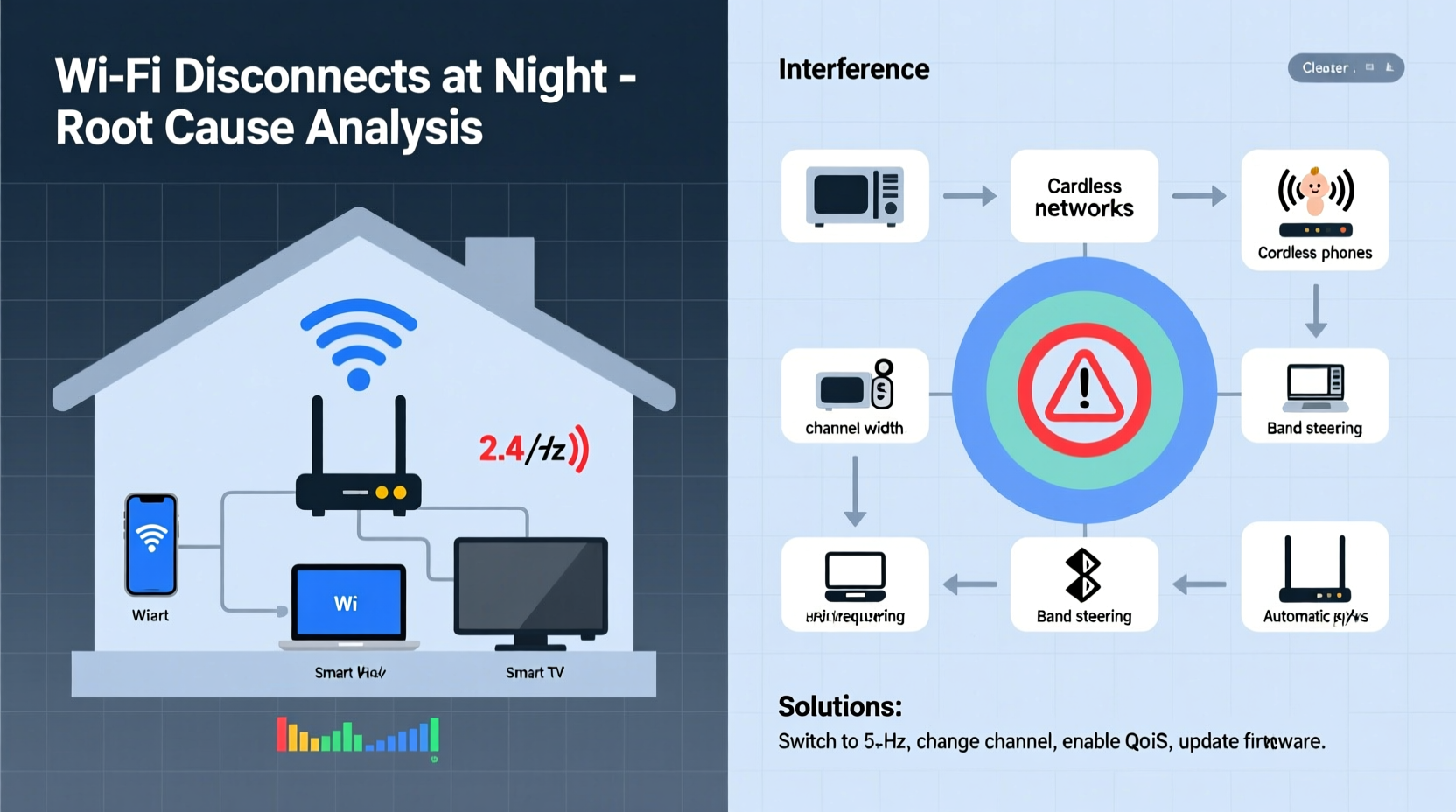
Nighttime is when household internet usage peaks. Multiple devices stream video, download updates, or run background syncs. This surge can overwhelm underpowered routers or expose weaknesses in your network setup. But high demand isn’t the only culprit. Several technical and environmental factors contribute:
- Network Congestion: As neighbors return home, their Wi-Fi networks activate, increasing competition for wireless channels.
- Router Overheating: Continuous use throughout the day may cause overheating by evening, triggering instability or automatic reboots.
- Scheduled Reboots: Some ISPs or router firmware are configured to restart automatically at night for maintenance.
- Interference from Household Devices: Microwaves, cordless phones, baby monitors, and smart home gadgets emit signals that disrupt 2.4 GHz bands.
- Power Saving Modes: Routers or connected devices may enter low-power states, reducing signal strength or dropping connections.
These issues rarely occur in isolation. A combination of outdated firmware, poor placement, and increased electromagnetic noise creates a perfect storm after sunset.
Router Settings That May Be Causing Nighttime Drops
Your router’s configuration plays a critical role in maintaining consistent performance. Default settings are often optimized for simplicity—not reliability. Here are key settings that could be behind your nightly dropouts:
1. Auto Channel Selection
Many routers use “Auto” channel selection on the 2.4 GHz band. While convenient, this feature doesn’t always adapt quickly to changing interference levels. At night, when nearby networks become active, your router might remain on a congested channel instead of switching to a clearer one.
2. DHCP Lease Time
DHCP lease time determines how long a device keeps its IP address before renewing it. Short lease times (e.g., 1 hour) can trigger mass renewal attempts around the same time—commonly at midnight—overloading the router and causing temporary outages.
3. Firmware Update Schedules
Some Internet Service Providers push firmware updates overnight. These updates often require a reboot, which interrupts service. Check if your ISP manages your router remotely; if so, updates may be silently applied during off-hours.
4. QoS (Quality of Service) Misconfiguration
QoS prioritizes certain types of traffic (like video calls) over others. If misconfigured, it might deprioritize essential connection-keeping packets, leading to timeouts or disconnections when bandwidth is strained.
5. Power-Saving Features
Certain routers include energy-saving modes that reduce transmission power at night. While designed to lower electricity use, these settings can weaken signal strength enough to break connections—especially on the edges of coverage.
“Over 60% of ‘unexplained’ Wi-Fi drops trace back to either firmware bugs or suboptimal channel management.” — Dr. Alan Reeves, Network Systems Engineer, IEEE Senior Member
Interference: The Hidden Enemy of Stable Wi-Fi
Wireless signals operate within tightly regulated frequency bands. The 2.4 GHz band, used by most older devices, overlaps with many common household electronics. At night, when more devices are in use, interference spikes significantly.
Devices That Cause Interference
| Device | Frequency Range | Impact on Wi-Fi |
|---|---|---|
| Microwave Oven | 2.4–2.5 GHz | High – emits strong bursts during operation |
| Baby Monitor | 2.4 GHz | Medium – constant signal leakage |
| Cordless Phone | 1.9–2.4 GHz | Medium – especially older DECT models |
| Bluetooth Devices | 2.4 GHz | Low – but cumulative with multiple devices |
| Smart Lights / Plugs | 2.4 GHz (Wi-Fi/Zigbee) | Low-Medium – depends on protocol and density |
The 5 GHz band is less prone to interference because fewer household devices operate in this range. However, its shorter wavelength means reduced wall penetration and smaller coverage area. If your devices default to 2.4 GHz at night due to distance or obstacles, they become more vulnerable to disruption.
Environmental Factors
Building materials like concrete, metal ducts, and even large mirrors reflect or absorb Wi-Fi signals. At night, thermal changes in walls (due to heating/cooling systems) can subtly alter signal propagation. While minor individually, these shifts compound under heavy load.
Step-by-Step Guide to Diagnose and Fix Nighttime Disconnections
Follow this structured approach to identify and resolve the underlying cause of your nightly Wi-Fi disruptions.
- Observe the Pattern
Track exactly when disconnections occur. Use a simple log for three nights noting:- Time of dropout
- Duration of outage
- Active devices at the time
- Recent router activity (e.g., lights flashing)
- Check Router Logs
Access your router’s admin panel (typically via 192.168.1.1 or 192.168.0.1). Look for entries like:- Reboot events
- Firmware update notifications
- DHCP server errors
- Signal strength warnings
- Test During Peak Hours
Run a continuous ping test from a computer connected to your network:ping 8.8.8.8 -t
Leave it running overnight. In the morning, check for packet loss spikes between 7 PM and 11 PM. Consistent gaps suggest interference or router overload. - Change Wi-Fi Channel Manually
Use a Wi-Fi analyzer app (such as NetSpot or Wi-Fi Analyzer for Android) to scan nearby networks. Choose the least crowded channel:- On 2.4 GHz: Stick to channels 1, 6, or 11—they don’t overlap.
- On 5 GHz: Select any non-DFS channel above 36 (e.g., 36, 40, 44, 48) unless radar interference is detected.
- Adjust Key Settings
In your router settings:- Set DHCP lease time to 24 hours.
- Disable eco-mode or transmit power reduction.
- Enable “Stable Channel Selection” if available.
- Update firmware manually to avoid surprise updates.
- Isolate Interference Sources
Turn off suspect devices one by one (microwave, baby monitor, etc.) and test stability. If disconnections stop, consider relocating the interfering device or replacing it with a modern, shielded model. - Upgrade Hardware if Needed
If problems persist, consider:- A modern dual-band or tri-band router with better interference handling.
- A mesh Wi-Fi system for larger homes with dead zones.
- An Ethernet backhaul to connect access points, reducing wireless dependency.
Mini Case Study: The Johnson Family’s Evening Outage
The Johnsons experienced daily Wi-Fi disconnections between 8:30 PM and 9:00 PM. Streaming paused, video calls dropped, and smart lights went unresponsive. They assumed it was their ISP until testing revealed otherwise.
Using a Wi-Fi analyzer, they discovered their router remained on channel 6 despite five neighboring networks using the same frequency. Their microwave, located next to the router, exacerbated the problem each evening during dinner prep.
They took these steps:
- Moved the router to a shelf above the kitchen cabinets.
- Switched to channel 1 (least used in their area).
- Updated router firmware and extended DHCP lease to 24 hours.
- Connected TVs and laptops to the 5 GHz network.
Within two days, the nightly dropouts ceased. The fix cost nothing—and restored peace to family movie nights.
Troubleshooting Checklist
Use this checklist to ensure all bases are covered:
- ✅ Restart router and modem to clear temporary glitches
- ✅ Verify no scheduled reboots or updates in router settings
- ✅ Check for overheating (feel the casing; ensure vents aren’t blocked)
- ✅ Confirm devices aren't switching to weaker bands automatically
- ✅ Reduce number of active devices during peak hours
- ✅ Test connection via Ethernet cable to rule out Wi-Fi-specific issues
- ✅ Scan for nearby networks and switch to a less congested channel
- ✅ Disable power-saving features on router and main devices
- ✅ Replace old or damaged coaxial cables (if using cable internet)
- ✅ Contact ISP if issues persist—modem signal levels may need adjustment
Frequently Asked Questions
Why does my Wi-Fi work fine during the day but fail at night?
Daytime typically has lower network congestion and less household device usage. At night, increased demand from your own devices and neighbors' networks strains bandwidth and amplifies interference, exposing weak points in your setup.
Can my ISP cut my Wi-Fi at night?
Not intentionally. However, ISPs may perform automated maintenance, push firmware updates, or throttle bandwidth during peak hours. These actions can cause brief outages or slowdowns. Contact support to confirm if this is occurring.
Should I reboot my router every night?
No. Frequent reboots can shorten router lifespan and indicate deeper issues. Instead, address the root cause—such as memory leaks in firmware or overheating. If nightly reboots seem necessary, upgrade to a more reliable router.
Conclusion: Take Control of Your Home Network
Nighttime Wi-Fi disconnections aren’t inevitable. They’re symptoms of identifiable issues—misconfigured settings, environmental interference, or aging hardware. By methodically diagnosing the problem, adjusting router behavior, and minimizing signal disruption, you can enjoy stable, uninterrupted internet long after sunset.
Start tonight: review your router settings, observe usage patterns, and apply one improvement from this guide. Small changes yield immediate results. A well-tuned network doesn’t just survive the evening—it thrives through it.




 浙公网安备
33010002000092号
浙公网安备
33010002000092号 浙B2-20120091-4
Comments
No comments yet. Why don't you start the discussion?