
If your Wi-Fi cuts out every night without warning, you're not alone. Thousands of users experience intermittent connectivity during evening hours, often just when they need it most—streaming a show, working remotely, or gaming online. While frustrating, nighttime disconnections are rarely random. They usually stem from identifiable causes like network congestion, hardware issues, or environmental interference. The good news is that many of these problems can be resolved with straightforward troubleshooting steps. This guide breaks down the most common reasons for nightly Wi-Fi drops and offers practical solutions to restore stability.
Common Causes of Nighttime Wi-Fi Disconnections
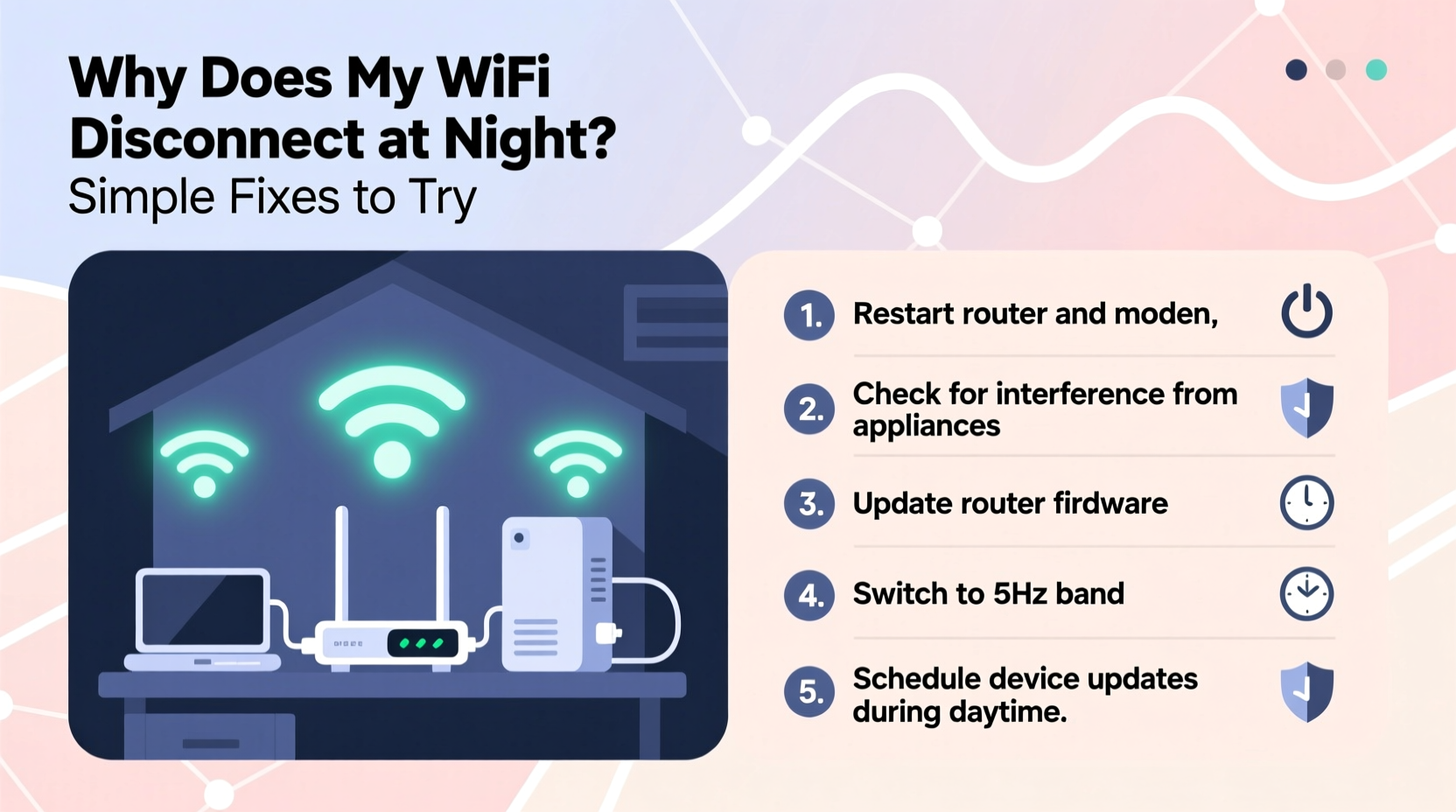
Nighttime Wi-Fi disruptions don’t happen in a vacuum. As households settle in for the evening, internet usage spikes dramatically. Multiple devices connect simultaneously—smart TVs, phones, tablets, smart home gadgets—all competing for bandwidth. But beyond high demand, several technical and environmental factors contribute to instability:
- Network Congestion: Neighboring networks and your own household devices may overload your router’s capacity.
- Router Overheating: After continuous use, routers can overheat, especially in poorly ventilated areas, leading to automatic shutdowns or throttling.
- Scheduled ISP Maintenance: Some internet service providers perform system updates or maintenance during off-peak hours, typically late at night.
- Interference from Electronics: Devices like microwaves, cordless phones, or baby monitors operating on the 2.4 GHz band can disrupt Wi-Fi signals.
- Firmware Issues: Outdated router firmware may contain bugs that trigger disconnections under load.
- Channel Overlap: In dense urban areas, multiple Wi-Fi networks on the same channel interfere with each other.
Step-by-Step Guide to Diagnose and Fix the Problem
Resolving Wi-Fi issues requires a methodical approach. Jumping straight to buying new equipment won’t always help if the root cause isn’t addressed. Follow this timeline to identify and eliminate the source of your nightly dropouts.
- Monitor Disconnect Patterns (Night 1): Note the exact time, duration, and affected devices. Use a Wi-Fi monitoring app or your router’s admin interface to log uptime.
- Restart Your Router (Night 2): Power cycle the router by unplugging it for 30 seconds. This clears temporary glitches and resets connections.
- Check for Overheating: Feel the router’s casing. If it's hot, improve airflow or consider relocating it to a cooler area.
- Update Firmware: Log into your router’s admin panel (usually via 192.168.1.1 or 192.168.0.1) and check for firmware updates under the “Administration” or “Maintenance” tab.
- Switch Wi-Fi Channels: Use a tool like Wi-Fi Analyzer (Android) or NetSpot (Windows/Mac) to find less congested channels. Manually set your router to use channels 1, 6, or 11 on 2.4 GHz, or switch to 5 GHz where possible.
- Limit Connected Devices: Temporarily disconnect non-essential devices to see if performance improves.
- Contact Your ISP: Ask if they conduct scheduled maintenance between 9 PM and 6 AM and whether your modem is functioning within normal parameters.
Do’s and Don’ts When Troubleshooting Nightly Wi-Fi Drops
| Do’s | Don’ts |
|---|---|
| Place your router in a central, elevated location away from walls and metal objects. | Don’t hide your router in a cabinet or basement—this weakens signal strength. |
| Use the 5 GHz band for high-bandwidth activities like streaming or gaming. | Don’t rely solely on 2.4 GHz in crowded neighborhoods—it’s more prone to interference. |
| Schedule large downloads or backups during daytime hours. | Don’t run automatic cloud syncs or software updates overnight without limits. |
| Set up Quality of Service (QoS) rules to prioritize critical devices. | Don’t ignore QoS settings if your router supports them—they can prevent bandwidth hogging. |
| Label and test connected smart devices one by one to isolate interference sources. | Don’t assume all disconnections are router-related—faulty extenders or damaged cables can also be culprits. |
Real-World Example: How Sarah Fixed Her Evening Dropouts
Sarah, a remote worker living in a mid-rise apartment building in Chicago, noticed her video calls kept freezing around 8:30 PM daily. Her children were streaming cartoons, her husband was gaming, and her smart home devices were syncing—all while her work laptop struggled to maintain Zoom. She initially blamed her ISP but decided to investigate further.
Using a Wi-Fi scanning app, she discovered that 14 nearby networks were using channel 6 on the 2.4 GHz band—the same as hers. She logged into her router and switched to channel 1, which had only three networks. She also enabled QoS to prioritize her laptop and shifted her Ring doorbell and Nest thermostat to a guest network. Finally, she moved the router from a closet shelf to an open desk near the center of her apartment.
The next evening, her connection remained stable throughout dinner and into bedtime. By addressing congestion and prioritizing traffic, Sarah eliminated the nightly disruption without upgrading her plan or hardware.
Expert Insight: What Network Engineers Say
“Many nighttime Wi-Fi issues are behavioral. People don’t realize how much strain simultaneous 4K streaming, cloud backups, and smart appliances place on older routers. A five-year-old router may technically ‘work,’ but it wasn't designed for today’s connected homes.” — Raj Patel, Senior Network Engineer at NetSecure Systems
“Always rule out external factors first. I’ve seen cases where a neighbor’s security camera rebooted every night at 10 PM, flooding the 2.4 GHz band. It wasn’t the homeowner’s gear at all.” — Linda Chen, ISP Support Specialist
Essential Tips Box: Quick Fixes You Can Try Tonight
Tip: Rename your 2.4 GHz and 5 GHz networks (e.g., \"Home-2G\" and \"Home-5G\") so you can manually choose the best band for each device.
Tip: Disable auto-updates on gaming consoles and smart TVs, or schedule them for midday instead of overnight.
Tip: If you use a mesh system, ensure satellites aren’t placed too far apart—signal hops degrade performance, especially at night.
Checklist: Resolve Nighttime Wi-Fi Disconnections in 7 Steps
Print or save this checklist to systematically address your Wi-Fi issues:
- ✅ Restart your router and modem
- ✅ Check for physical overheating or poor ventilation
- ✅ Update router firmware to the latest version
- ✅ Analyze Wi-Fi channel congestion and switch to a less crowded one
- ✅ Enable Quality of Service (QoS) and prioritize key devices
- ✅ Contact your ISP to confirm no scheduled maintenance or line issues
- ✅ Test with fewer devices connected to isolate the problem
Frequently Asked Questions
Why does my Wi-Fi work fine during the day but drop at night?
Daytime usage is typically lighter. At night, increased activity from your household and neighboring networks creates congestion, especially on the 2.4 GHz band. Additionally, background processes like cloud backups or software updates often run automatically during off-hours, consuming bandwidth and destabilizing connections.
Can a faulty router cause only nighttime disconnections?
Yes. A failing router may handle low traffic during the day but struggle under evening loads. Symptoms include frequent restarts, slow response times, or complete signal loss when multiple devices are active. If your router is over three years old, consider upgrading to a modern dual- or tri-band model.
Is it better to leave my Wi-Fi on all night or turn it off?
Leaving Wi-Fi on is generally safe and convenient, but turning it off nightly can reduce electromagnetic exposure, save energy, and give your router a cooling period. If you experience recurring issues, a nightly reboot via a smart plug timer can act as a preventive reset. Just ensure it doesn’t disrupt essential devices like security cameras or medical monitors.
When to Consider Upgrading Hardware
Not all problems can be solved through configuration. If you’ve followed the steps above and still face nightly dropouts, your equipment may be the bottleneck. Older routers, especially those supporting only 802.11n or single-band frequencies, simply can’t keep up with modern demands. Consider upgrading if:
- Your router is more than 4–5 years old.
- It lacks support for WPA3 or MU-MIMO technology.
- You live in a large home and rely on extenders instead of a mesh system.
- Multiple users regularly stream, game, or work from home.
Modern dual-band or tri-band mesh systems like Google Nest Wi-Fi, Eero, or TP-Link Deco offer better range, intelligent load balancing, and seamless roaming. These systems distribute traffic efficiently and adapt to usage patterns, reducing the likelihood of congestion-induced disconnections.
Final Thoughts: Take Control of Your Home Network
Nightly Wi-Fi disconnections aren’t inevitable. With a clear understanding of the underlying causes—from congestion and interference to outdated hardware—you can take meaningful steps to reclaim reliability. Start with simple fixes like restarting your router and changing Wi-Fi channels. Then move toward long-term improvements like enabling QoS, updating firmware, or upgrading your equipment. Small adjustments often yield dramatic results.




 浙公网安备
33010002000092号
浙公网安备
33010002000092号 浙B2-20120091-4
Comments
No comments yet. Why don't you start the discussion?