
If your Wi-Fi cuts out like clockwork every night—say, at 10:30 PM or midnight—you’re not imagining things. This kind of recurring disruption is more common than you might think, and while frustrating, it’s often rooted in predictable causes. Unlike random dropouts, a nightly disconnection suggests a scheduled trigger, whether from your router, internet service provider (ISP), connected devices, or even external interference. The good news? Most of these issues are diagnosable and fixable with the right approach.
Before jumping to conclusions about faulty hardware or ISP sabotage, consider that many users experience this due to overlooked settings or environmental factors. This guide walks through the most likely culprits, step-by-step diagnostic methods, and long-term solutions to restore consistent connectivity.
Common Causes of Nightly Wi-Fi Disconnections
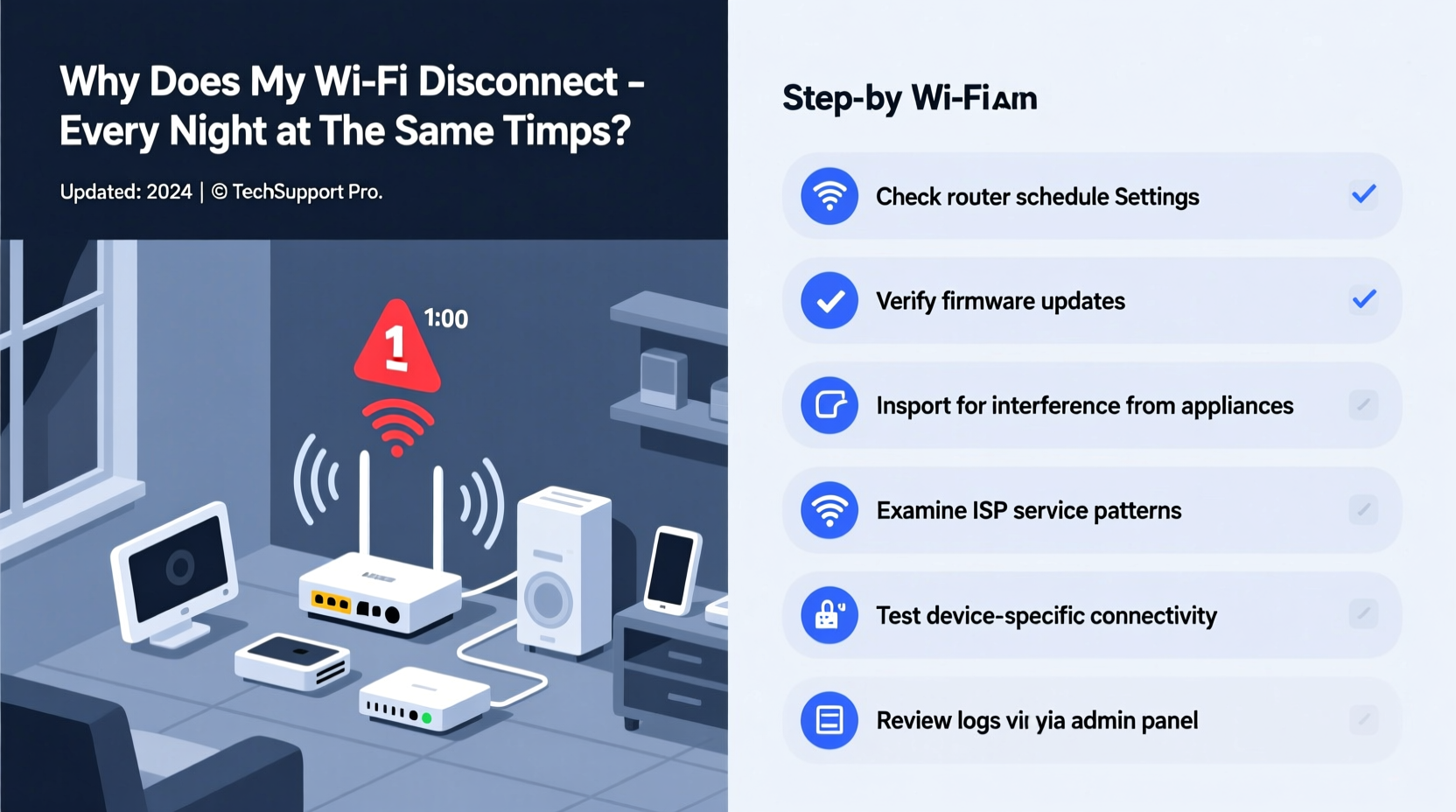
A nightly Wi-Fi dropout isn’t usually a sign of failing equipment—it’s typically tied to automation, usage patterns, or network management policies. Here are the top reasons your connection might vanish at the same time each evening:
- Router firmware updates: Some routers schedule automatic updates during off-peak hours, often between 10 PM and 2 AM.
- Parental controls or access schedules: Family profiles or parental settings may be configured to cut internet access after bedtime.
- ISP maintenance windows: Internet providers sometimes perform network-wide maintenance late at night.
- Overheating hardware: Routers running all day can overheat by evening, especially in poorly ventilated areas.
- Channel congestion from neighboring networks: Evening hours see increased local Wi-Fi usage, which can cause interference on crowded channels.
- Power-saving modes on devices: Laptops, phones, or smart home hubs might disable Wi-Fi to conserve battery.
- QoS (Quality of Service) throttling: Some routers limit bandwidth for certain devices or services during peak times.
Step-by-Step Troubleshooting Guide
Follow this logical sequence to identify and resolve the root cause of your nightly Wi-Fi dropout.
- Confirm the pattern: Log when the disconnection occurs for three consecutive nights. Note duration, affected devices, and whether wired connections also fail.
- Restart your router: Power cycle the modem and router. Unplug both for 60 seconds, then power them back on. Wait five minutes before testing.
- Check for scheduled settings: Access your router’s admin interface (usually via 192.168.1.1 or 192.168.0.1) and look under “Parental Controls,” “Access Schedule,” or “Device Management.”
- Inspect firmware update logs: In the router settings, navigate to “Administration” or “Firmware” to see if updates are set to run automatically overnight.
- Test a wired connection: Connect a computer directly to the router via Ethernet. If the wired connection stays up, the issue is likely Wi-Fi-specific.
- Monitor temperature: Feel the router casing. If it's hot to the touch, overheating could be forcing reboots. Move it to a cooler, open area.
- Update firmware manually: If automatic updates are suspected, download the latest firmware from the manufacturer’s website and install it.
- Contact your ISP: Ask if they have scheduled maintenance windows in your area and whether any known outages align with your disconnection times.
Router Settings That Could Be Causing the Issue
Many modern routers come with features designed to improve performance or manage usage—but these can inadvertently cause disruptions. Here’s where to look:
| Setting | Purpose | How It Might Cause Disconnections |
|---|---|---|
| Access Scheduling | Limits internet access for specific devices during set hours | May block all devices at night if misconfigured |
| Firmware Auto-Update | Installs security and performance patches automatically | Triggers reboot during update, causing temporary outage |
| Wi-Fi Sleep Mode | Saves energy by turning off radio when idle | May shut down signal based on time or inactivity |
| Channel Auto-Selection | Switches to less congested channels dynamically | Can cause brief dropouts during channel switching |
| QoS Rules | Prioritizes traffic for streaming or gaming | May throttle or disconnect low-priority devices |
To access these settings, log into your router using its IP address (found in the manual or on the device label). Use the default username and password unless you’ve changed them. Once inside, navigate to advanced settings and disable any scheduled functions temporarily to test stability.
“We’ve seen a surge in support tickets related to auto-update reboots. Many users don’t realize their router is programmed to restart at 2 AM for patch installation.” — Raj Patel, Senior Network Engineer at NetSecure Systems
Real-World Example: The Case of the Midnight Reboot
Consider the case of Maria, a remote worker in Austin, Texas, who experienced a daily Wi-Fi outage at exactly 11:45 PM. Her smart lights and phone would disconnect, but her husband’s work laptop—wired via Ethernet—remained online. Initially suspecting her ISP, she called customer support, who found no outages.
Maria then tested her router’s admin panel and discovered a firmware update setting labeled “Automatic Installation Window: 11:30 PM – 1:00 AM.” Though she never enabled it, the option was turned on by default after a recent reset. She disabled automatic updates, installed the latest firmware manually, and scheduled future updates for Sunday mornings. The nightly disconnection stopped immediately.
This scenario underscores how factory-default settings—especially those related to maintenance—can create predictable disruptions without user awareness.
Troubleshooting Checklist
Use this checklist to methodically eliminate possible causes:
- ✅ Confirm disconnection affects entire network, not just one device
- ✅ Restart modem and router
- ✅ Log into router admin panel (e.g., 192.168.1.1)
- ✅ Check for access schedules or parental controls
- ✅ Review firmware update settings
- ✅ Look for Wi-Fi sleep or eco-mode features
- ✅ Verify router temperature and ventilation
- ✅ Test connection with Ethernet cable
- ✅ Contact ISP to rule out maintenance cycles
- ✅ Update router firmware manually if needed
Environmental and External Factors
Beyond internal settings, external influences can contribute to timing-based disconnections. While they may not seem directly related, their impact often peaks in the evening.
Neighbor network congestion: As people return home, nearby Wi-Fi networks become active. If your router uses a crowded 2.4 GHz channel, interference can degrade performance or force disconnections. Consider switching to the 5 GHz band, which is faster and less prone to interference—though it has shorter range.
Electrical noise: Appliances like microwaves, refrigerators, or HVAC systems may cycle on at specific times, emitting electromagnetic interference that disrupts wireless signals. Position your router away from large appliances and avoid placing it behind metal objects or thick walls.
Smart home automation: Devices like smart plugs or lighting systems programmed to activate at night can generate network traffic spikes. Some older IoT devices send constant pings or broadcast discovery packets, overwhelming weaker routers.
When to Upgrade Your Hardware
If troubleshooting fails, your router may simply be outdated. Routers older than 3–5 years often lack support for modern standards, struggle with multiple devices, and are more prone to instability.
Look for these signs it’s time to upgrade:
- Frequent unexplained reboots
- Inability to support more than 10 devices
- No access to firmware updates
- Limited or no QoS or scheduling options
- Only supports 802.11n or earlier Wi-Fi standards
Modern dual-band or tri-band mesh systems (like those supporting Wi-Fi 6 or Wi-Fi 6E) offer better load balancing, improved interference resistance, and more granular control over network behavior. They also typically include mobile apps that make monitoring and configuration easier than web interfaces.
Frequently Asked Questions
Why does my Wi-Fi disconnect at the same time only on weekdays?
This pattern often points to a scheduled task tied to work or school routines. Check if parental controls are set to restrict access during homework or bedtime hours on school nights. Alternatively, your ISP might run diagnostics during early evening hours on weekdays.
Can a virus or malware cause scheduled disconnections?
While rare, malware that modifies router settings (like DNS hijacking) can lead to instability. More commonly, infected devices may flood the network with background traffic at certain times, triggering router overload. Run antivirus scans on all devices and reset your router to factory settings if compromise is suspected.
Will changing my Wi-Fi channel stop nightly dropouts?
It might help if interference is the culprit. Use a Wi-Fi analyzer app (such as Wi-Fi Analyzer for Android or NetSpot for PC/Mac) to identify the least congested channel. For 2.4 GHz, stick to channels 1, 6, or 11 to avoid overlap. On 5 GHz, choose non-DFS channels (e.g., 36, 40, 44, 48) for better stability.
Preventing Future Issues
Once you’ve resolved the immediate problem, take steps to prevent recurrence:
- Schedule updates wisely: If your router must auto-update, set the window for weekends or daytime hours.
- Enable uptime monitoring: Use tools like
pingscripts or network monitoring apps (e.g., Fing or PRTG) to log outages and detect patterns. - Label and document settings: Keep a record of custom configurations so you can quickly spot unauthorized changes.
- Use a UPS (Uninterruptible Power Supply): Protects against minor power fluctuations that might reset your router.
Conclusion: Take Control of Your Connection
Nightly Wi-Fi disconnections aren’t magic—they’re symptoms of specific, identifiable triggers. Whether it’s an automatic update, a misconfigured schedule, or environmental interference, the solution lies in systematic investigation and informed adjustments. Don’t accept spotty internet as inevitable. With the right tools and knowledge, you can diagnose the issue, apply a lasting fix, and enjoy uninterrupted connectivity every night.




 浙公网安备
33010002000092号
浙公网安备
33010002000092号 浙B2-20120091-4
Comments
No comments yet. Why don't you start the discussion?