
There’s nothing more frustrating than a video call dropping mid-sentence or a movie buffering endlessly—especially when your internet plan promises high speeds. Random Wi-Fi disconnections are among the most common tech complaints in homes and small offices. While they may seem unpredictable, these interruptions usually stem from identifiable causes, many of which can be resolved with straightforward adjustments. Understanding the root causes and applying targeted solutions can transform an unstable network into a reliable one.
Common Causes of Random Wi-Fi Disconnections
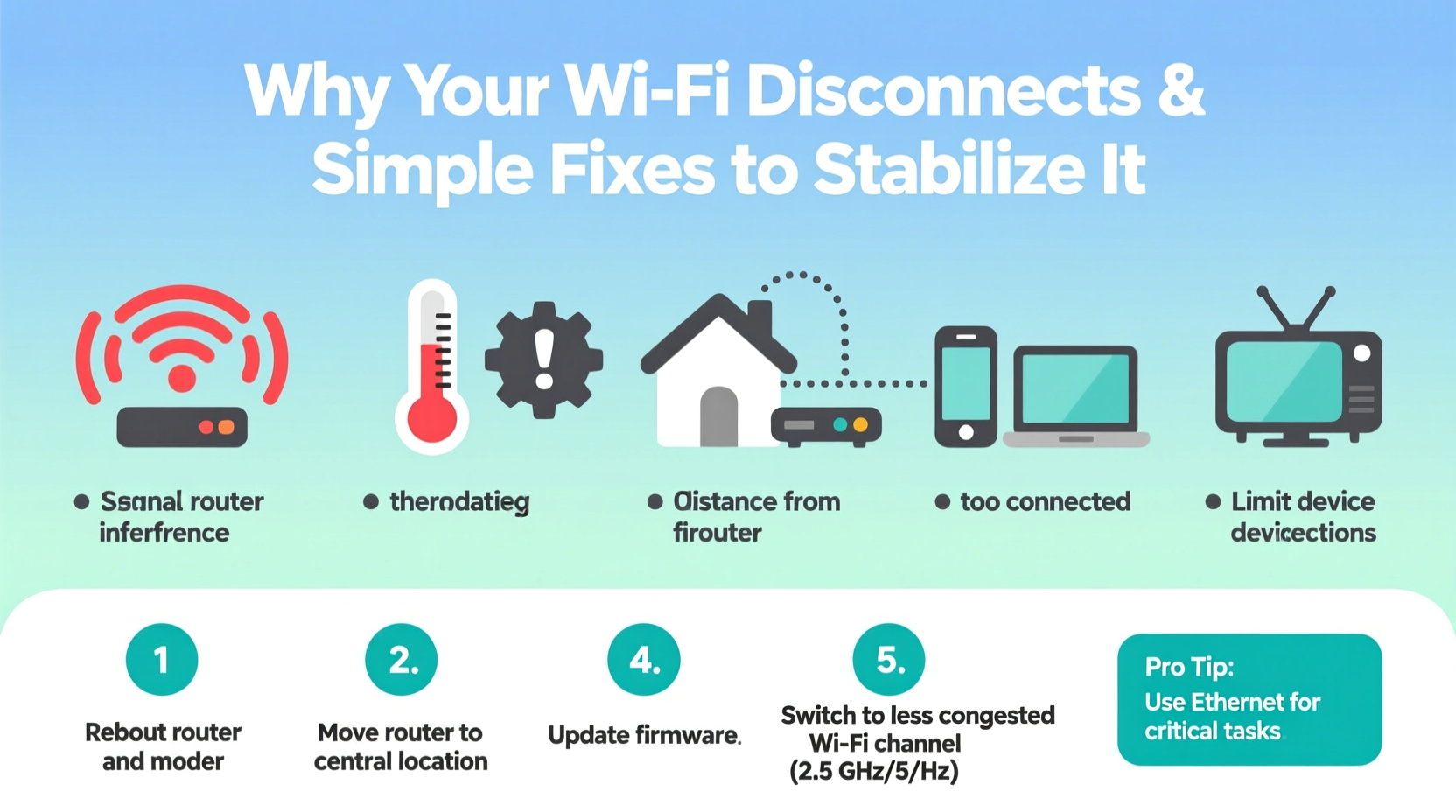
Wi-Fi networks rely on a complex interplay of hardware, software, and environmental factors. When any part of this system falters, connectivity suffers. The following are some of the most frequent culprits behind intermittent signal loss:
- Router Overheating: Routers generate heat during operation. If placed in enclosed spaces or near other electronics, they can overheat, leading to automatic shutdowns or performance throttling.
- Signal Interference: Microwave ovens, cordless phones, baby monitors, and even neighboring Wi-Fi networks can interfere with your router’s frequency band, especially on the crowded 2.4 GHz channel.
- Outdated Firmware: Like any device, routers require regular software updates. Outdated firmware can introduce bugs that cause instability or compatibility issues with modern devices.
- Weak Signal Strength: Distance, walls, and large metal objects weaken Wi-Fi signals. Devices at the edge of coverage often experience dropouts as they struggle to maintain a stable link.
- Device-Specific Issues: Sometimes the problem isn’t the network but the connected device—faulty drivers, power-saving settings, or outdated operating systems can all lead to disconnections.
- ISP Connectivity Problems: Internet service providers occasionally face outages, routing issues, or bandwidth congestion that affect your home connection upstream of your router.
Step-by-Step Guide to Diagnose and Fix Wi-Fi Dropouts
Before investing in new equipment, follow this structured troubleshooting process to identify and resolve the issue systematically.
- Isolate the Problem: Determine whether the disconnection affects all devices or just one. If only one device drops, the issue is likely device-specific. If all devices lose connection simultaneously, the problem lies with the router or ISP.
- Check Physical Connections: Ensure the modem is powered on and all cables (power, coaxial, Ethernet) are securely connected. Loose or damaged cables can cause intermittent outages.
- Restart Your Network: Power down both the modem and router. Wait 30 seconds, then turn on the modem first. Once its lights stabilize (usually 1–2 minutes), power on the router. This clears temporary glitches and re-establishes a clean connection with your ISP.
- Test Wired Connection: Connect a computer directly to the modem via Ethernet. If the wired connection remains stable while Wi-Fi drops, the issue is wireless-specific—likely related to the router’s Wi-Fi module or interference.
- Monitor Router Temperature: Feel the router casing. If it’s hot to the touch, improve ventilation by moving it to an open area, using a cooling pad, or installing a small fan nearby.
- Update Firmware: Log into your router’s admin interface (usually via 192.168.1.1 or 192.168.0.1). Check for firmware updates under the “Administration” or “Advanced” tab. Install any available updates to patch known bugs.
- Change Wi-Fi Channel: Use a Wi-Fi analyzer app (like Wi-Fi Analyzer for Android or NetSpot for desktop) to find the least congested channel. Switch your router to use 5 GHz instead of 2.4 GHz where possible, as it’s faster and less prone to interference.
Do’s and Don’ts for Stable Wi-Fi Performance
| Do’s | Don’ts |
|---|---|
| Place the router centrally, elevated, and away from obstructions | Hide the router in a cabinet or basement corner |
| Use the 5 GHz band for high-bandwidth activities like streaming | Rely solely on 2.4 GHz in a crowded neighborhood |
| Schedule regular router reboots (weekly or biweekly) | Leave the router running continuously for months without restart |
| Enable Quality of Service (QoS) to prioritize critical devices | Allow unlimited bandwidth hogs (e.g., large downloads) during peak usage |
| Update firmware and device drivers regularly | Ignore firmware update notifications |
Real-World Example: Resolving a Persistent Office Dropout
A small marketing firm in Austin reported daily Wi-Fi outages between 10:30 AM and 11:00 AM. All devices disconnected simultaneously, disrupting client calls and file uploads. Initial checks showed no pattern—reboots helped temporarily, but the issue returned.
After testing a wired connection (which remained stable), the IT consultant suspected interference. Using a spectrum analyzer, they discovered a spike in 2.4 GHz noise coinciding with the office microwave oven’s use during morning breaks. The microwave, located three feet from the router, was leaking electromagnetic radiation—a common issue in older models.
The solution was twofold: relocating the router to the opposite side of the room and switching all workstations to the 5 GHz network. After these changes, the dropouts ceased entirely. This case highlights how seemingly unrelated appliances can have a major impact on Wi-Fi reliability.
“Over 30% of ‘random’ Wi-Fi issues we diagnose are actually due to environmental interference. A proper site survey can prevent months of frustration.” — David Lin, Senior Network Engineer at ConnectSure Solutions
Essential Checklist to Stabilize Your Wi-Fi
Follow this concise checklist to ensure your network runs smoothly:
- ✅ Reboot modem and router monthly (or after major updates)
- ✅ Position router centrally, away from walls and metal objects
- ✅ Switch to 5 GHz for devices within close range
- ✅ Update router firmware and device network drivers
- ✅ Use Wi-Fi analyzer tools to select optimal channel
- ✅ Enable QoS settings to prioritize video calls or gaming
- ✅ Disable power-saving mode on laptops and phones if stability is critical
- ✅ Contact ISP if wired connection also drops frequently
Frequently Asked Questions
Why does my phone lose Wi-Fi at night?
This often occurs due to power-saving features. Many smartphones automatically disable Wi-Fi when screen is off to conserve battery. Check your phone’s Wi-Fi settings and disable “intelligent Wi-Fi,” “adaptive Wi-Fi,” or “turn off Wi-Fi automatically” options. Also, verify that your router isn’t set to a sleep schedule—some models allow timed shutdowns.
Can too many devices crash my Wi-Fi?
Yes. Most consumer routers support 20–30 simultaneous connections, but performance degrades as more devices stream, download, or sync. Bandwidth contention can cause lag and disconnections. Consider upgrading to a mesh system or tri-band router if you have over 15 active devices. Alternatively, limit background data usage on smart TVs, phones, and IoT gadgets.
Does weather affect Wi-Fi?
Indoor Wi-Fi is generally unaffected by weather. However, outdoor units (like point-to-point links or mesh satellites) can suffer from moisture ingress or temperature extremes. Heavy rain or storms may also impact your ISP’s infrastructure, causing temporary outages. If disconnections coincide with bad weather, contact your provider to check for regional issues.
When to Upgrade Your Equipment
Even with perfect setup, aging hardware eventually fails. If your router is more than 4–5 years old, it may lack support for modern standards like Wi-Fi 6 (802.11ax), MU-MIMO, or beamforming—all of which improve stability and efficiency. Older routers also tend to have weaker antennas and limited processing power, making them prone to crashes under load.
Consider upgrading if:
- You frequently experience lag despite low device count
- Your current router doesn’t support WPA3 encryption
- Speed tests show significantly lower throughput than your plan
- Admin interface feels slow or unresponsive
Modern mesh Wi-Fi systems like Google Nest Wifi, Eero, or TP-Link Deco offer seamless roaming, automatic updates, and intuitive apps for monitoring network health—making them ideal for larger homes or those with persistent dead zones.
Conclusion: Take Control of Your Connection
Random Wi-Fi disconnections aren’t inevitable—they’re solvable problems rooted in configuration, environment, or hardware limitations. By methodically diagnosing the cause and applying practical fixes, you can achieve a stable, high-performance network. Start with simple steps like repositioning your router and updating firmware. Then move to advanced optimizations like channel selection and QoS settings. Most improvements cost nothing but a few minutes of your time.




 浙公网安备
33010002000092号
浙公网安备
33010002000092号 浙B2-20120091-4
Comments
No comments yet. Why don't you start the discussion?