
Random Wi-Fi disconnections are more than just an annoyance—they disrupt video calls, halt large downloads, and interfere with streaming and online gaming. While it's tempting to blame the internet service provider or assume the router is faulty, the truth is that many factors contribute to unstable wireless signals. Understanding these causes and applying targeted fixes can restore consistent connectivity without costly upgrades.
Wi-Fi instability often stems from a combination of hardware limitations, environmental interference, outdated firmware, or network congestion. The good news? Most issues are diagnosable and fixable with practical steps you can take today. This guide breaks down the root causes, provides actionable solutions, and offers real-world insights to help you maintain a reliable connection.
Common Causes of Random Wi-Fi Disconnections
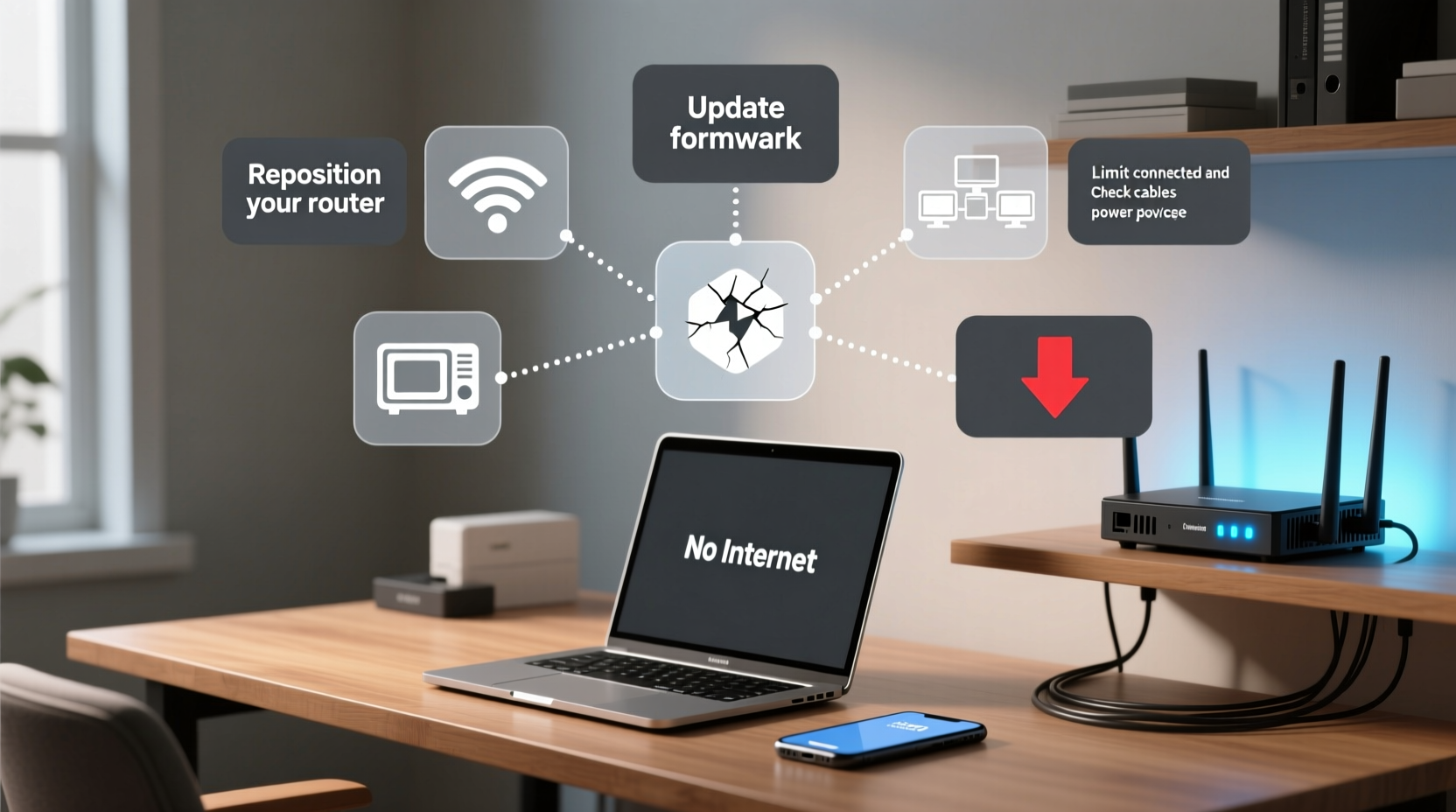
Before jumping into fixes, it’s essential to identify what might be triggering the dropouts. Unlike complete outages, random disconnections usually point to intermittent problems rather than total failure.
- Signal Interference: Other electronic devices—microwaves, cordless phones, baby monitors—operate on the 2.4 GHz band and can interfere with Wi-Fi signals.
- Router Overheating: Routers generate heat during prolonged use. Poor ventilation can cause thermal throttling or temporary shutdowns.
- Outdated Firmware: Manufacturers release updates to patch bugs and improve stability. An outdated router may lack critical performance fixes.
- Network Congestion: Too many connected devices can overwhelm older routers, especially during peak usage hours.
- Distance and Obstacles: Thick walls, metal structures, and long distances between devices and the router weaken signal strength.
- ISP Issues: Temporary outages, bandwidth throttling, or line faults from your Internet Service Provider can manifest as disconnections.
- Power-Saving Settings: Some laptops and smartphones automatically disable Wi-Fi to conserve battery, leading to perceived drops.
Step-by-Step Guide to Diagnose and Fix Unstable Wi-Fi
Follow this systematic approach to pinpoint and resolve the source of your Wi-Fi instability.
- Restart Your Router and Modem
Unplug both devices, wait 30 seconds, then power them back on in order (modem first, then router). This clears cached data and resets network handshakes. - Check for Physical Damage or Overheating
Inspect cables for fraying and ensure the router has space around it for airflow. If the device feels hot, move it to a cooler location. - Test Multiple Devices
Determine if the issue affects one device or all. If only one device disconnects, the problem likely lies with its settings or Wi-Fi adapter. - Move Closer to the Router
Conduct a test near the router. If the connection stabilizes, distance or obstacles are likely culprits. - Run a Ping Test
Open Command Prompt (Windows) or Terminal (Mac), typeping 8.8.8.8 -t, and observe packet loss. Gaps or timeouts indicate instability. - Check for Firmware Updates
Log into your router’s admin panel (usually via 192.168.1.1 or 192.168.0.1) and look for firmware updates under the administration tab. - Switch Wi-Fi Bands
If your router supports dual-band (2.4 GHz and 5 GHz), try switching devices between bands. 5 GHz offers faster speeds over short distances; 2.4 GHz travels farther but is more prone to interference.
Do’s and Don’ts for Stable Wi-Fi Performance
| Do’s | Don’ts |
|---|---|
| Place the router centrally and elevated off the floor | Hide the router in a cabinet or behind appliances |
| Update router firmware regularly | Ignore firmware update notifications |
| Use wired connections for stationary devices like TVs or desktops | Connect everything wirelessly, even high-bandwidth devices |
| Limit the number of active devices during critical tasks | Stream 4K video on multiple devices while downloading large files |
| Use a Wi-Fi analyzer app to find less congested channels | Assume your current channel is optimal without testing |
Real-World Case Study: Solving Office Wi-Fi Drops
A small marketing firm in Austin experienced daily Wi-Fi disconnections between 10:30 AM and 11:30 AM. Employees lost access to cloud tools, video conferences froze, and file uploads failed. Initial troubleshooting pointed to the ISP, but speed tests showed full bandwidth when the connection was active.
The IT consultant conducted a site survey and discovered that the office microwave, used heavily during morning break time, operated on the same 2.4 GHz frequency as the router. By switching the Wi-Fi network to the 5 GHz band and relocating the router away from the kitchen wall, the dropouts ceased entirely. Additionally, updating the router’s firmware resolved a known bug affecting session persistence.
This case highlights how environmental factors and outdated software can combine to create seemingly unpredictable issues. Simple changes—band selection, placement, and updates—restored reliability without any hardware replacement.
“Over 60% of Wi-Fi instability cases we see aren’t due to faulty hardware, but misconfiguration or interference. A methodical diagnosis beats buying new gear every time.” — Raj Patel, Network Infrastructure Engineer at NetSecure Solutions
Advanced Fixes for Persistent Connectivity Issues
If basic troubleshooting doesn’t resolve the problem, consider these advanced strategies:
Change Your Wi-Fi Channel
Routers default to automatic channel selection, which isn’t always optimal. In dense urban areas, neighboring networks may crowd the same channels. Use a free tool like Wi-Fi Analyzer (Android) or NetSpot (Windows/Mac) to scan nearby networks and manually set your router to a less congested channel.
- 2.4 GHz Band: Channels 1, 6, and 11 are non-overlapping. Choose the least crowded.
- 5 GHz Band: Offers more channels (36–165). Avoid DFS channels if your devices don’t support them.
Enable Quality of Service (QoS)
QoS prioritizes traffic for specific applications or devices. For example, you can give higher priority to video conferencing or gaming consoles during peak hours. Access QoS settings in your router’s dashboard and assign bandwidth preferences based on device MAC address or application type.
Upgrade DNS Servers
Your ISP’s default DNS servers may be slow or unreliable. Switching to public alternatives like Google DNS (8.8.8.8, 8.8.4.4) or Cloudflare (1.1.1.1) can improve connection consistency and browsing speed.
Set Up a Mesh Network
If dead zones persist, a mesh Wi-Fi system (like Eero, TP-Link Deco, or Google Nest Wifi) can eliminate coverage gaps. Unlike range extenders, mesh systems create a seamless network with intelligent roaming, reducing forced disconnections as you move through your space.
Essential Wi-Fi Stability Checklist
Use this checklist to systematically improve your Wi-Fi reliability:
- ✅ Restart router and modem monthly
- ✅ Position router centrally, away from walls and electronics
- ✅ Update router firmware quarterly
- ✅ Switch to 5 GHz for nearby devices, 2.4 GHz for distant ones
- ✅ Run a ping test to detect packet loss
- ✅ Use a Wi-Fi analyzer to select the best channel
- ✅ Replace old Ethernet cables (Cat 5e or higher recommended)
- ✅ Limit background downloads and cloud sync during important tasks
- ✅ Enable QoS for mission-critical applications
- ✅ Consider upgrading to a mesh network for large or multi-story homes
Frequently Asked Questions
Why does my phone lose Wi-Fi but my laptop stays connected?
This typically indicates a device-specific issue. Check your phone’s Wi-Fi sleep settings—some models turn off Wi-Fi when the screen is off to save battery. Disable \"Auto-network switch\" and \"Intelligent Wi-Fi\" features in settings to prevent forced disconnections.
Can a virus cause Wi-Fi disconnections?
Directly, no—but malware that floods your network with traffic (like botnet activity) can saturate bandwidth and trigger router instability. Run antivirus scans and monitor unusual network usage in your router’s admin panel.
How often should I replace my router?
Most routers last 3–5 years. After that, performance degrades, security updates stop, and newer Wi-Fi standards (like Wi-Fi 6) offer significantly better speed and efficiency. If your router is over four years old and frequently drops connections, replacement may be the most effective solution.
Conclusion: Take Control of Your Connection
Random Wi-Fi disconnections don’t have to be a fact of digital life. With a clear understanding of the underlying causes—from interference and placement to outdated firmware and network overload—you can implement lasting solutions. Start with simple steps like repositioning your router and restarting it regularly, then progress to advanced optimizations like channel selection and QoS settings.
For persistent issues, don’t hesitate to upgrade your equipment. Modern mesh systems and Wi-Fi 6 routers deliver unmatched reliability for households with multiple users and devices. The key is consistency: treat your network like any other critical system in your home or office, and maintain it proactively.




 浙公网安备
33010002000092号
浙公网安备
33010002000092号 浙B2-20120091-4
Comments
No comments yet. Why don't you start the discussion?